


If a contact’s photo is outdated, blurry, or no longer needed, you can delete the picture and reset their contact avatar back to clean colored initials. Here is how to remove a photo from a contact on Android.

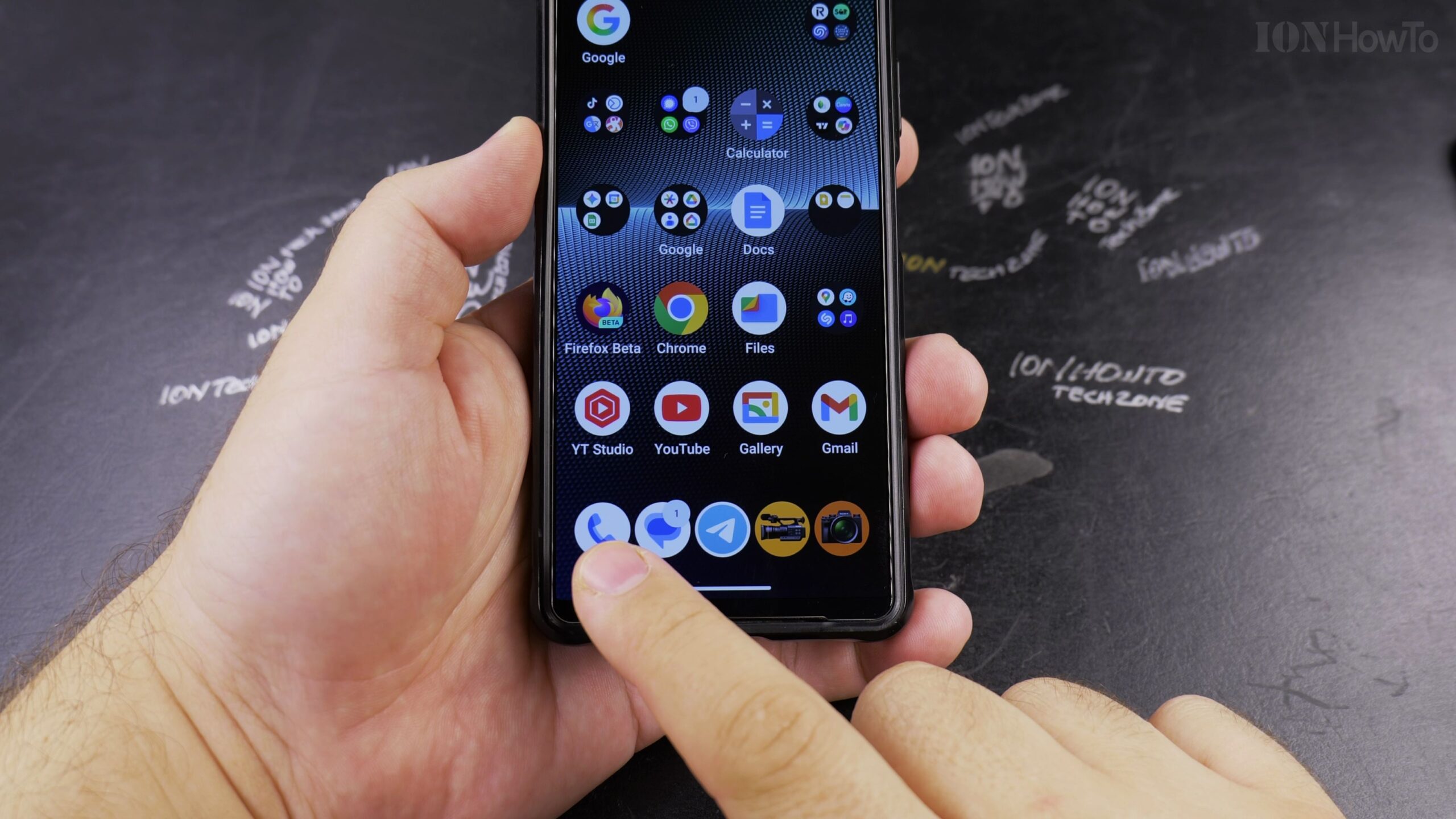
Open the Contacts App on Your Phone
Unlock your Android smartphone and open the Contacts app from your home screen or app drawer.
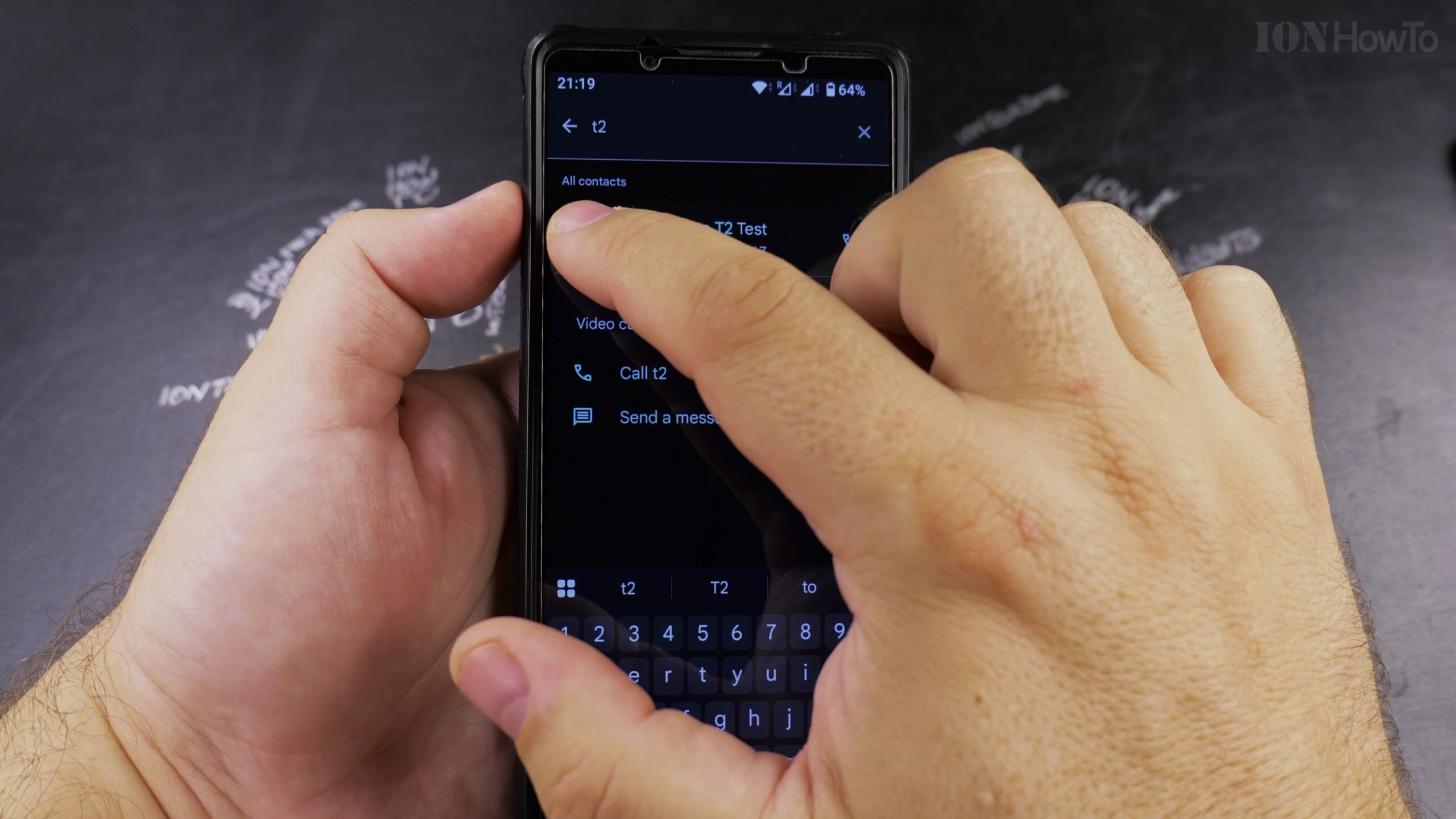
Select the Contact with the Photo You Want to Remove
Tap the contact entry in your list to open their complete details page.
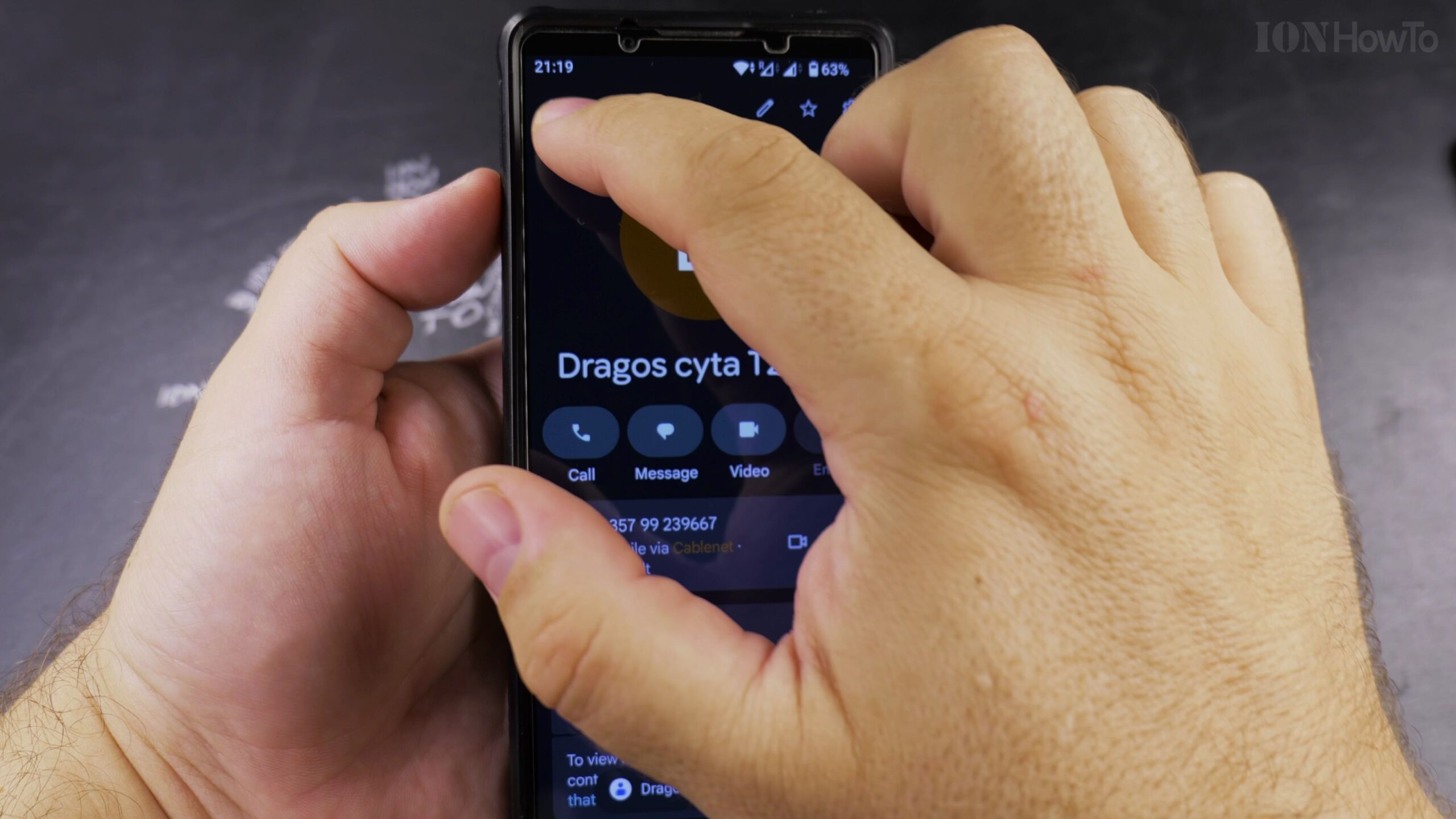
Tap the Pencil Edit Icon to Open Contact Editor
Tap the pencil Edit button in the corner to enter the modification screen.
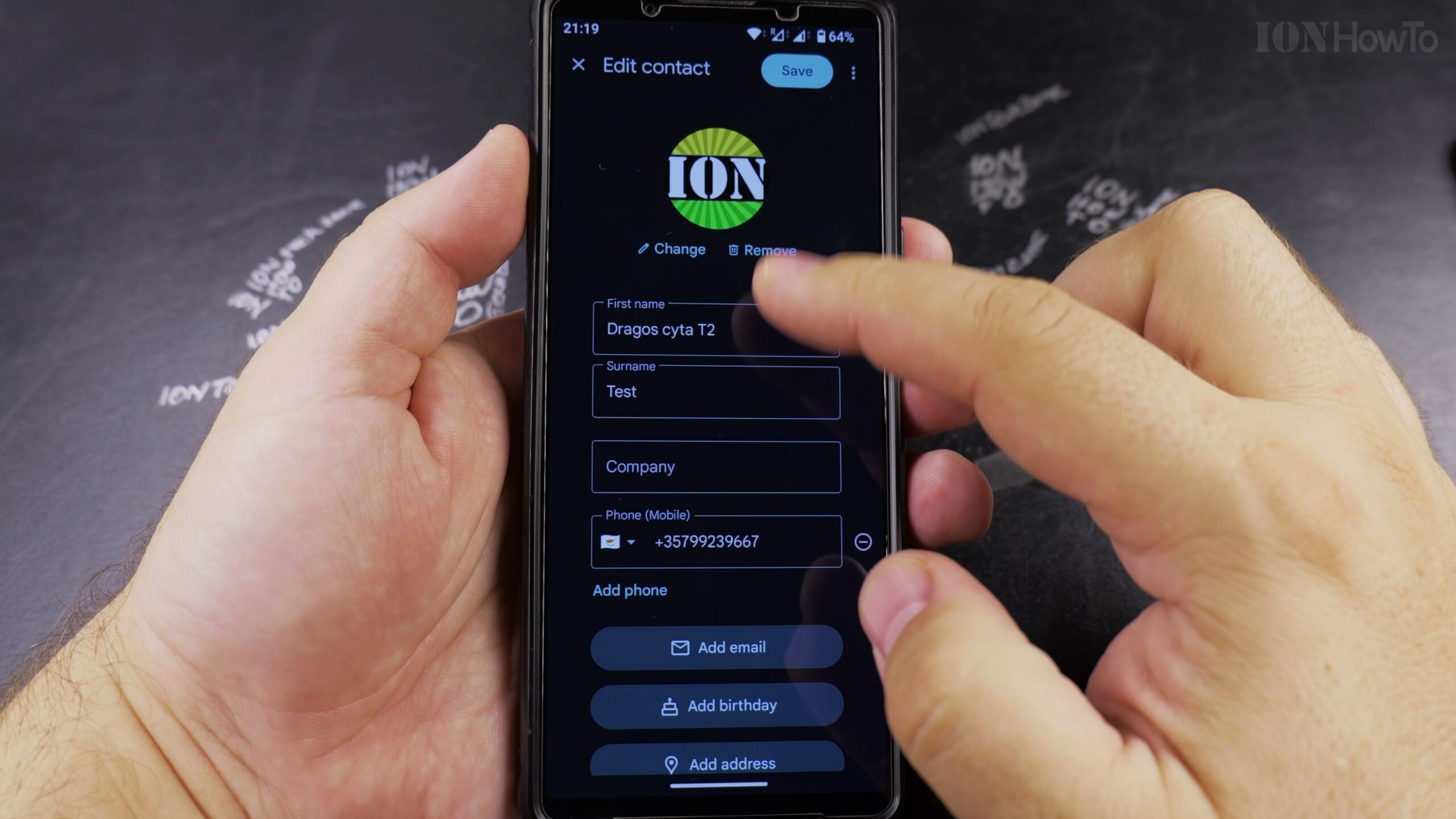
Tap the Profile Photo and Select Remove
Tap directly on the circular contact photo. In the pop-up options that appear, select Remove (or tap the trash bin icon).
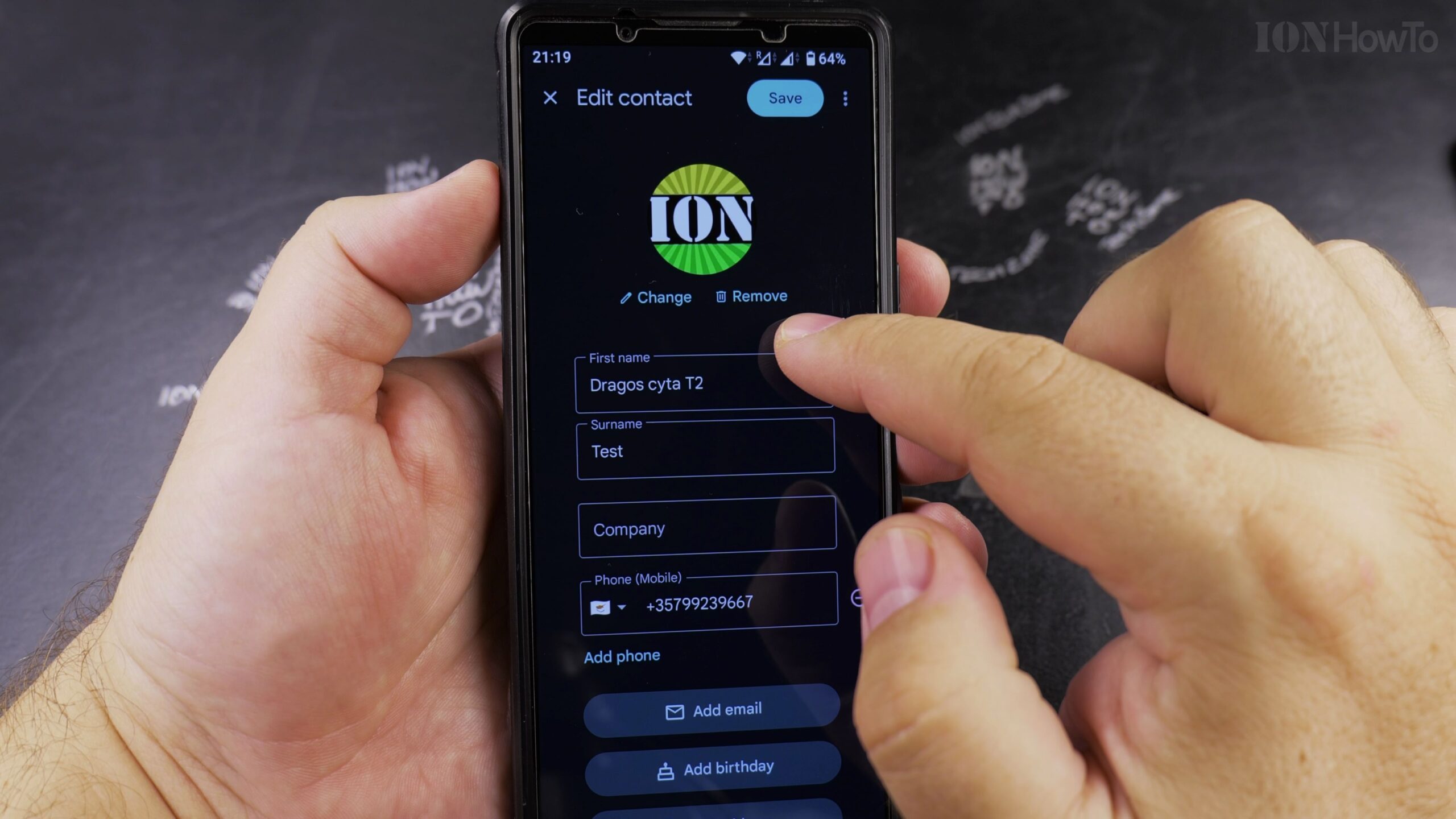
Save Changes to Reset to Letter Initials
Tap Save in the top-right corner. The picture is removed and replaced by a simple circle with the person’s first letter initial.
Helpful Tips and Related Guides
Removing a contact photo on Android instantly syncs across all devices connected to the same Google Account. Read more in our Android Tips section, check our tutorial on Editing Contacts on Android, or view our Android guides.
Leave a Reply Cancel reply