


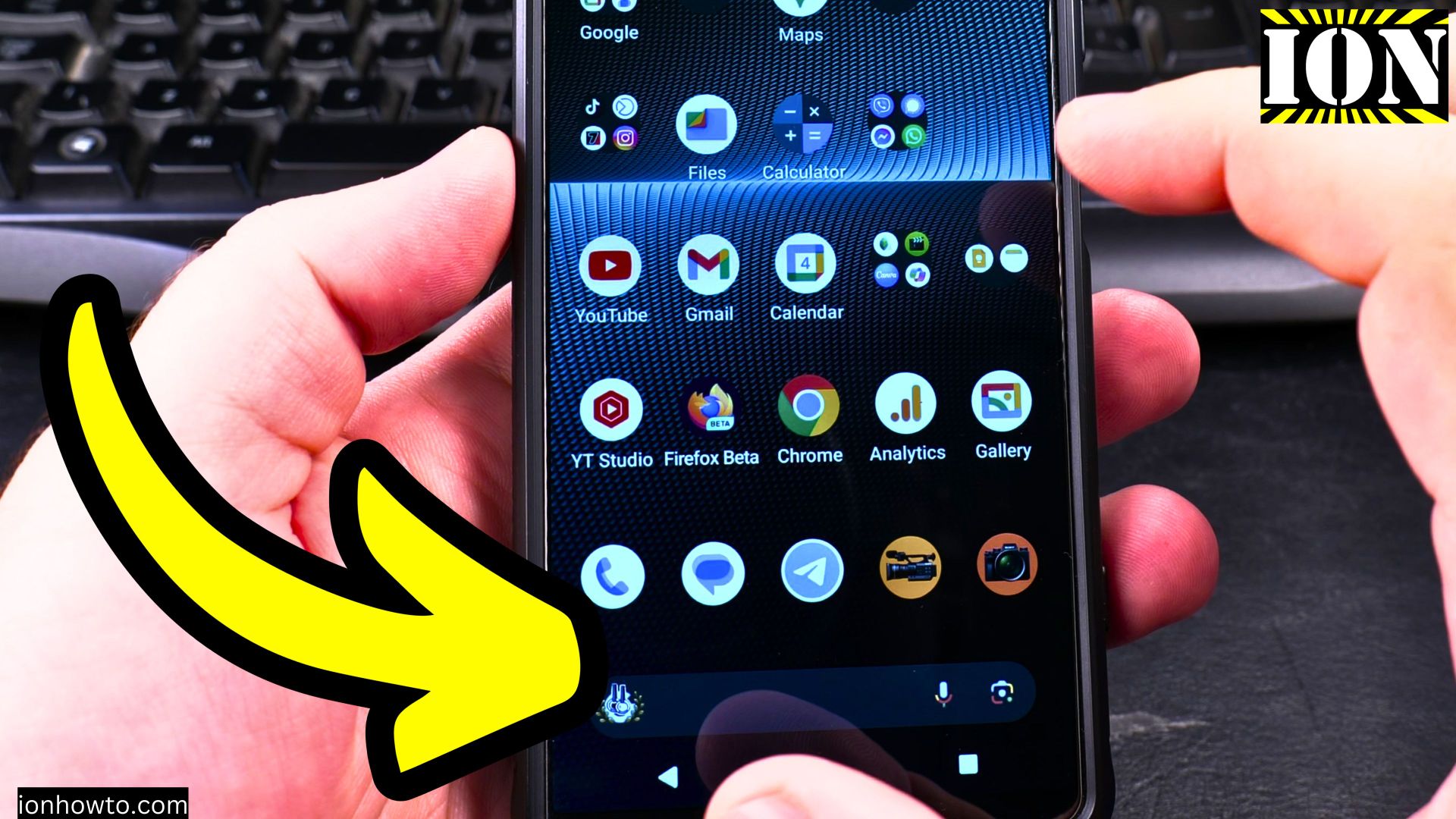
Learn How to Use Android Navigation Buttons.
If you find the swipe gestures on your Android phone a bit tricky, or if you just prefer a more classic and precise way to get around, you’re in the right place. Learn how to switch from gestures to the traditional three-button navigation system.
Amazon links
As an Amazon Associate I earn from qualifying purchases:
- Phone Accessories
- Screen protectors
- Phone Cases
- Mobile Tripods
- Usb-c charger
- Usb-c cable
- Docking stations
- Wireless car chargers
- Wireless charger stand
- SIM card removal tool
- SIM card holder
This guide will show you how to enable it and use it effectively on your Samsung, Google Pixel, or any other Android device.
How to Switch to 3-Button Navigation
Let’s change your navigation style from gestures to buttons. The steps are generally the same on most phones.
- Open the Settings app on your phone.
- Scroll down and tap on System.
- Next, tap on Gestures.
- Now, look for and select System Navigation. On some phones, this might just be called “Navigation bar.”
- You will see a few options. Choose 3-Button Navigation.
Once you select this, you’ll see three buttons appear at the bottom of your screen. Their order might vary: some phones have Back on the left, others on the right.
What the Three Buttons Do
Here’s a simple breakdown of each button’s job:
- Back Button (Triangle/Arrow): This is your undo button for navigation. Tap it to go back to the previous screen, close a menu, or exit a keyboard. In a web browser, it works just like the back arrow on a webpage.
- Home Button (Circle): This is your instant reset button. No matter what app or screen you’re in, one tap takes you straight back to your main home screen.
- Overview Button (Square): This is your app switcher. Tap it once to see all your recently used apps in a list or a carousel. From here, you can tap to switch to any app, or swipe an app up to close it.

Handy Tips and Shortcuts
Learn how to get the most out of your navigation buttons with these useful tricks.
Double-Tap to Switch Apps Fast
This is a great time-saver. If you are switching back and forth between two apps (like your calculator and a note-taking app), double-tap the Overview (Square) button. It will instantly flip between your two most recent apps.
Long-Press the Home Button for Your Assistant
Press and hold the Home (Circle) button for a second. This will launch your phone’s assistant, like Google Assistant or Gemini. You can then ask a question or give a voice command without saying “Hey Google.”
Manage All Your Open Apps
When you tap the Overview (Square) button, you’ll see your recent apps. At the bottom of this screen, you usually have options like:
- Screenshot: To take a picture of the current app.
- Clear All: This closes every app in your recent list, which can help free up memory.
- Split Screen / Multi-Window: This lets you use two apps side-by-side on your screen.
Why You Might Prefer Button Navigation
If you’re deciding between gestures and buttons, here are some benefits of sticking with the classic three buttons:
- More Precise: You tap exactly what you mean to (Back, Home, or Switch) without worrying about swiping from the right edge or bottom of the screen correctly.
- Fewer Accidents: It prevents accidental “back” swipes when you’re typing or playing a game.
- Familiar & Intuitive: For many people, especially those who have used Android for years, it’s a straightforward and reliable method that just makes sense.
Switching to button navigation is all about personal comfort and control. If you found this guide helpful and want more tips like this, let me know what other Android features you’d like to master!
Leave a Reply Cancel reply