


When you find a new favorite song or want to loop background music for studying, Apple Music includes repeat modes for single tracks, full albums, and playlists. Here is how to locate and use the Repeat button in Apple Music.

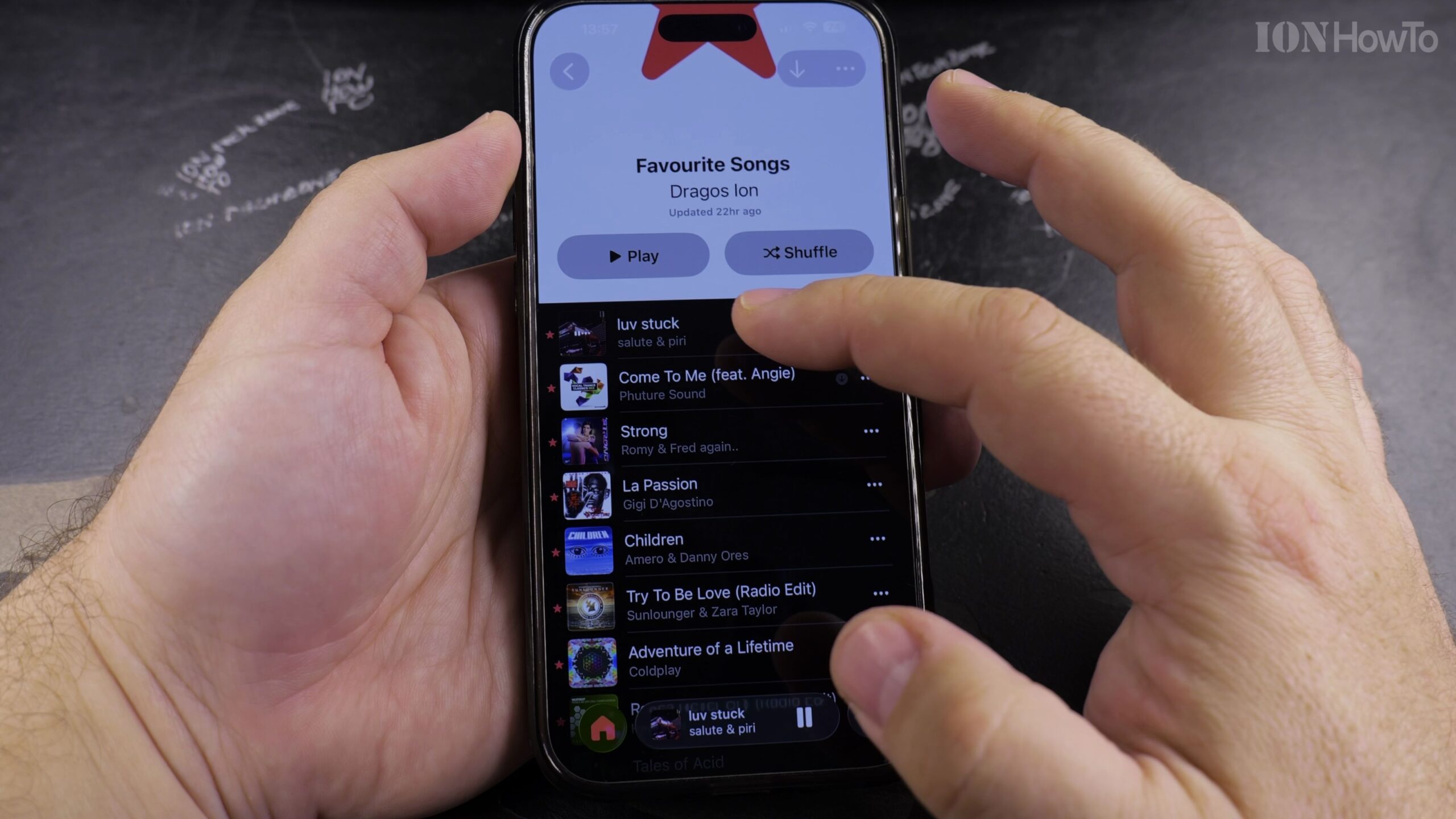
1. Open Apple Music and Tap the Now Playing Bar
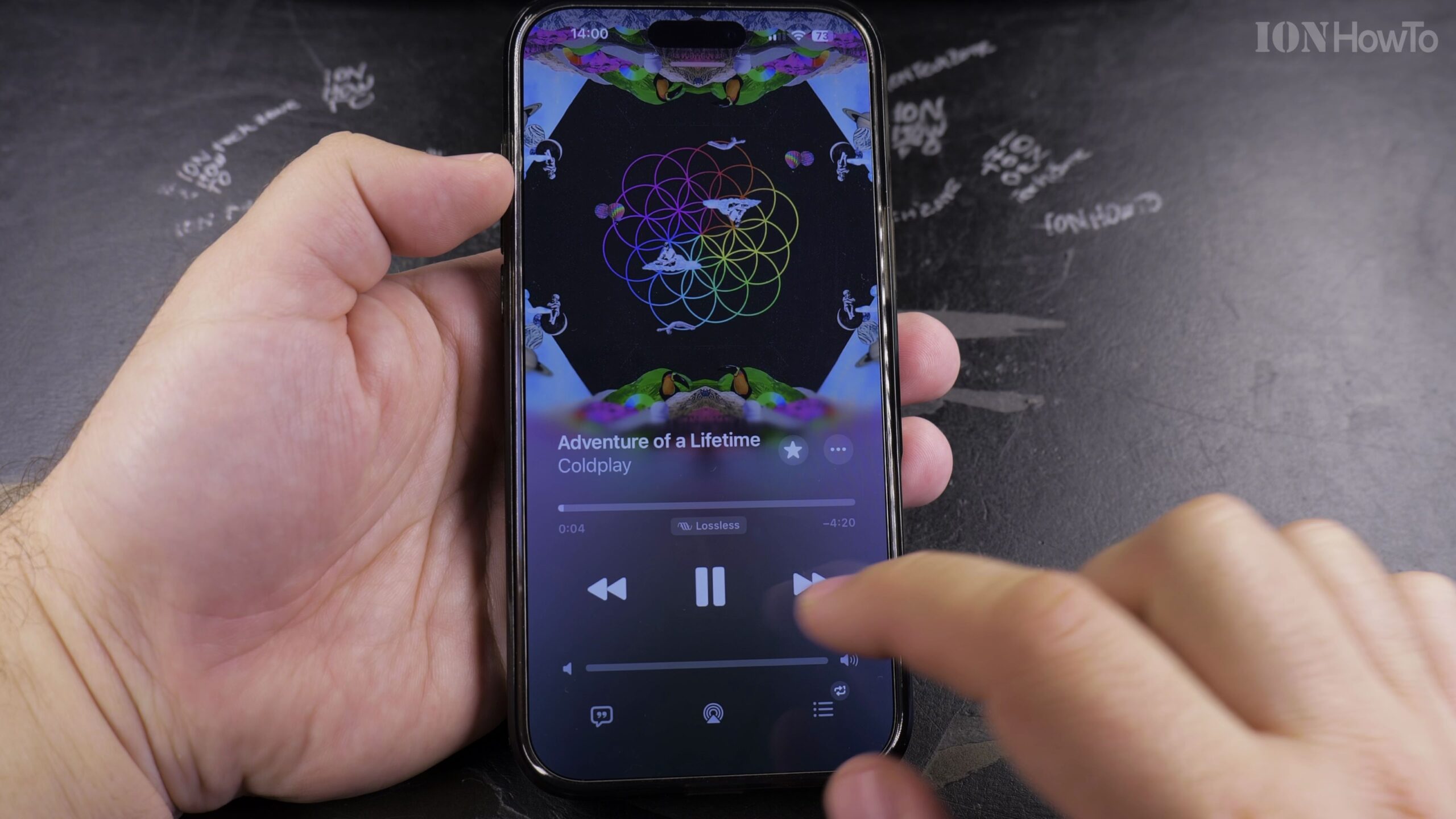
Start playing your desired track and tap the mini-player at the bottom to expand to the full Now Playing screen.
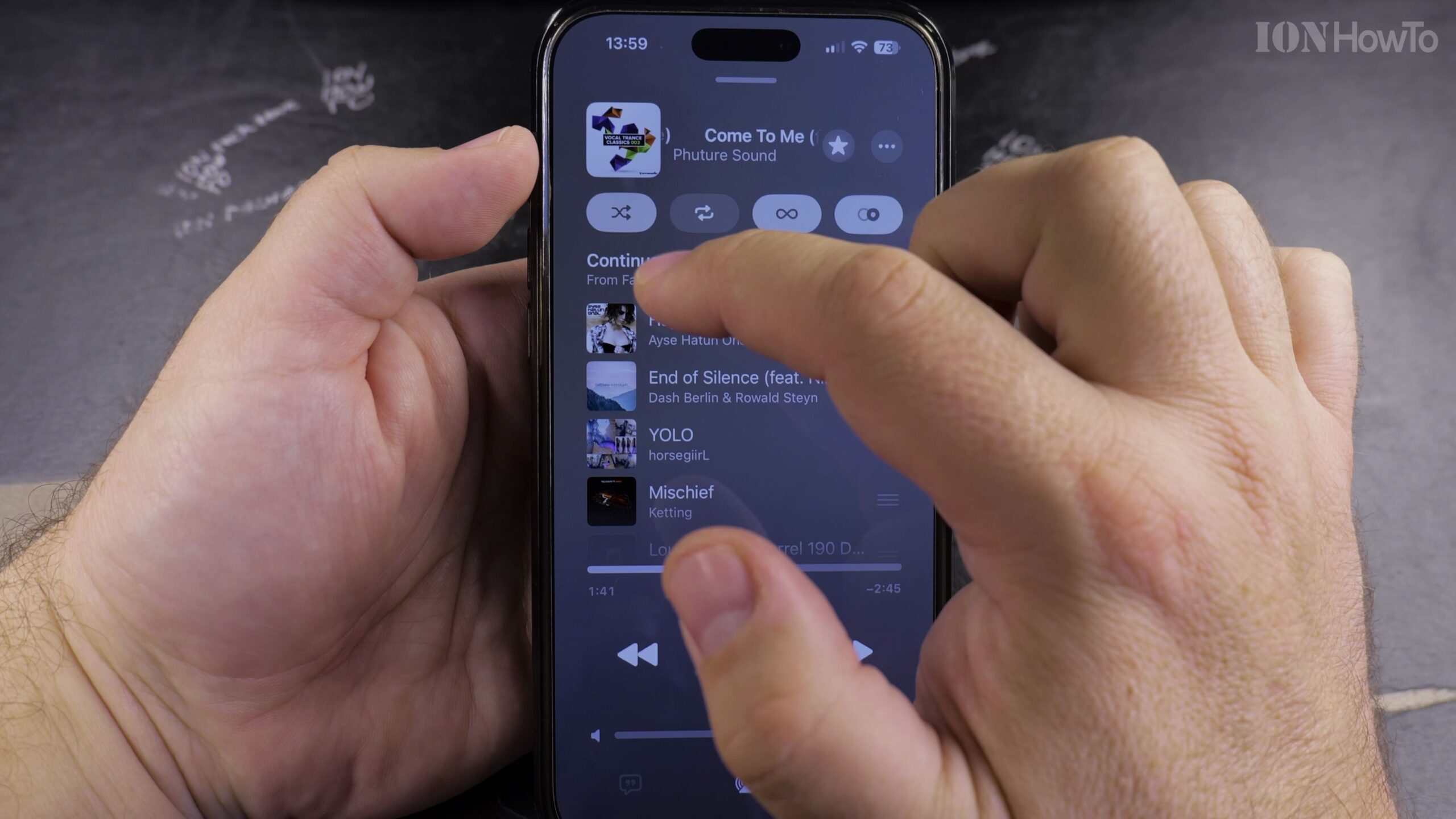
2. Open the Up Next (Playing Next) Queue
Tap the three-line queue icon in the lower-right corner of the player to reveal the upcoming tracks panel.
3. Locate the Repeat Icon Next to Playing Next
At the top of the queue panel, locate the repeat icon featuring two looping arrows.
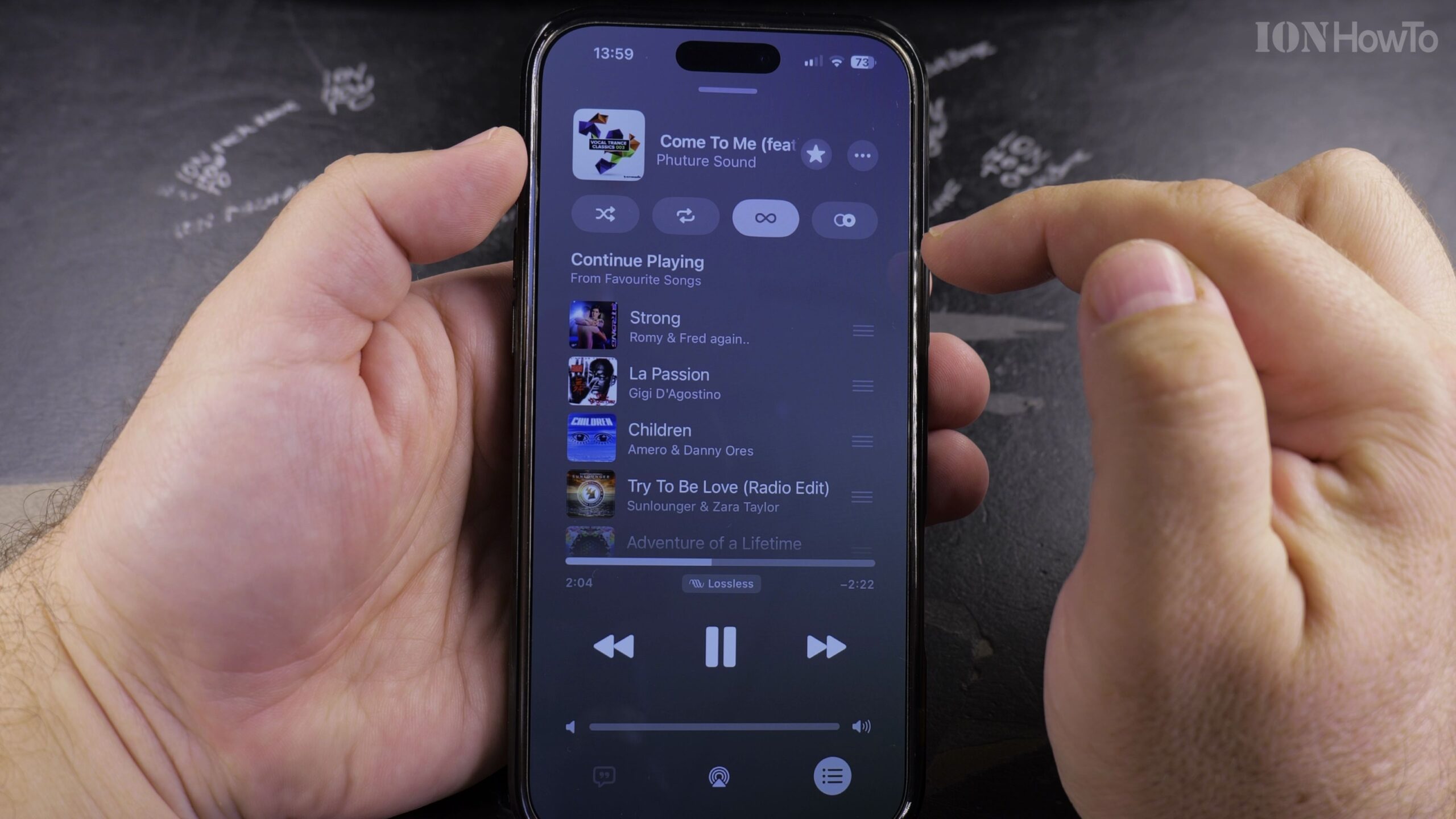
4. Tap Once to Repeat the Entire Playlist or Album
Tap the repeat icon once to highlight it. The entire current playlist or album will now loop continuously.
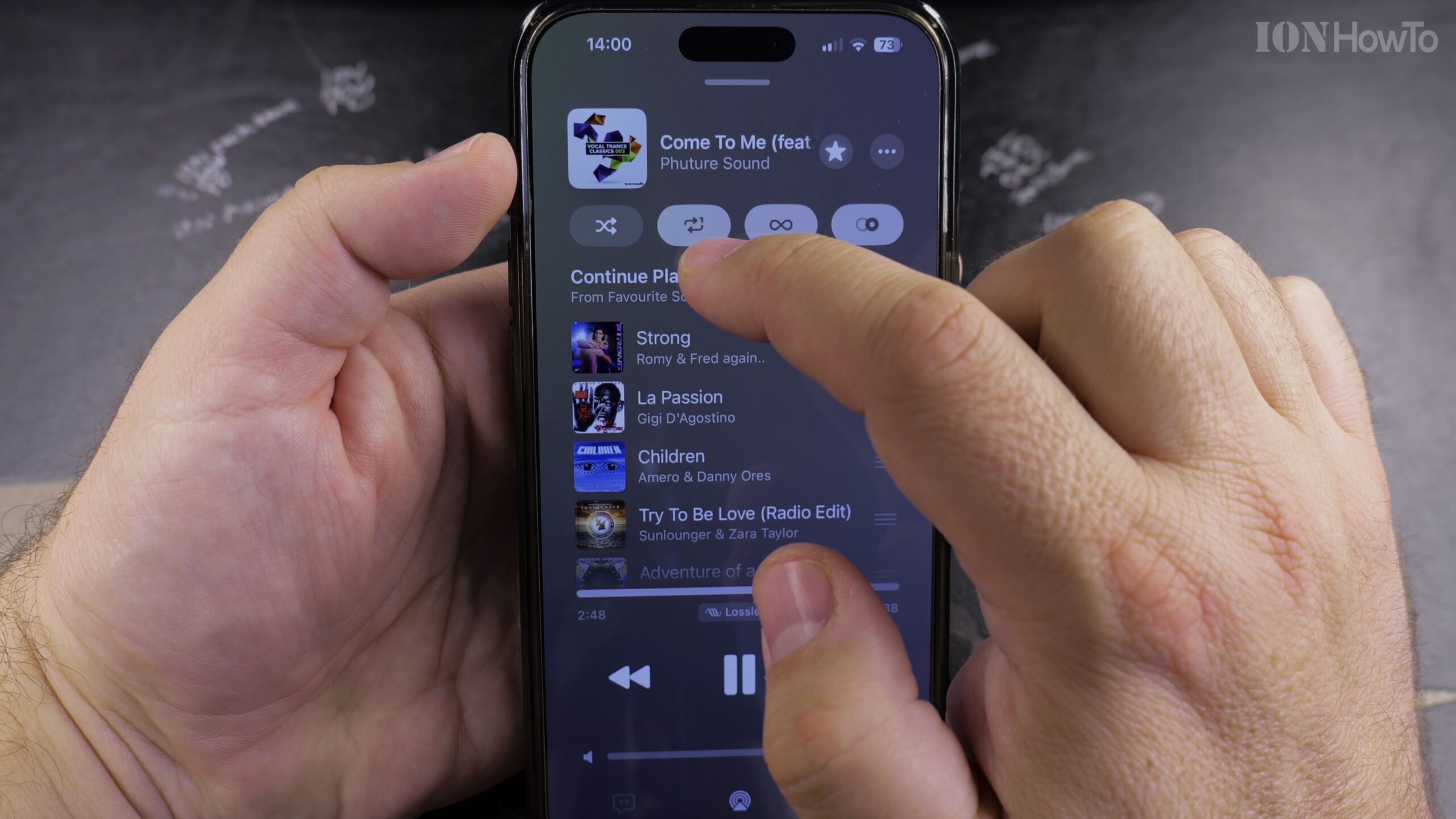
5. Tap a Second Time to Enable Repeat 1 (Single Song Loop)
Tap the repeat icon a second time until a small number ‘1’ appears inside the looping arrows. Your current track will now repeat indefinitely.
Helpful Tips and Related Guides
To turn off repeat completely, tap the icon a third time until the highlight disappears. For more playback tutorials, visit our Apple Music & Audio category, read our guide on Finding Playlists in Apple Music, or explore iPhone Guides.
Leave a Reply Cancel reply