


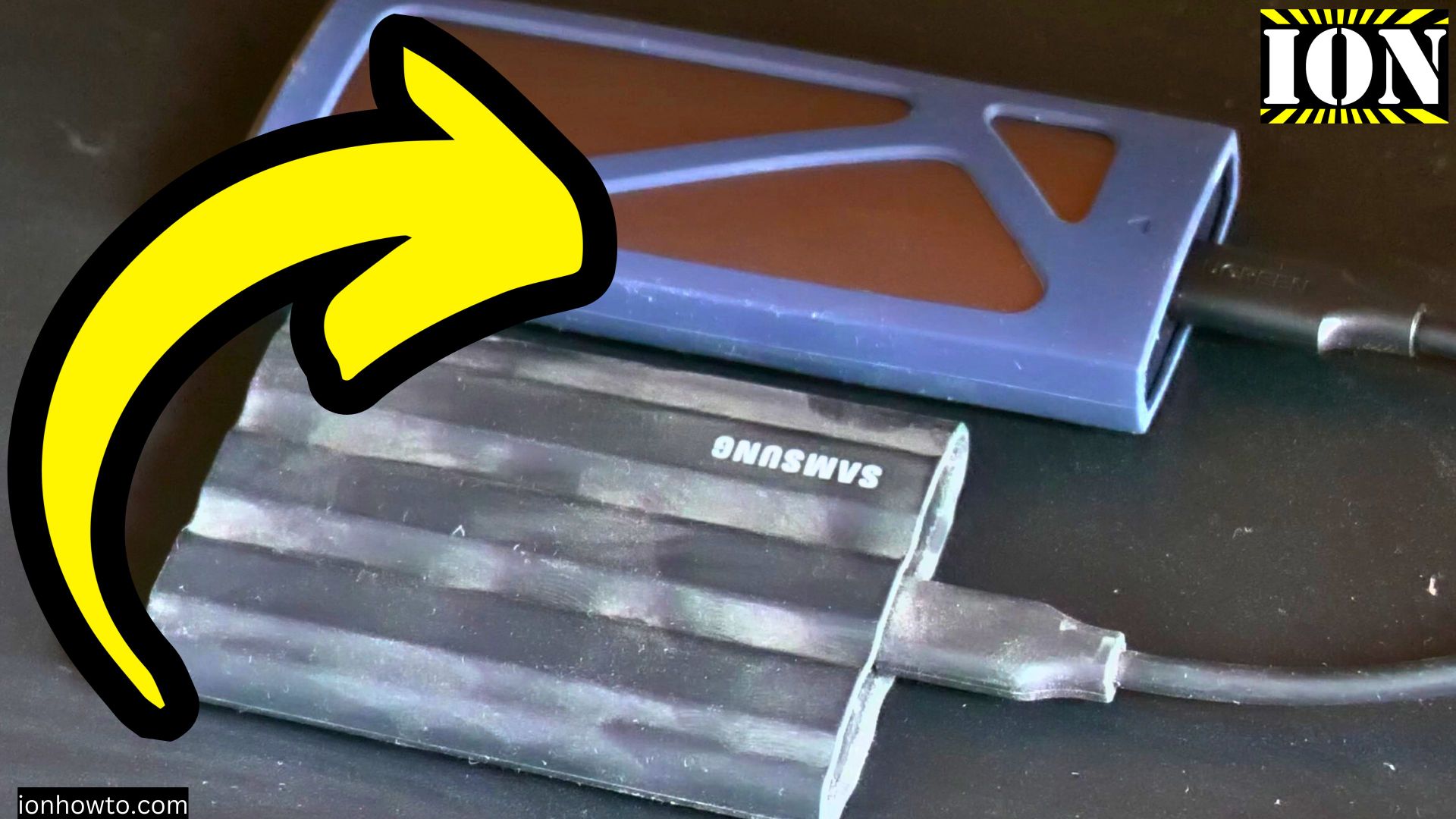
How to Check if Your USB Cable Has 3.0 Pins.
Learn how to tell if your USB cable or connector is USB 3.0. If you’re trying to figure out the difference between USB 2.0 and USB 3.0, there is a simple way to check just by looking at the pins inside the connector.
This guide will help you identify USB 3.0, 3.1, and 3.2 Gen 1 and Gen 2 cables.
Why USB 3.0 matters
USB 2.0 is slow. Very slow. If you are transferring large files or using an external SSD, USB 2.0 will feel painful. USB 3.0 is much faster for both data transfer and charging.
But how do you know what you have? The easy answer is to look inside the connector.
The pin difference between USB 2.0 and USB 3.0
This is the simplest way to tell them apart:
- USB 2.0 has 4 pins
- USB 3.0 and above has the same 4 pins as USB 2.0, plus an additional row of 5 pins
So USB 3.0 has 9 pins total (4 + 5).
What to look for inside a USB-A connector
Take your USB cable and look inside the flat rectangular end (the end that plugs into your computer or charger).

USB 2.0 connector:
- You will see only the front set of pins
- 4 pins total
- The back of the connector is empty
USB 3.0 connector:
- You will see the front 4 pins (same as USB 2.0)
- Then further back, you will see 5 additional pins
- Total of 9 pins
How to see the extra pins
The extra 5 pins are at the back of the connector. You might need to look carefully or use a light to see them.
Hold the connector so you are looking straight into the opening. Tilt it slightly to see the back row. The extra pins look like small gold or silver contacts further inside.
Visual guide
Think of it like this:
USB 2.0 (front only):
[==== 4 pins ====]

USB 3.0 (front + back):
[==== 4 pins ====]
[==== 5 pins ====] (behind)
The extra 5 pins are what enable the faster USB 3.0 speeds.
What about USB-C connectors?
USB-C is more complicated. Most USB-C cables support at least USB 3.0 speeds, but not all. Some cheap USB-C cables are actually USB 2.0 only.
With USB-C, you cannot easily see the pins because they are inside the oval connector. The best way to know is:
- Check the cable specifications on the packaging
- Look for “”USB 3.0,”” “”USB 3.1,”” or “”USB 3.2″” on the cable or box
- Test the transfer speed with a computer
What about USB 3.1 and 3.2?
USB 3.0, 3.1, and 3.2 Gen 1 all use the same 9-pin connector design. They have the same physical pins.
The naming is confusing. Here is the simple version:
- USB 3.0 = USB 3.1 Gen 1 = USB 3.2 Gen 1 (all use 9 pins)
- USB 3.1 Gen 2 and USB 3.2 Gen 2 are faster but still use the same 9-pin connector
If your cable has the extra 5 pins, it supports at least USB 3.0 speed.
A simple trick if your connection is slow
If you are using a USB-C hub or adapter and the speed seems slow, try this:
Flip the USB-C connector over.
USB-C is designed to work either way. But sometimes a connection is not fully seated or there is a slight issue. Flipping the connector can fix this.
In the video, I mentioned that most of the time when there is a problem with slow speed, flipping the USB-C connector makes it work properly.
What about USB 3.0 extension cables?
If you are using a USB extension cable, the same rule applies. Look inside the connector. If you see the extra 5 pins at the back, it is USB 3.0. If you only see the front 4 pins, it is USB 2.0.
Does my device need to support USB 3.0?
Having a USB 3.0 cable is not enough. All three things must support USB 3.0 for fast speed:
- The cable – Must have the extra pins
- The source device (computer, charger) – Must have USB 3.0 ports
- The destination device (external drive, phone) – Must support USB 3.0
If any of these three is USB 2.0, you will get USB 2.0 speeds.
Quick summary
To check if your USB cable is 3.0:
- Look inside the flat USB-A connector
- Look for the front 4 pins (all USB cables have these)
- Look further back for 5 extra pins
- If you see 5 extra pins, it is USB 3.0 or higher
- If you see only 4 pins total, it is USB 2.0
USB 2.0: 4 pins total
USB 3.0 and above: 9 pins total (4 front + 5 back)
For USB-C cables:
- You cannot see the pins easily
- Check the packaging or specifications
- Test the speed with a computer
If speed seems slow with a USB-C hub:
- Try flipping the USB-C connector over
- This often fixes connection issues
Thanks for reading. Now you can look at any USB cable and know immediately if it is USB 2.0 or USB 3.0.
Leave a Reply Cancel reply