



Learn how to permanently delete files and free up storage space by emptying the recycle bin on your Samsung Galaxy phone. I’ll show you where deleted files go and how to remove them completely.
Amazon links
As an Amazon Associate I earn from qualifying purchases:
- Phone Cases
- Mobile Tripods
- Usb-c charger
- Usb-c cable
- Docking stations
- Wireless car chargers
- Wireless charger stand
- SIM card removal tool
- SIM card holder

Quick Steps and Scenarios Overview
| What You Need to Do | Quick Jump |
|---|---|
| Understanding the Recycle Bin on Samsung | Jump to Step 1 |
| How to Empty the Recycle Bin | Jump to Step 2 |
| Managing Your Recycle Bin | Jump to Step 3 |
Works on most Samsung Galaxy models running Android 9+
Understanding the Recycle Bin on Samsung
Your Samsung Galaxy has:

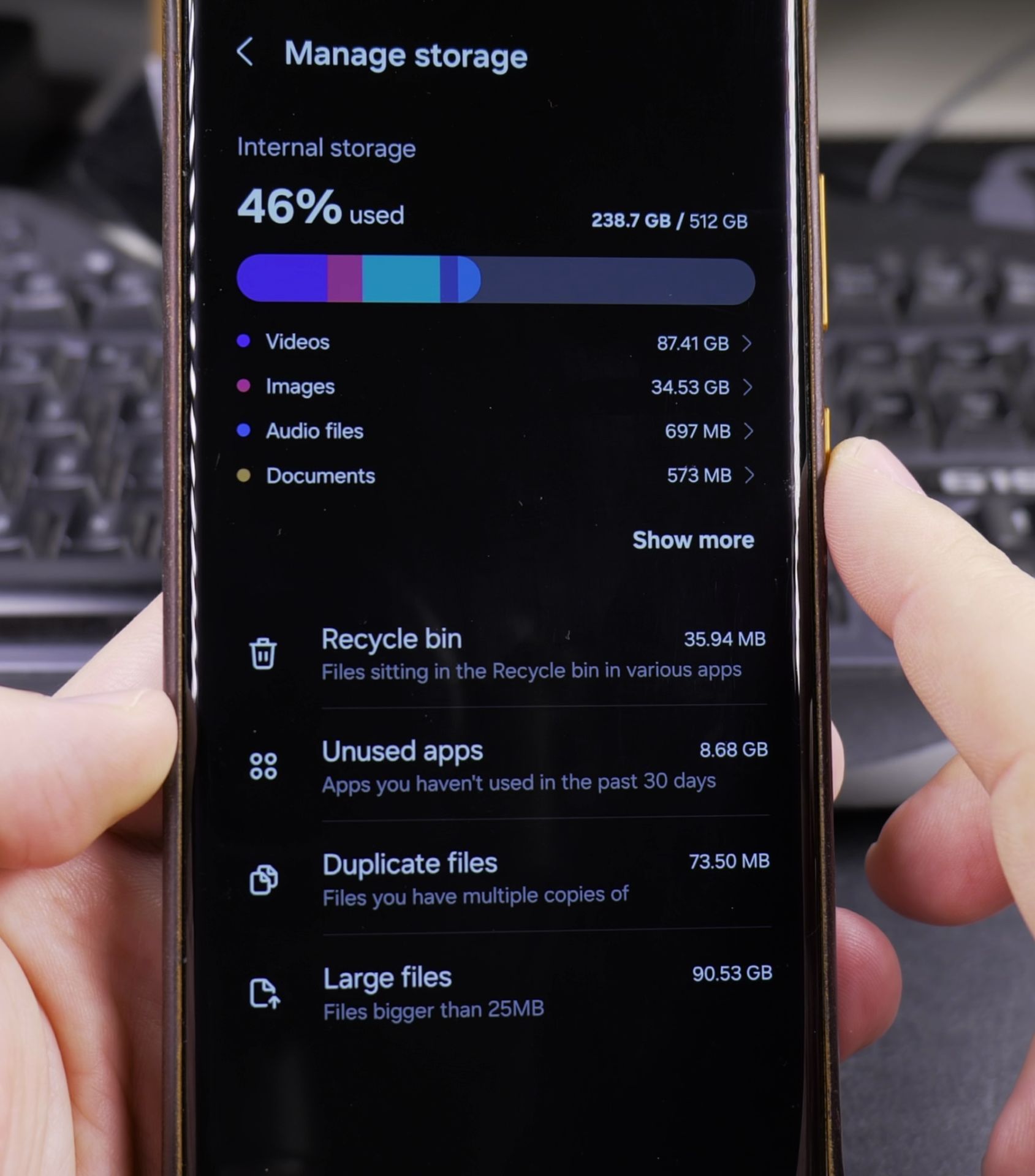
- A temporary holding area for deleted files
- 30-day storage before automatic deletion
- Separate bins for Gallery, Files, and other apps
- An option to restore files if needed
How to Empty the Recycle Bin
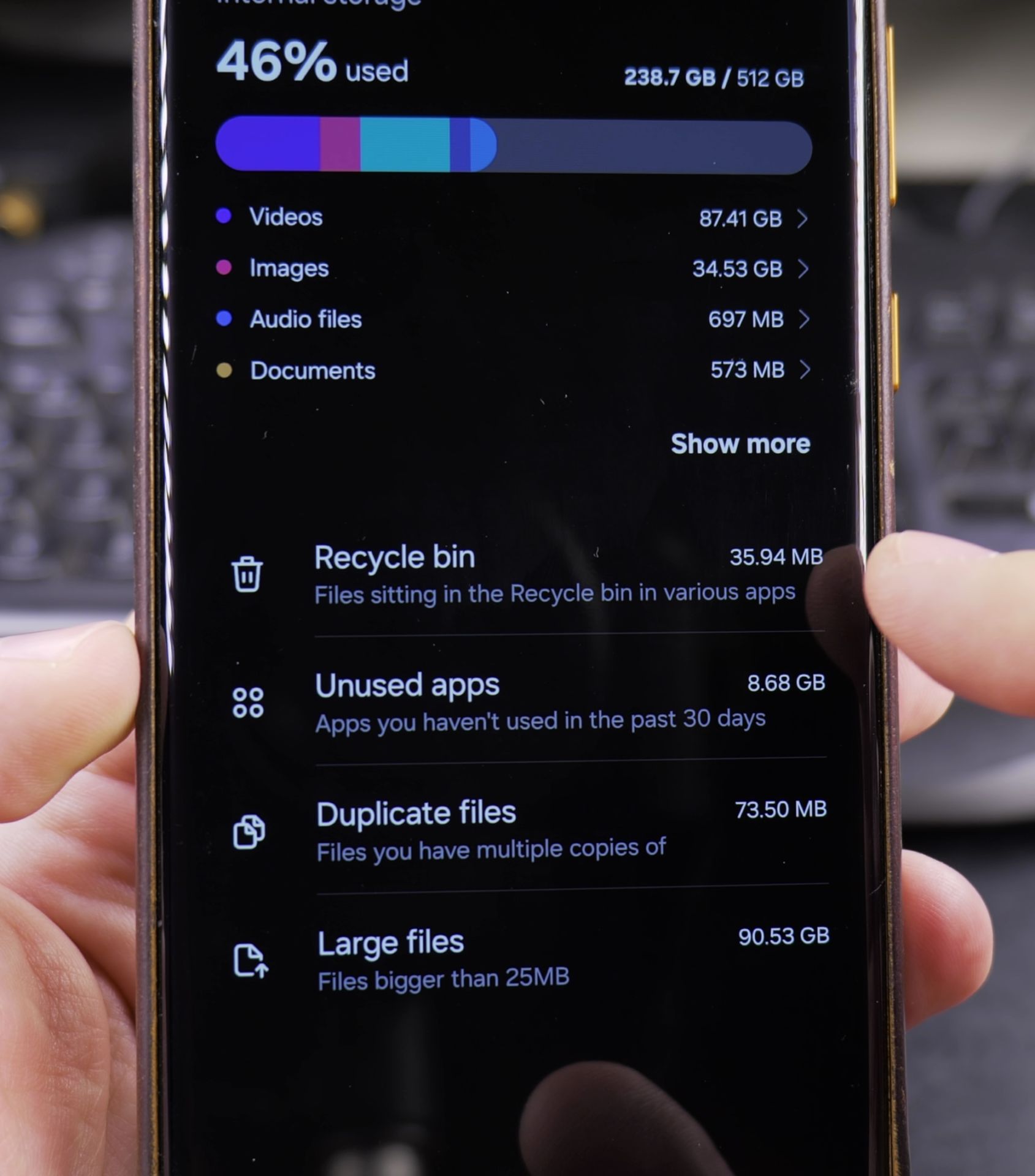
For Photos and Videos:
- Open the Gallery app
- Tap the three-line menu in the bottom right
- Select “Recycle bin”
- Tap “Empty recycle bin”
- Confirm permanent deletion
For Other Files:
- Open the My Files app
- Tap “Analytics storage” at the top
- Select “Trash”
- Choose “Empty trash”
- Confirm deletion
Important Things to Know
Before Emptying:
- Check for accidentally deleted files
- Files stay in the bin for 30 days by default
- You can restore items before emptying
After Emptying:
- Files are permanently deleted
- Normal recovery methods won’t work
- Professional data recovery may still be possible
- Storage space is freed up immediately
What to Do If You Deleted Important Files
If you emptied the bin by mistake:
- Turn off your phone immediately
- Don’t take new photos or install apps
- Contact a data recovery specialist
- Avoid powering on until recovery attempt
Managing Your Recycle Bin
To customize how the bin works:
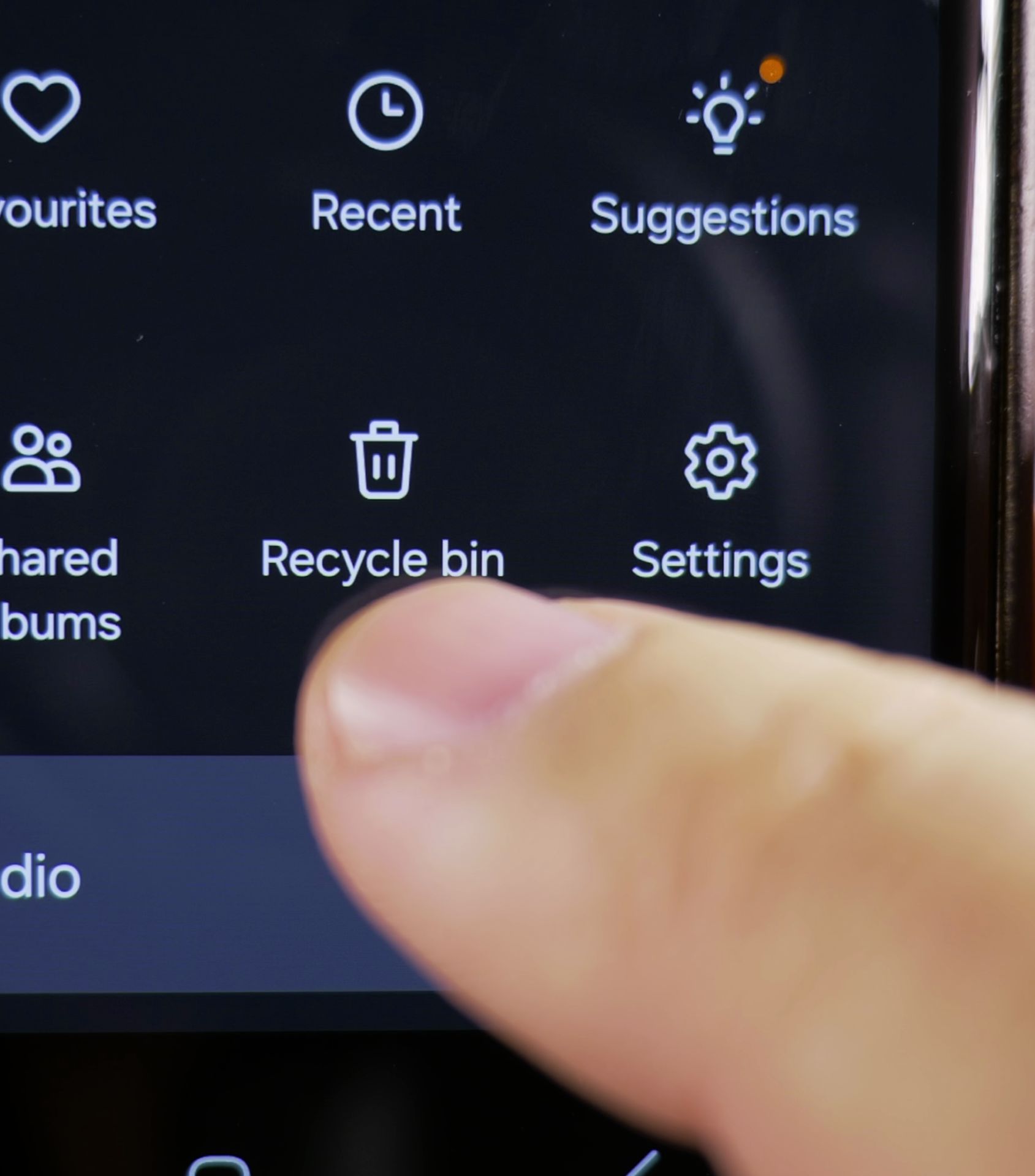
- Go to Settings > Accounts and backup
- Select “Manage storage”
- Adjust “Recycle bin settings”
- Change storage duration if needed
Final Thoughts
Emptying your recycle bin is a simple way to permanently delete files and recover storage space. Just remember that once emptied, these files are much harder to recover.
For regular maintenance, check your recycle bins monthly and only empty them when you’re sure you won’t need the deleted files again. This process works similarly across most Samsung Galaxy models including the S series, Note series, and A series phones.
Helpful Tips
Take your time and check the screen carefully after each tap so you can confirm the setting changed as expected. If an option appears in a slightly different spot on your device, watch the embedded video above for a closer look.
Related Guides
- How to Access Network Share on Samsung Galaxy Android Phone – If you have movies, photos, or documents on your home computer or network drive, you can open them right from your phone.
- Turn Off Color Palettes on Samsung Galaxy Android – How to Turn Off Color Palettes for Home Screen and App Icons on Samsung Galaxy Android phones.
- Android Samsung Galaxy 23 Iltra Cameras Not Working Use Selfie Camera – Android Samsung Galaxy 23 Iltra Cameras Not Working Use Selfie Camera When Main Camera Freezes.
- Samsung Android Guides – Browse more tutorials and practical guides in this section.
Leave a Reply Cancel reply