



Samsung Android, RCS Issues. Troubleshooting RCS for the Google Messages app on Samsung Galaxy devices.
Fix RCS Not Working. RCS Troubleshooting Guide Tech Tutorial

Quick Steps and Scenarios Overview
| What You Need to Do | Quick Jump |
|---|---|
| When RCS is not available and you can only send SMS to a contact | Jump to Step 1 |
| Why have RCS disabled | Jump to Step 2 |
| Deliver by SMS instead of RCS | Jump to Step 3 |
| Restart, Reinstall, Re-register | Jump to Step 4 |
Recommended Amazon Gear and Accessories
Disclosure: This article contains Amazon affiliate links. As an Amazon Associate, we earn from qualifying purchases at no extra cost to you.
- Phone Accessories
- Android Phone Case
- USB-C Charger
- USB-C Cable
- Wireless Charger Stand
- Wireless Car Charger
In this video, I’ll help you troubleshoot and fix RCS (Rich Communication Services) issues on your Samsung Android device. If you’re experiencing problems with RCS not working, such as messages not sending or receiving, this guide is for you. I’ll show you several methods to resolve common RCS issues, ensuring you can enjoy the communication on your device.
When RCS is not available and you can only send SMS to a contact
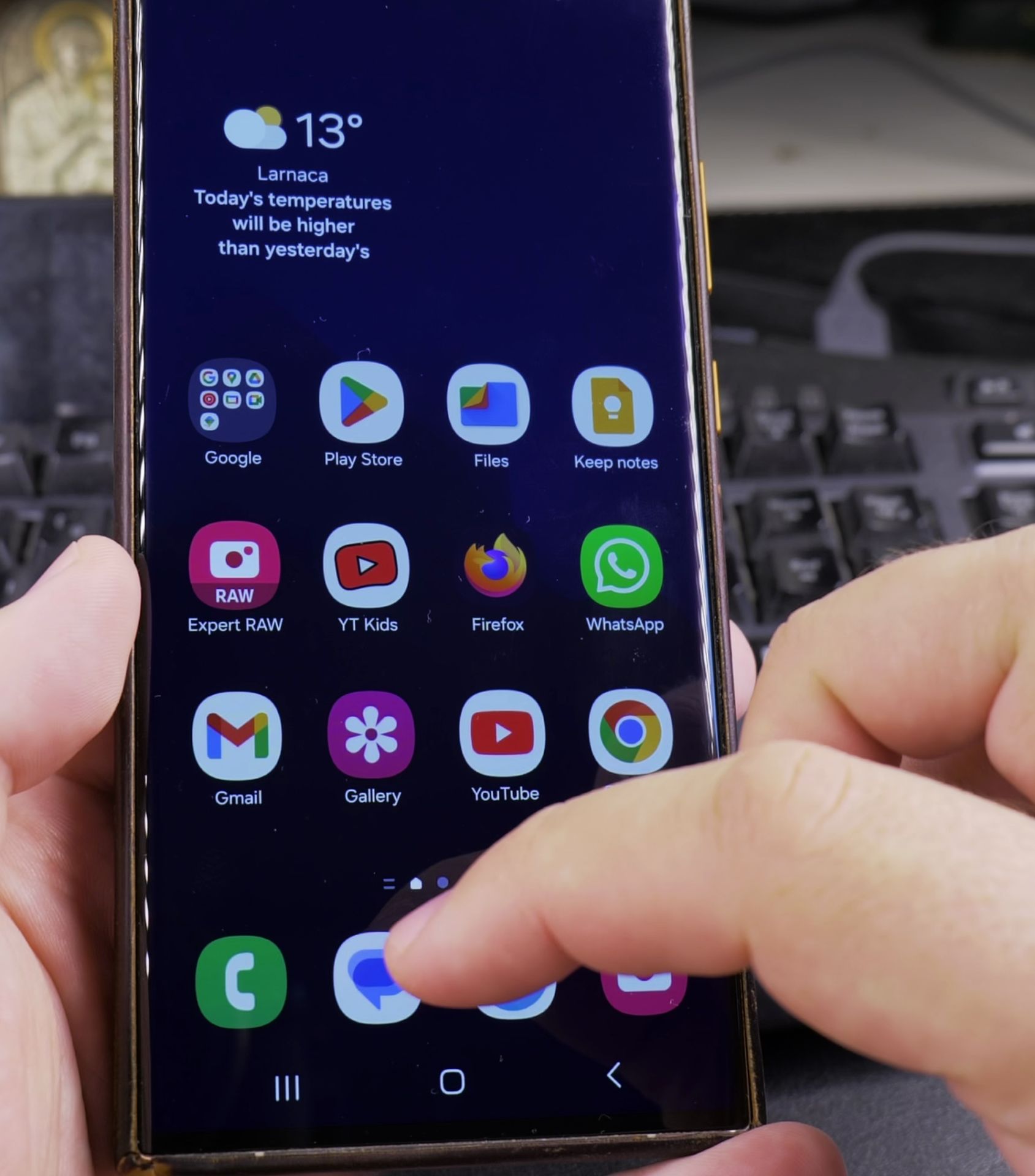
Open the Google Messages app and tap on your profile picture then settings.

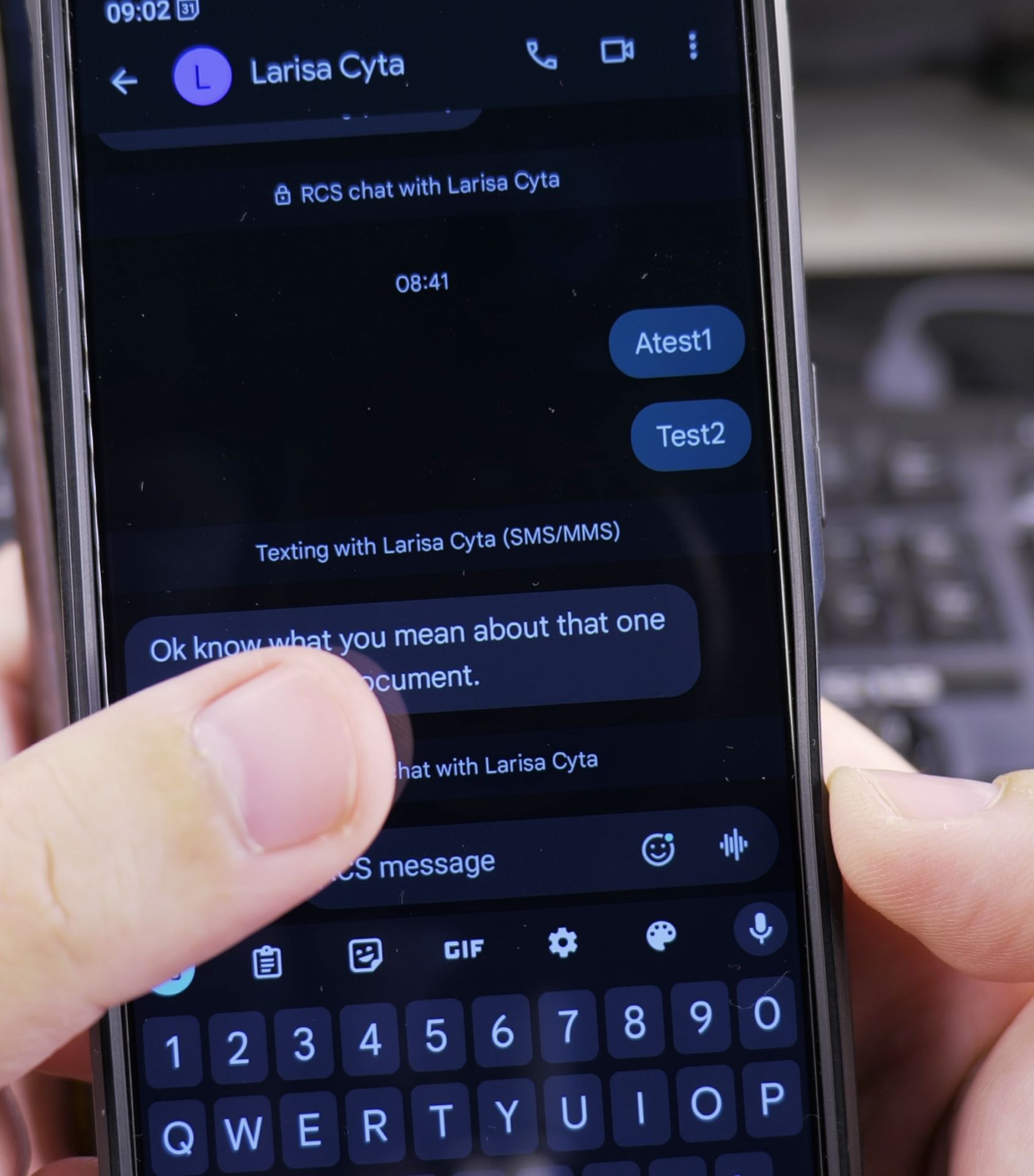
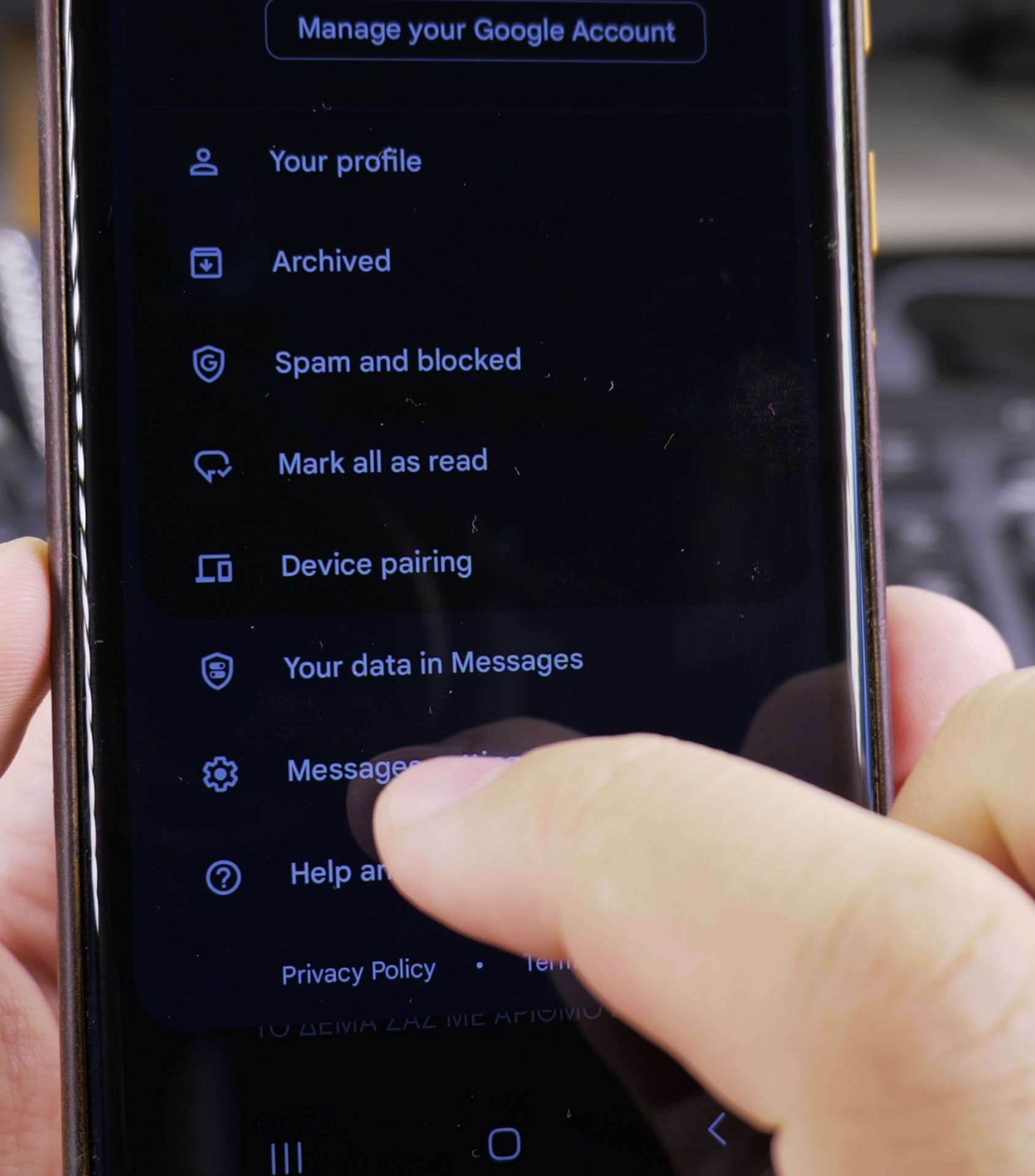
On the settings page, find the RCS settings section and tap on RCS chats option.
On the RCS chats messaging settings page, check that you are recistered successfully with your phone number and the green status connected.
If you’re not registered, you can start the registration steps there. The steps consist of verification of your phone number with a code then the status should change to Connected and green.
If you’re connected in RCS chats but still not able to send RCS messages, go to the chat you want to send RCS messaging to and in that chat conversation, tap on the 3-dot menu on top right then select Details.
On the chat details page, you can check the End-to-end encryption settings.
If the End-to-end encryption status is Off, check the toggle names: Only send SMS and MMS messages. If the toggle is on, switch it off and you should now be able to send RCS messages to that contact.
Why have RCS disabled
You might want to keep RCS off for some chats if you want to be sure the recipient receives the text message as soon as possible and not wait until they are connected to the internet to receive RCS chat messages.

In the situation when a person doesn’t have 4G or 5G internet and not connected to wi-fi, a SMS text message will be delivered immediately but a RCS message will be delayed and the sender can’t chose to deliver by SMS instead.
Deliver by SMS instead of RCS
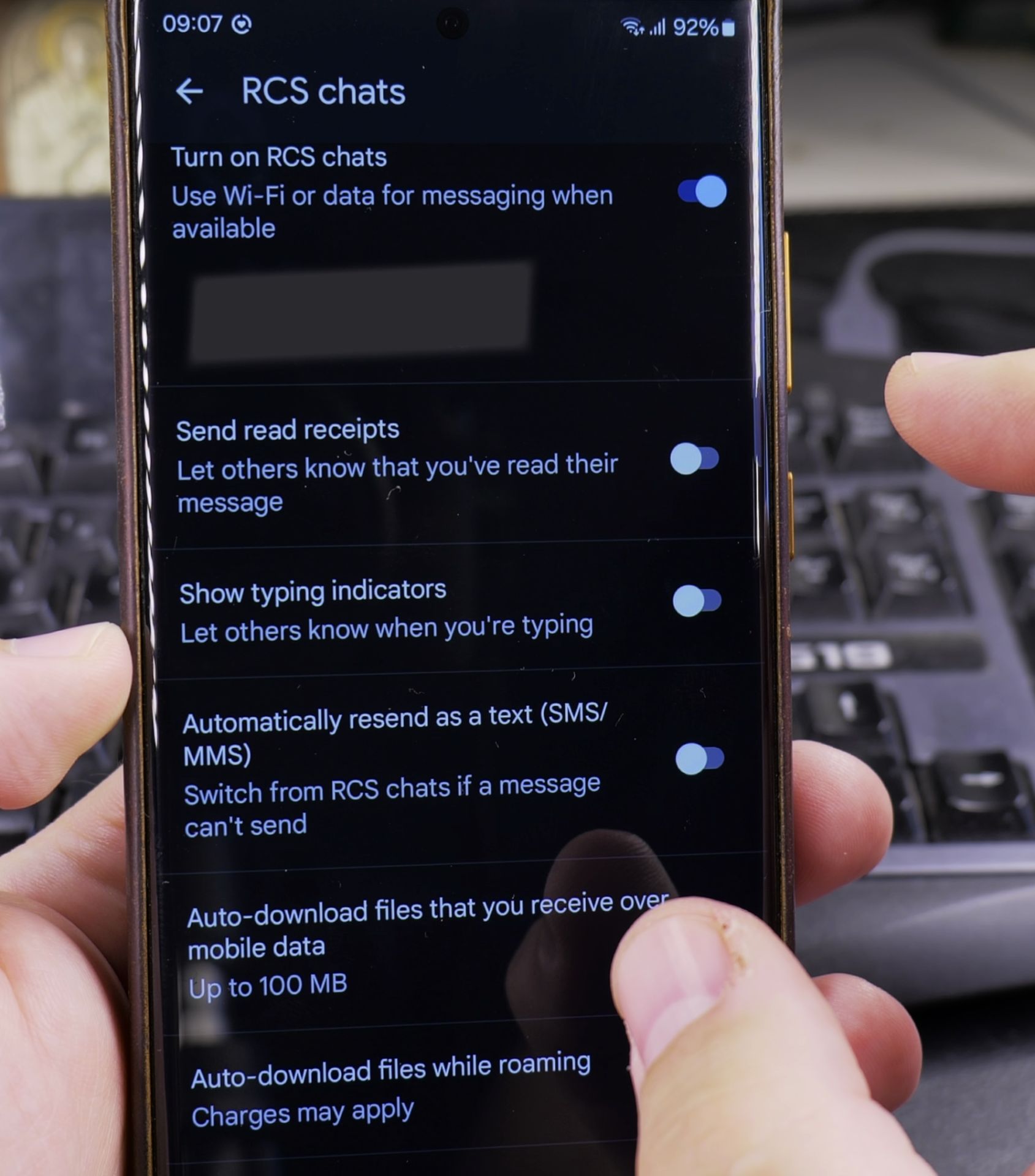
There is a setting on the RCS chats settings page to deliver text messages as SMS if RCS is not available but this is for the sender not having internet or the recipient not having RCS at all.
If the recipient does have RCS and the sender has internet, the RCS chat message will be sent as RCS and will be delayed until the recipient is connected back online.
For some this might be ok but when you need the text message delivered asap. use the Only send SMS and MMS messages option.
Check if RCS is enabled in your messaging app settings and how to switch to Google Messages if it’s not working with Samsung Messages.
Restart, Reinstall, Re-register
You can also try restarting your phone, clearing the cache and data for the Google Messages app, and resetting network settings to resolve connectivity issues.
You can uninstall and reinstall the Google Messages app too.
Learn how to fix RCS issues on your Samsung Android device, allowing you to send and receive RCS messages without any problems. If you’re facing registration failures or messages stuck in sending mode, this troubleshooting guide will help you get back on track.
Samsung Android RCS Not Working. Fix RCS Issues on Samsung. Troubleshoot RCS on Android RCS Not Sending or RCS Registration Failed, on Google Messages RCS.
Samsung Messages RCC Connectivity Issues. Check and Fix RCS on Samsung Android.
Helpful Tips
Take your time and check the screen carefully after each tap so you can confirm the setting changed as expected. If an option appears in a slightly different spot on your device, watch the embedded video above for a closer look.
Related Guides
- How to Change Google Gemini Voice on Samsung Galaxy Android – If you don't like the default voice of your Google Gemini assistant, you can choose from a range of friendly and natural…
- How to Access Network Share on Samsung Galaxy Android Phone – If you have movies, photos, or documents on your home computer or network drive, you can open them right from your phone.
- How to Fix Roblox Error 317 and Error 319 and Google Wallet NFC via Android Google Play Security Updates – If you get kicked out of Roblox Rivals or other Roblox games with 'Error Code: 319 (Roblox was not able to verify the…
- Samsung Android Guides – Browse more tutorials and practical guides in this section.
Leave a Reply Cancel reply