


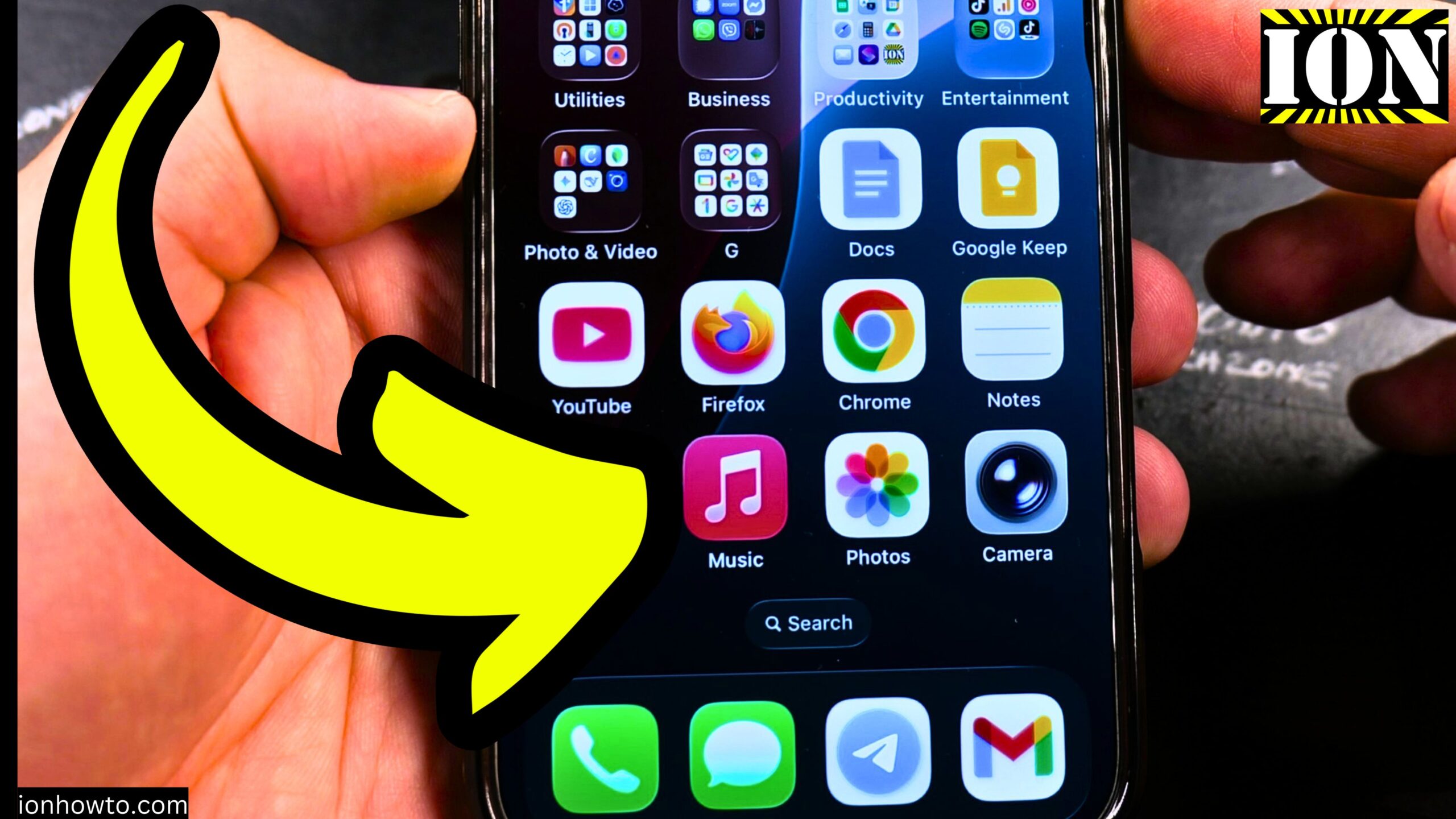
How to Get the Best Sound Quality in Apple Music on iPhone.
Learn how to listen to the best quality in Apple Music on your iPhone. A few simple settings can make a real difference in how your music sounds. You don’t need to be a tech expert to figure this out. I’ll show you exactly where to tap and what to choose.
What You Need to Know Before You Start
Before changing any settings, it helps to understand one thing. The sound quality you actually hear depends on both your iPhone settings and your headphones or speakers. You can turn on all the right options, but if your listening gear isn’t up for it, you won’t hear the improvement.
The good news is that even with regular wireless headphones, you can still get better sound than the default settings. But for the absolute best quality called lossless audio, you need specific equipment. I explain that more below.
How to Turn On Lossless Audio in Apple Music
Lossless audio is the key setting for higher fidelity sound. It keeps more of the original recording details compared to standard compressed audio. Here is how to turn it on.
Open the Settings app on your iPhone. Scroll down until you see Music. Tap on Music.
Inside the Music settings, look for the section called Audio. Tap on Audio Quality.
You will see a toggle for Lossless Audio. Tap to turn it on.
Once that is on, you can choose different quality levels for different situations.

Choosing the Right Quality Settings for Your Needs
Apple Music lets you pick separate quality settings for three scenarios: streaming over cellular data, streaming over Wi-Fi, and downloaded songs. This is helpful because you might want better quality at home on Wi-Fi but prefer to save data when you are out.
Here is what each option means.
High Efficiency – This uses the least data and storage. File sizes are small. It works fine for casual listening or if you have a limited data plan.
High Quality – This is a good middle ground. It sounds better than High Efficiency without using too much extra data. Most people will be happy with this for everyday listening.
Lossless – This is CD quality. It sounds noticeably clearer and more detailed. But it uses much more data and storage space. A three-minute song in Lossless can be about 15 to 20 MB.
High-Resolution Lossless – This is even better than CD quality. However, you need external equipment like a digital-to-analog converter (DAC) plugged into your iPhone to actually hear it. Most wireless headphones cannot play this format.
Recommended settings for most people
Here is what I suggest for a good balance of quality and practicality.
For Cellular Streaming – Choose High Quality. Lossless uses too much mobile data.
For Wi-Fi Streaming – Choose Lossless. This gives you great sound at home without worrying about data caps.
For Downloads – Choose Lossless if you have enough free space on your iPhone. If storage is tight, High Quality is still very good.
How to Turn On Dolby Atmos for Spatial Audio
Dolby Atmos creates a more immersive, three-dimensional sound experience. It is not about higher fidelity like lossless. It is about making the music feel like it is all around you instead of just in your left and right ears.
Here is how to enable it.
Go back to Settings > Music. Under Audio, look for Dolby Atmos. Tap on it. You have three choices: Automatic, Always On, or Off.
Automatic plays Dolby Atmos only when you are using compatible Apple or Beats headphones. Always On tries to play it with any headphones. I recommend setting it to Automatic for the best experience.
What Equipment You Actually Need for Lossless Audio
This is important to understand. Lossless audio does not work over standard Bluetooth. Bluetooth compresses audio no matter what. So if you use regular wireless headphones like AirPods or Sony XM5, you are not hearing true lossless sound.
To actually hear lossless audio on your iPhone, you need wired headphones or a wired connection. Here are your options.
Wired headphones plugged directly into the iPhone using a Lightning to 3.5mm adapter or USB-C to 3.5mm adapter depending on your iPhone model.
Wired headphones connected through an external DAC that plugs into your iPhone’s charging port.
Some specific wireless headphones from brands like Sony or Sennheiser that support special high-quality Bluetooth codecs. But even those are technically not true lossless.
For most people using wireless headphones, High Quality is honestly the best you can hear. Lossless will not make a difference through standard Bluetooth.
How to Check What Quality Is Currently Playing
Once you have your settings adjusted, you can check what quality a song is actually playing at.
Open the Apple Music app and play any song. On the Now Playing screen, look right under the playback controls. You will see a small badge that tells you the current quality. It might say Lossless, Dolby Atmos, or nothing at all if it is playing standard quality.
Tap on that badge for more details. It will show you the exact bit depth and sample rate, like 16-bit 44.1 kHz which is standard CD quality.
A Few Extra Settings Worth Knowing About
While you are in the Music settings, here are two more options you might like.
Sound Check – Turn this on. It makes all your songs play at roughly the same volume level. Without it, some songs might be much louder or quieter than others.
Crossfade – This smoothly blends one song into the next. You can set how many seconds the fade lasts. Turn it on if you like seamless transitions between tracks.
Quick Summary of Steps
Here is everything in one simple list.
Open the Settings app on your iPhone.
Tap on Music.
Tap on Audio Quality.
Turn on Lossless Audio.
Set Cellular Streaming to High Quality.
Set Wi-Fi Streaming to Lossless.
Set Downloads to Lossless or High Quality.
Go back to the Audio section.
Set Dolby Atmos to Automatic.
Turn on Sound Check if you want consistent volume.
A Note on Mobile Data Usage
Lossless audio uses significantly more data than standard quality. If you have a limited data plan, keep Cellular Streaming set to High Quality. Streaming lossless over cellular for one hour could use over 500 MB of data. High Quality uses about 150 MB per hour.
Final Thoughts
Getting the best sound quality in Apple Music is mostly about turning on lossless audio and understanding the limits of your headphones. If you use regular wireless earbuds, stick with High Quality and enjoy the Dolby Atmos features instead. If you really want lossless, get a good pair of wired headphones and an adapter.
I show you how to check the quality badge on any song to confirm your settings are working. Play a song you know well and listen for the difference. Sometimes it is subtle. Other times you will hear details you never noticed before.
If you have questions about specific headphones or run into issues where the audio quality badge does not change, check that lossless is turned on and that you are not in a low power mode which can affect streaming quality.
Leave a Reply Cancel reply