


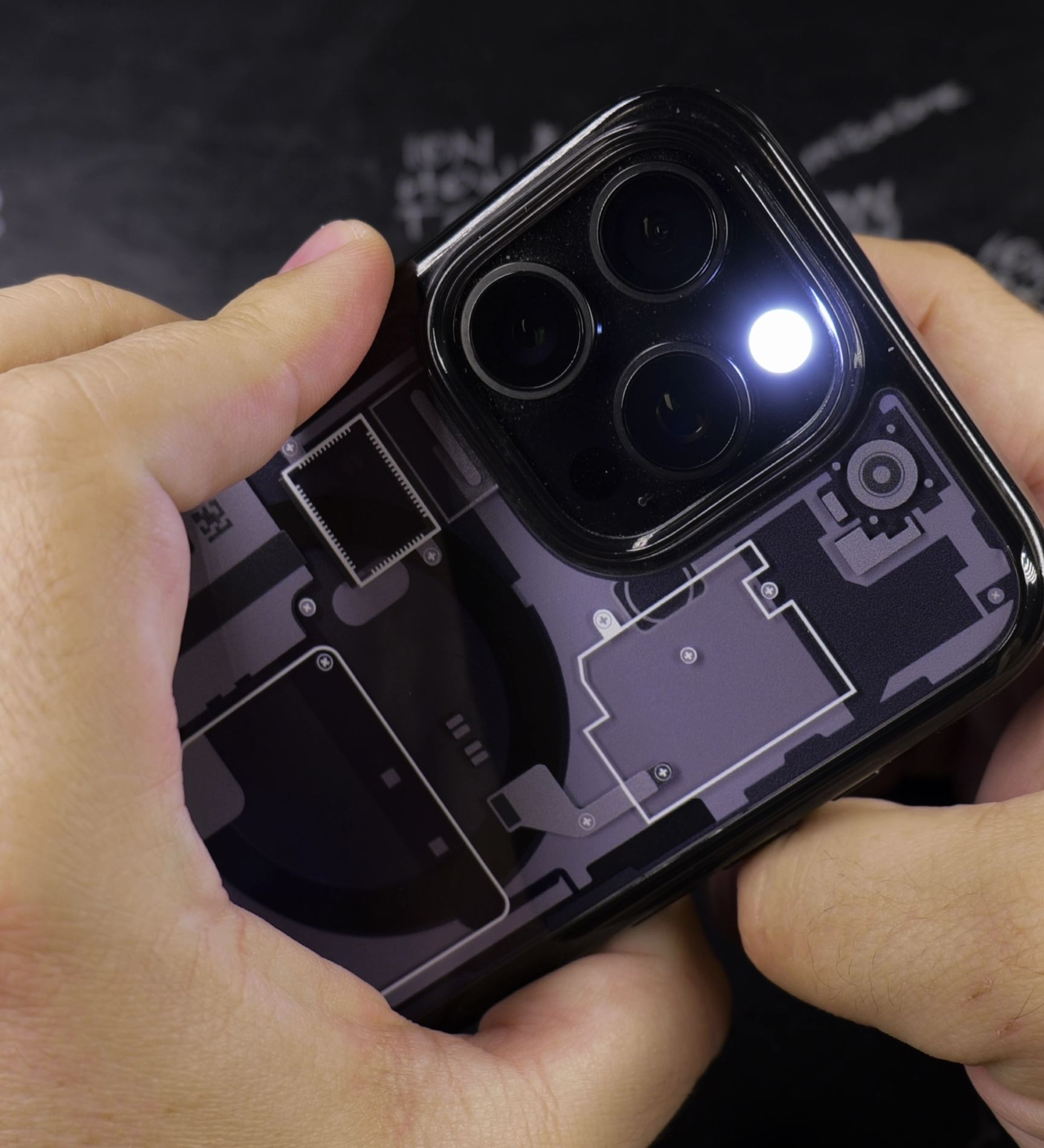
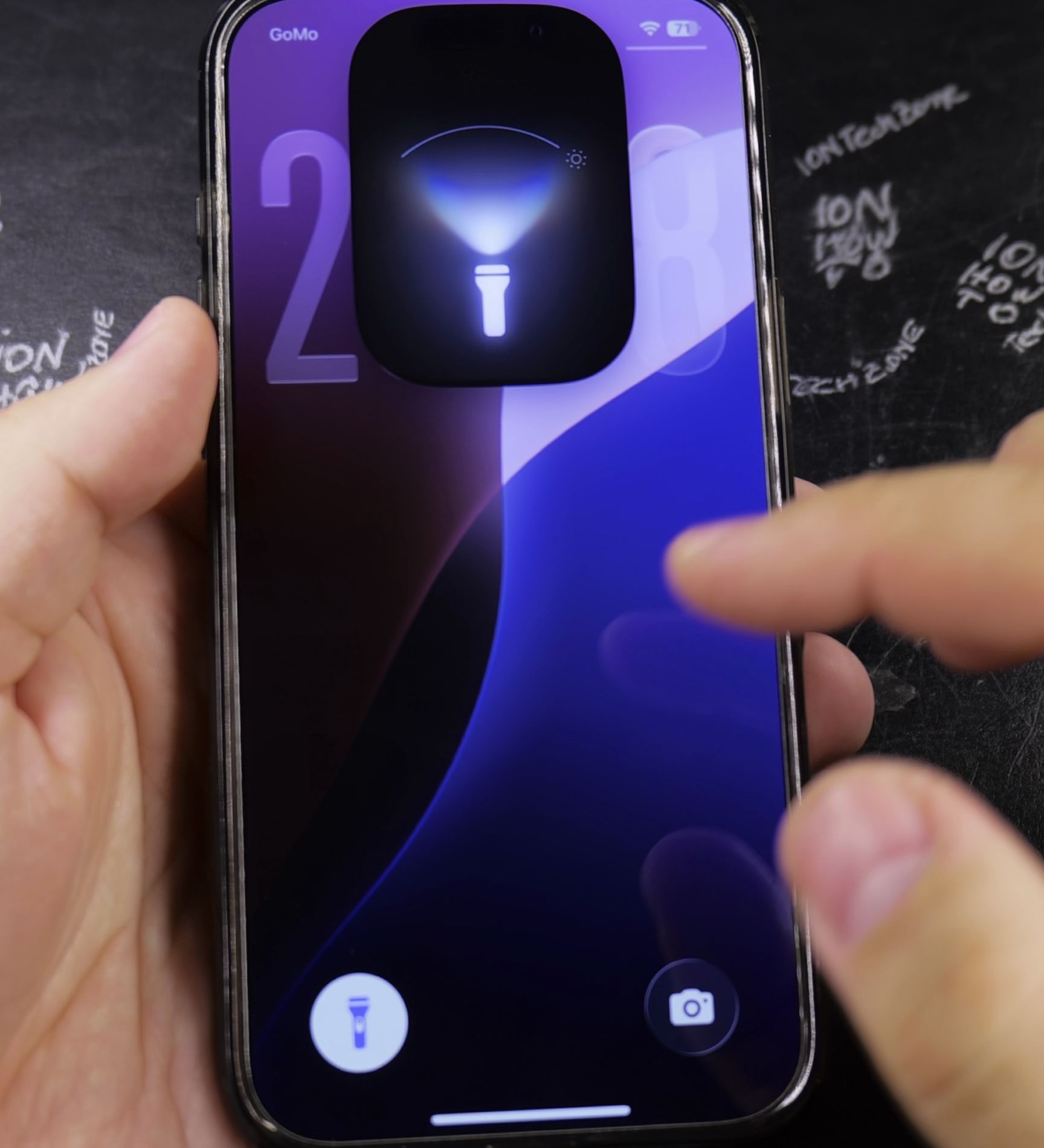
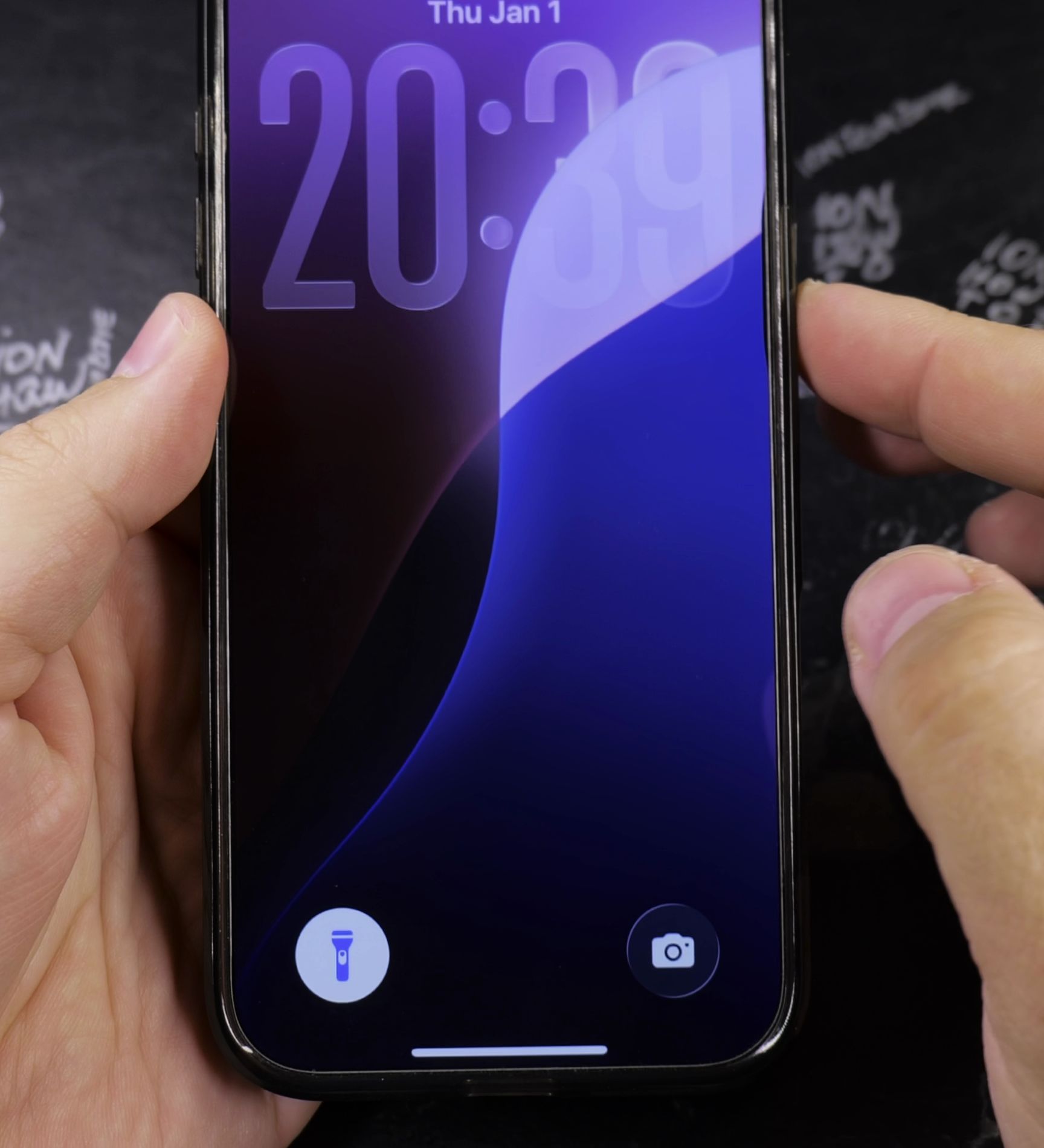
If your iPhone lock screen is missing the flashlight button in the bottom corner, you can put it back in seconds. I’ll show you how to customize your lock screen shortcuts with a few taps.

1. Touch and Hold Your Locked Screen
Wake your iPhone and unlock it with Face ID, but stay on the lock screen. Press and hold your finger on any empty area of the wallpaper.
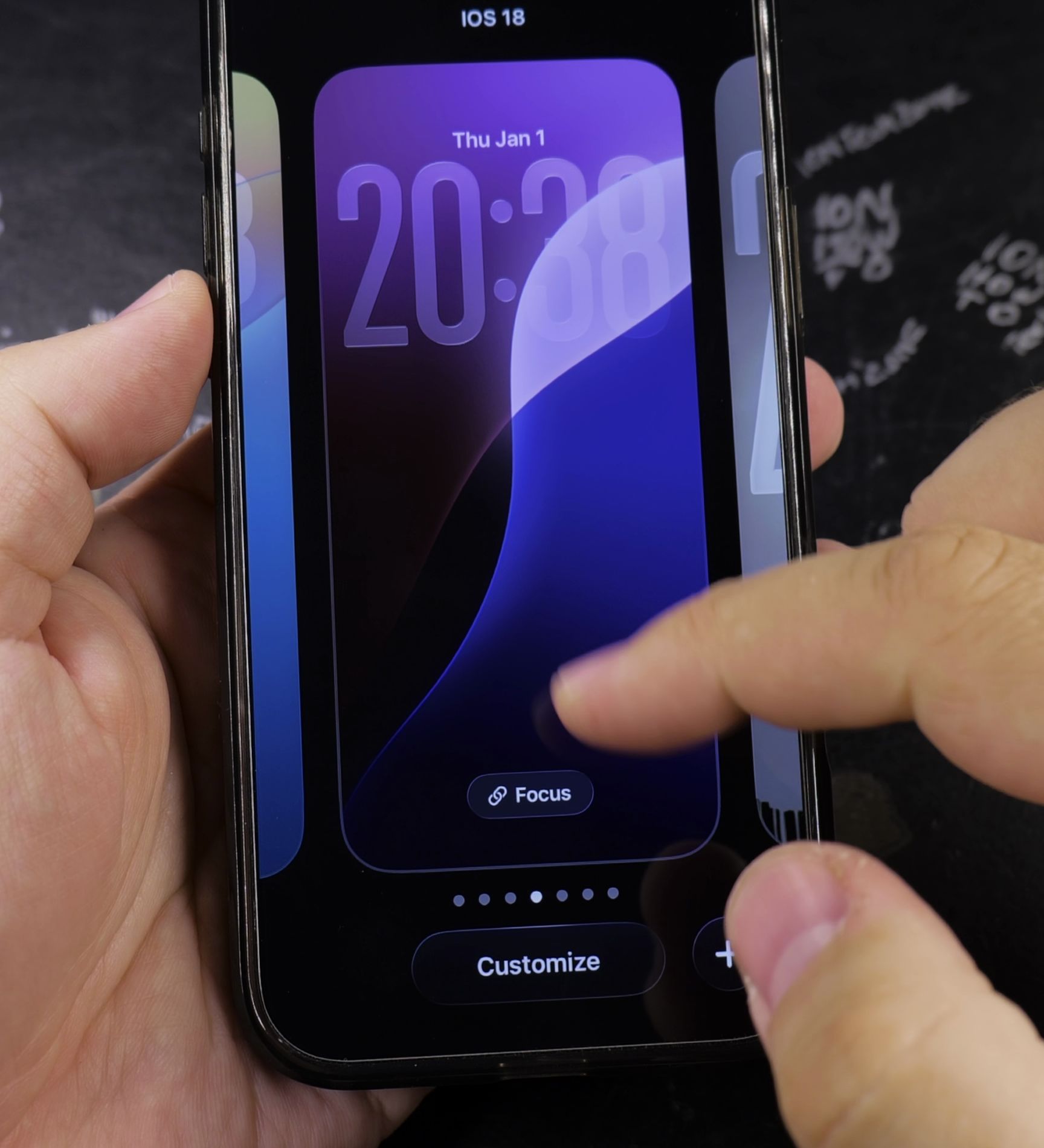
2. Tap Customize at the Bottom
Swipe to the lock screen style you want to edit. Tap the **Customize** button at the bottom, then choose **Lock Screen** on the left.
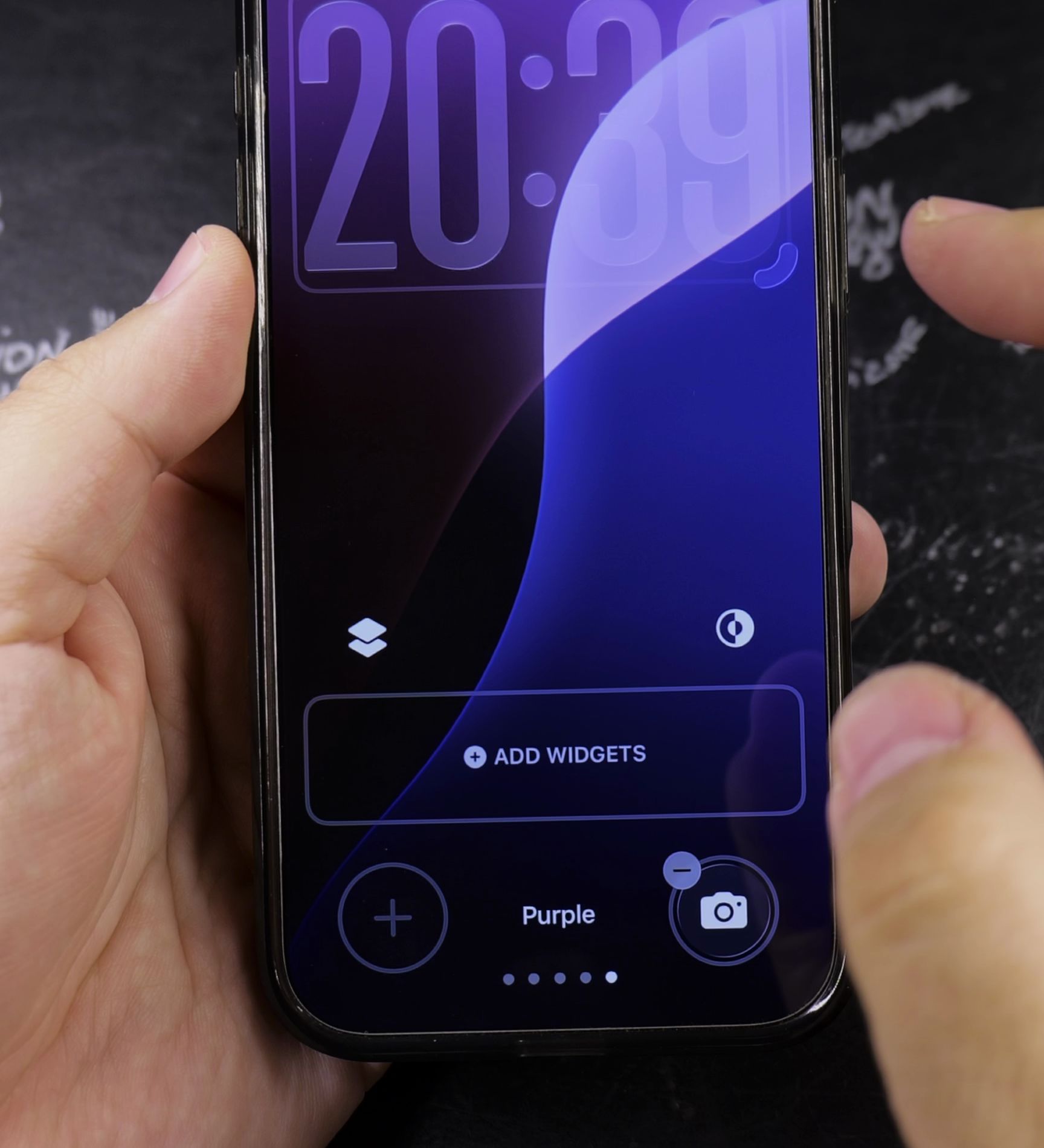
3. Tap the Bottom Shortcut Slot
Look at the bottom corners of your screen. Tap the small **minus sign** on an existing shortcut to clear it, then tap the empty plus circle.
4. Select Flashlight and Save Your Changes
Scroll down the list of controls and tap **Flashlight**. Tap **Done** in the top-right corner to save your new lock screen button.
Helpful Tips
To turn the light on from your lock screen, press firmly on the flashlight icon until you feel a gentle vibration. Tapping lightly without pressure prevents accidental activation inside pockets or bags. Read more iOS tips in our iPhone Guides section or browse our Apple & iOS category.
Leave a Reply Cancel reply