


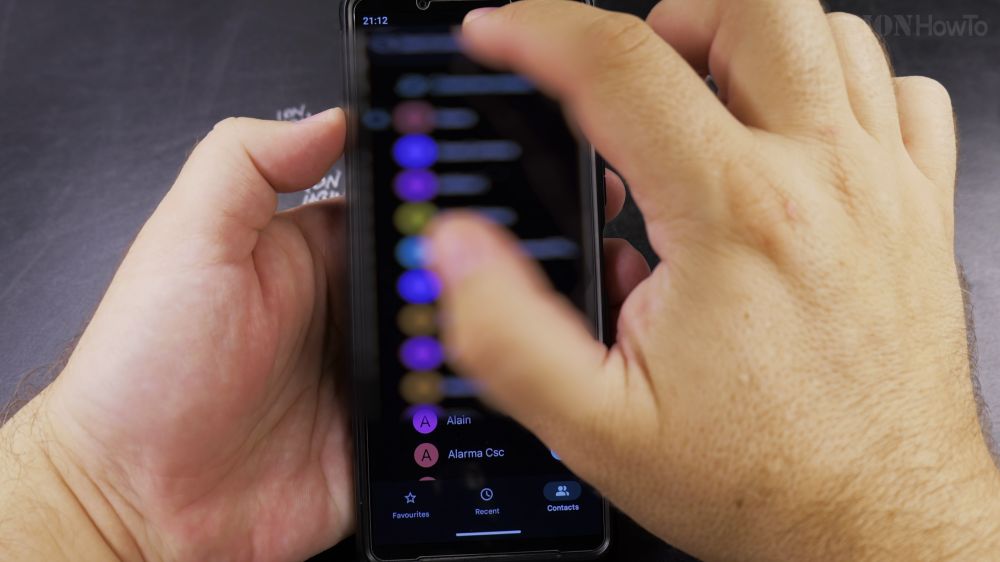
Adding a picture to your favorite contacts makes it effortless to see who is calling before you even read their name. I’ll show you how to attach a photo to any contact on your Android phone.

1. Find the Contact
Open the **Phone** app, tap **Contacts**, and tap the contact you want to personalize.

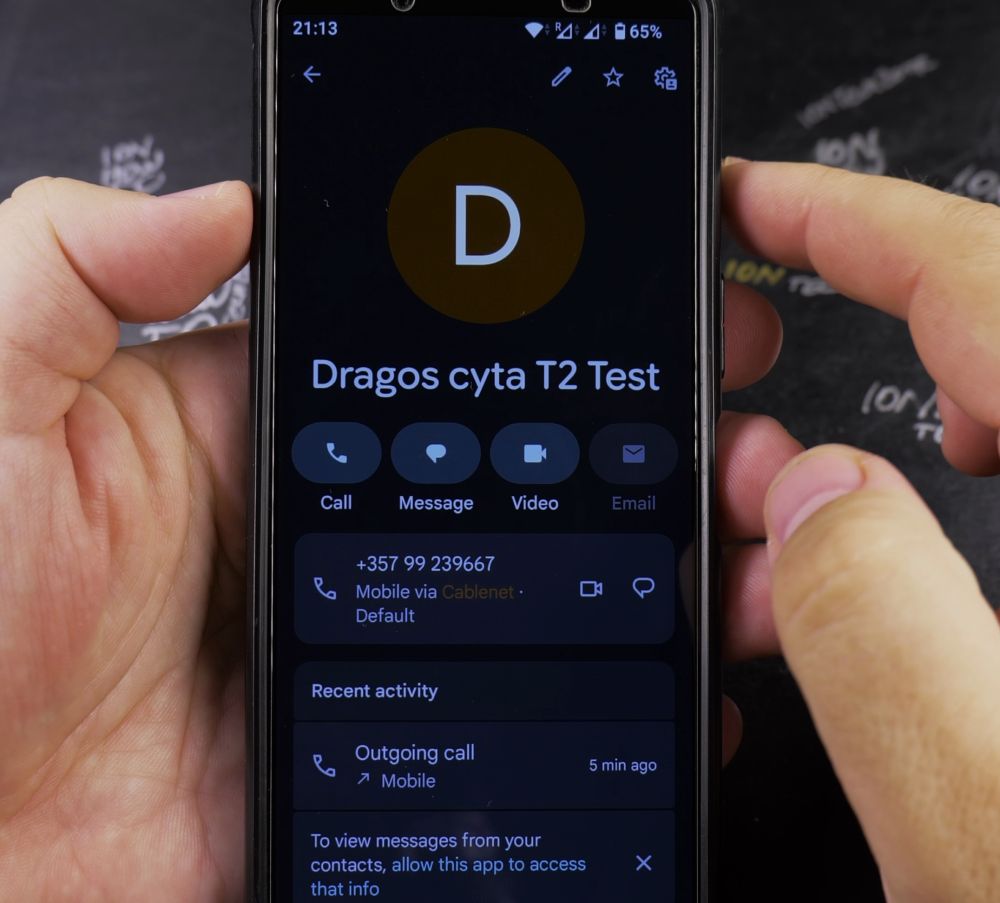
2. Tap Add Picture
Tap the empty circular avatar icon at the top of their profile card (or tap **Add picture**).
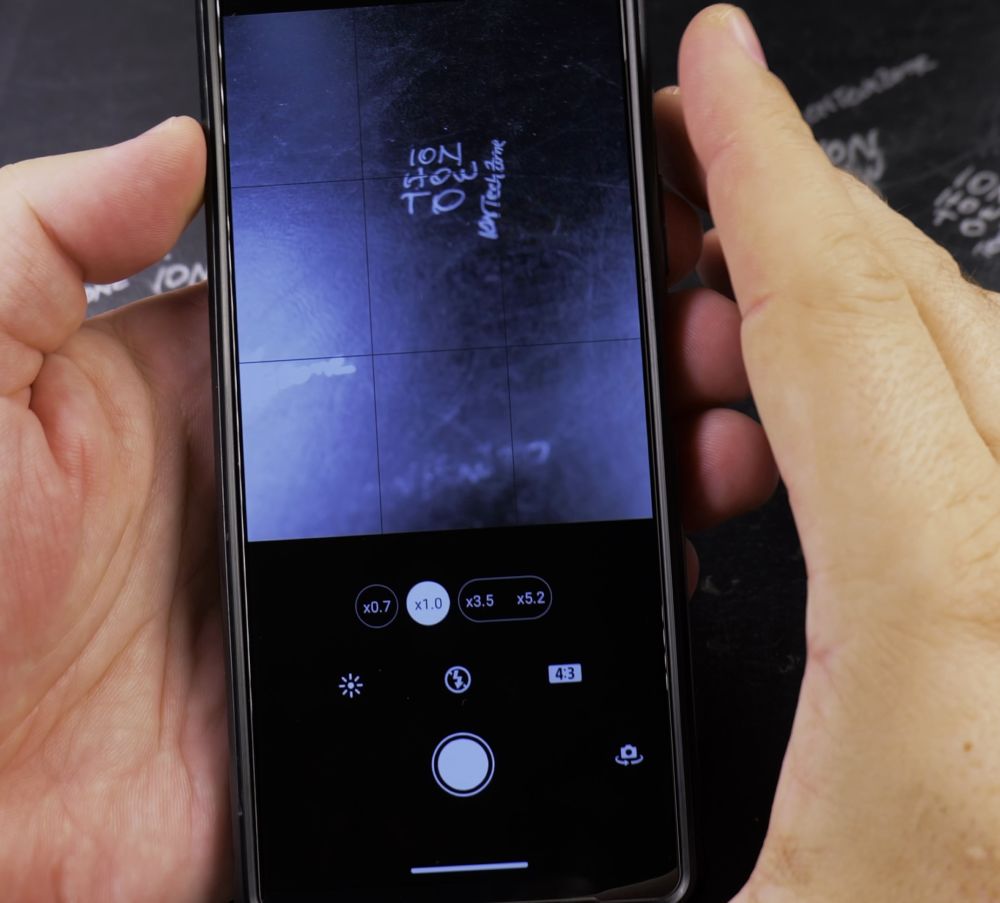
3. Select Your Image
Tap **Device photos** to browse your photo library, or tap **Camera** to snap a fresh picture.
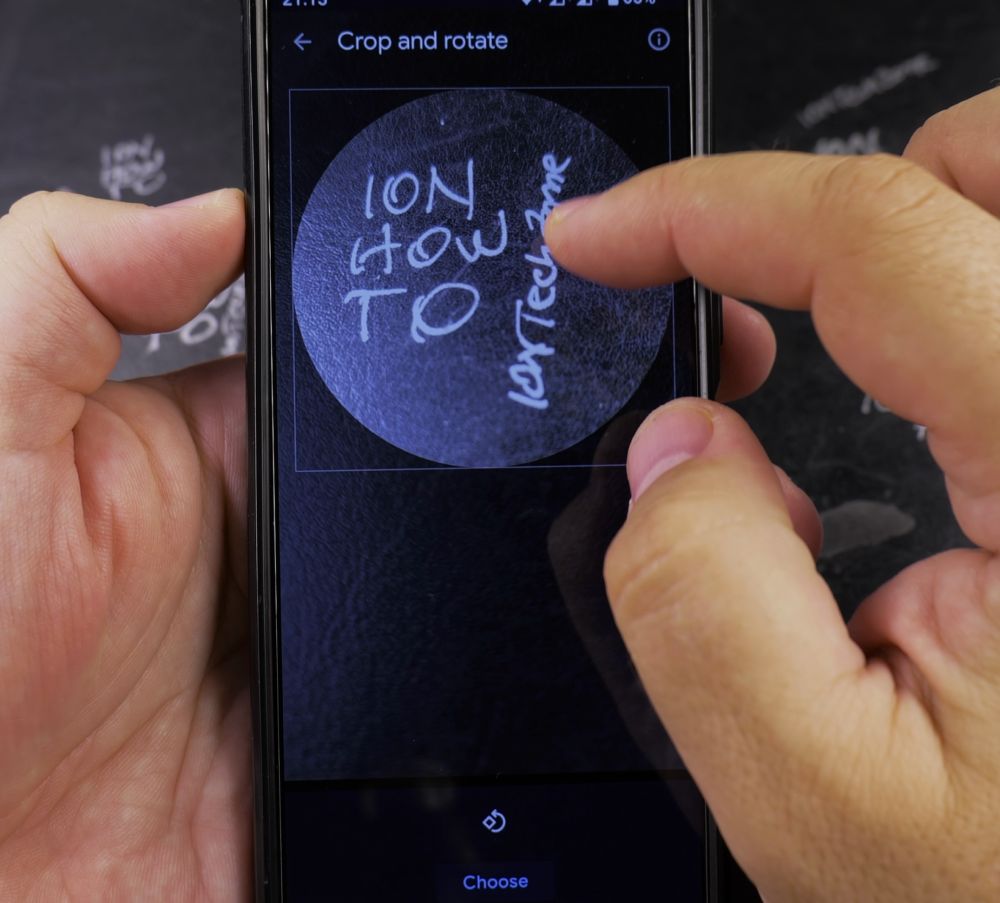
4. Adjust and Center
Drag and pinch the image inside the round frame until the person’s face is nicely centered.
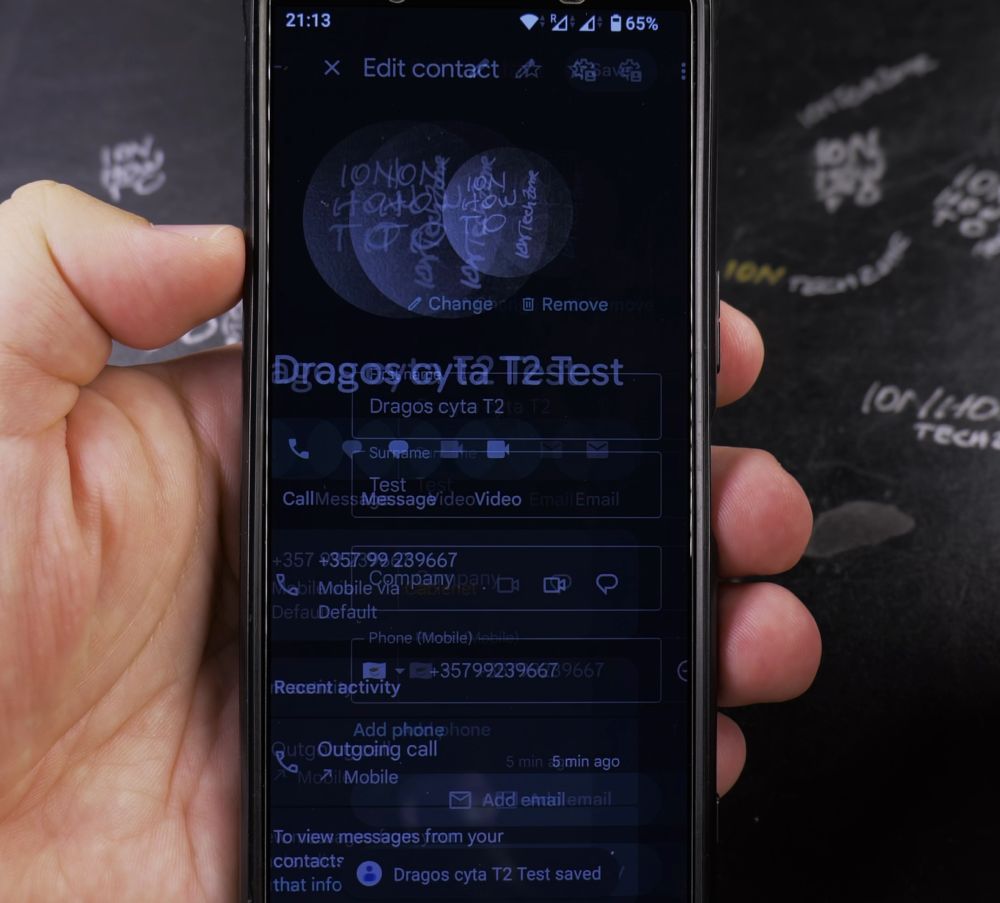
5. Save the Photo
Tap **Save as contact photo** at the bottom, then tap **Save** to lock in your changes.
Helpful Tips
Adding photos to your closest contacts also makes them stand out on your Android home screen widgets and smart watches. For more contact management tips, explore our Android Guides hub.
Leave a Reply Cancel reply