


Protecting your phone against accidental malware or shady app downloads gives you peace of mind while browsing. I’ll show you how to turn on Auto Blocker on Samsung Galaxy to stop unauthorized app installations.

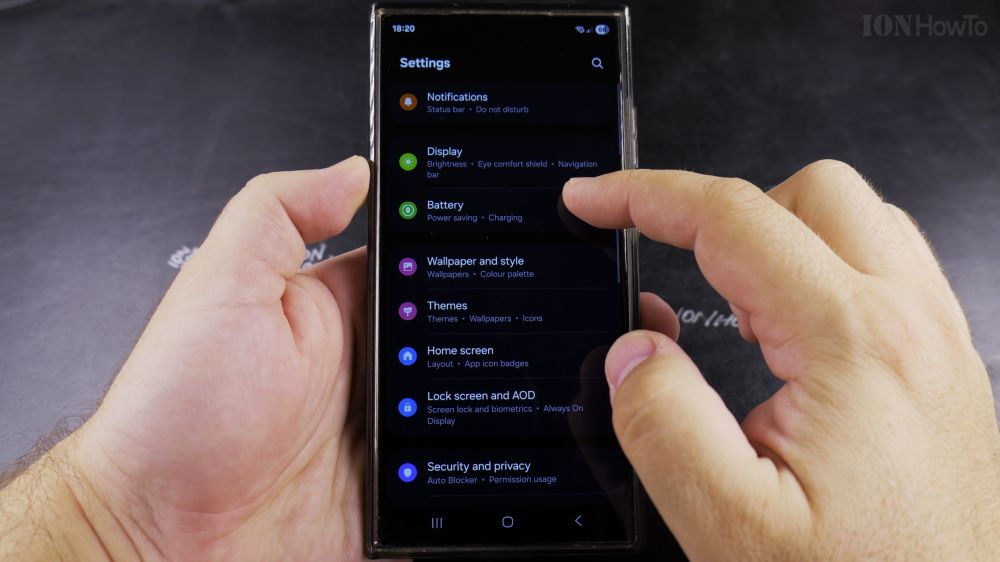
1. Open Settings
Swipe down from the top of your screen and tap the gear icon to open **Settings**.

2. Tap Security and Privacy
Scroll down the list and tap **Security and privacy**.
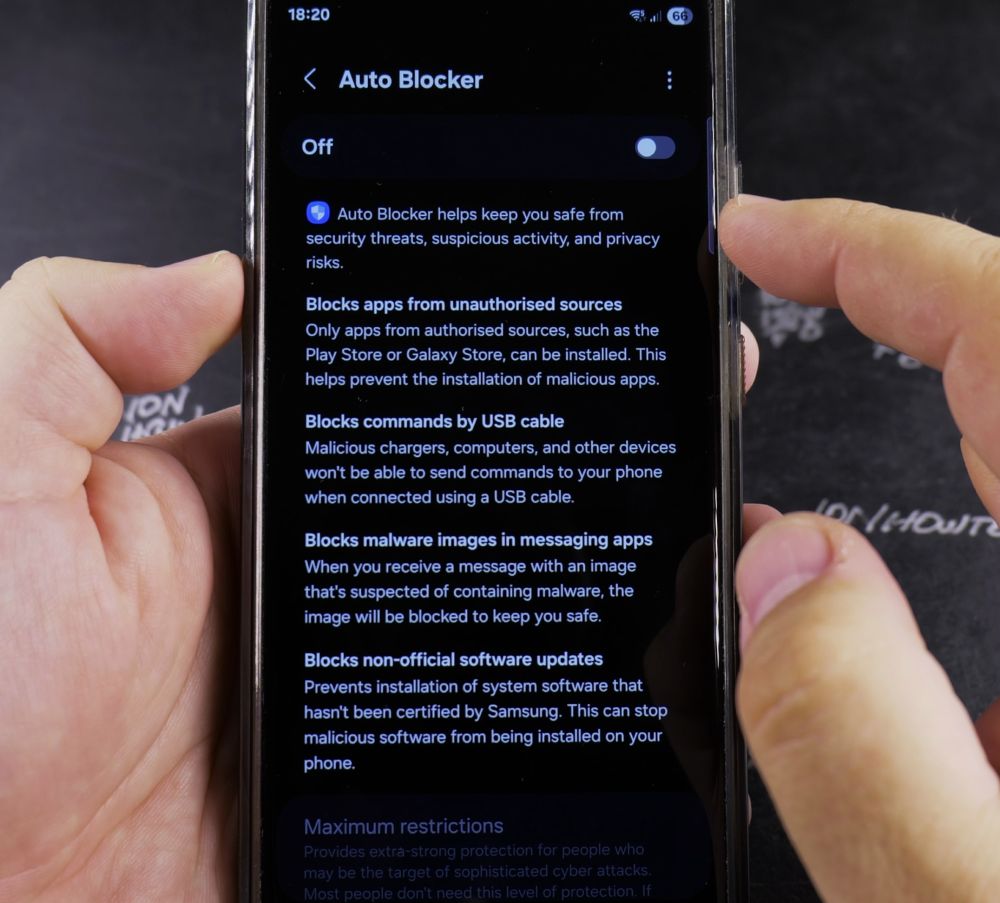
3. Tap Auto Blocker
Tap on **Auto Blocker** to open its dedicated protection dashboard.
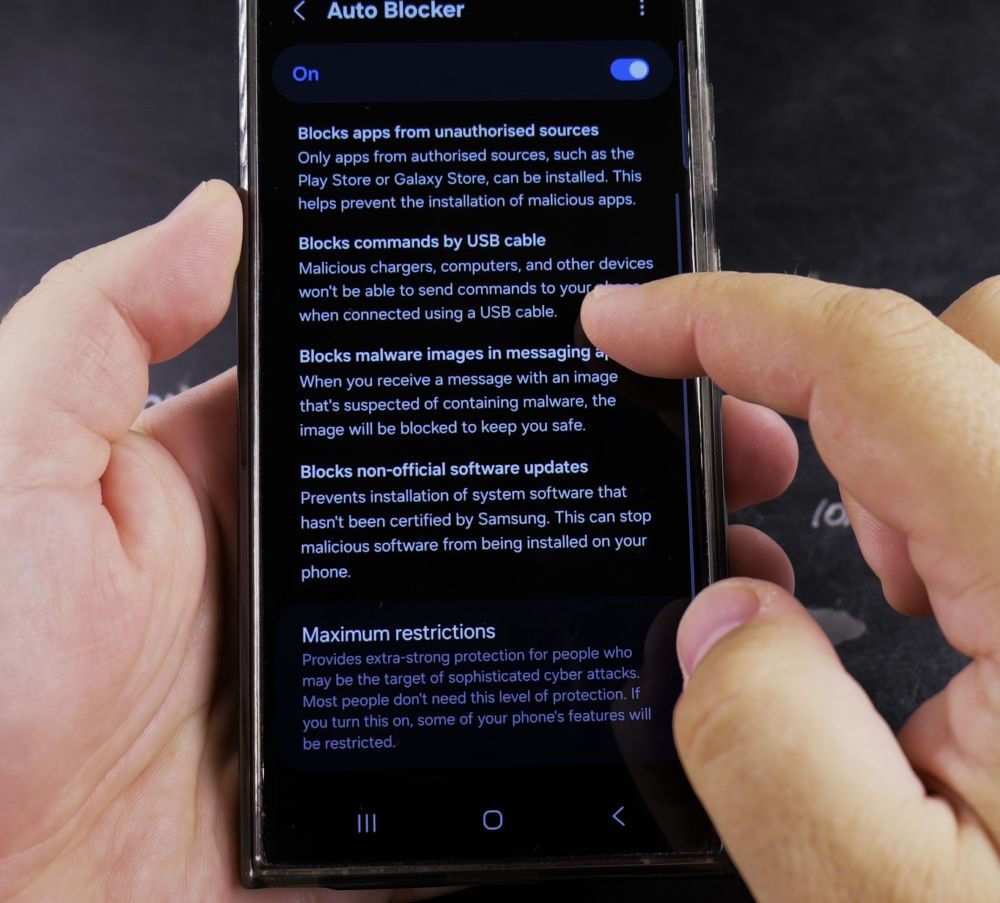
4. Turn On the Master Switch
Toggle the switch at the top to **On** (it will turn blue).
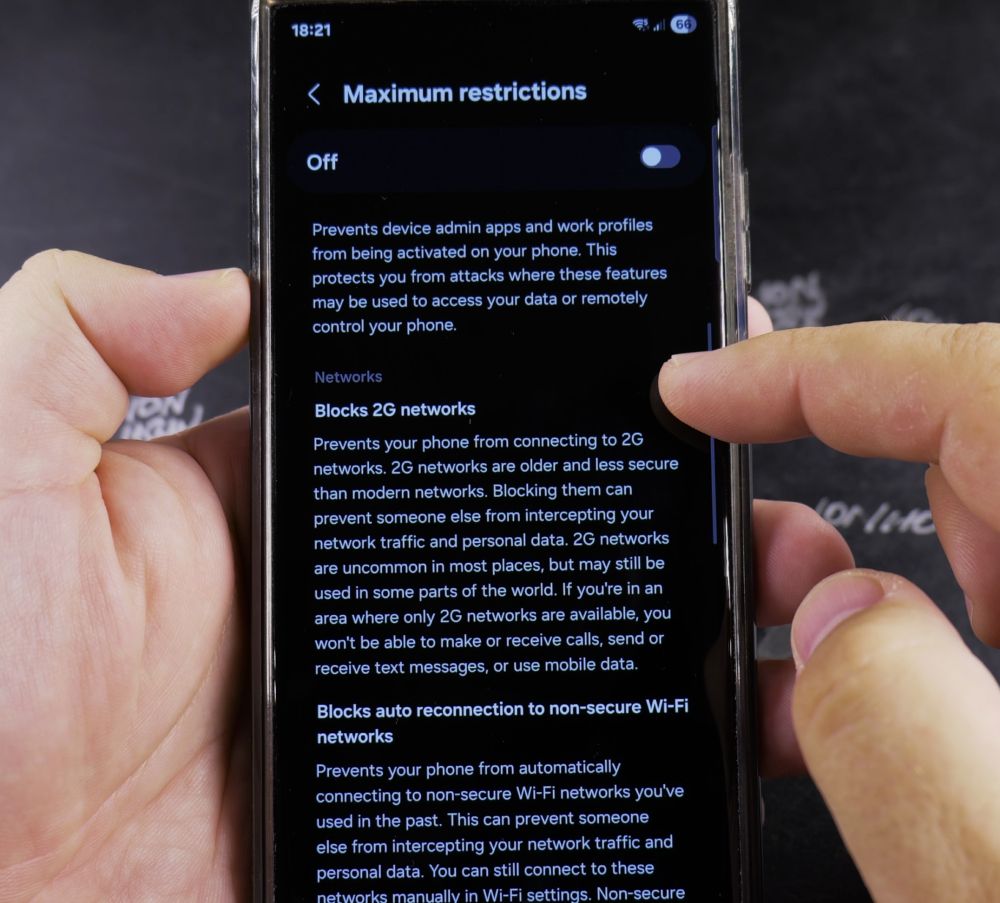
5. Choose Extra Restrictions
To block rogue computers from sending commands through USB charging cords, tap **Maximum restrictions** and toggle it **On**.
Helpful Tips
Auto Blocker only allows app installations from Google Play Store and Samsung Galaxy Store, preventing accidental taps on scam websites. For more phone protection advice, check out our Samsung Guides hub.
Leave a Reply Cancel reply