


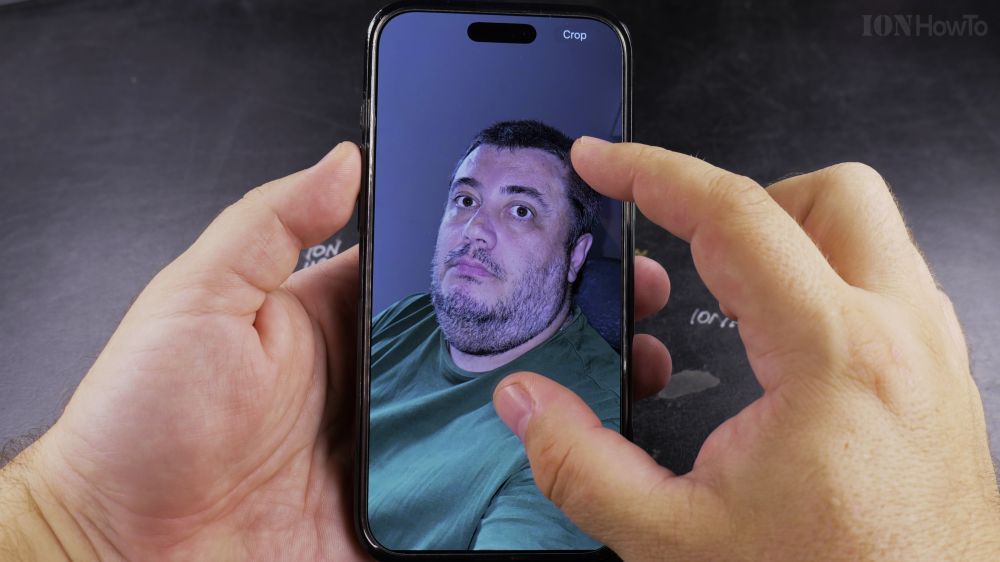
You can transform photos of your pets, family members, or fun objects into custom stickers with a single touch. I’ll show you how to lift subjects and save custom stickers in the iPhone Photos app.

1. Choose a Photo
Open the **Photos** app and select an image featuring a distinct pet, person, or object.

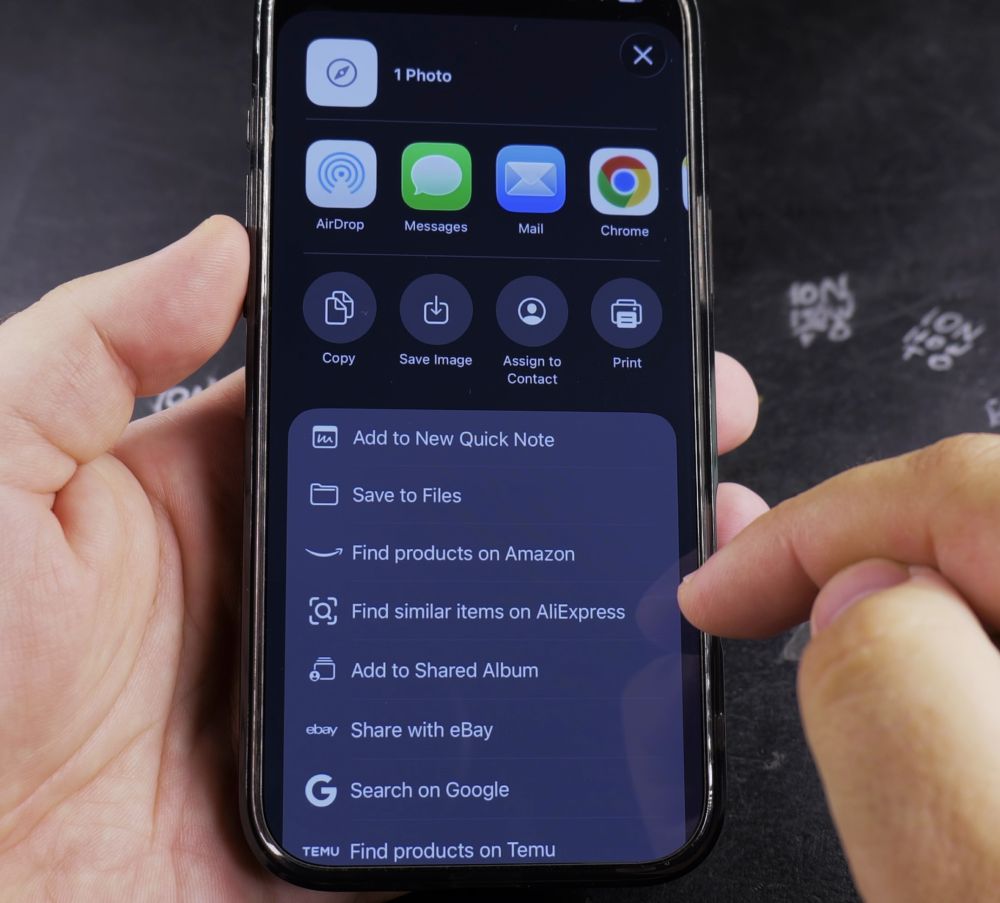
2. Lift the Subject
Press and hold your finger on the subject until a glowing white ripple outlines their silhouette.
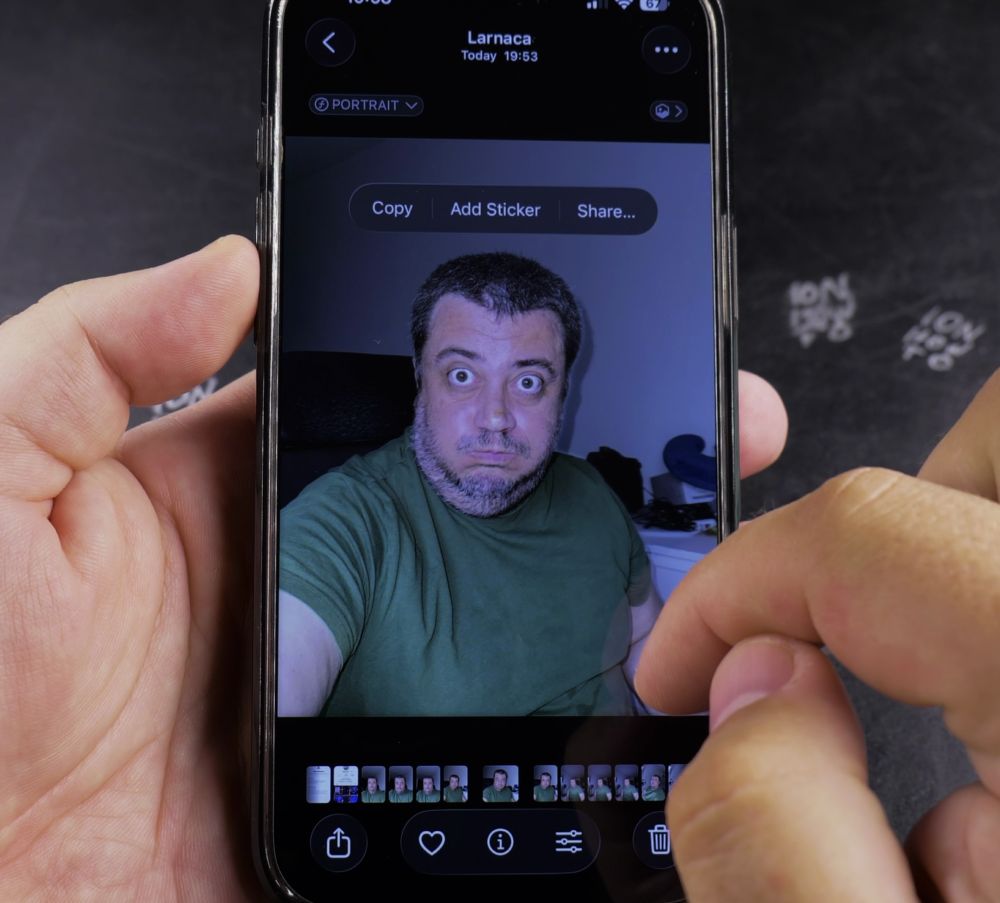
3. Tap Add Sticker
Release your finger and tap **Add Sticker** on the popup menu above the cutout.
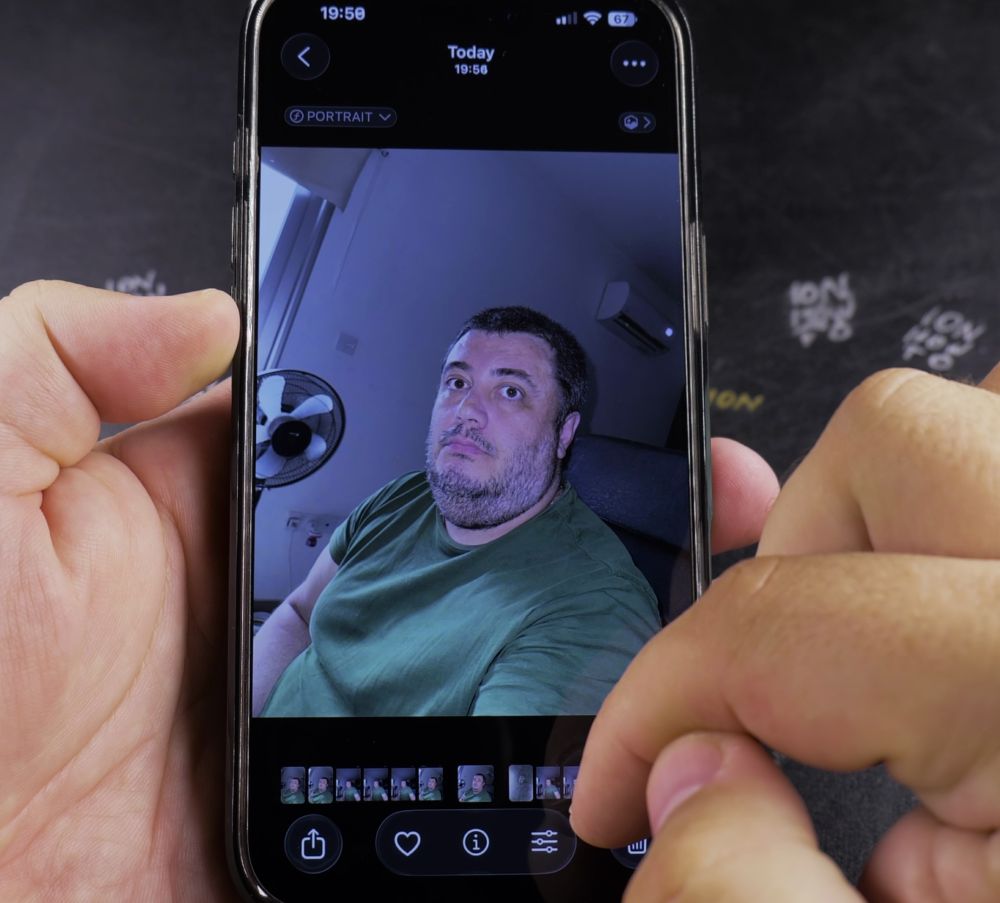
4. Add Fun Effects (Optional)
Tap **Add Effect** in the sticker drawer to apply white borders (**Outline**), **Comic** book styling, **Puffy** 3D shadows, or **Shiny** holographic foil.
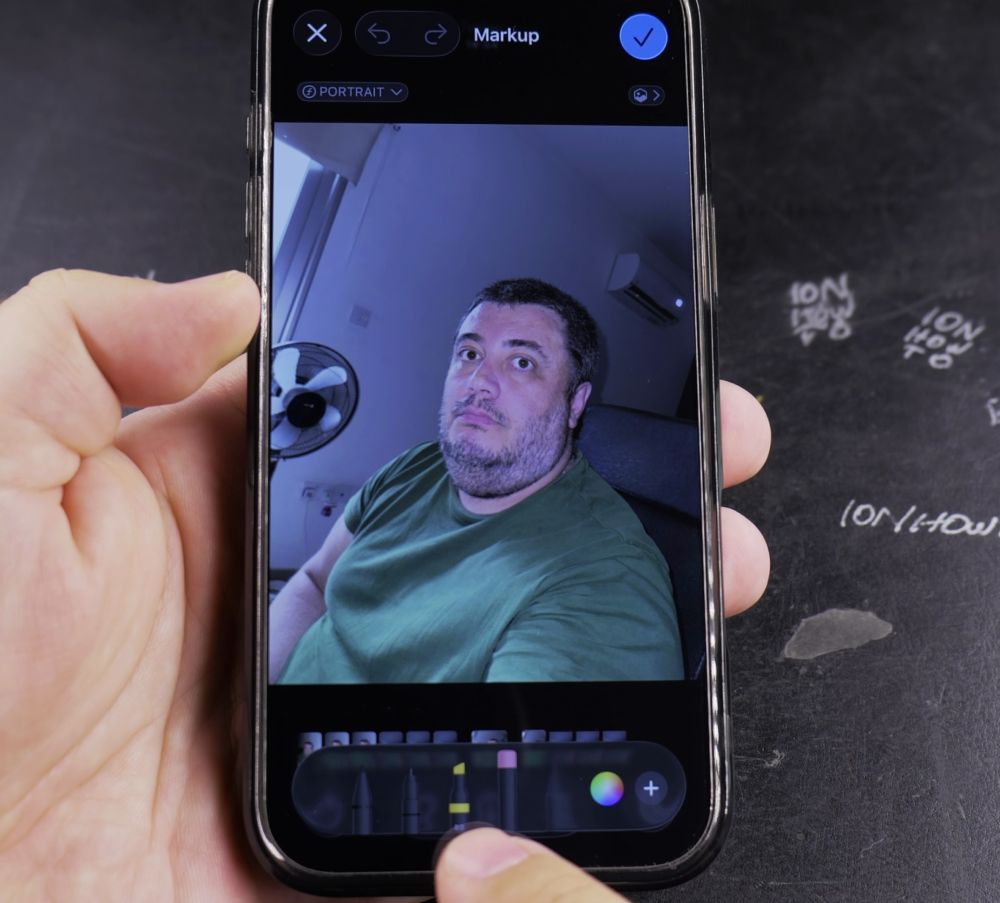
5. Tap Done
Tap **Done** to save the sticker. You can now peel and paste it into iMessage texts, notes, and photos.
Helpful Tips
Live Photos make animated moving stickers! Simply lift the subject of a Live Photo to create a looping sticker for your chats. For more iOS photo features, check out our iPhone Guides collection.
Leave a Reply Cancel reply