


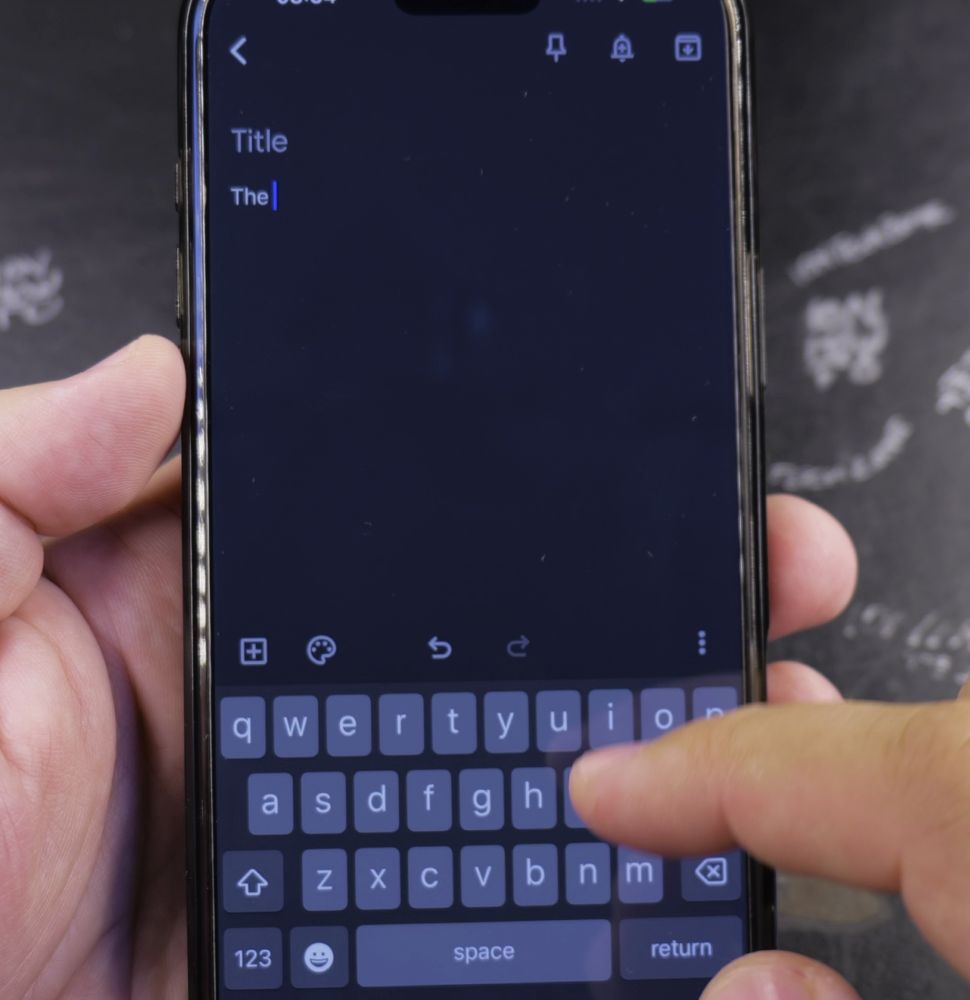
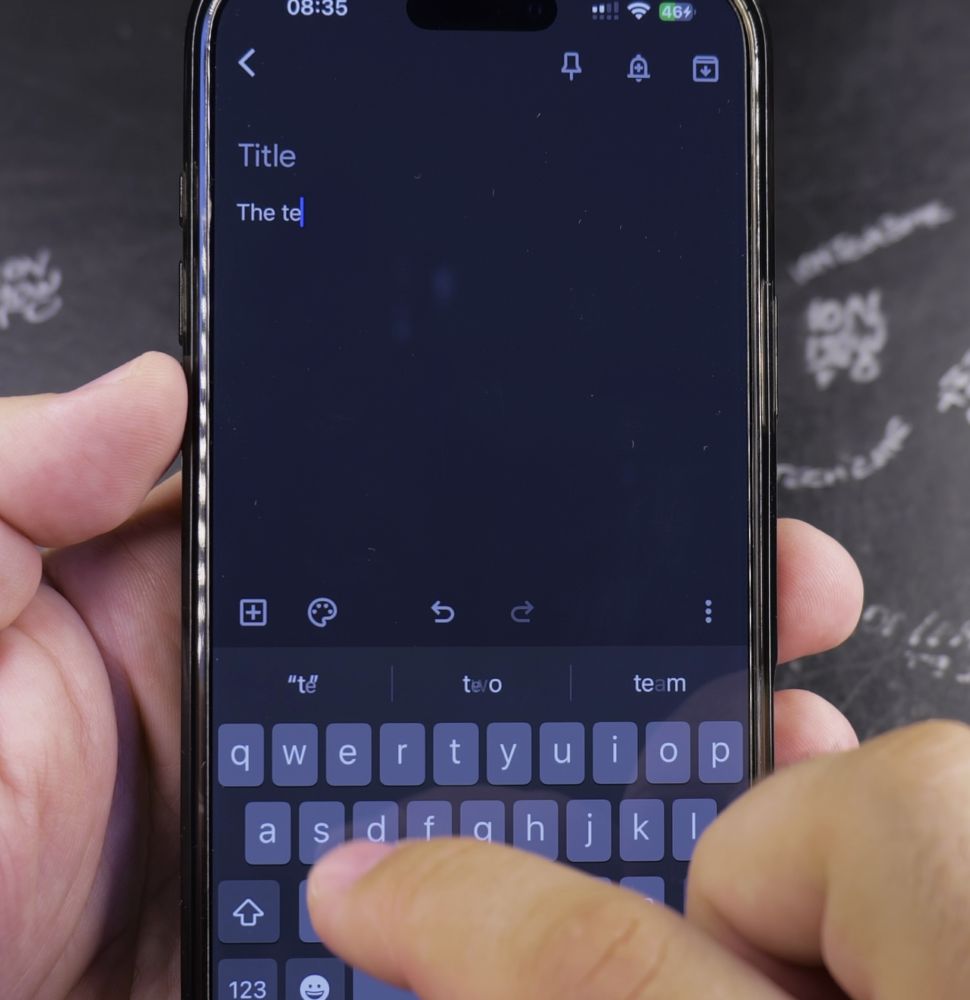
If your iPhone keyboard stopped showing word suggestions above the keys, your predictive text option might be turned off. I’ll show you how to turn predictive text back on in your iPhone keyboard settings.

1. Open Settings on Your iPhone
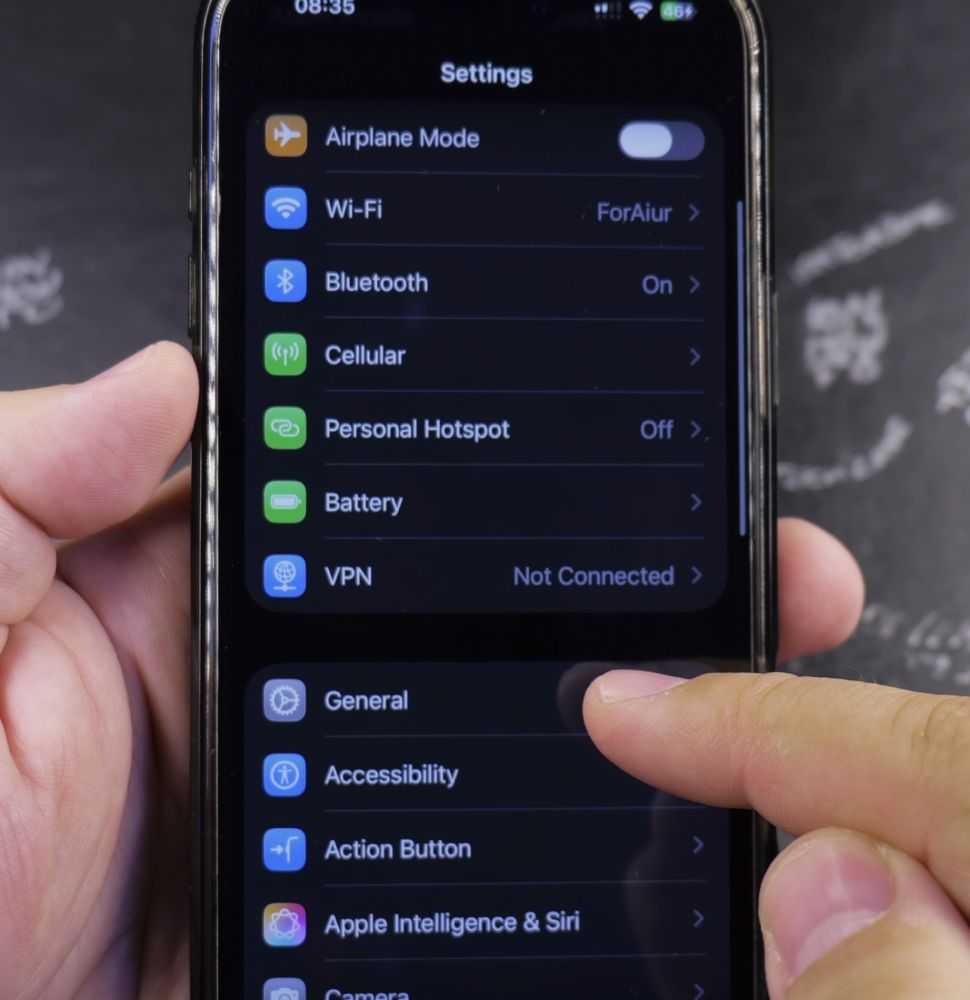
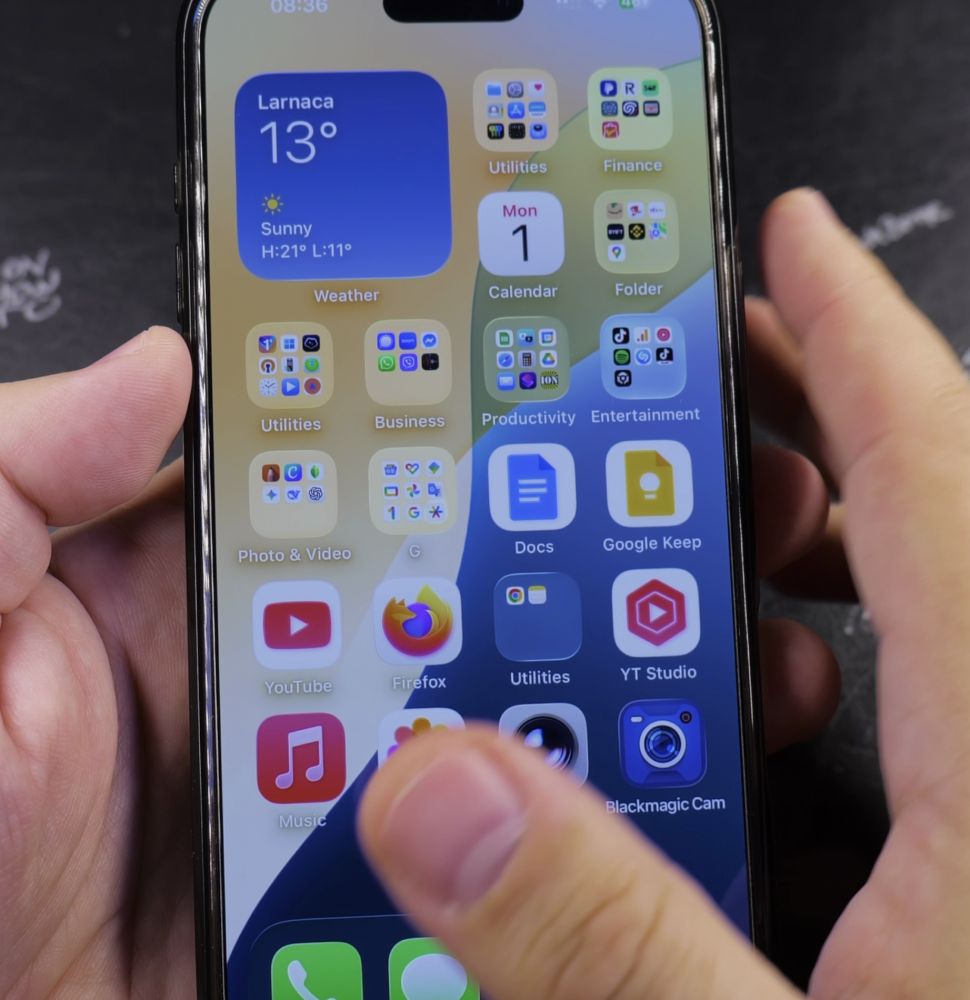
Tap the gray **Settings** gear icon on your Home Screen.
2. Tap General
Scroll down slightly and tap **General**.
3. Select Keyboard
Tap the **Keyboard** option located in the middle of the General menu.
4. Turn On Predictive
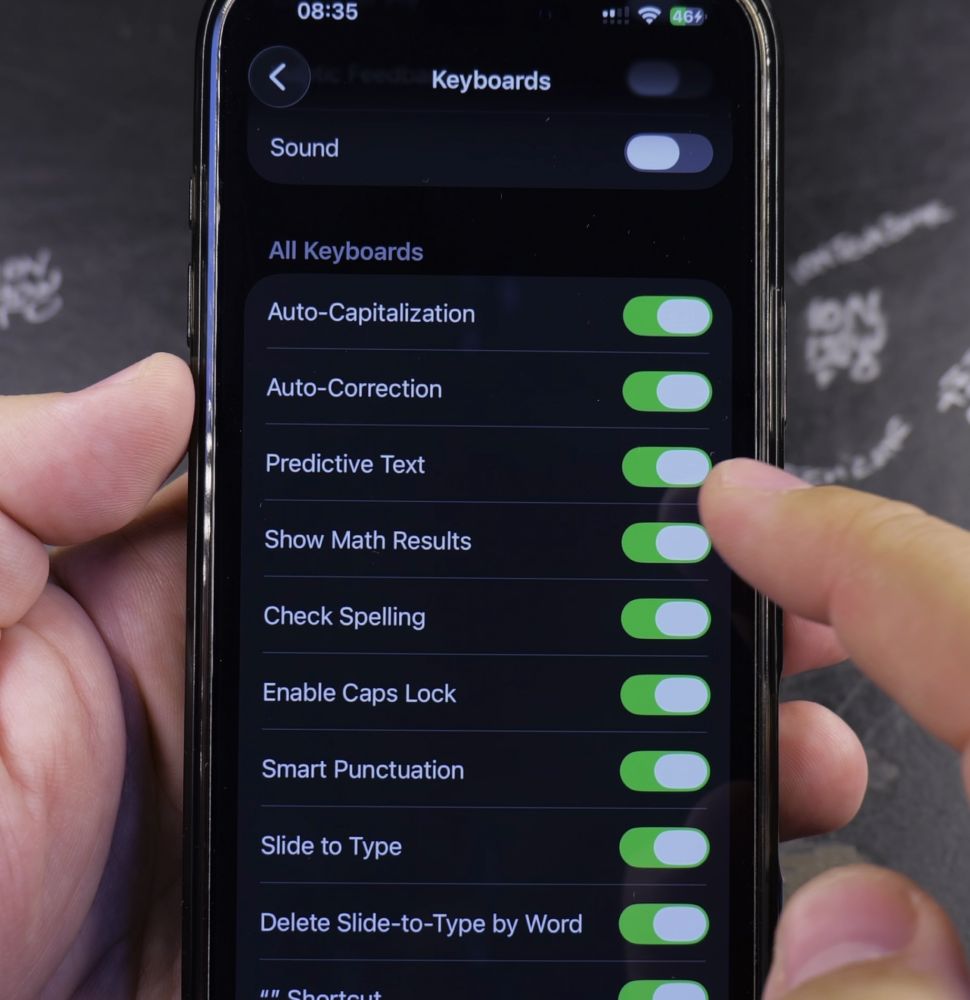
Under the *All Keyboards* header, flip the switch next to **Predictive** so it turns bright green.
Helpful Tips
You can also quickly turn predictive text on or off directly while typing by touching and holding the **Globe** or **Emoji** icon in the bottom-left corner of your keyboard. For more typing shortcuts, check out our guide on iPhone Guides hub.
Leave a Reply Cancel reply