


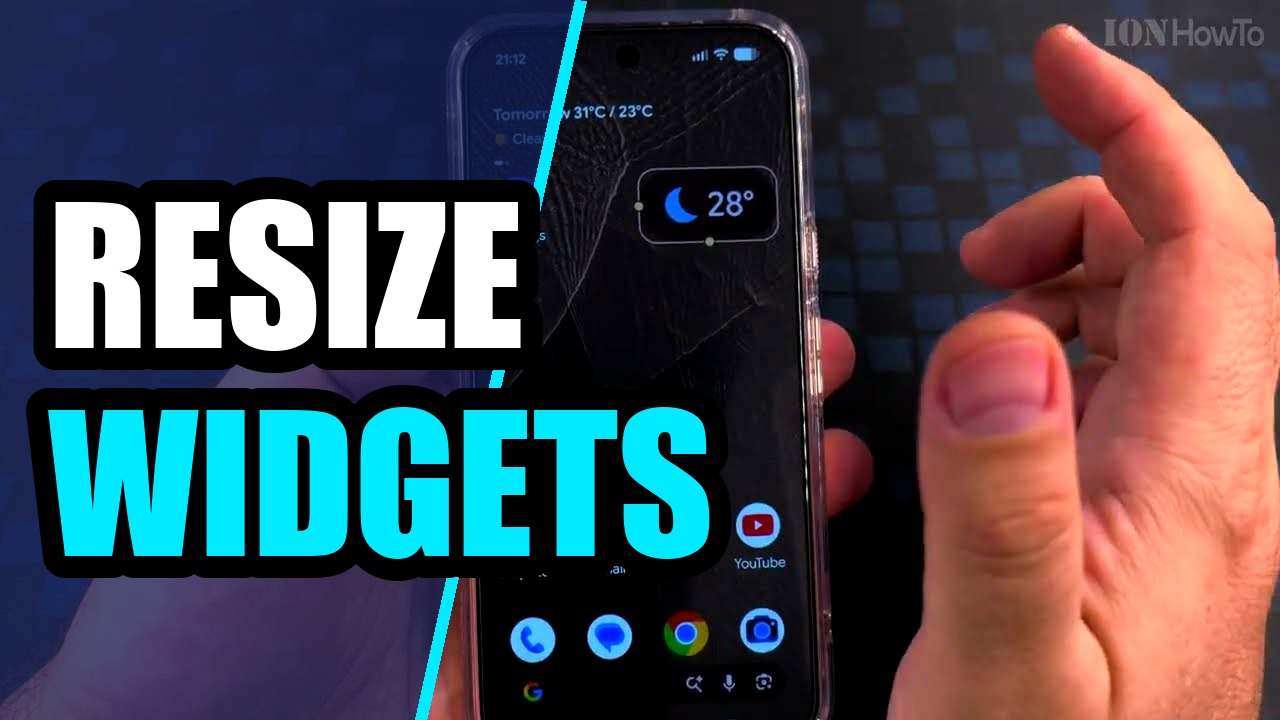
When a new widget feels cramped on your Google Pixel 11 Pro XL, a few quick adjustments give it plenty of room. I will show you how to move nearby icons out of the way and stretch or shrink any widget on Android 17 so your home screen stays neat and easy to read.

Quick Steps
- Check your current home screen layout
- Touch and hold a widget to resize
- Drag icons or widgets to free up space
- Drag the resize handles to fit
Step 1: Check your current home screen layout
Look at the home screen on your Google Pixel 11 Pro XL to see where icons or widgets need more room.

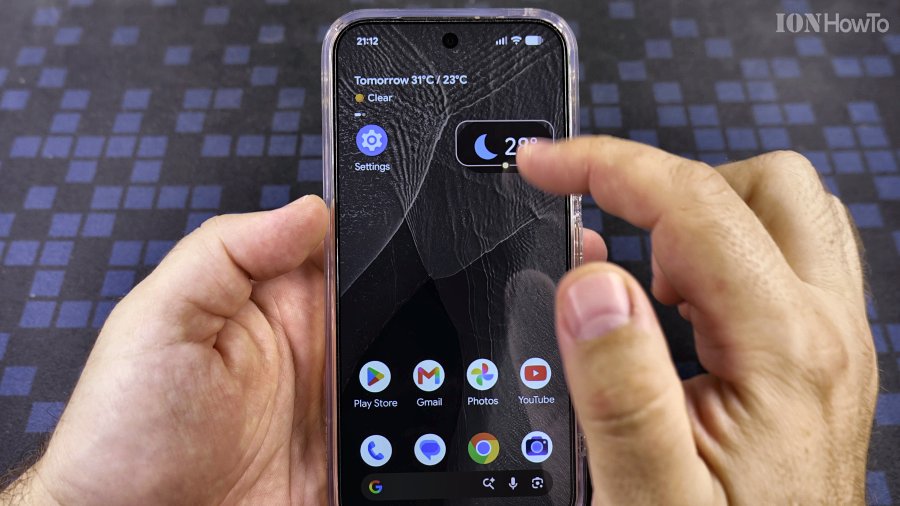
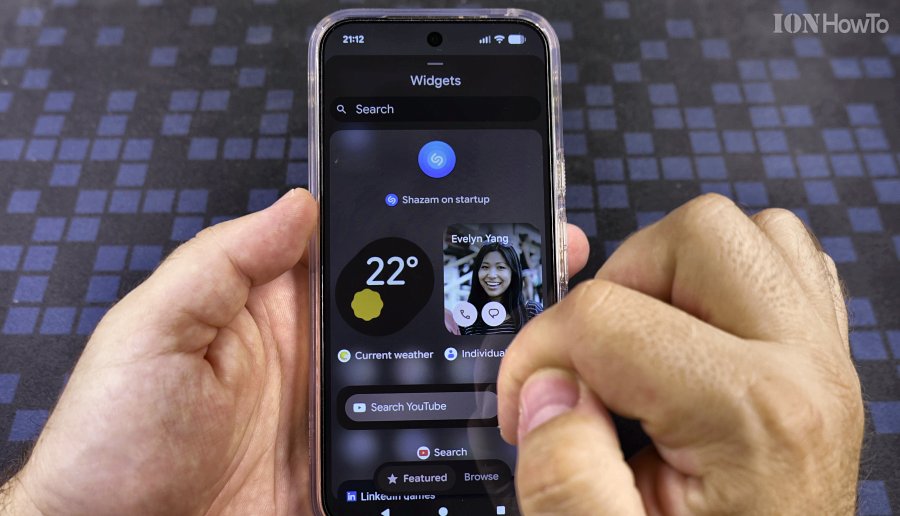
Step 2: Touch and hold a widget to resize
Press and hold the widget you want to adjust, then lift your finger to reveal the resize frame.
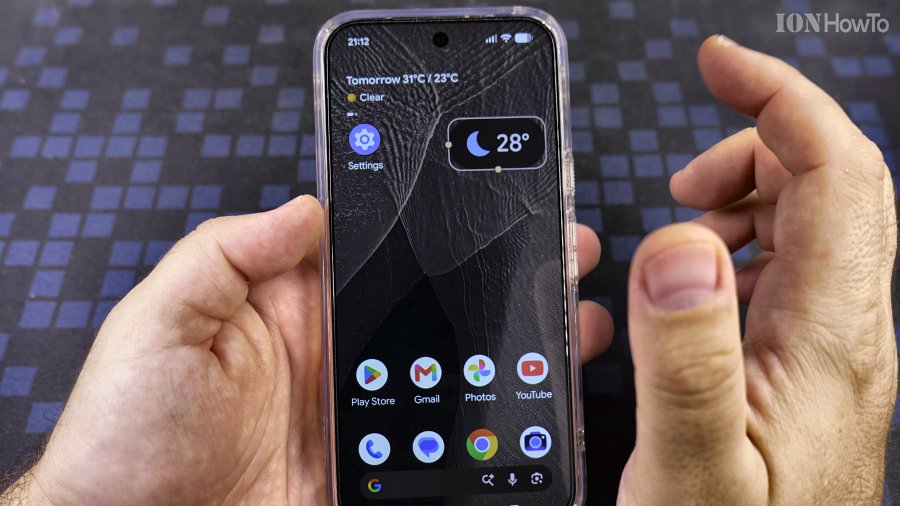
Step 3: Drag icons or widgets to free up space
Touch and hold nearby app icons and slide them to another spot or page so your widget has room to grow.

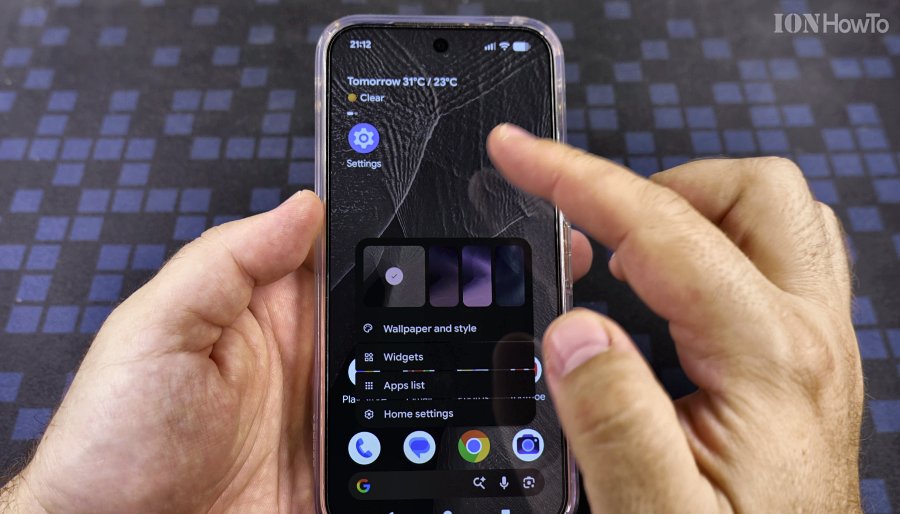
Step 4: Drag the resize handles to fit
Pull the white dots on the edges of the widget box outward or inward until the size looks right, then tap an empty spot.

Helpful Tips
- Move less-used app icons to a second home screen page so your main widgets have breathing room.
- Some widgets have a minimum size, so drag slowly until the white border snaps into place.
Related Guides
See also how to add widgets to your Android 17 home screen.
Leave a Reply Cancel reply