


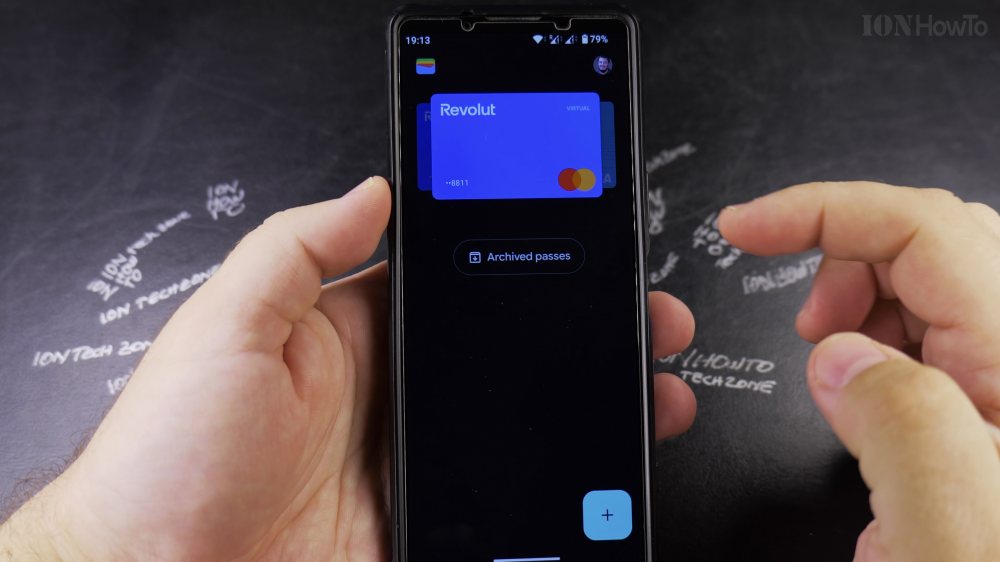
If an old debit card expired or you closed an account, keeping it in Google Wallet can cause accidental declined payments. I’ll show you how to remove saved cards from Google Wallet in a few easy taps.

1. Open Google Wallet
Tap the **Google Wallet** app icon on your Android home screen.

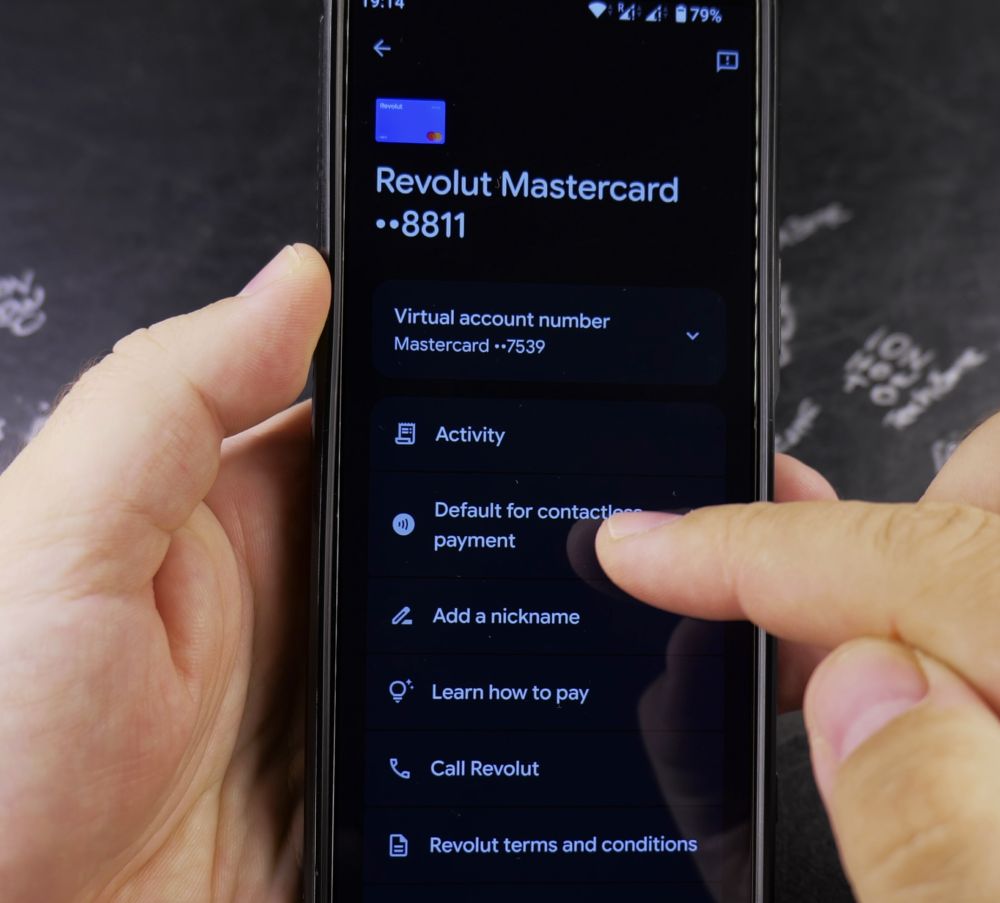
2. Select the Card to Remove
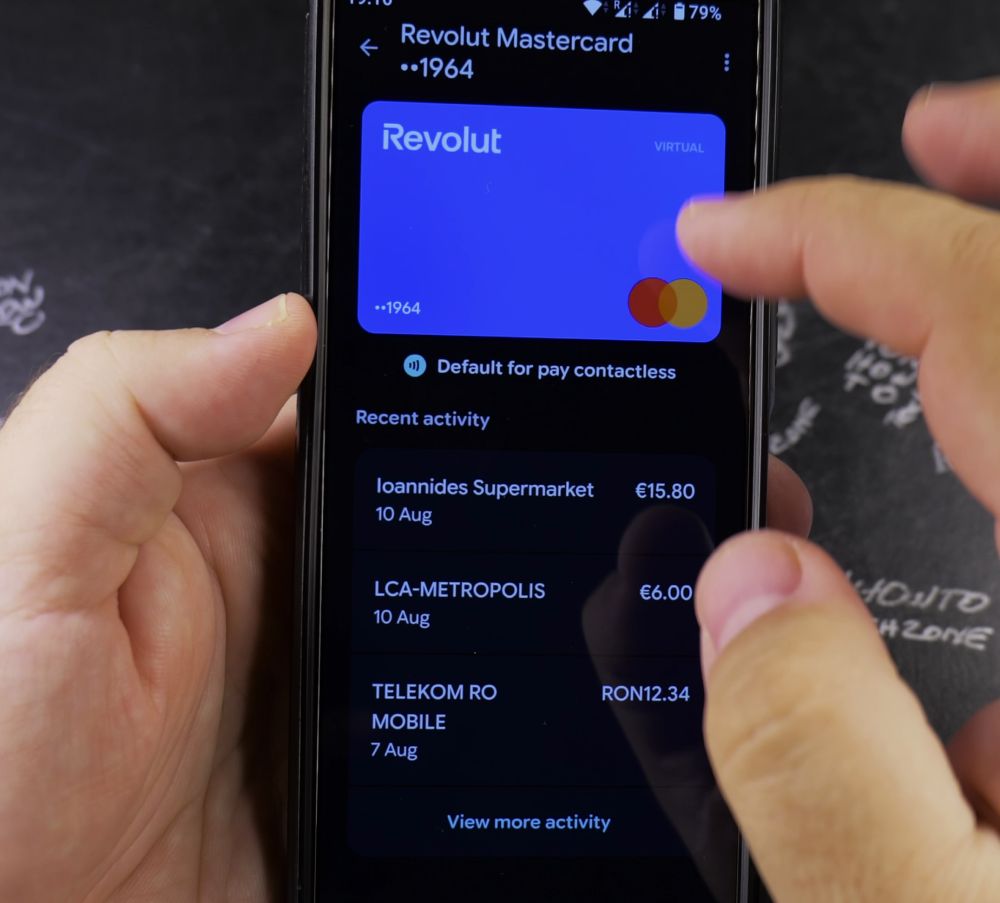
Swipe through your cards and tap the credit or debit card you wish to delete.
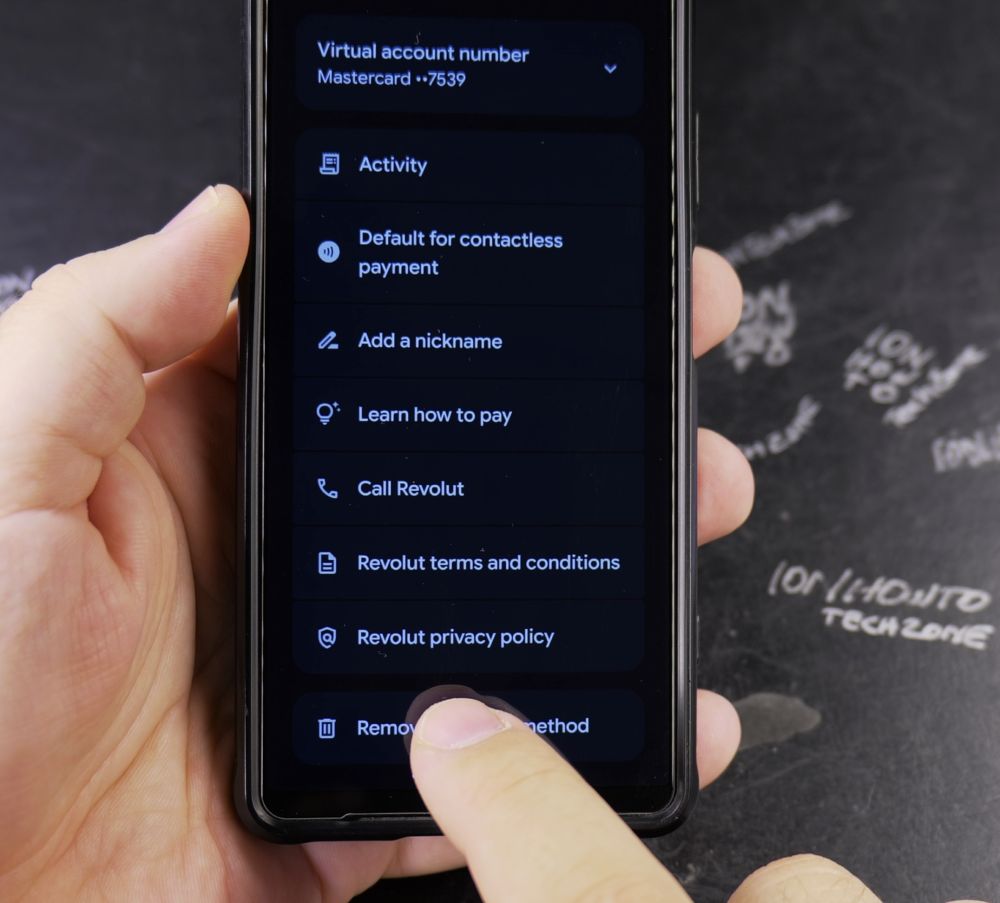
3. Open the More Menu
In the top-right corner of the card screen, tap the **three vertical dots**.
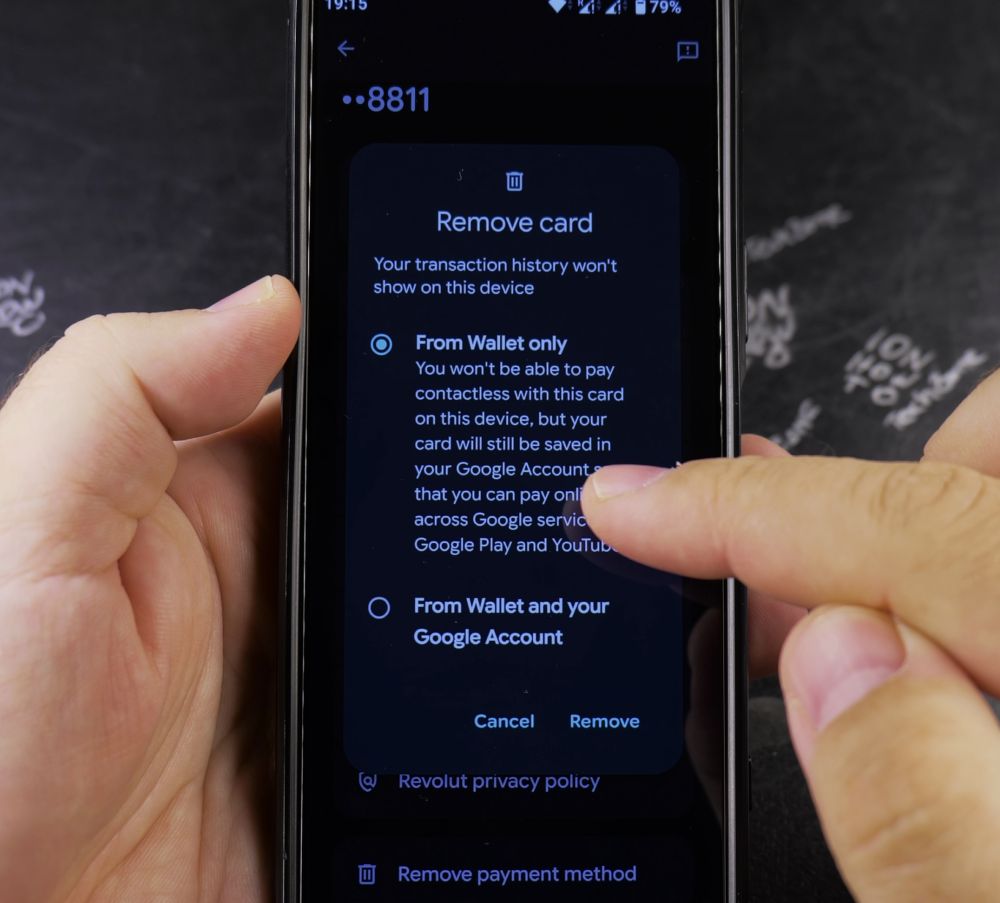
4. Tap Remove Payment Method
Scroll to the bottom of the options list and tap **Remove payment method**.
5. Confirm Removal
A popup warns you that the card will be removed from Google Pay contactless payments and your Google Account. Tap **Remove** to confirm.
Helpful Tips
Removing a card from Google Wallet removes it from both in-store tap-to-pay and online Google Pay autofill across your Google Account. If you only want to change your primary payment card, you can set another card as default instead. For more Android financial tips, visit our Android Guides hub.
Leave a Reply Cancel reply