


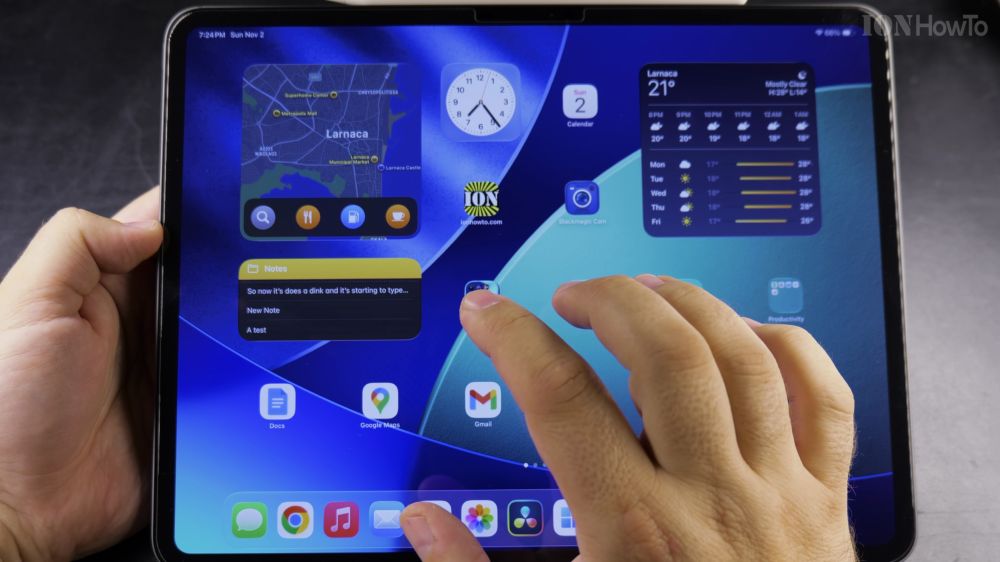
If a widget on your iPad home screen takes up too much room or is too small to read, you can change its dimensions in seconds. I’ll show you how to use the built-in resize handle to switch between compact squares and full-width banners.

1. Enter Edit Mode on Home Screen
Press and hold your finger on an empty area of your wallpaper or on any widget until all items begin to jiggle.

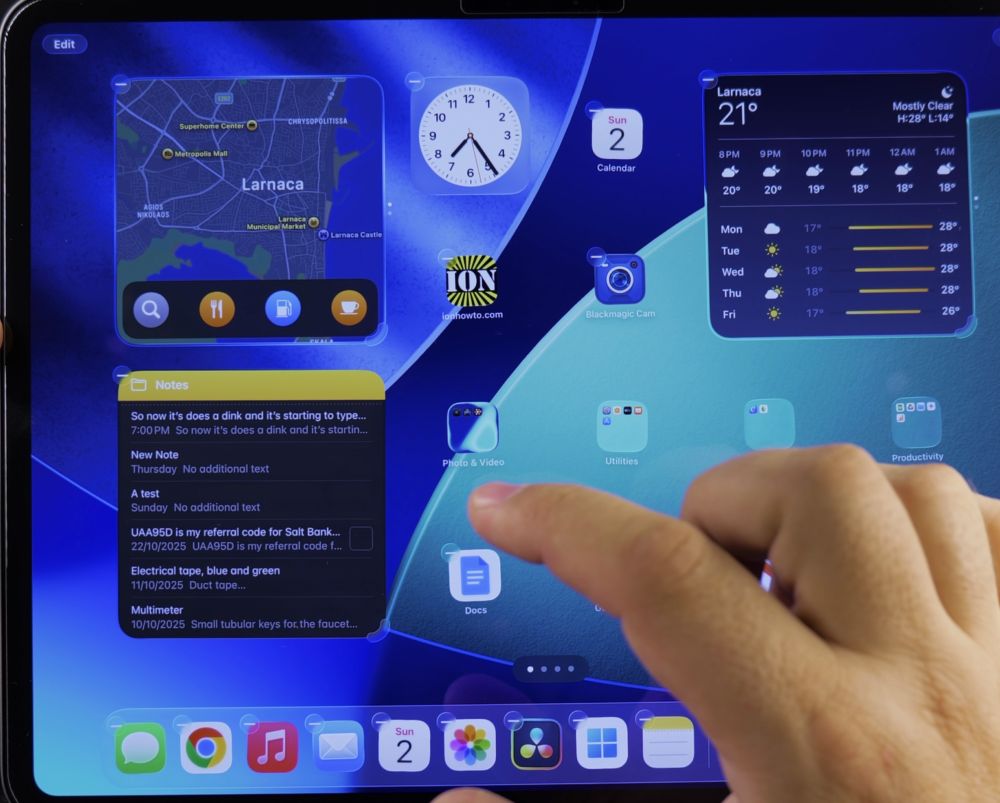
2. Locate the Resize Corner Handle
Look at the bottom-right corner of the widget you want to resize. You will see a small curved corner handle.
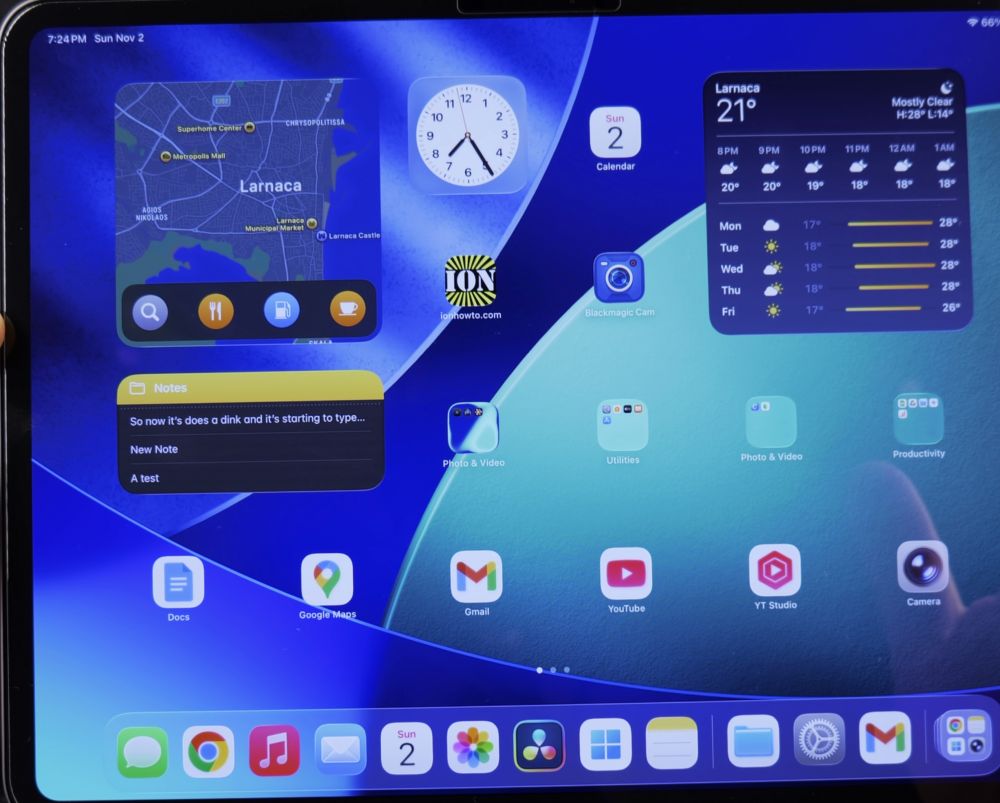
3. Drag the Handle to Change Dimensions
Touch and drag that corner handle outward to expand the widget, or push it inward to make it smaller.
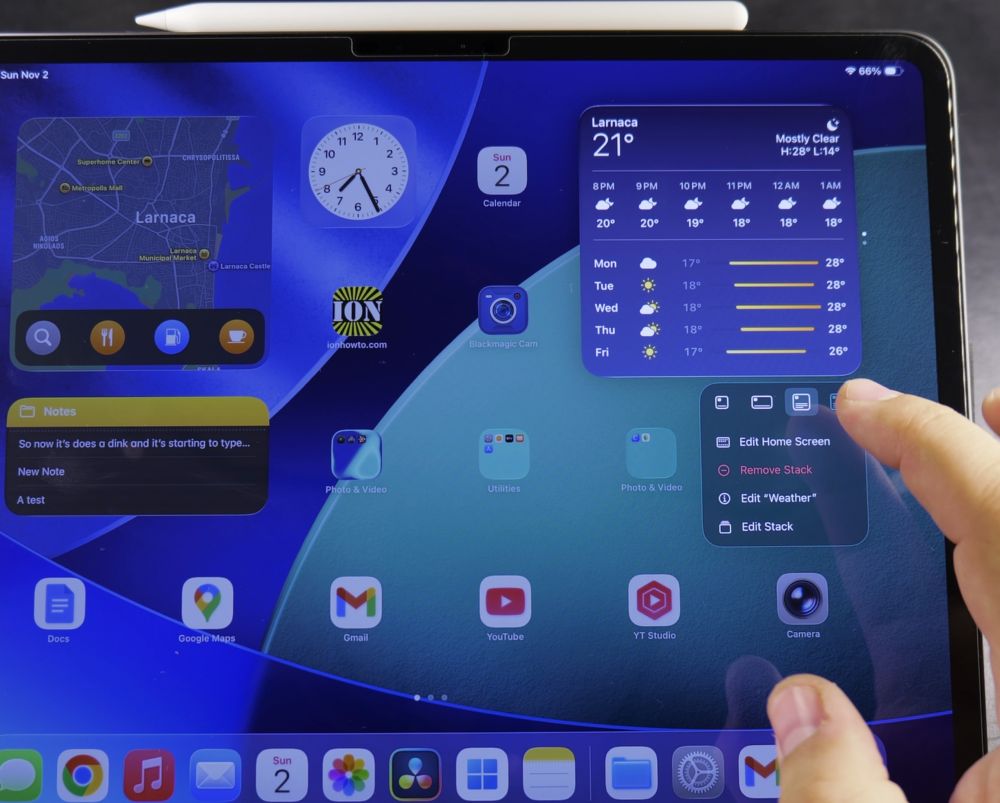
4. Choose Your Preferred View
Release your finger when the widget snaps to your desired format, such as a compact square, horizontal banner, or large square.
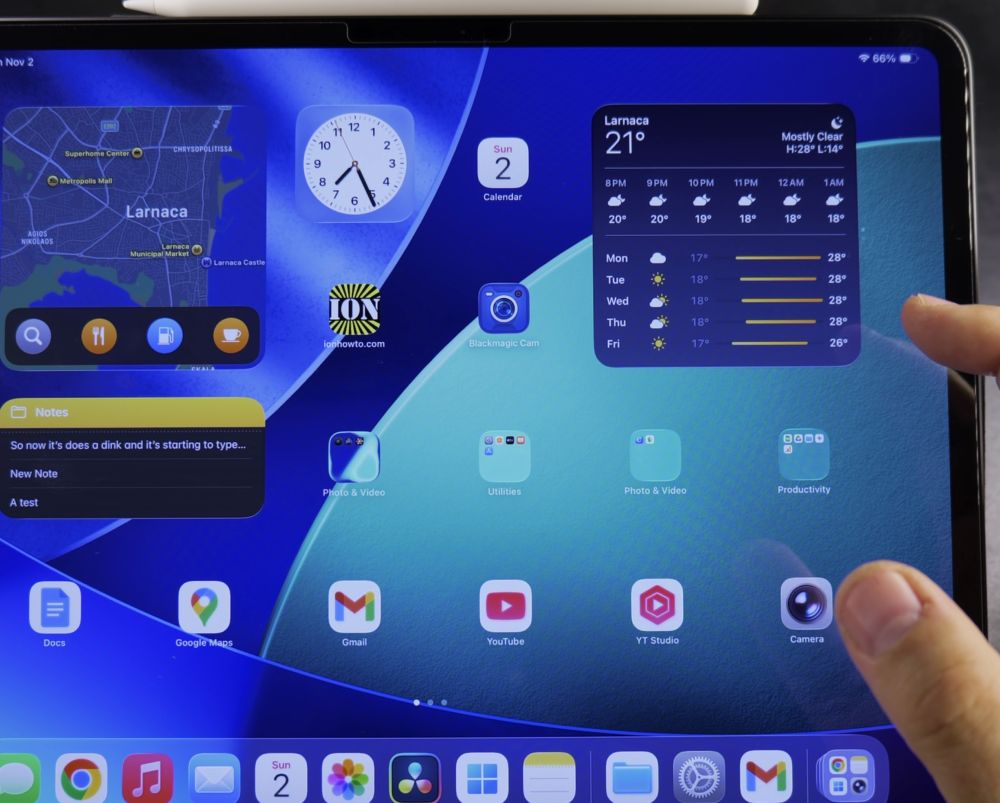
5. Exit Edit Mode
Tap any blank space on your wallpaper or tap **Done** in the top corner to lock your new widget size into place.
Helpful Tips
You can also long-press any widget and tap **Edit Widget** to adjust its location or content preferences. To learn how to make icons bigger or organize your layout, read our guide on how to make app icons bigger on iPad.
Leave a Reply Cancel reply