


If you finished sharing your internet connection with a laptop or tablet, leaving your hotspot on drains battery fast. I’ll show you how to turn off Mobile Hotspot on your Samsung phone in a few quick taps.

1. Open Settings
Swipe down from the top of your screen and tap the small **gear icon** in the top-right corner.

2. Tap Connections
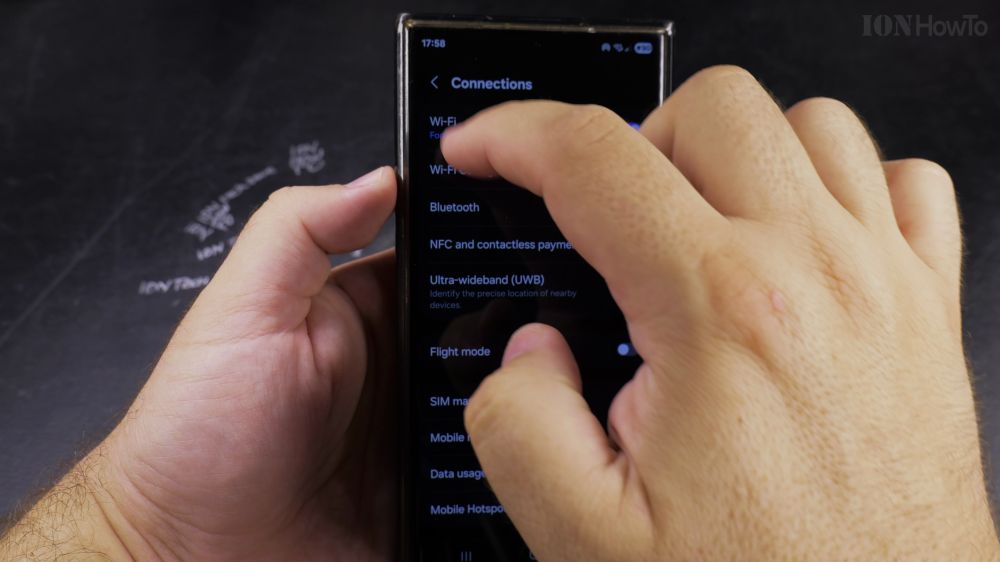
At the very top of the settings list, tap **Connections**.
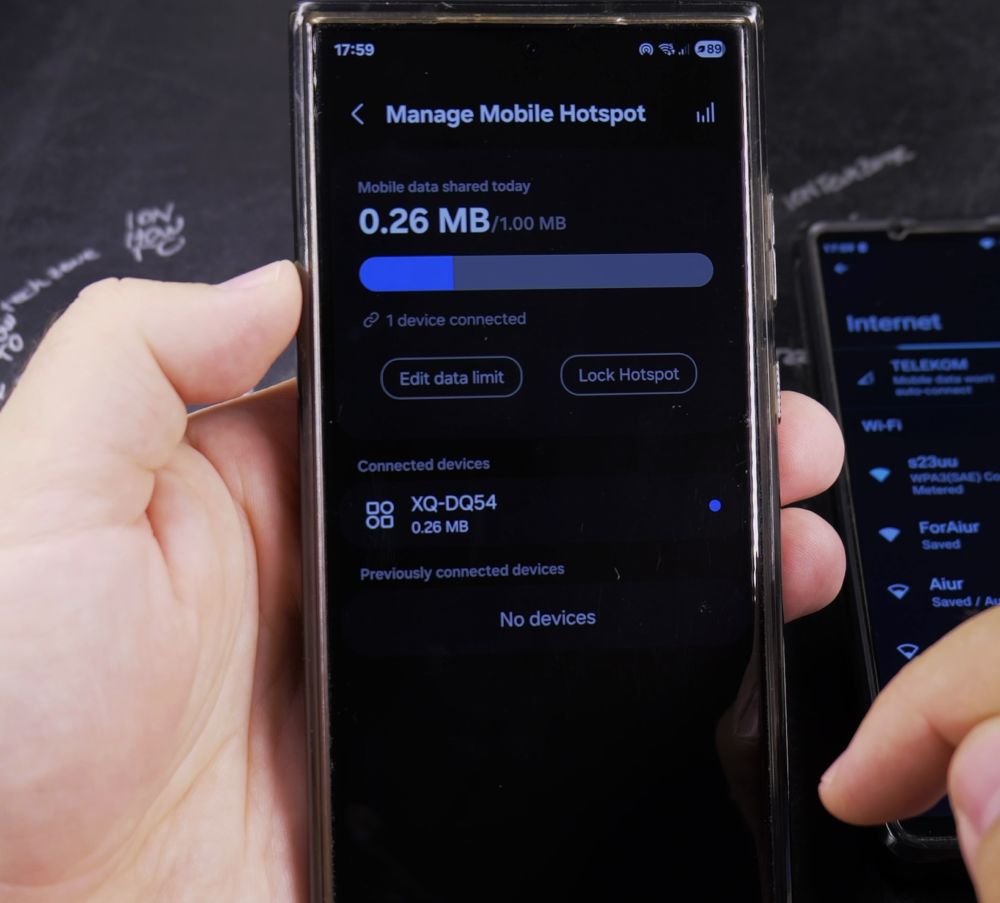
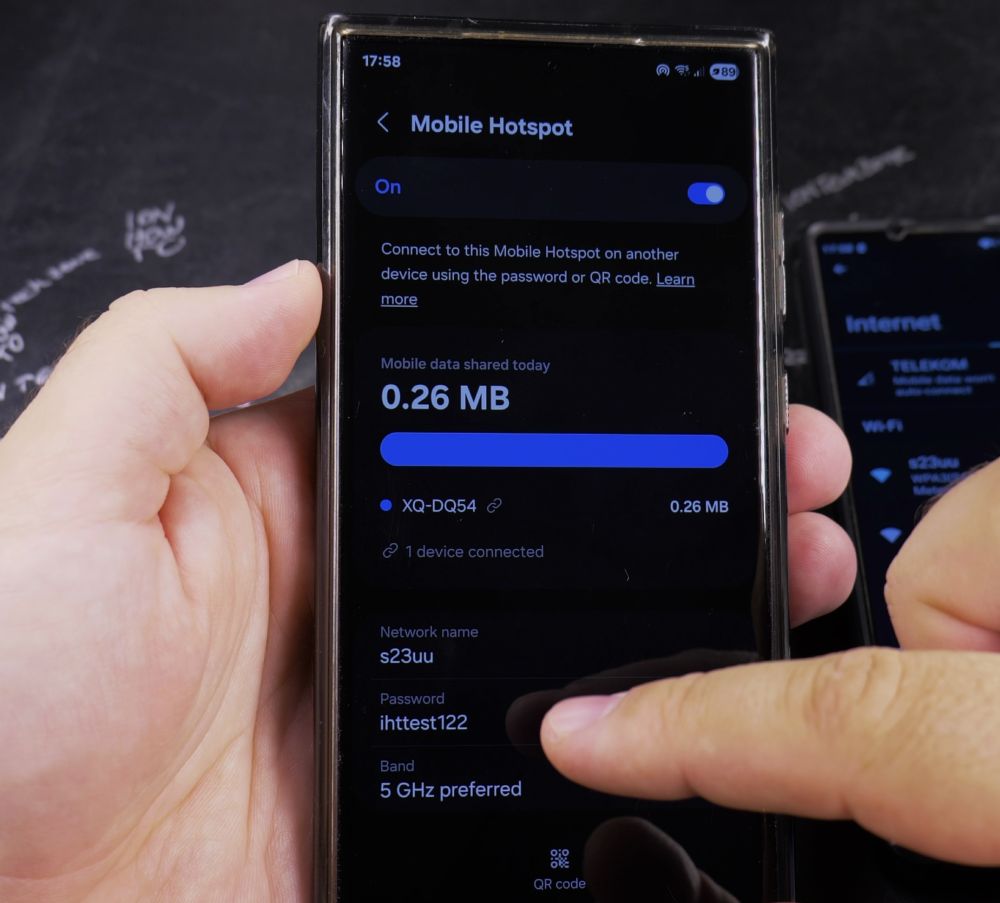
3. Select Mobile Hotspot and Tethering
Scroll down slightly and tap **Mobile Hotspot and Tethering**.
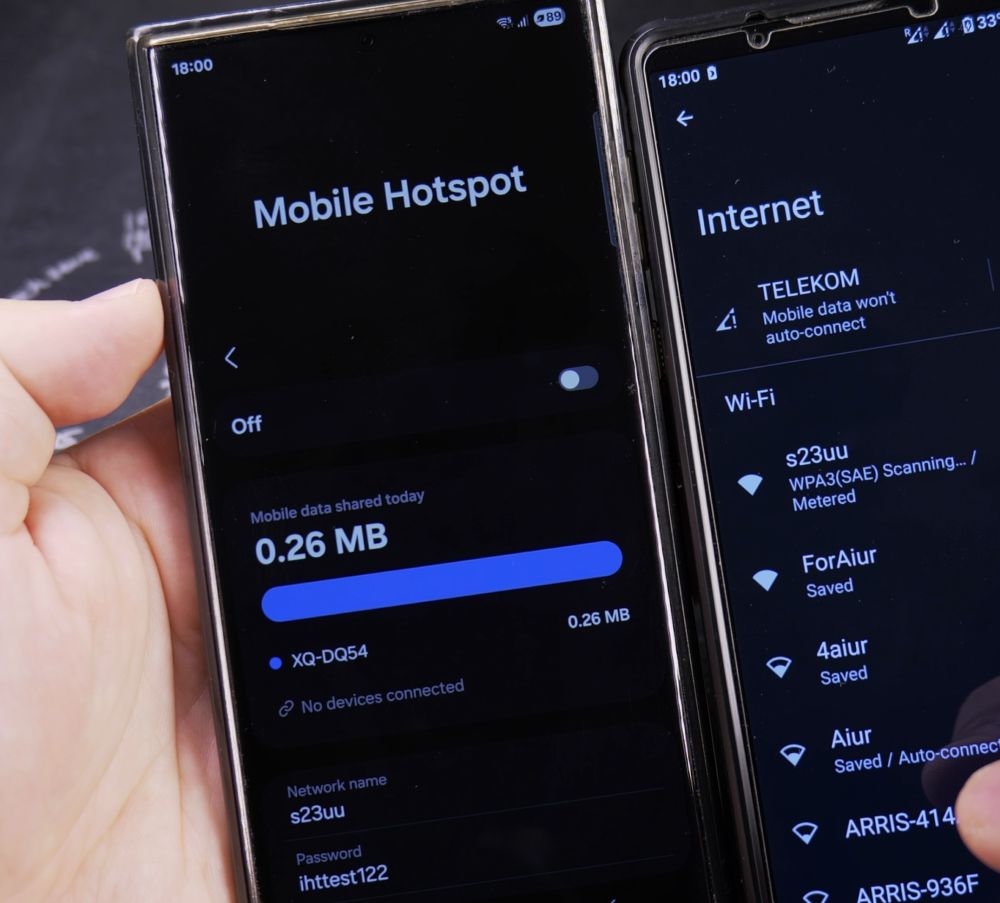
4. Turn Off Mobile Hotspot
Tap the switch next to **Mobile Hotspot** so it slides to the **Off** (gray) position.
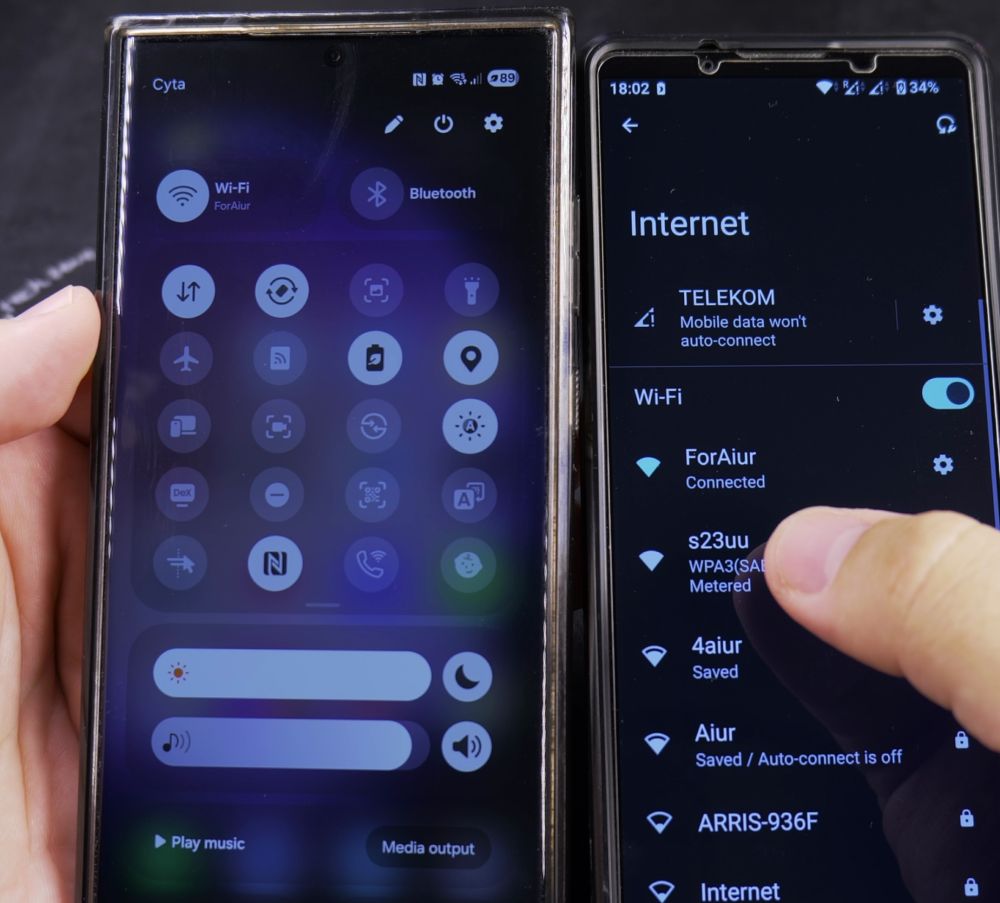
5. Quick Settings Shortcut
For everyday use, swipe down twice from the top of your screen to open Quick Settings, then tap the **Mobile Hotspot** icon to turn it off instantly.
Helpful Tips
Turning off Mobile Hotspot immediately disconnects all tethered devices and prevents unexpected cellular data overage fees. For more helpful Android connectivity tips, visit our Android Guides hub.
Leave a Reply Cancel reply