


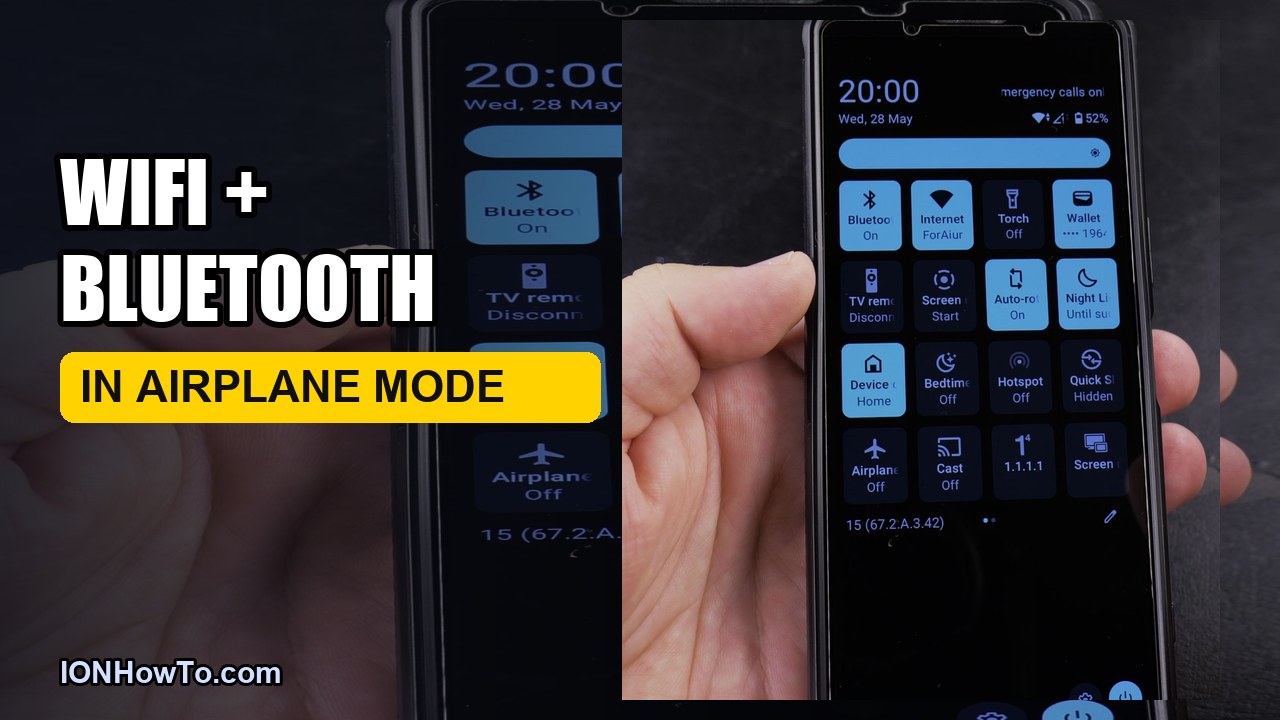
Turning on Airplane Mode on an Android phone shuts off your cellular signal, and at first it usually turns off WiFi and Bluetooth too.
The good news is you can turn WiFi and Bluetooth right back on while keeping Airplane Mode active, and I’ll show you how your phone remembers your choice.

Quick Steps
- Turn On Airplane Mode from Quick Settings
- Turn WiFi Back On While Staying in Airplane Mode
- Turn On Bluetooth for Wireless Headphones
- Know How Android Remembers Your Preference
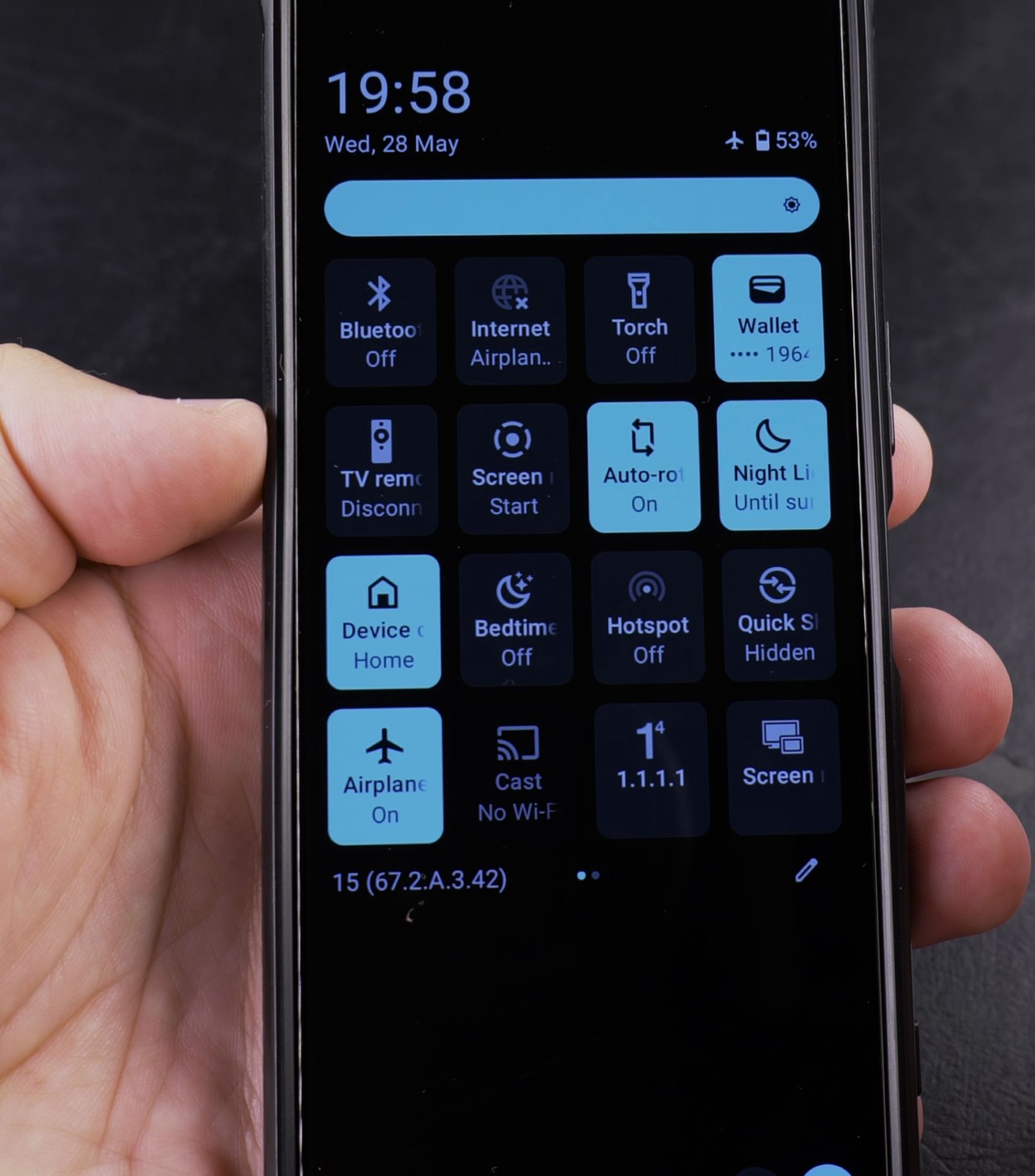
1. Turn On Airplane Mode from Quick Settings
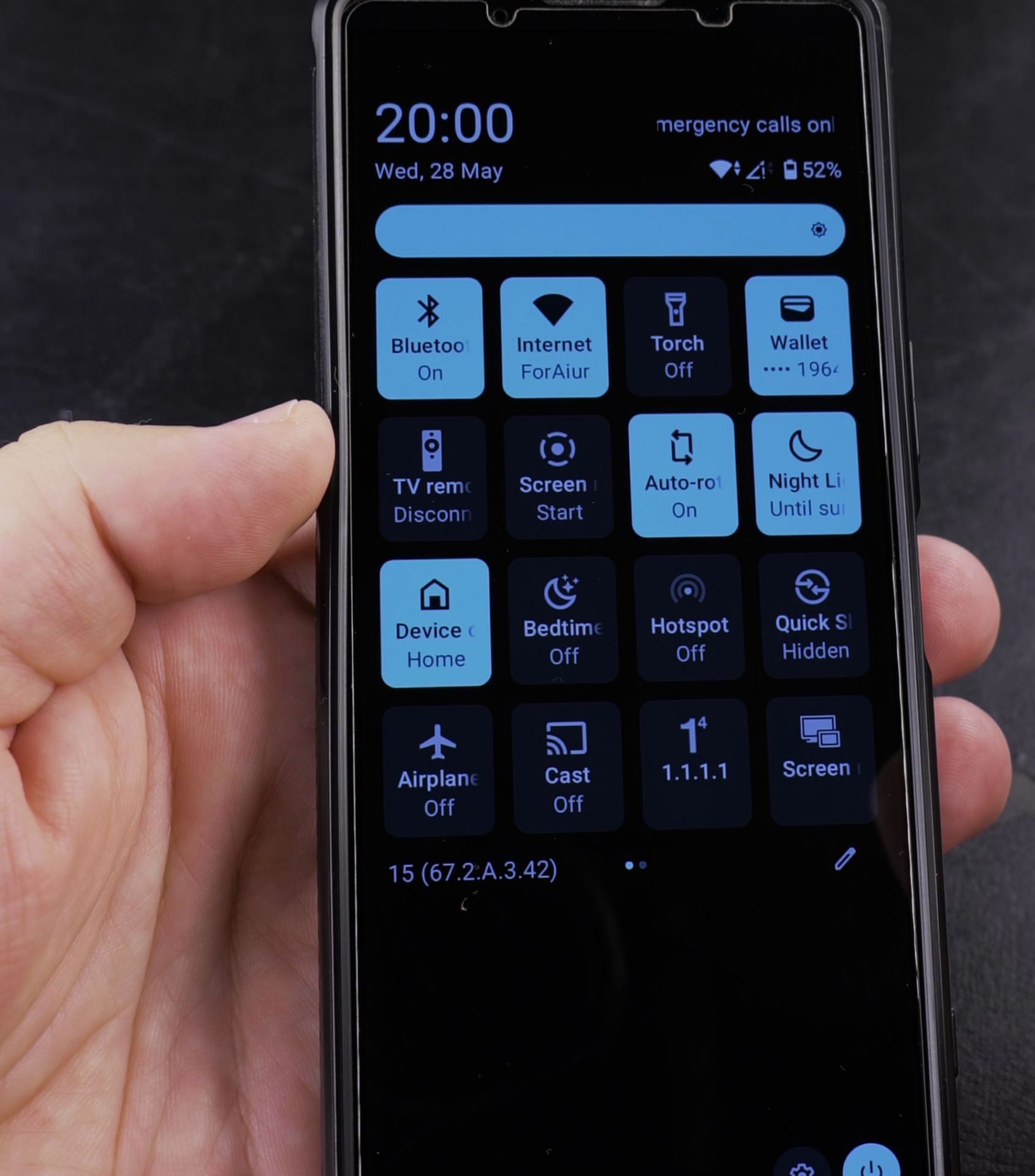
Swipe down from the top of your Android screen to open the Quick Settings panel. Tap the Airplane mode tile so the small airplane icon appears in your status bar at the top.

2. Turn WiFi Back On While Staying in Airplane Mode
While the airplane icon is still at the top of your screen, tap the Internet or Wi-Fi tile in Quick Settings to turn WiFi back on. You can now connect to airplane WiFi or your home router while cellular calls and texts remain off.

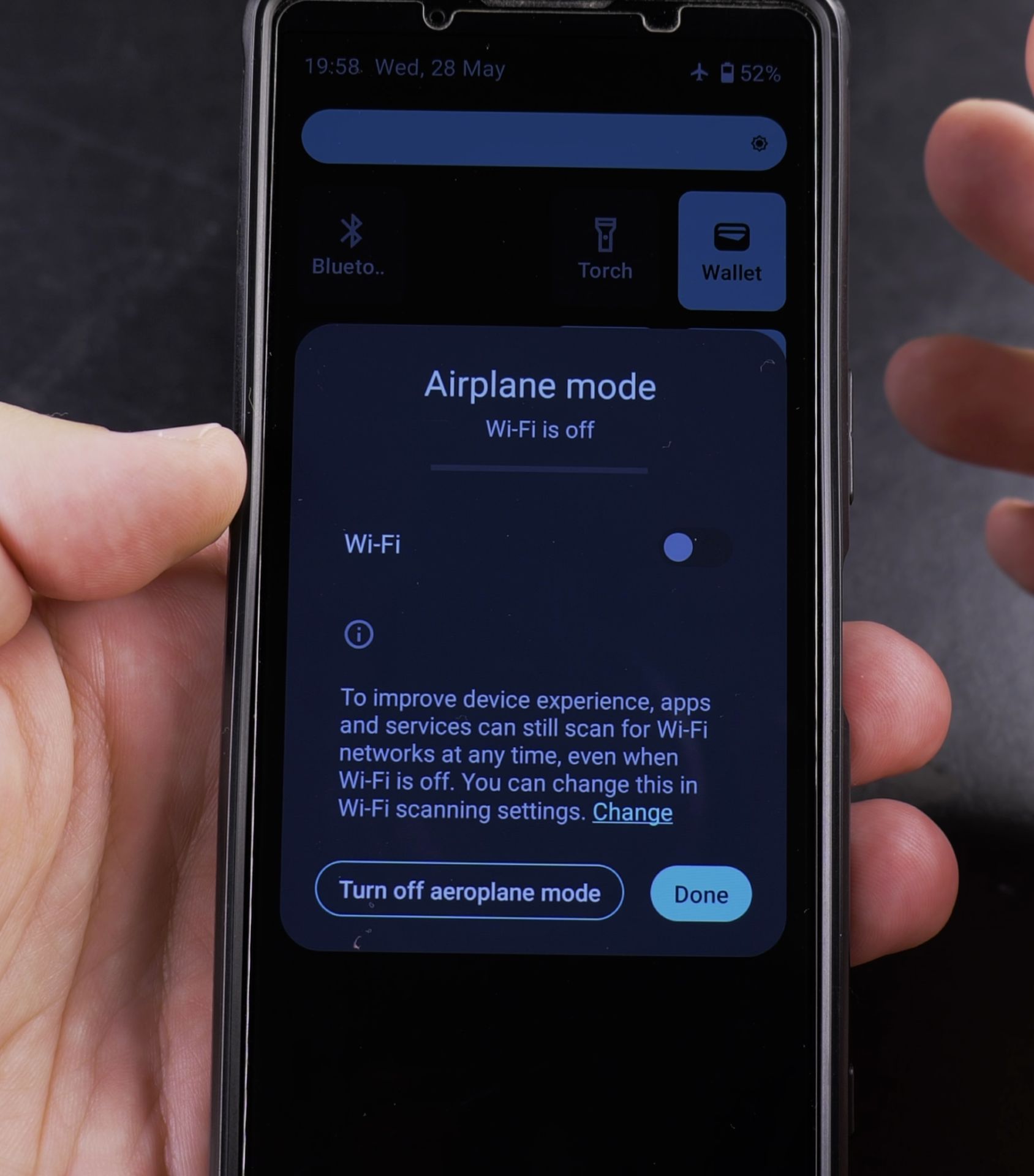
3. Turn On Bluetooth for Wireless Headphones
Tap the Bluetooth tile in Quick Settings to turn Bluetooth back on. Your wireless earbuds or headphones can now connect normally during your flight.
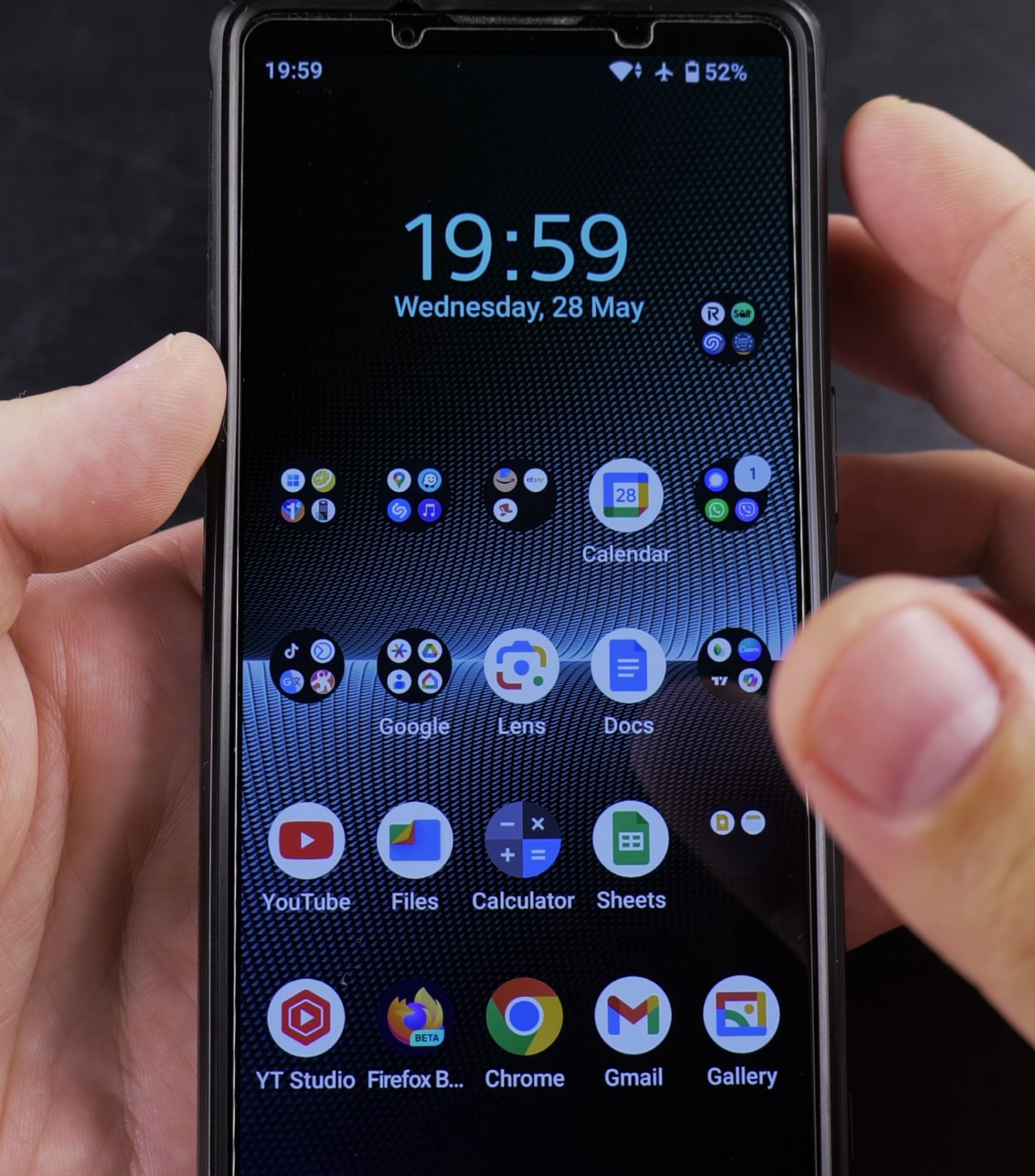
4. Know How Android Remembers Your Preference
Modern Android phones remember what you turned on inside Airplane Mode. Next time you turn Airplane Mode on, WiFi or Bluetooth may stay on automatically, and if you want them off again, just turn them off while Airplane Mode is active.
Helpful Tips
- Always follow airline crew instructions and wait until electronic devices are allowed before turning WiFi or Bluetooth back on in flight.
- Keeping Airplane Mode on with WiFi enabled is also a handy way to save battery or avoid roaming charges while traveling abroad.
Helpful Accessories on Amazon
As an Amazon Associate I earn from qualifying purchases.
Related Guides
- Remove Apps from Samsung Android Home Screen – How to Remove Apps from Home Screen on Samsung Android.
- Remove App From Android Home Screen – How to Remove an App from Your Home Screen on Android.
- Fix Samsung Screen Auto Rotate Stuck in Portrait Mode – How to Fix Samsung Screen Auto Rotate Missing or Stuck in Portrait Mode.
- Android & Mobile Guides – Browse more tutorials and practical guides in this section.
Leave a Reply Cancel reply