


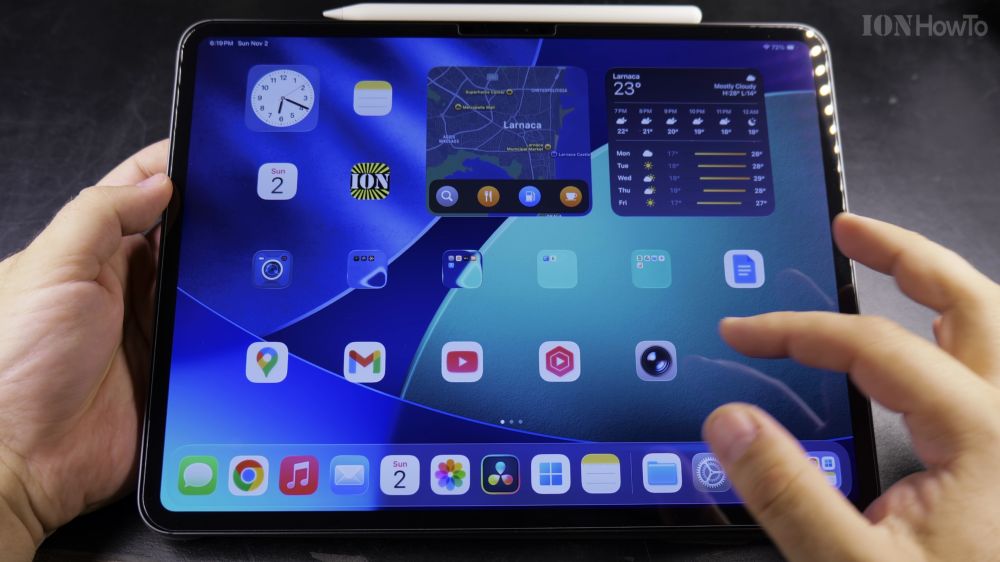
If the text names beneath your iPad icons vanished or you want a cleaner look without titles, you can switch them easily. I’ll show you how to show or hide app labels on your iPad Home Screen in just a few taps.

1. Enter Edit Mode
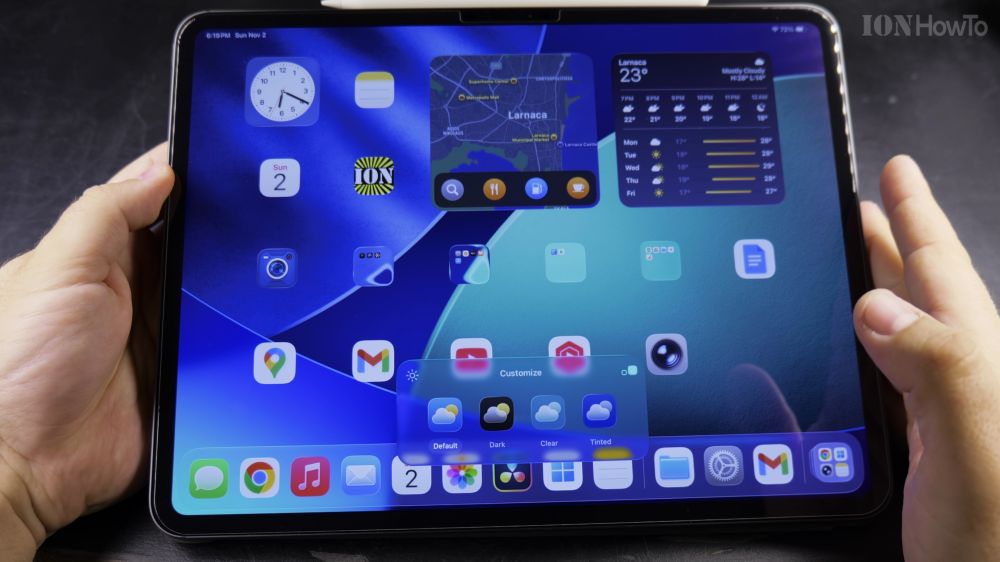
Touch and hold any empty wallpaper area on your iPad until the app icons begin to wiggle.
2. Tap Edit in Top-Left Corner
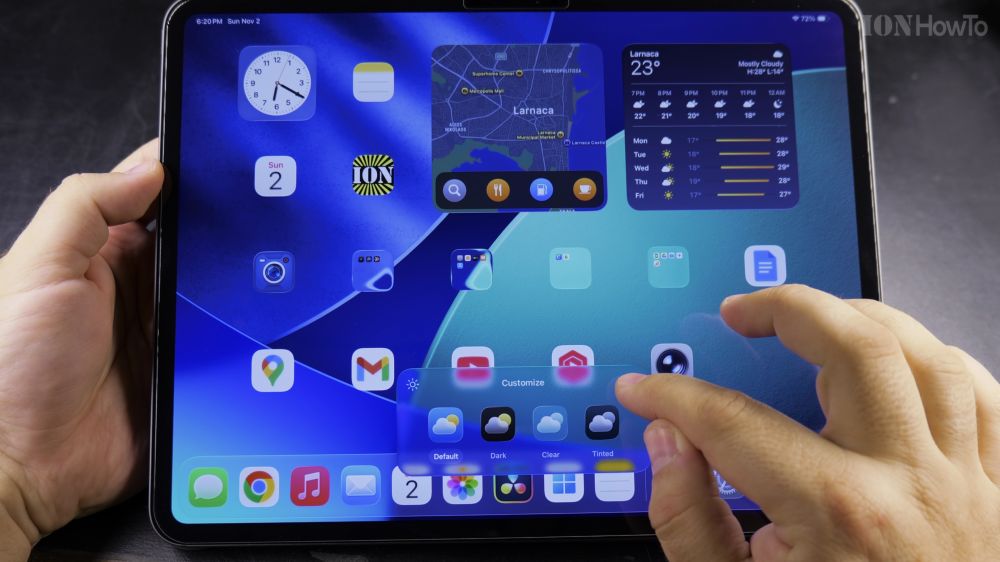
Tap the oval **Edit** button in the upper-left corner of the screen.
3. Select Customize
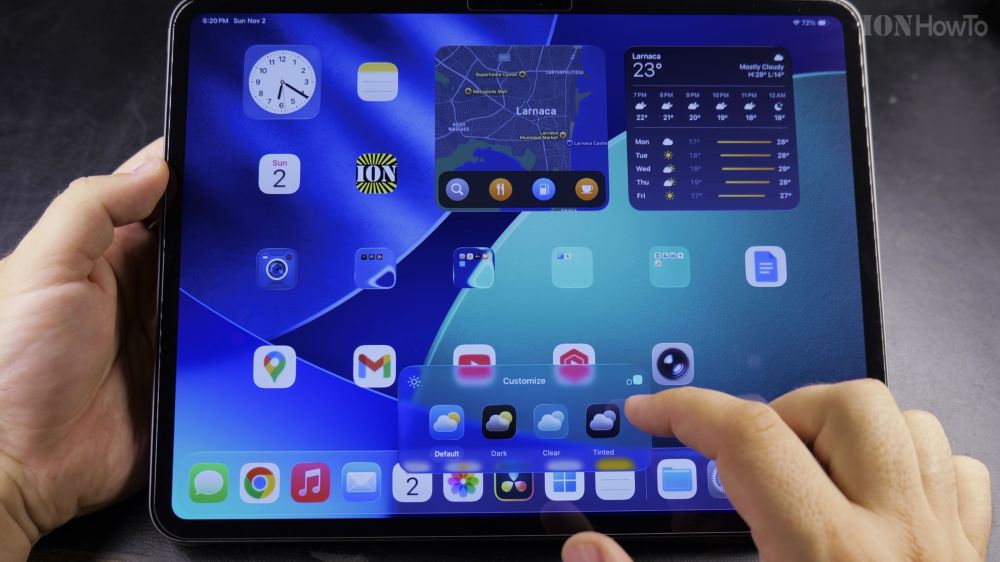
Tap **Customize** from the menu options that slide down.
4. Select Small to Show Labels
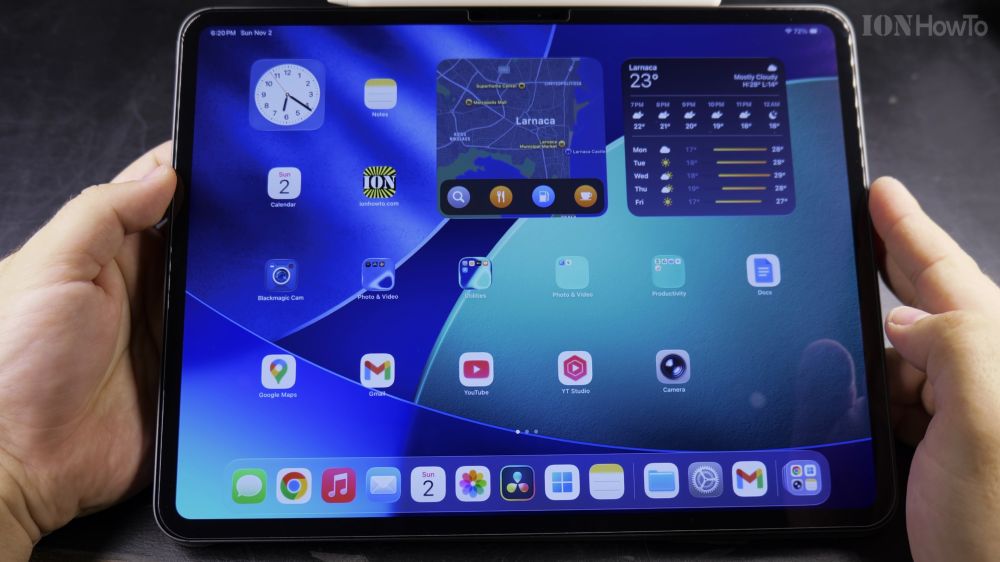
Tap **Small** on the bottom sheet to display text labels beneath every app icon, or choose **Large** to hide text labels completely.
Helpful Tips
Choosing Small icon size shows labels while keeping compact spacing; choosing Large removes labels for an ultra-clean appearance. For related icon adjustments, read our guide on Making App Icons Bigger on iPad or explore our Apple iPad hub.
Leave a Reply Cancel reply