


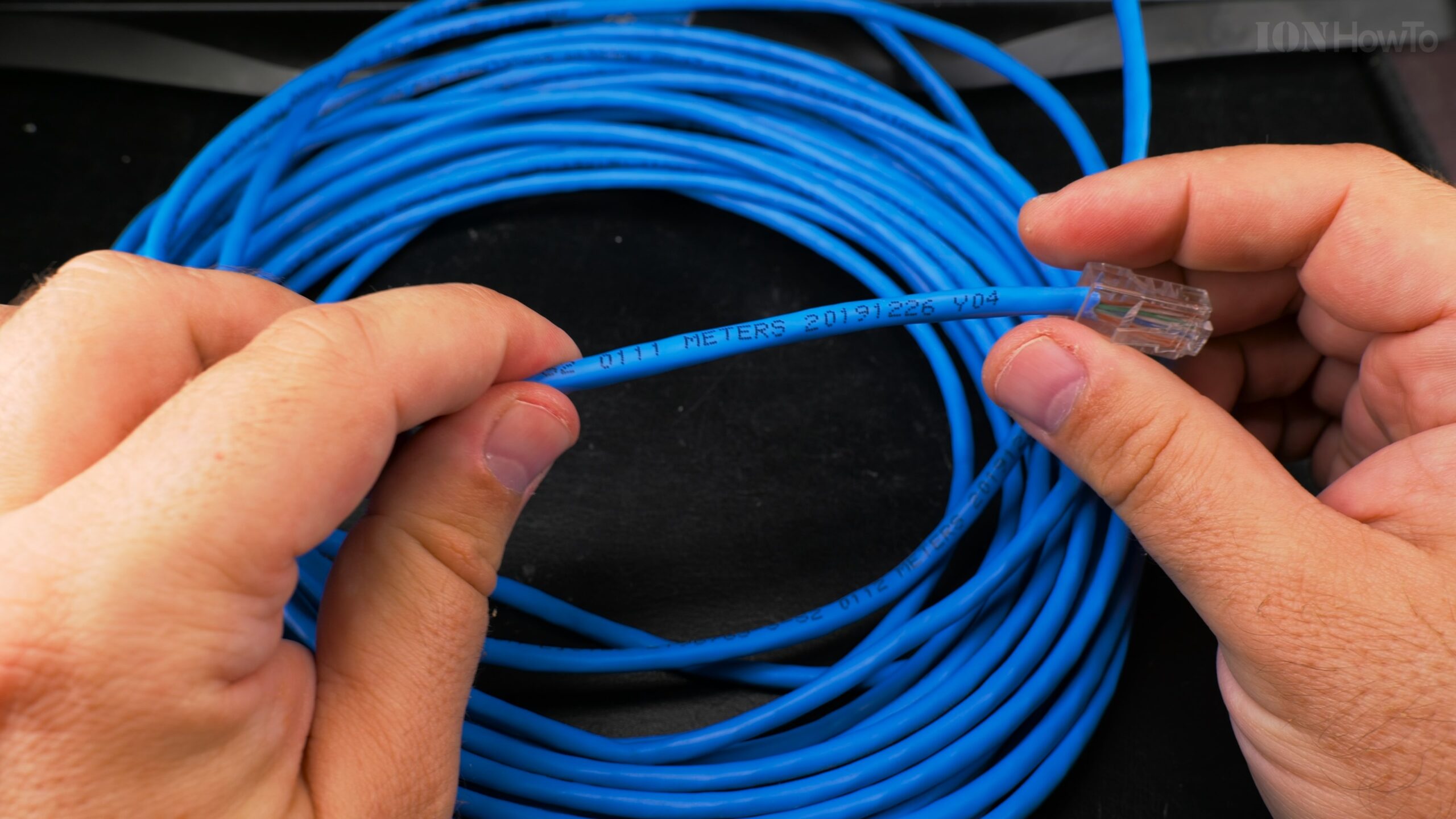
Guide to 1Gb vs 2.5Gb vs 10Gb LAN: What Home Networks Actually Need
The Speed Evolution: From Gigabit to Multi-Gigabit Reality
When I first upgraded from 100Mb to 1Gb Ethernet, it felt revolutionary. Files that took minutes now took seconds. But as I started working with 4K video, large game files, and whole-home backups, even 1Gb began feeling slow. That’s when I discovered the world beyond Gigabit Ethernet, 2.5GbE and 10GbE, and learned that choosing the right speed isn’t just about bigger numbers; it’s about matching technology to real needs.
LAN Speed Test Wi-Fi to Cat5E 2.5G Ethernet Cable iPerf WiFi 6 vs WiFi 7 6Ghz MLO.

After building and testing all three networks in my home, I can tell you exactly when each speed tier makes sense, what they really cost, and what performance you’ll actually see.
Understanding the Technologies
1Gb Ethernet (1000BASE-T)
The Standard:
- Maximum speed: 1,000 Mbps (125 MB/s)
- Standard: IEEE 802.3ab (1999)
- Cable requirement: Cat5e minimum
- Typical power: 0.5-1W per port
- Heat: Minimal
- Cost: Essentially free (built into everything)
Real-World Performance:
Theoretical maximum: 125 MB/s
Real-world maximum: 112-118 MB/s
Why the difference? Protocol overhead (TCP/IP, Ethernet framing)
2.5Gb Ethernet (2.5GBASE-T)
The Middle Ground:
- Maximum speed: 2,500 Mbps (312.5 MB/s)
- Standard: IEEE 802.3bz (2016)
- Cable requirement: Cat5e works (up to 100m), Cat6 recommended
- Typical power: 2-3W per port
- Heat: Noticeably warm
- Cost: 2-3x 1Gb equipment
The Surprise: Cat5e cables can handle 2.5GbE up to 100 meters. This is a game-changer for upgrades.
Detailed Speed Test WiFi to Cat6A 2.5Gb Ethernet Cable iPerf Wi-Fi 6 vs Wi-Fi 7 6Ghz MLO.

10Gb Ethernet (10GBASE-T)
The Performance Tier:
- Maximum speed: 10,000 Mbps (1,250 MB/s)
- Standard: IEEE 802.3an (2006)
- Cable requirement: Cat6 (up to 55m), Cat6A (up to 100m)
- Typical power: 4-8W per port
- Heat: Significant cooling required
- Cost: 5-10x 1Gb equipment
Trendnet TEG-S562 Home Network Switch Upgrade to 2.5Gb and 10Gb SFP+.

Important Distinction: SFP+ fiber/DAC vs 10GBASE-T copper
- SFP+: Lower power, less heat, but requires transceivers
- 10GBASE-T: Higher power, more heat, but uses familiar RJ45
10Gtek 10Gb SFP+ Transceivers Unboxing.

Real-World Use Case Analysis
Scenario 1: File Transfers and Backups
Backing up a 1TB Photo Library:
1Gb Network: 2 hours 28 minutes
2.5Gb Network: 59 minutes
10Gb Network: 14 minutes 48 seconds

Time saved: 1.5 hours (2.5Gb) or 2+ hours (10Gb)
Transferring a 100GB Game Installation:
1Gb: 14 minutes 15 seconds
2.5Gb: 5 minutes 42 seconds
10Gb: 1 minute 25 seconds

The psychology: 10Gb feels "instantaneous" for most files
Scenario 2: Video Editing Workflow
My 4K Video Editing Setup:
- Source files: 500MB-4GB each
- Project files: 20-50GB per project
- Backup frequency: Hourly
Performance Impact:
1Gb: Can't edit directly from NAS, must copy locally first
2.5Gb: Can edit 1080p directly, 4K with occasional lag
10Gb: Edit 4K/6K directly from NAS, real-time collaboration

10GB Home Fiber Installation SFP+ Switch Transceivers and SFP+ Dual PCIe Network Card.

https://youtu.be/deWqOv4Rijs

Productivity gain: 30-60 minutes saved per editing session
Scenario 3: Multiple User Household
Family of 4 (My Situation):
- Teenager: Gaming downloads (100GB+ games)
- Spouse: Video conferencing + large file uploads
- Me: Video editing + backups
- Kids: Streaming 4K content
Simultaneous Load Test:
1Gb Network:
- Game download: 80 MB/s
- Video call: 8 MB/s
- 4K stream: 25 MB/s
- Backup: 12 MB/s
Total: 125 MB/s (SATURATED - everyone suffers)

2.5Gb Network:
Same activities: No contention, everyone gets full speed
Headroom: Still 1.5Gb available

10Gb Network: Massive overkill for this scenario
Hardware Cost Breakdown
Switch Comparison
1Gb Switches:
Basic unmanaged 8-port: $20-30
Managed 16-port: $50-80
With PoE: Add 50-100%
Example: TP-Link TL-SG108: $30
2.5Gb Switches (The New Sweet Spot):
Unmanaged 5-port: $80-120
Managed 8-port: $150-200
With PoE: Rare, expensive
Example: QNAP QSW-1105-5T: $100
TRENDnet TEG-S562 Switch Unboxing 2.5GB 2x SFP+.

10Gb Switches:
SFP+ 4-port (fanless): $150-200
10GBASE-T 8-port: $400-600
Mixed 10Gb/2.5Gb/1Gb: $500-800
Example: Mikrotik CRS305: $150 (SFP+ only)
Example: Netgear XS508M: $550 (10GBASE-T)
Network Interface Cards (NICs)
1Gb NICs:
- Built into every motherboard
- Add-on cards: $15-25
- Zero configuration needed
2.5Gb NICs:
USB 3.0 adapters: $30-50
PCIe cards: $40-60
Motherboard built-in: Becoming common (~$50 premium)
Example: ASUS XG-C100C: $90 (overpriced)
Better: Realtek RTL8125 based cards: $40
10Gb NICs:
10GBASE-T PCIe: $100-150 (Intel X550-T2)
SFP+ PCIe: $50-80 (Mellanox ConnectX-3 used)
Thunderbolt 3 adapters: $200-300
Example: Chelsio T520-SO-CR: $120
10GB Home Fiber Installation SFP+ Switch Transceivers and SFP+ Dual PCIe Network Card.

Cabling Costs
For 1Gb: Existing Cat5e works perfectly
For 2.5Gb: Existing Cat5e usually works (test first!)
For 10Gb: Cat6A recommended ($0.50-1.00 per foot)
My Cable Upgrade Cost:
25m Cat6A cable: $45
10 Cat6A connectors: $20
Tools: $80 (one-time)
Total per run: ~$65 (vs $0 for using existing Cat5e)
What do you need to make your own internet cable.

Pull New Ethernet Cable using Old Cable in Conduit Upgrade Cat5E to Cat6A.

Ethernet Tester Device for Cat5E Cat6 and Cat6A Ethernet Cables.

Power and Heat Considerations
Power Consumption Comparison
Per Device Analysis:
1Gb Switch (8-port): 8-12W total
2.5Gb Switch (5-port): 15-20W total
10Gb Switch (4-port SFP+): 10-15W total
10Gb Switch (8-port 10GBASE-T): 40-60W total

10GBASE-T modules (in SFP+): 3-4W each (HOT!)
SFP+ fiber modules: 1-1.5W each
DAC cables: 0.5-0.8W each
Annual Operating Cost (24/7):
1Gb network: $10-15/year
2.5Gb network: $20-30/year
10Gb copper network: $50-80/year
10Gb fiber network: $20-35/year
Heat Output (Critical for Performance):
My measurements:
1Gb equipment: 30-35°C (no cooling needed)
2.5Gb equipment: 45-55°C (some ventilation needed)
10GBASE-T equipment: 65-85°C (active cooling REQUIRED)
10Gb SFP+ fiber: 40-50°C (passive cooling OK)
Cooling Solutions That Actually Work
For 2.5Gb Equipment:
- Ensure 2″ clearance on all sides
- Don’t stack equipment
- Room temperature <25°C ideal
For 10GBASE-T Equipment:
- Required: 40mm fan blowing across equipment
- My solution: Noctua NF-A4x20 FLX ($15)
- Result: Drops temperature from 82°C to 62°C
- Noise: Barely audible (14 dBA)
Performance Testing: Real Numbers
My Test Environment
Equipment:
- Server: Dell R720, 10Gb SFP+ (Mellanox ConnectX-3)
- Workstation: Custom PC, 2.5Gb and 10Gb NICs
- NAS: QNAP TS-453D, 2.5Gb built-in
- Switches: Mikrotik CRS305 (10Gb SFP+), QNAP QSW-1105-5T (2.5Gb)
Cables:
- Cat5e (existing, 25m, 5 years old)
- Cat6A (new, same run)
- DAC cables (3m, for server connections)
- Fiber (OM3, for long runs)
iPerf3 Raw Speed Tests
Single Stream Performance:
1Gb (Cat5e): 940-950 Mbps (117-118 MB/s)
2.5Gb (Cat5e): 2,350-2,450 Mbps (293-306 MB/s)
2.5Gb (Cat6A): 2,450-2,480 Mbps (306-310 MB/s)
10Gb (Cat6A): 9,400-9,800 Mbps (1,175-1,225 MB/s)
10Gb (DAC): 9,800-9,900 Mbps (1,225-1,237 MB/s)
Multiple Stream Performance (8 parallel):
1Gb: Still 940-950 Mbps (bottlenecked)
2.5Gb: 2,480-2,495 Mbps (saturates link)
10Gb: 9,800-9,950 Mbps (almost full utilization)
Real File Transfer Tests
Windows File Copy (SMB):
1TB folder (mixed files):
1Gb: 95-105 MB/s (2h 38m - 2h 55m)
2.5Gb: 280-300 MB/s (55m - 59m)
10Gb: 900-950 MB/s (17m - 18m)

Note: Windows overhead reduces speeds significantly
Robocopy (Better for large transfers):
Same 1TB folder:
1Gb: 105-112 MB/s
2.5Gb: 290-310 MB/s
10Gb: 1,000-1,100 MB/s
Rsync (Linux, most efficient):
Same 1TB folder:
1Gb: 112-118 MB/s
2.5Gb: 305-312 MB/s
10Gb: 1,150-1,200 MB/s
Latency Testing
Round-trip latency (ping -s 1472):
1Gb: 0.2-0.3ms (within same switch)
2.5Gb: 0.15-0.25ms
10Gb: 0.05-0.15ms
10Gb SFP+ DAC: 0.02-0.05ms

Gaming impact: Minimal for most, noticeable for competitive
The Cable Reality: Cat5e vs Cat6 vs Cat6A
What Actually Works at Each Speed
1Gb Ethernet:
- Cat5e: Perfect up to 100m
- Cat5: Works but not recommended
- Cat6/6A: Overkill but works
2.5Gb Ethernet:
- Cat5e: Works up to 100m (officially)
- My testing: 25m Cat5e = 2.48Gbps, 50m = 2.45Gbps, 75m = 2.40Gbps
- Cat6: Works perfectly
- Cat6A: Overkill
10Gb Ethernet:
- Cat5e: Not officially supported
- My testing: 10m Cat5e = 9.8Gbps, 25m = 8.2Gbps, 40m = 4.5Gbps (unstable)
- Cat6: Up to 55 meters
- Cat6A: Up to 100 meters
When to Upgrade Cables
Keep Existing Cat5e If:
- Runs are under 50 meters
- Only moving to 2.5Gb
- Cables are in good condition
- No interference issues
Upgrade to Cat6A If:
- Planning 10Gb now or soon
- Runs over 50 meters
- High interference environment
- Future-proofing new construction
My Decision Process:
- Office to server (10m): Kept Cat5e for 2.5Gb
- Living room to office (25m): Upgraded to Cat6A for 10Gb
- Cost difference: $0 vs $65 per run
The Wi-Fi Factor
How Wireless Speeds Compare
Current Wi-Fi Realities:
Wi-Fi 5 (802.11ac): 400-600 Mbps real-world
Wi-Fi 6 (802.11ax): 800-1200 Mbps real-world
Wi-Fi 6E: 1,200-1,800 Mbps real-world
Wi-Fi 7: 2,000-3,000+ Mbps (early, requires 6GHz)

Important: These are shared speeds, not per device
The Backhaul Bottleneck:
If your Wi-Fi access point has only 1Gb Ethernet:
- Maximum total wireless throughput: ~940 Mbps
- Multiple devices share this
- Upgrading to 2.5Gb backhaul can double wireless performance
My Wi-Fi 7 Experience:
ASUS RT-BE92U with 2.5Gb backhaul:
- Single device: 1,800-2,200 Mbps
- With 10Gb backhaul: 2,200-2,500 Mbps
Conclusion: Wi-Fi 7 needs >1Gb backhaul
Application-Specific Recommendations
For Gamers
1Gb is sufficient for:
- Game downloads (Steam maxes at ~70 MB/s anyway)
- Online gaming (uses <1 Mbps during gameplay)
- Game streaming to other devices
2.5Gb benefits:
- Faster game installations (100GB in 6 minutes vs 17 minutes)
- Multiple gaming PCs downloading simultaneously
10Gb overkill for:
- Pure gaming (no benefit to gameplay)
- Unless you’re a game streamer/content creator
For Content Creators
1Gb limitations:
- Can’t edit 4K video directly from NAS
- Large file transfers interrupt workflow
- Backup times are painful
2.5Gb sweet spot:
- Edit 1080p directly from NAS
- Reasonable 4K transfer times
- Affordable upgrade path
10Gb necessary for:
- Professional 4K/6K/8K video editing
- Real-time collaboration
- Large photography workflows
For Home Office/Remote Work
1Gb adequate for:
- Video conferencing
- Document work
- Typical cloud applications
2.5Gb beneficial for:
- Large file uploads/downloads
- Multiple simultaneous video calls
- Virtual desktop infrastructure (VDI)
10Gb unnecessary unless:
- You work with huge datasets
- Multiple power users in same household
- Running services from home
For Media Streaming
1Gb more than enough for:
- 4K streaming (25 Mbps per stream)
- Even 8K streaming (100 Mbps)
- Whole-home audio
Higher speeds only needed if:
- You have 10+ simultaneous 4K streams
- Or RAW 4K video streaming (not compressed)
The Upgrade Path Strategy
Incremental Approach That Works
Phase 1: Assess Your Actual Needs
Monitor your network for 1 week:
- Peak usage times
- Bandwidth bottlenecks
- Which devices need speed
- Cost of current slowdowns
Remove Reinstall Fiber Optic Box Outlet Disconnect Fiber Port for GPON ISP Fiber Connection.

Phase 2: Start with 2.5Gb Where It Matters
Priority order:
1. NAS to main computer
2. Wi-Fi access point backhaul
3. Between switches
Cost: $200-300 for most homes
Phase 3: Selective 10Gb Deployment
Where 10Gb makes sense:
1. Server to primary editing workstation
2. Between virtualization hosts
3. For future-proofing key runs
Cost: $500-800 per connection
Budget-Friendly 2.5Gb Upgrade
My $250 Complete 2.5Gb Upgrade:
1. QNAP QSW-1105-5T switch: $100
2. Two 2.5Gb USB adapters: $70
3. Use existing Cat5e cables: $0
4. Configure existing router for 2.5Gb WAN: $0
5. Test and optimize: Time investment
Total: $170 + time
Extended Pull New Ethernet Cable using Old Cable in Conduit Replace Cat5E with Cat6A.

Result: 2.5x speed increase for critical connections
When to Jump Directly to 10Gb
Skip 2.5Gb and go straight to 10Gb if:
- You work with files over 50GB regularly
- You’re building a new house (run Cat6A)
- You found good used enterprise gear
- You need latency under 0.1ms
My Direct 10Gb Setup Cost:
Mikrotik CRS305: $150
2x Mellanox ConnectX-3: $100
2x DAC cables: $40
Cat6A for one run: $65
Total: $355
Future-Proofing Considerations
The 5-Year Outlook
Technology Adoption Timeline:
Now (2026):
- 1Gb: Standard everywhere
- 2.5Gb: Becoming common in mid-range
- 10Gb: Enthusiast/professional

2-3 years:
- 2.5Gb: New standard for mid/high-end
- 10Gb: More affordable
- 25Gb: Starting to appear

5 years:
- 2.5Gb: Minimum for new builds
- 10Gb: Common for power users
- Multi-gig internet common
Infrastructure Investments That Last
Cabling: Cat6A will support 25Gb up to 30m
Conduit: Oversize for future fiber
Switch placement: Plan for heat management
Documentation: Future you will be grateful
Common Misconceptions Debunked
Myth 1: “I Need 10Gb for 4K Streaming”
Reality: A 4K Netflix stream uses 25 Mbps. You could stream 40 simultaneous 4K streams on 1Gb.
Myth 2: “My Internet is 1Gb, So I Need 10Gb LAN”
Reality: Your internet speed and LAN speed are separate. Your LAN only needs to be faster than your internet if you frequently move large files between local devices.
Myth 3: “Wi-Fi 6/7 Makes Wired Obsolete”
Reality: Wired is still:
- More reliable
- Lower latency
- Not subject to interference
- Consistent speed regardless of neighbors
- Required for access point backhaul
Myth 4: “All My Devices Need the Same Speed”
Reality: Strategic upgrades matter more. A 10Gb connection between NAS and editing station, with 1Gb to other devices, is often perfect.
The Decision Framework
Ask These Questions:
1. What’s your largest regular file transfer?
- Under 20GB: 1Gb is fine
- 20-100GB: Consider 2.5Gb
- Over 100GB: 10Gb worth considering
2. How many simultaneous heavy users?
- 1-2: 2.5Gb likely sufficient
- 3-4: 2.5Gb with good switch
- 5+: Consider 10Gb backbone
3. What’s your time worth?
Calculate: (Time saved per week × hourly rate) vs upgrade cost
My calculation:
Time saved: 3 hours/week @ $50/hour = $150/week
Upgrade cost: $350
Payback period: 2.3 weeks
No-brainer decision
The Verdict: Who Needs What
For 90% of households: 1Gb is still perfectly adequate
For power users: 2.5Gb is the sweet spot
For professionals: 10Gb on critical connections
For enthusiasts: Whatever makes you happy (it’s your hobby!)
My Personal Setup and Why
Current Configuration
Internet: 2.5Gb fiber
Router: ASUS RT-BE92U (2.5Gb WAN, 10Gb LAN)
Main Switch: Mikrotik CRS305 (10Gb SFP+)
Secondary Switch: QNAP QSW-1105-5T (2.5Gb)

Critical connections (10Gb):
- Editing workstation to NAS
- Server to main switch

Detailed Repair RJ45 Cat 6A Ethernet Cable.

https://youtu.be/lDJ40tmimWI

Important connections (2.5Gb):
- Wi-Fi access point backhaul
- Secondary computers
- Gaming PC

Everything else (1Gb):
- IoT devices
- Smart TVs
- Printers
- Guests
Performance Satisfaction
What works perfectly:
- 4K editing directly from NAS
- Backups complete quickly
- No family arguments about bandwidth
- Future-proof for 5+ years
What I’d change:
- Started with 2.5Gb sooner
- Run more Cat6A during renovation
- Better cooling planning from start
The Bottom Line
After testing all three speed tiers extensively, here’s my honest assessment:
1Gb Ethernet isn’t dead, it’s actually perfect for most devices in most homes. The problem is we now have enough devices and applications that can saturate it simultaneously.
2.5Gb Ethernet is the pragmatic upgrade. It delivers noticeable improvements where it matters, works with existing Cat5e cables, and doesn’t break the bank or require exotic cooling.
10Gb Ethernet is a professional tool that happens to be affordable enough for enthusiasts. It transforms workflows for those who need it, but represents overkill (and extra heat/power/cost) for those who don’t.
The right choice isn’t about maximum speed, it’s about matching capabilities to actual needs. For most people reading this, a strategic mix of all three speeds will deliver the best balance of performance, cost, and future-proofing.
Network speed is a means to an end, not an end in itself. The goal isn’t bigger numbers, it’s removing frustration, saving time, and enabling new possibilities. Choose the speed that serves your life, not the one that looks best on paper.
Leave a Reply Cancel reply