



Learn how to control your Samsung Galaxy‘s screen brightness for better visibility and battery life. I’ll show you all the brightness settings and customization options available.
Amazon links
As an Amazon Associate I earn from qualifying purchases:
- Phone Cases
- Mobile Tripods
- Usb-c charger
- Usb-c cable
- Docking stations
- Wireless car chargers
- Wireless charger stand
- SIM card removal tool
- SIM card holder

Quick Steps and Scenarios Overview
| What You Need to Do | Quick Jump |
|---|---|
| Quick Brightness Adjustment | Jump to Step 1 |
| Advanced Brightness Settings | Jump to Step 2 |
| How to Schedule Dark Mode | Jump to Step 3 |
| Open Settings > Display | Jump to Step 1 |
| Tap "Dark mode" | Jump to Step 2 |
| Select "Turn on as scheduled" | Jump to Step 3 |
Demonstrated on Samsung Galaxy S23 Ultra running Android 14 with OneUI 6.1
Quick Brightness Adjustment
- Swipe down from the top of your screen
- Find the brightness slider in Quick Settings
- Drag left to dim, right to brighten
- Tap the sun icon for auto-brightness
Advanced Brightness Settings
- Go to Settings > Display
- Adjust these options:
- Adaptive brightness: Auto-adjusts based on environment
- Extra brightness: Boosts visibility in sunlight
- Dark mode: Changes UI to dark colors
- Eye comfort shield: Reduces blue light
How to Schedule Dark Mode
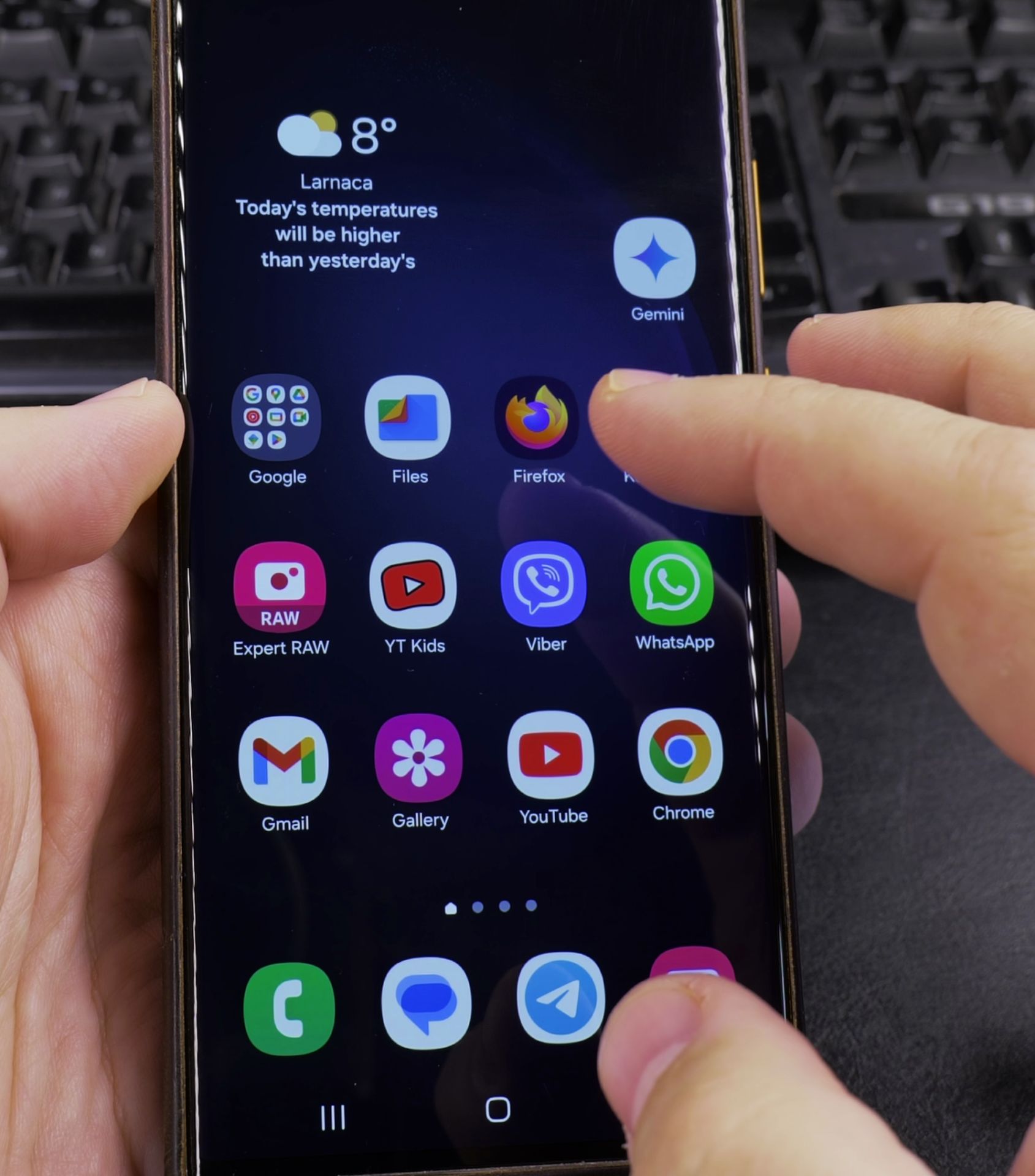
1. Open Settings > Display
Open Settings > Display.

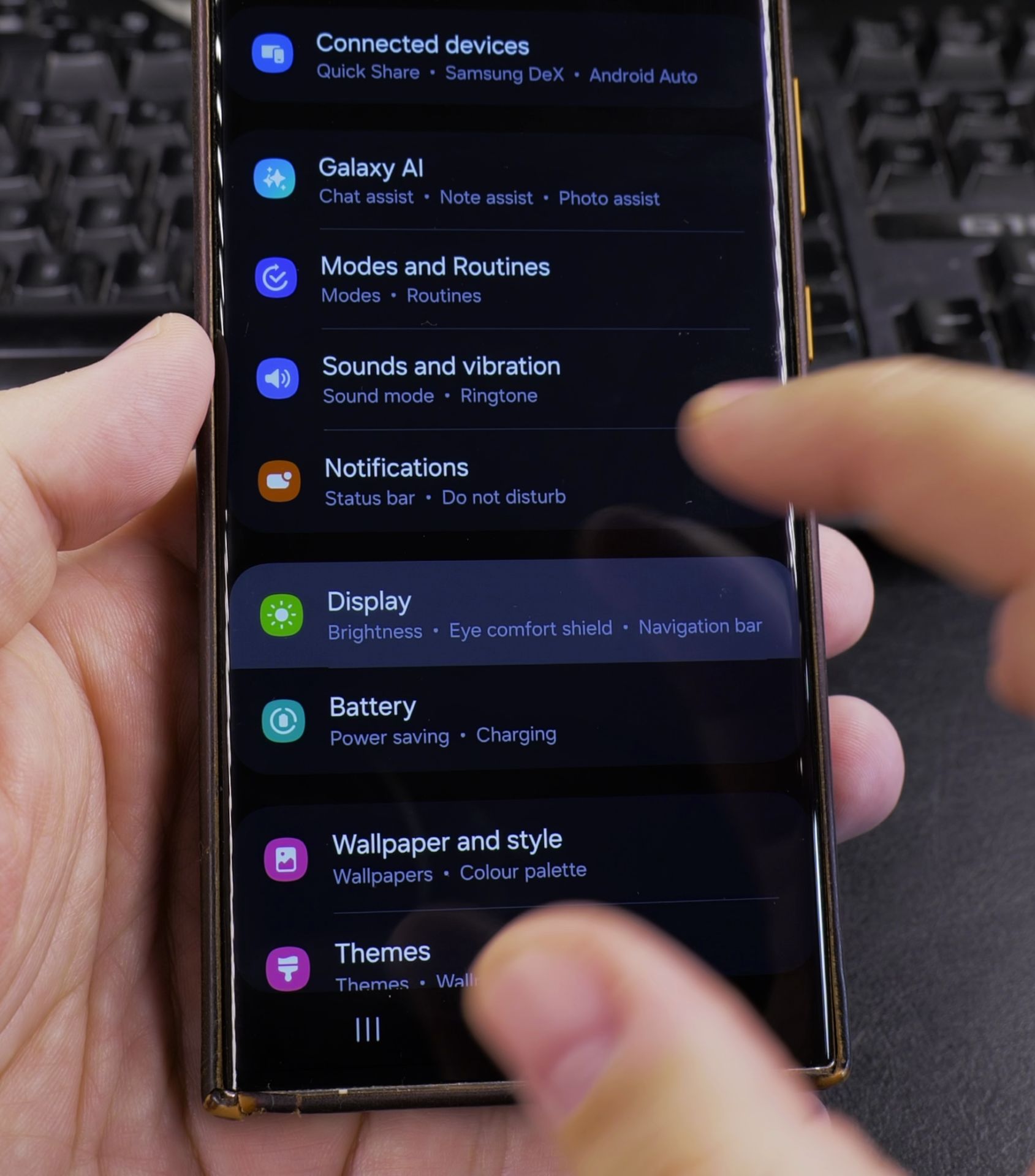
2. Tap “Dark mode”
Tap “Dark mode”.
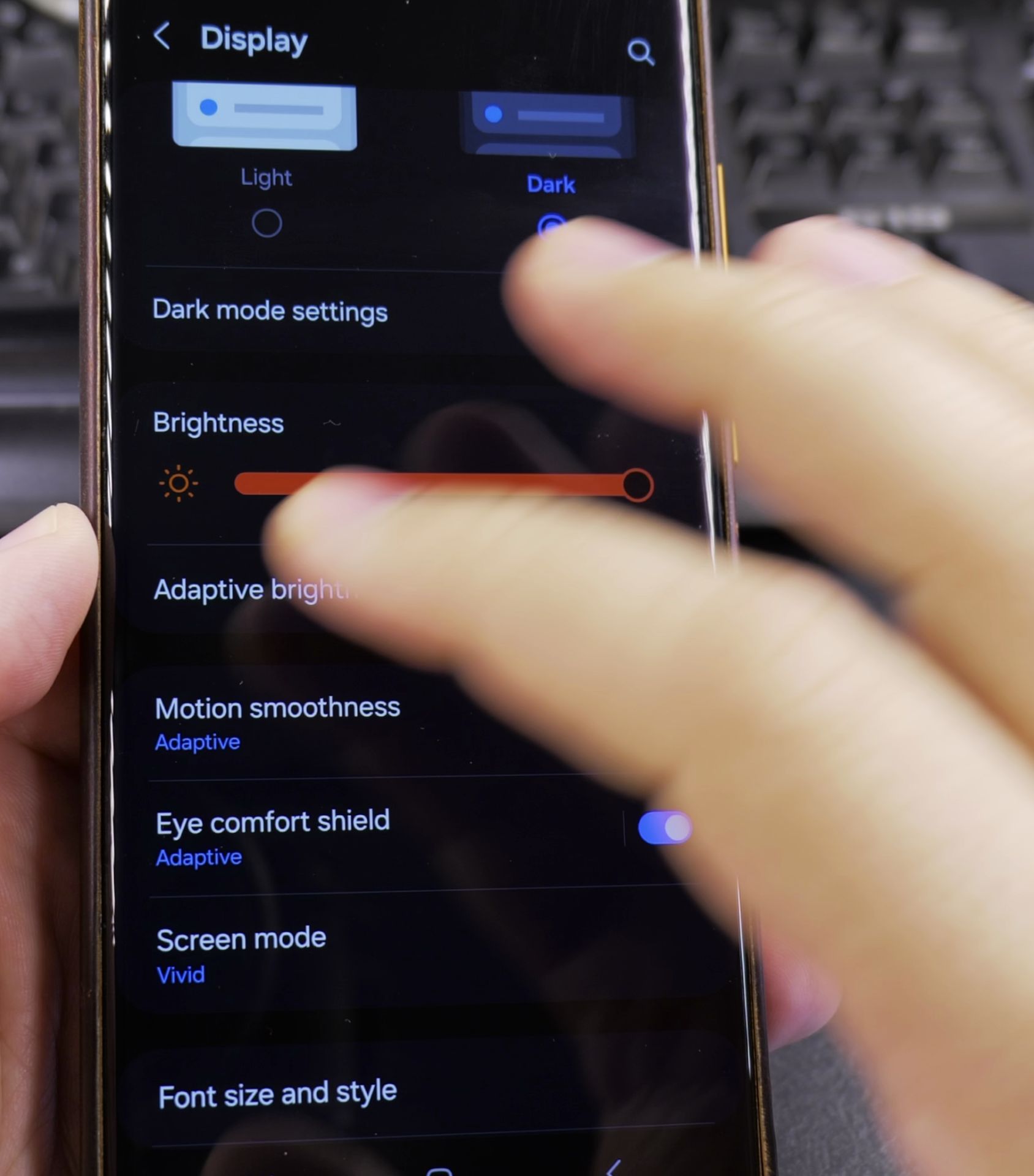
3. Select “Turn on as scheduled”
Select “Turn on as scheduled”.

4. Choose
Choose:.
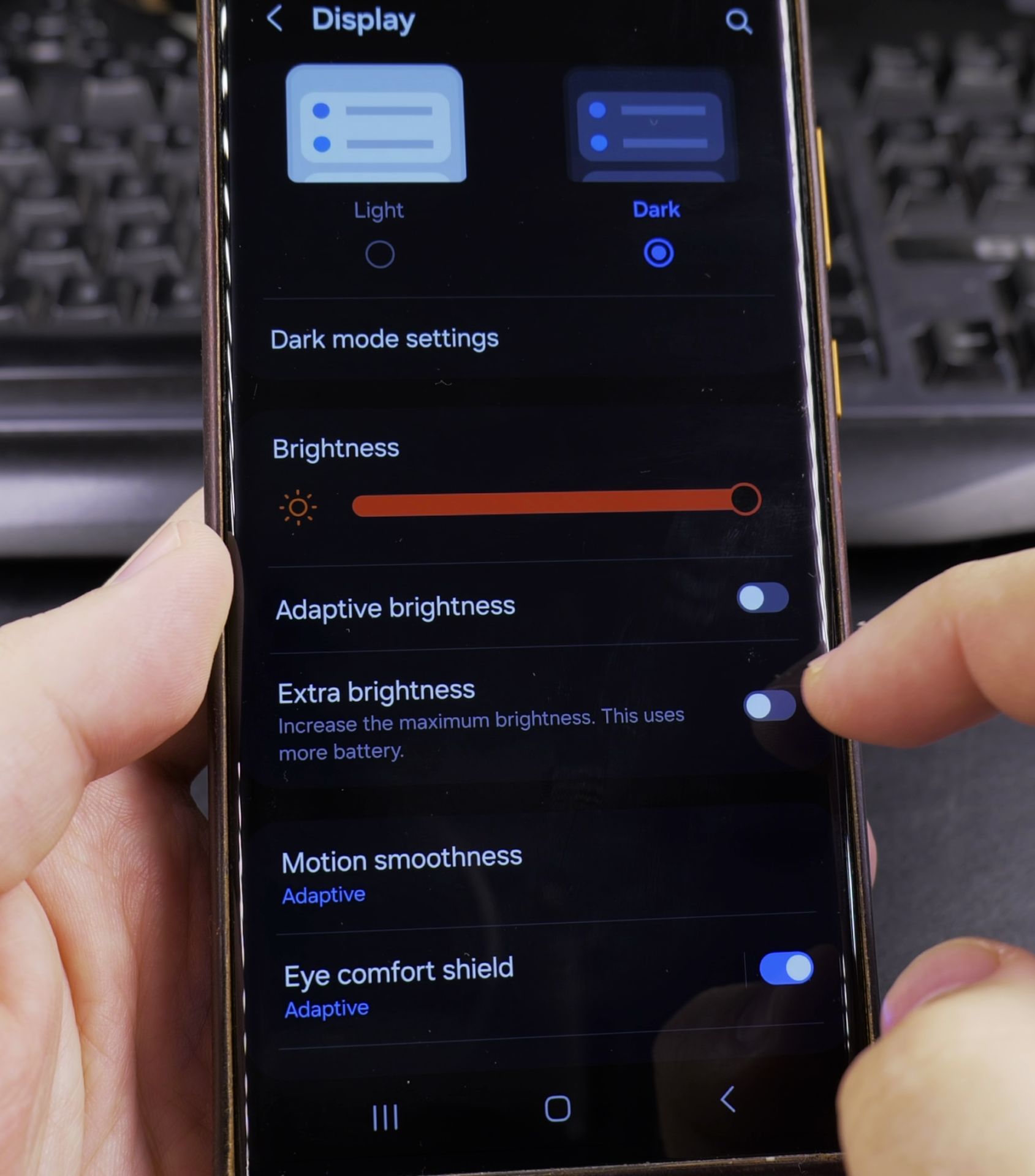
- Sunset to sunrise (automatic)
- Custom time (set your own hours)
Using Night Light (Eye Comfort Shield)
- Go to Settings > Display
- Tap “Eye comfort shield”
- Toggle it on/off
- Set schedule or adjust intensity
Brightness Tips for Better Experience
- Use auto-brightness to save battery
- Enable extra brightness only when needed
- Schedule dark mode for evening use
- Try night light to reduce eye strain
- Lower brightness in dark environments
Troubleshooting Brightness Issues
If brightness isn’t adjusting properly:
- Clean your front camera (for auto-brightness)
- Disable and re-enable adaptive brightness
- Check for software updates
- Restart your device
Final Thoughts
Your Samsung Galaxy offers multiple ways to control screen brightness for different situations. If you need maximum visibility in sunlight or a dimmer display at night, these settings help customize your experience.
Remember that lower brightness saves battery, while features like dark mode and night light can make your phone more comfortable to use for long periods. These settings work across most Samsung Galaxy models including the S series and Note series.
Helpful Tips
Take your time and check the screen carefully after each tap so you can confirm the setting changed as expected. If an option appears in a slightly different spot on your device, watch the embedded video above for a closer look.
Related Guides
- Remove Apps from Samsung Android Home Screen – How to Remove Apps from Home Screen on Samsung Android.
- Add Apps to Samsung Android Home Screen – How to Add Apps to Home Screen on Samsung Android.
- Add Flashlight to Samsung Android Lock Screen – How to Add Flashlight to Lock Screen on Samsung Android Phones.
- Samsung Android Guides – Browse more tutorials and practical guides in this section.
Leave a Reply Cancel reply