


When your phone opens web links or dialed numbers in an unfamiliar app, switching your default choices makes daily tasks smoother. I’ll show you how to change default apps on Android in just a few quick taps.

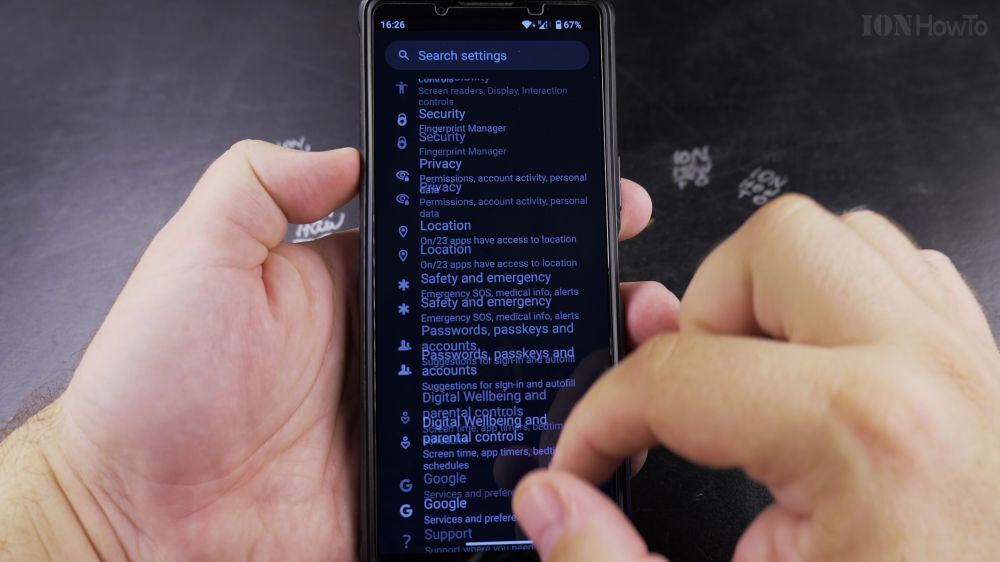
1. Open Settings
Swipe down from the top of your screen and tap the gear icon to open **Settings**.

2. Tap Apps
Scroll down and tap **Apps** (or **App management**).
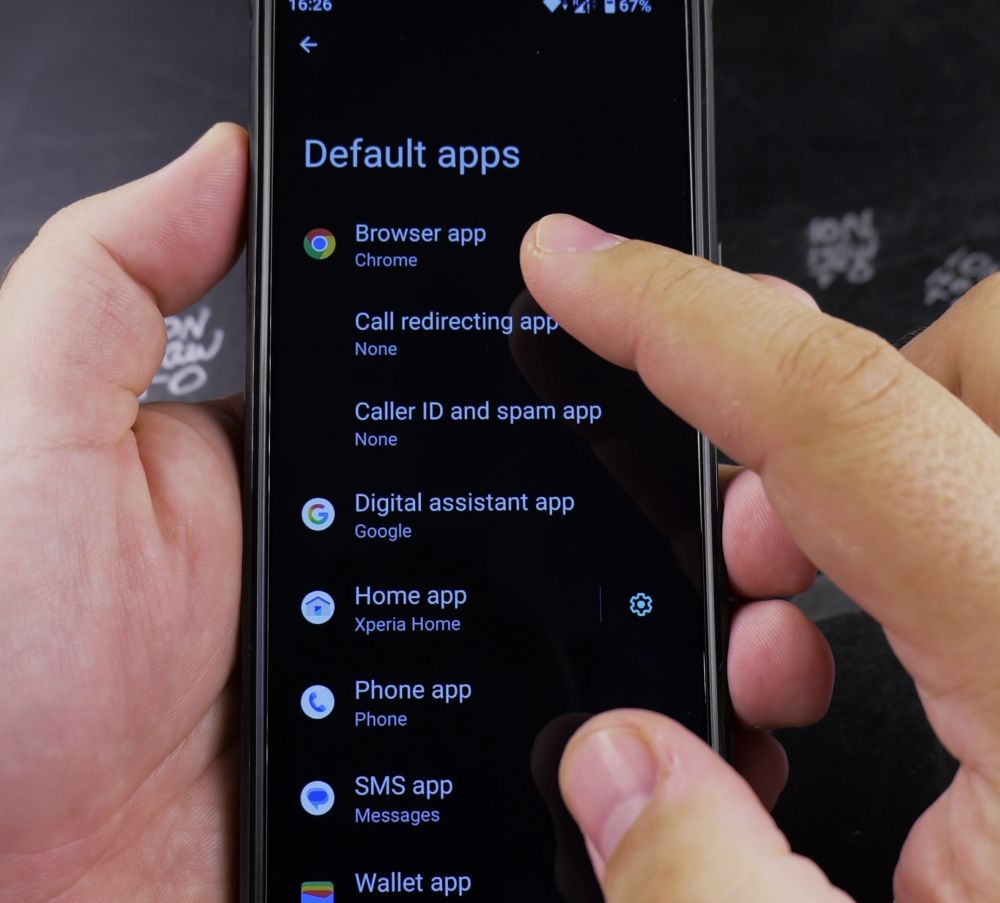
3. Tap Default Apps
Tap **Default apps** near the top of the screen.
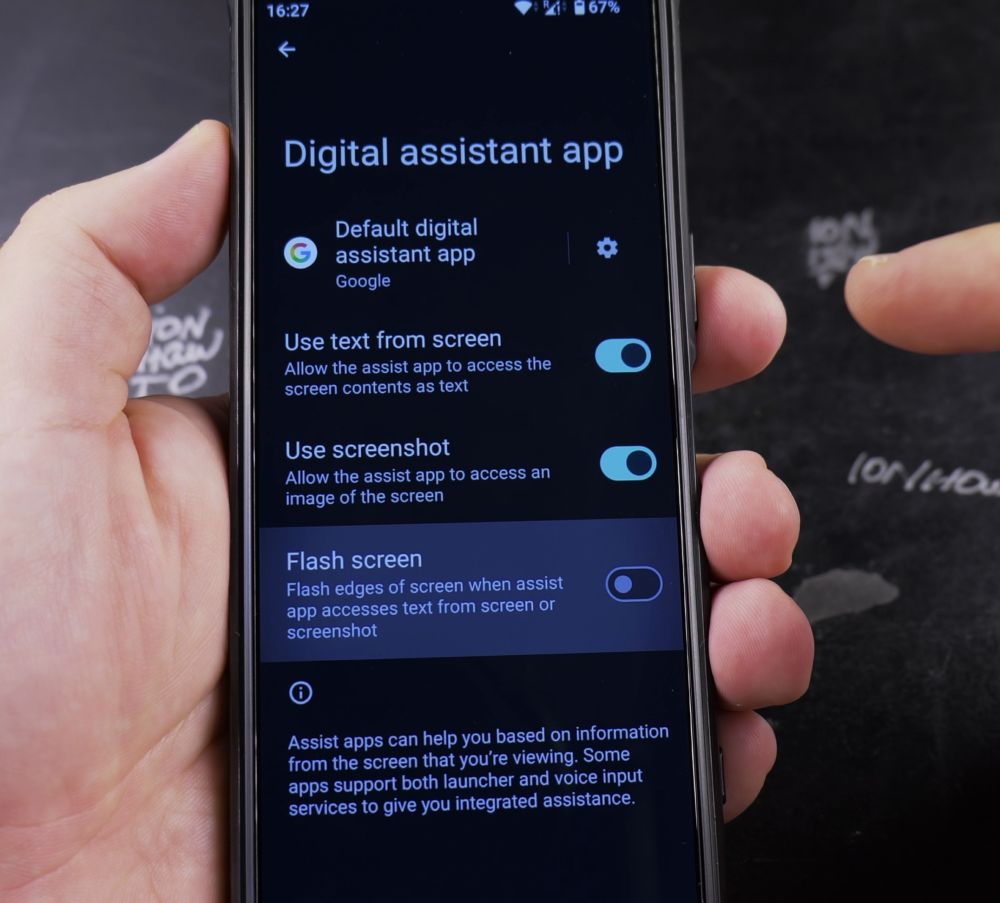
4. Select the Category
Tap on **Browser app**, **Phone app**, or **Digital assistant app**.
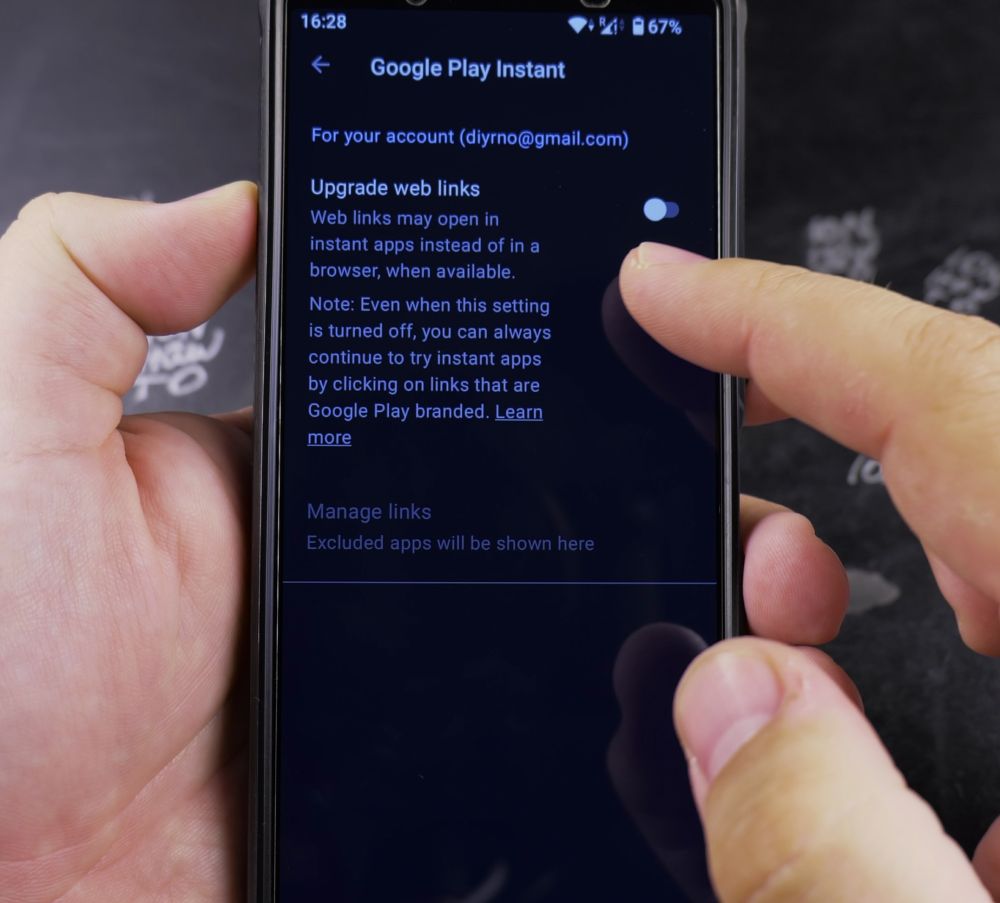
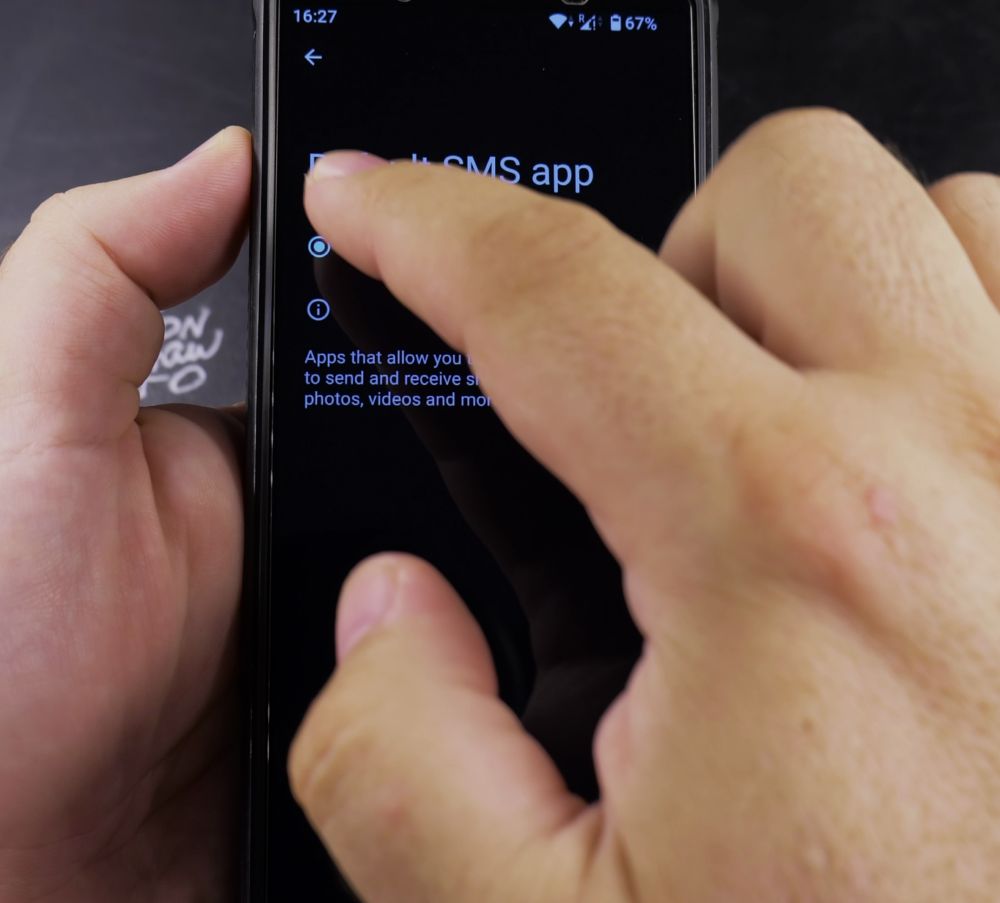
5. Pick Your Preferred App
Tap the circular button next to the app you want to use. Your phone will now open all related tasks with that app automatically.
Helpful Tips
If a specific link always forces open the wrong application, tap **Opening links** in the Default apps menu to clear installed web preferences. For more Android advice, explore our Android Guides hub.
Leave a Reply Cancel reply