


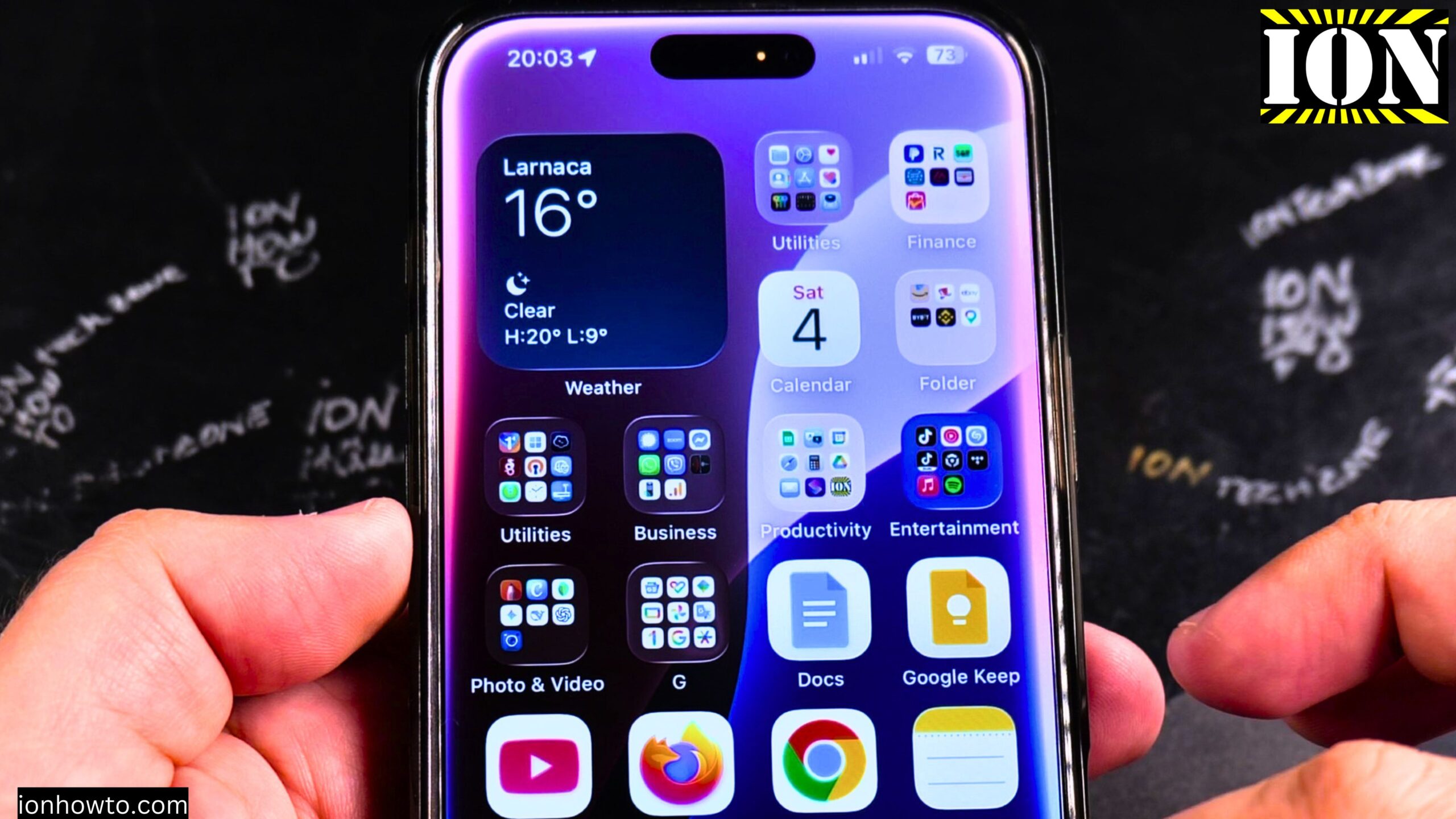
How to Change Default Apps on iPhone.
Learn how to change default apps on your iPhone to use your preferred browsers, email clients, and other applications. I show you the steps to customize which apps open when you click links or attachments.
I am showing you on iOS 26 Beta 4 on an iPhone 16 Pro Max. These steps work for iPhones running iOS 14 or later.
If you want to use Chrome instead of Safari, Gmail instead of Apple Mail, or Google Maps instead of Apple Maps, this guide explains how to make these changes in your settings.
Where to Find Default App Settings on iPhone
Changing default apps on iPhone is straightforward once you know where to look.
Here is how to get there:
- Open the Settings app on your iPhone
- Scroll all the way down until you see Apps
- Tap on Apps
- Look at the top of the screen for Default Apps
- Tap on Default Apps
This screen shows you all the default app categories you can change.

Which Default Apps You Can Change on iPhone
iOS lets you change default apps for several categories. Here is what you can set:
| Category | What It Controls |
|---|---|
| Which app opens when you tap an email link | |
| Messages | Which app handles your text messages |
| Calling | Which app makes phone calls |
| Browser | Which app opens when you tap a web link |
| Navigation | Which maps app gives you directions |
| Translation | Which app translates text |
| Passwords | Which app manages your saved passwords |
| Contactless Payments | Which app handles tap-to-pay transactions |
| Keyboards | Which keyboard appears when you type |
How to Change Your Default Browser
If you prefer Chrome, Firefox, or another browser over Safari, here is how to switch.
The steps:
- Go to Settings > Apps > Default Apps
- Tap on Browser
- Choose your preferred browser from the list
- The browser you want must be installed on your iPhone first
After you do this, any link you tap in emails, messages, or other apps will open in your chosen browser instead of Safari.
How to Change Your Default Email App
Learn how to use Gmail, Outlook, or another email app as your default.
Here is what to do:
- Go to Settings > Apps > Default Apps
- Tap on Email
- Select your preferred email app from the list
- Make sure the app is installed before trying to set it as default
Now when you tap an email address on a website or in another app, your chosen email app will open.
How to Change Your Default Maps App
If you prefer Google Maps over Apple Maps, you can make that switch too.
Follow these steps:
- Go to Settings > Apps > Default Apps
- Tap on Navigation
- Choose Google Maps or another navigation app you have installed
After this change, any address you tap will open in Google Maps instead of Apple Maps.
How to Change Your Default Translation App
Apple’s Translate app works well for many languages, but it may not support everything you need. For example, translating Greek was difficult with Apple’s app. You can switch to Google Translate or another translation app instead.
Here is how:
- Go to Settings > Apps > Default Apps
- Tap on Translation
- Choose your preferred translation app
Other Default App Settings You Can Adjust
Here are a few more options you might find useful:
- Messages – You can set WhatsApp or other messaging apps as your default for sending messages
- Calling – You can choose a different app for phone calls, though most people stick with Apple’s Phone app
- Passwords – You can use Chrome’s password manager or another password app instead of Apple’s Passwords app
- Contactless Payments – Apple recommends using the Wallet app for this. It works well and is secure.
- Keyboards – You can try Gboard or SwiftKey, though some third-party keyboards do not work as smoothly on iPhone as the built-in Apple keyboard
What to Know About Default Apps on iPhone
Not every app can become a default on iPhone. The app developer must add support for this feature. If you do not see your favorite app in the list, it means that app does not yet support being a default on iOS.
Also, Apple started allowing default app changes in iOS 14. If your iPhone is running an older version, you may not have these options. Update to the latest iOS version to get full control over your default apps.
How to Use Siri with Your Preferred Apps
If you want to get even more out of your favorite apps, you can use Siri with them. Here is a quick tip:
- Open Settings
- Tap on the app you want to use with Siri
- Look for Siri & Search options
- Turn on the settings you want
You can also create Siri Shortcuts for specific actions inside third-party apps. This lets you say things like “Hey Siri, send a message on WhatsApp” or “Hey Siri, navigate home in Google Maps.”
Quick Summary
Here is how to change your default apps on iPhone in just a few steps:
- Open the Settings app
- Scroll down and tap Apps
- Tap Default Apps at the top of the screen
- Tap on the category you want to change (Browser, Email, Navigation, etc.)
- Select your preferred app from the list
That is all there is to it. Your iPhone will now use your chosen apps for links, addresses, and other actions.
Final Tip
Not every app you install will show up as an option in Default Apps. The app has to be designed to support being a default. If you installed Chrome but do not see it under Browser, try restarting your iPhone or reinstalling the app. Most major apps like Chrome, Gmail, Google Maps, and Firefox do support this feature.
Leave a Reply Cancel reply