


By default, Android phones are assigned technical model codes such as XQ-DQ54 or generic manufacturer tags. When pairing with Bluetooth headphones, cars, or sharing files with Quick Share, a personalized name ensures you always connect to the right device without confusion.

Why Renaming Your Android Phone Is Helpful
By default, Android phones are assigned technical model codes such as XQ-DQ54 or generic manufacturer tags. When pairing with Bluetooth headphones, cars, or sharing files with Quick Share, a personalized name ensures you always connect to the right device without confusion.
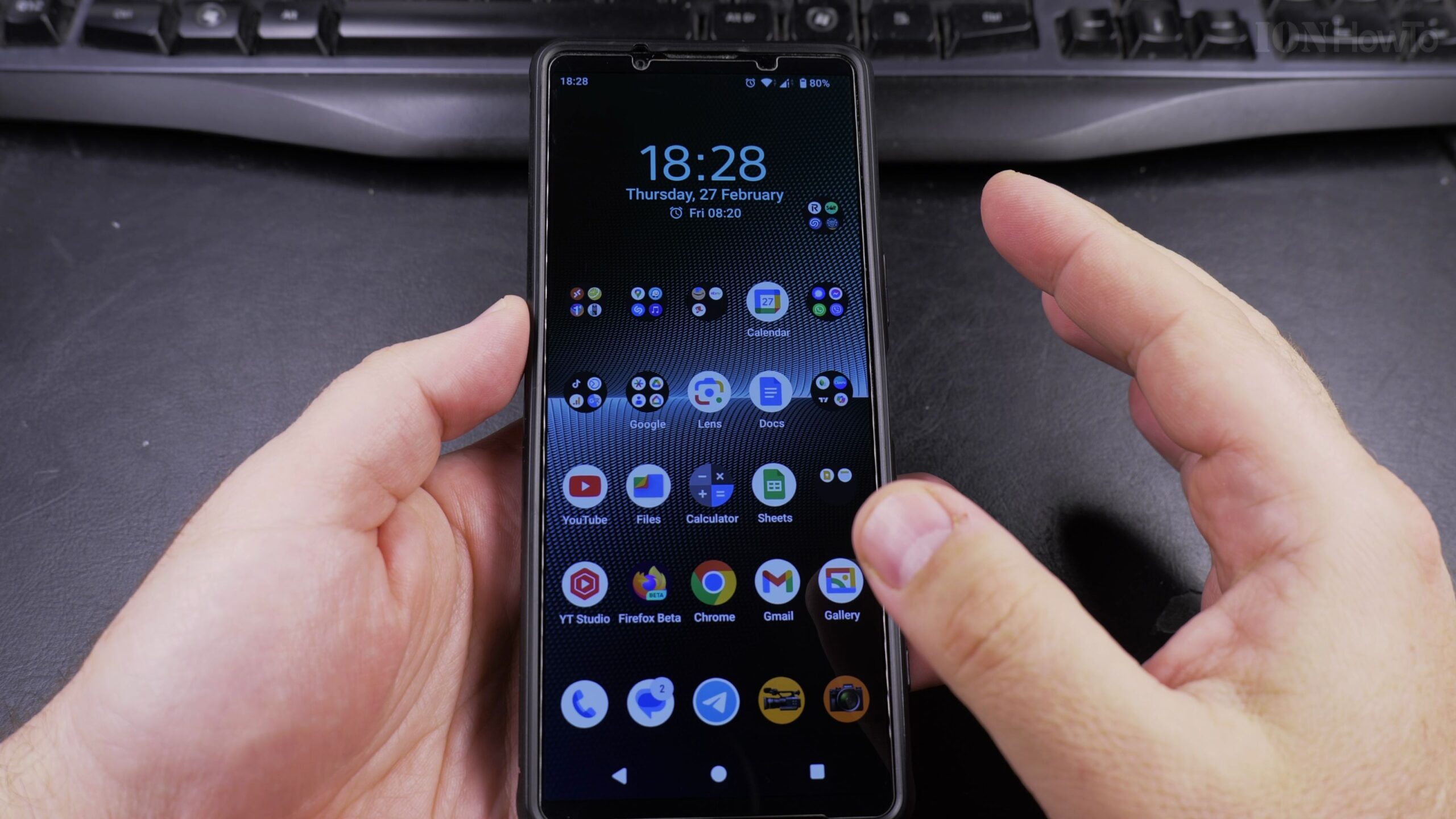
Step 1: Open Settings and Scroll to About Phone
Unlock your Android smartphone and open the Settings app from your home screen or app drawer. Scroll all the way down to the bottom of the list and tap on About Phone.
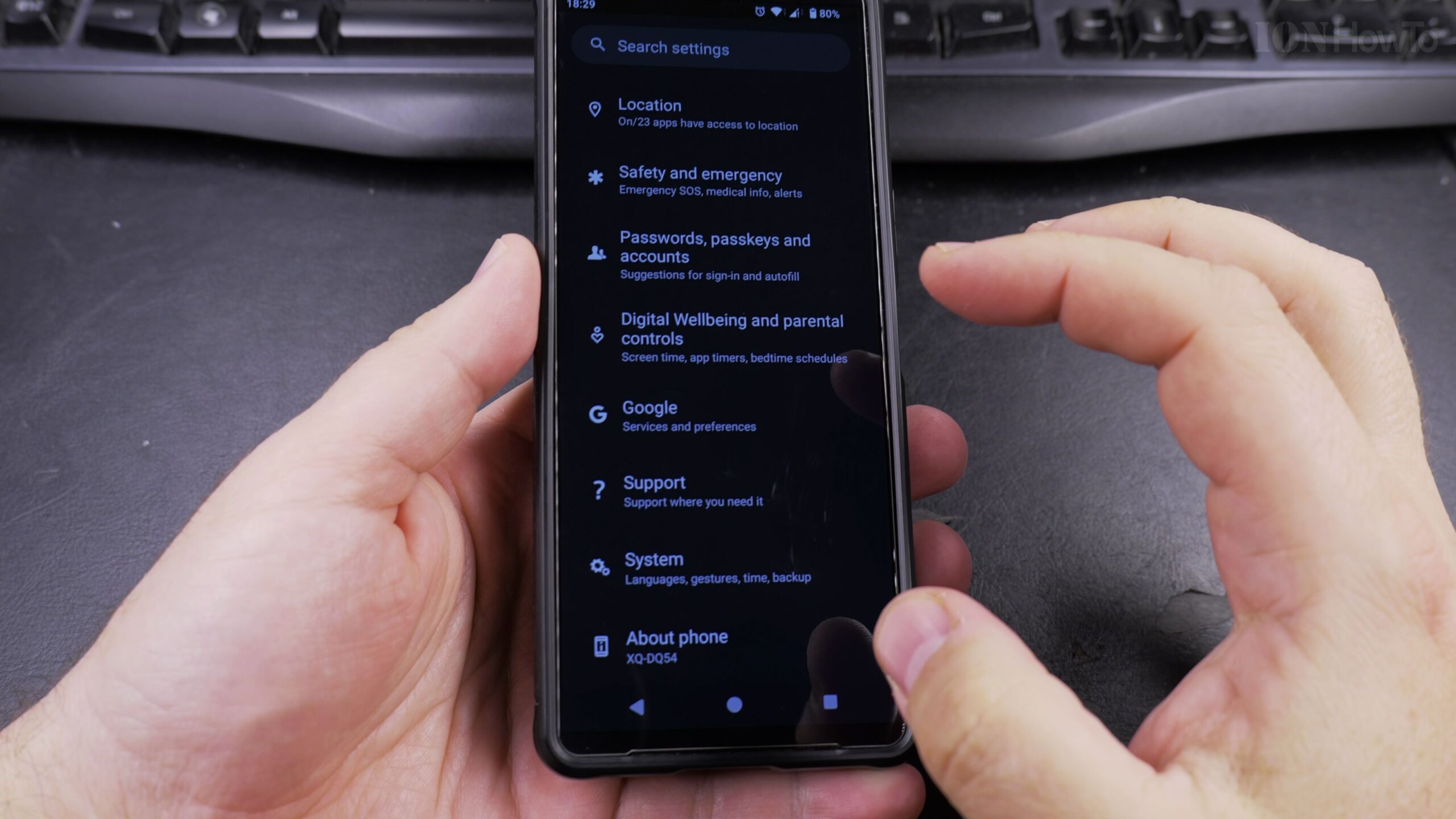
Step 2: Tap on Device Name
Near the top of the About Phone screen under Basic Info, locate the entry labeled Device Name. Tap on it to open the text editing dialog.
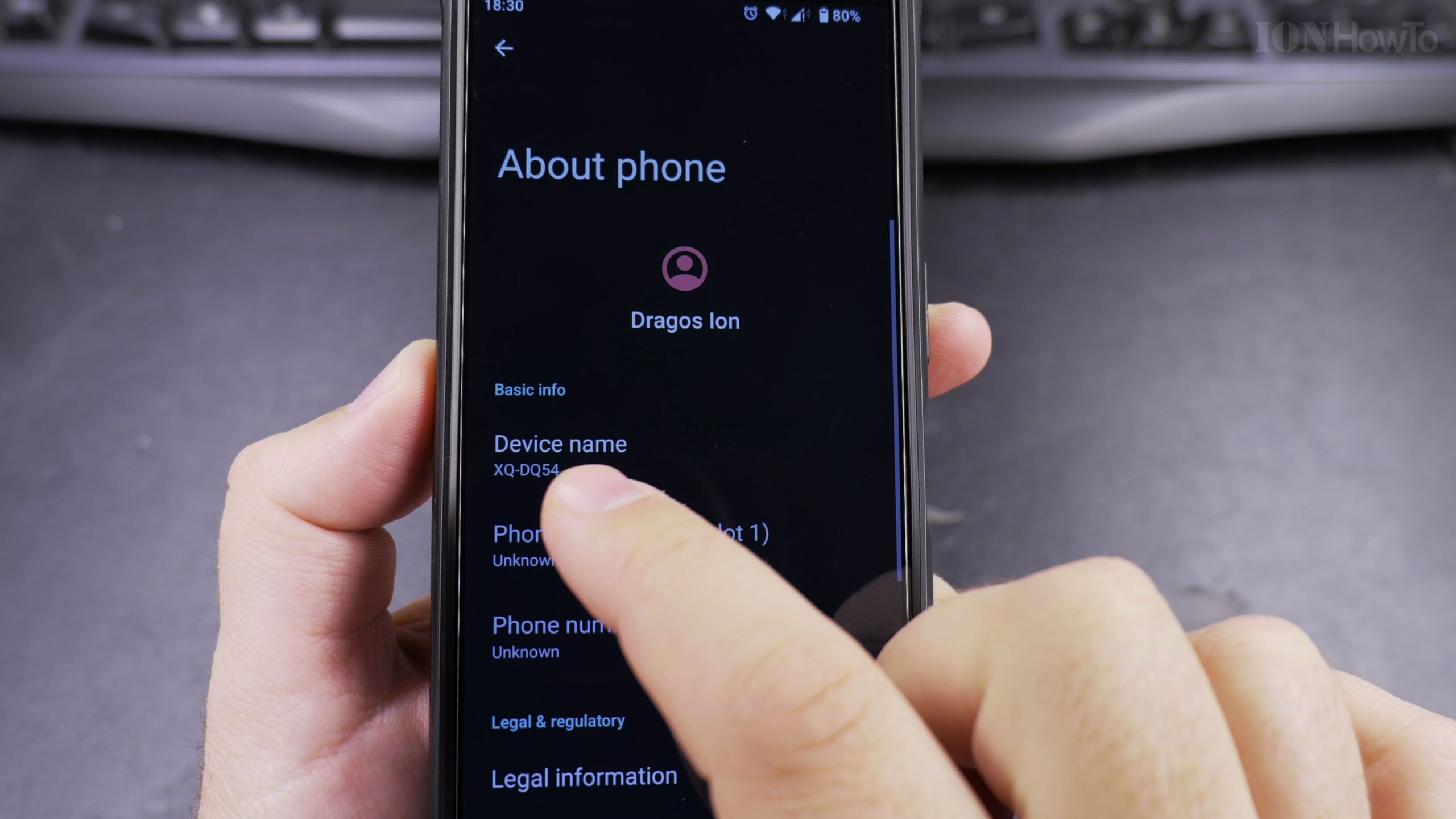
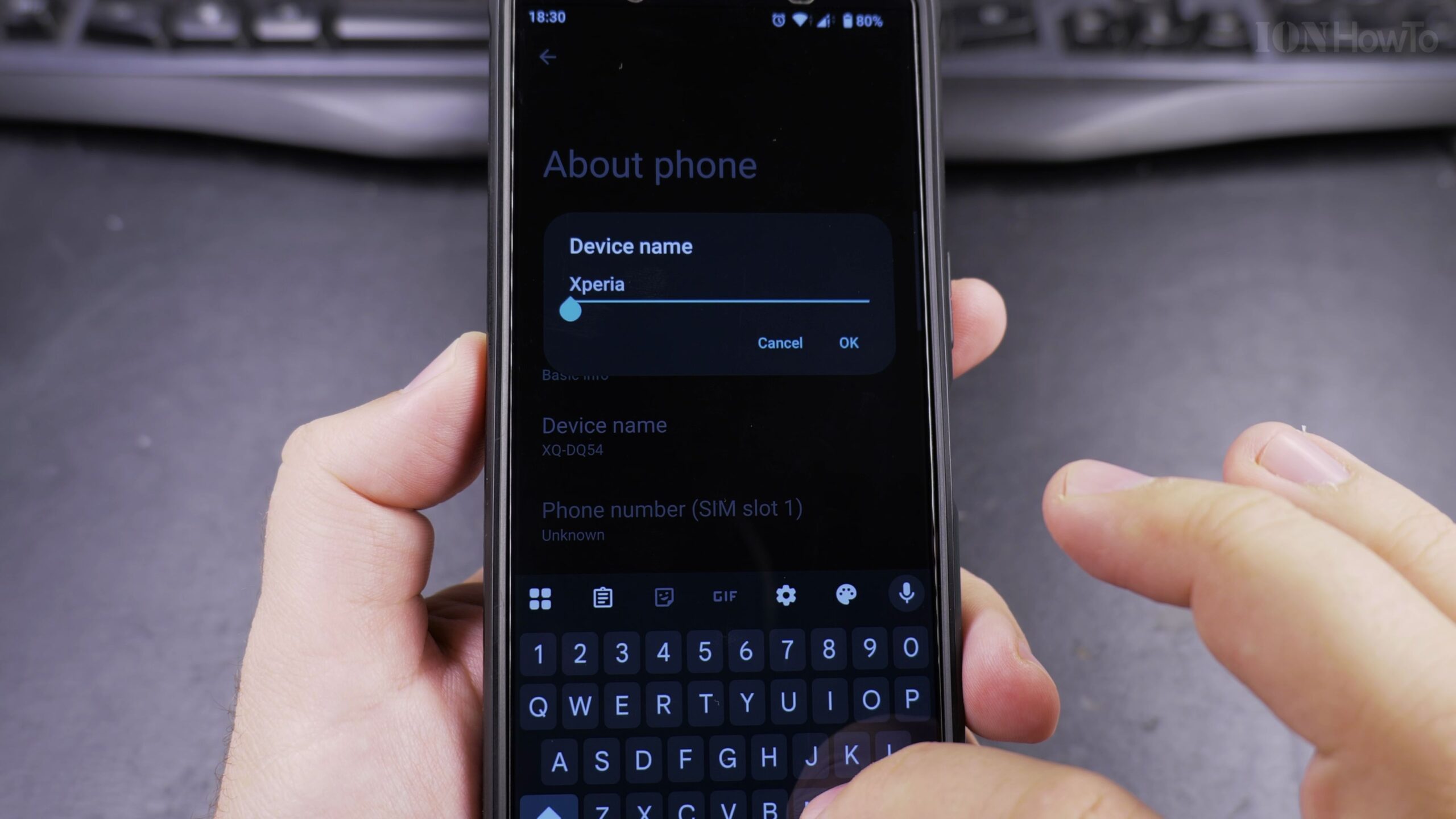
Step 3: Enter Your Personalized Name and Save
Use the on-screen keyboard to erase the factory model number and type your preferred name, such as your first name or phone model nickname. Once entered, tap OK or Done to save the change.
Step 4: Verify the Update Across Networks
Return to the main settings page. Your new custom device name will now appear consistently when connecting to computers via USB, pairing Bluetooth accessories, or transferring files over Wi-Fi.
Helpful Tips and Related Tutorials
For more practical tutorials and setup guides, discover how to how to disable 2G on Android, explore how to add a picture to a contact on Android, or browse our complete collection of Android tips and tutorials.
Leave a Reply Cancel reply