


If you want your Sony headphones to stay connected to your laptop and your phone simultaneously, you can turn on multipoint connection. I’ll show you how to enable two-device pairing in the Sony Headphones app.

1. Open Sony Headphones Connect
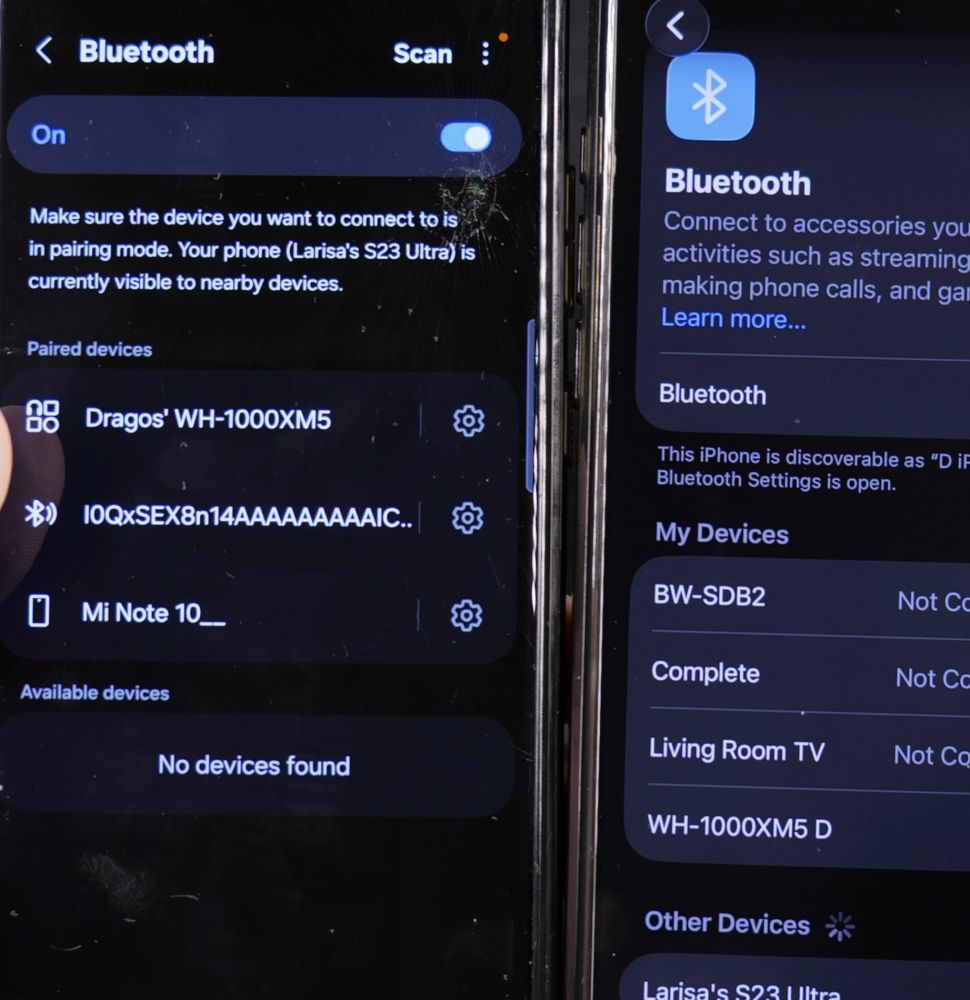
Put on your headphones and open the **Sony Headphones Connect** app on your phone.
2. Go to the System Tab
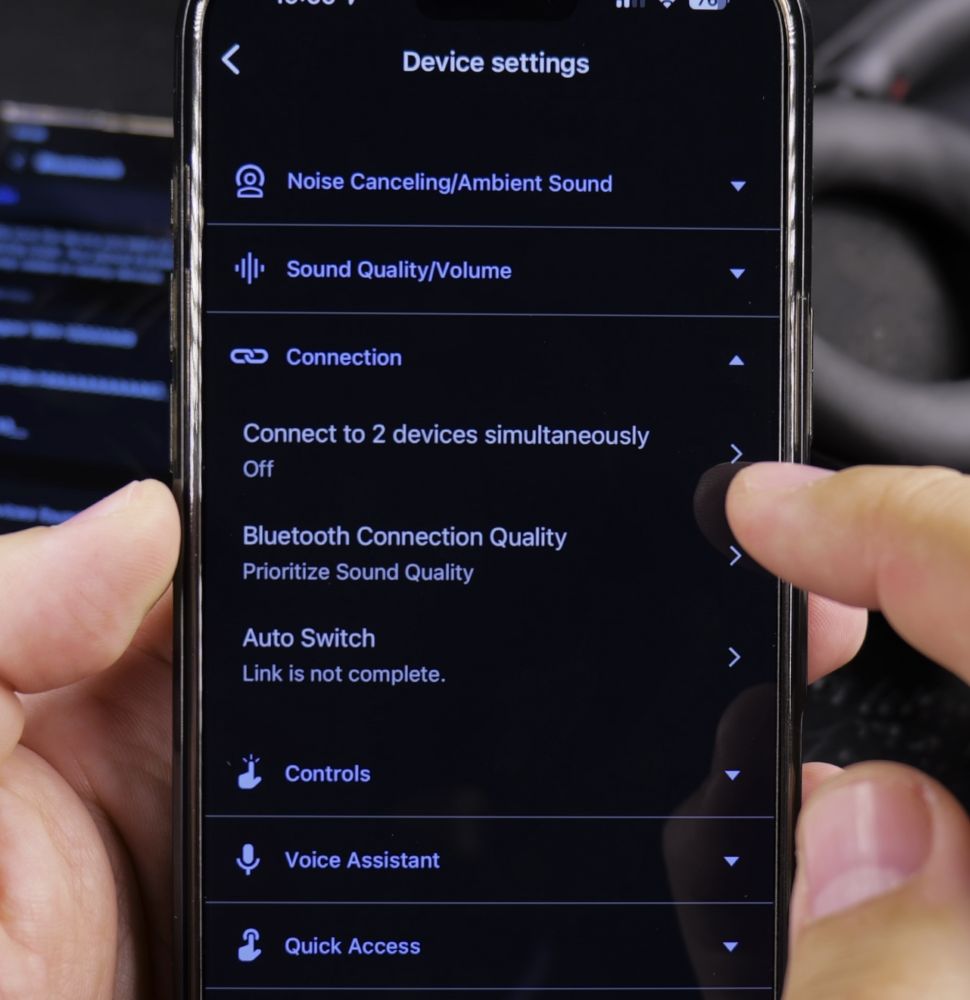
Look along the top navigation bar and tap **System**.
3. Enable Multipoint Connection
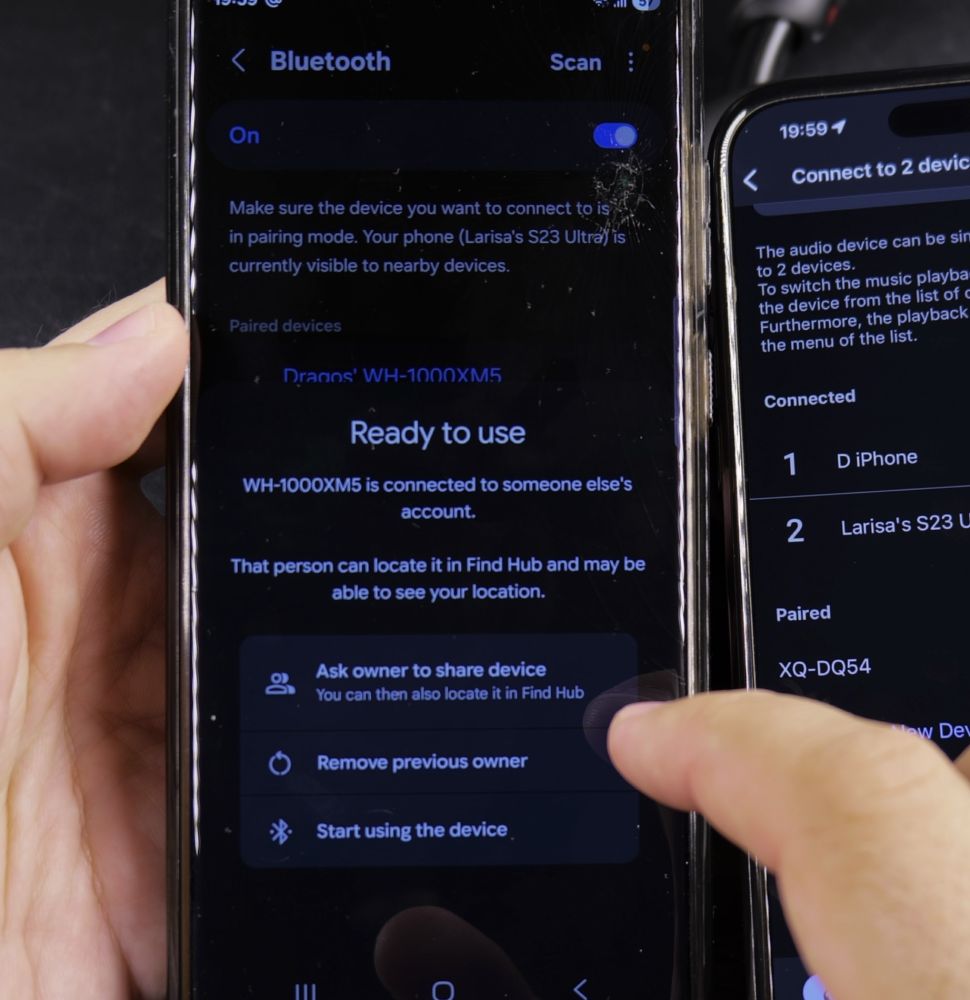
Locate **Connect to 2 devices simultaneously** and toggle the switch to the **On** position.
4. Connect Your Second Device
Open the Bluetooth settings on your second device (like your laptop) and select your Sony headphones to connect both at once.
Helpful Tips
Note that multipoint connection will disable LDAC high-resolution audio codecs and use AAC instead to maintain dual streaming bandwidth. For more audio tips, check out our guide on Headphones & Audio hub.
Leave a Reply Cancel reply