


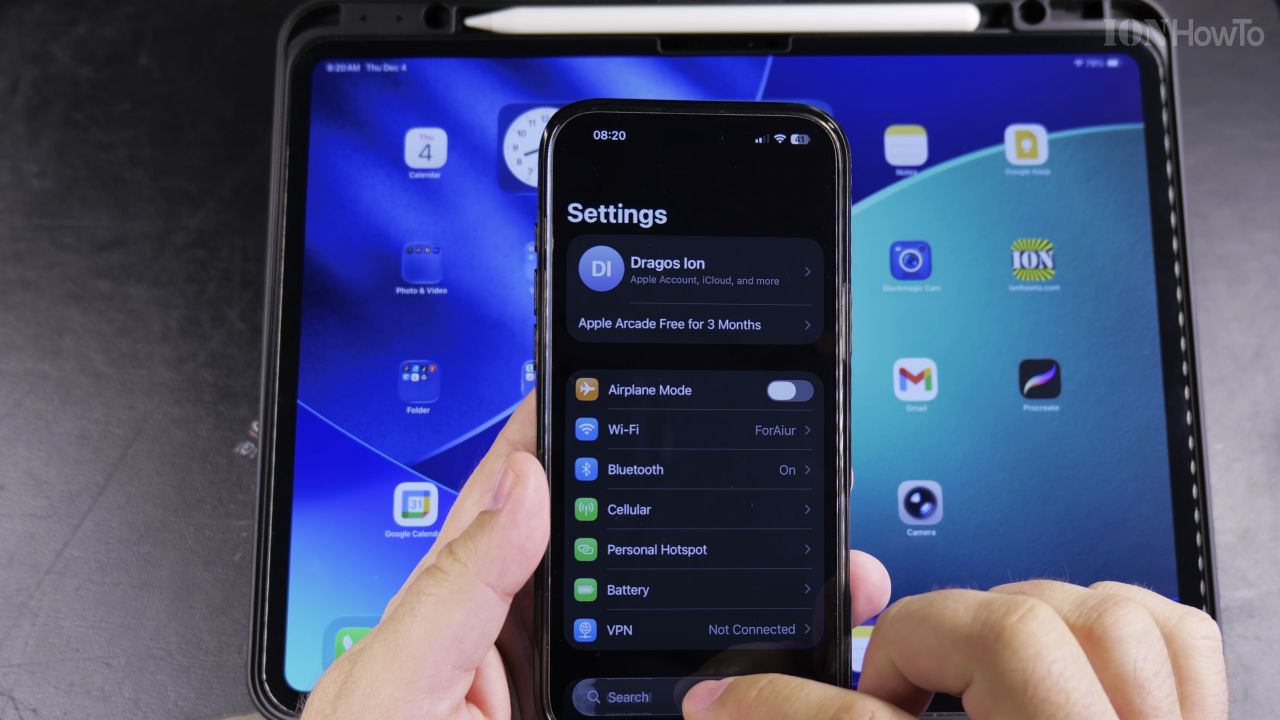
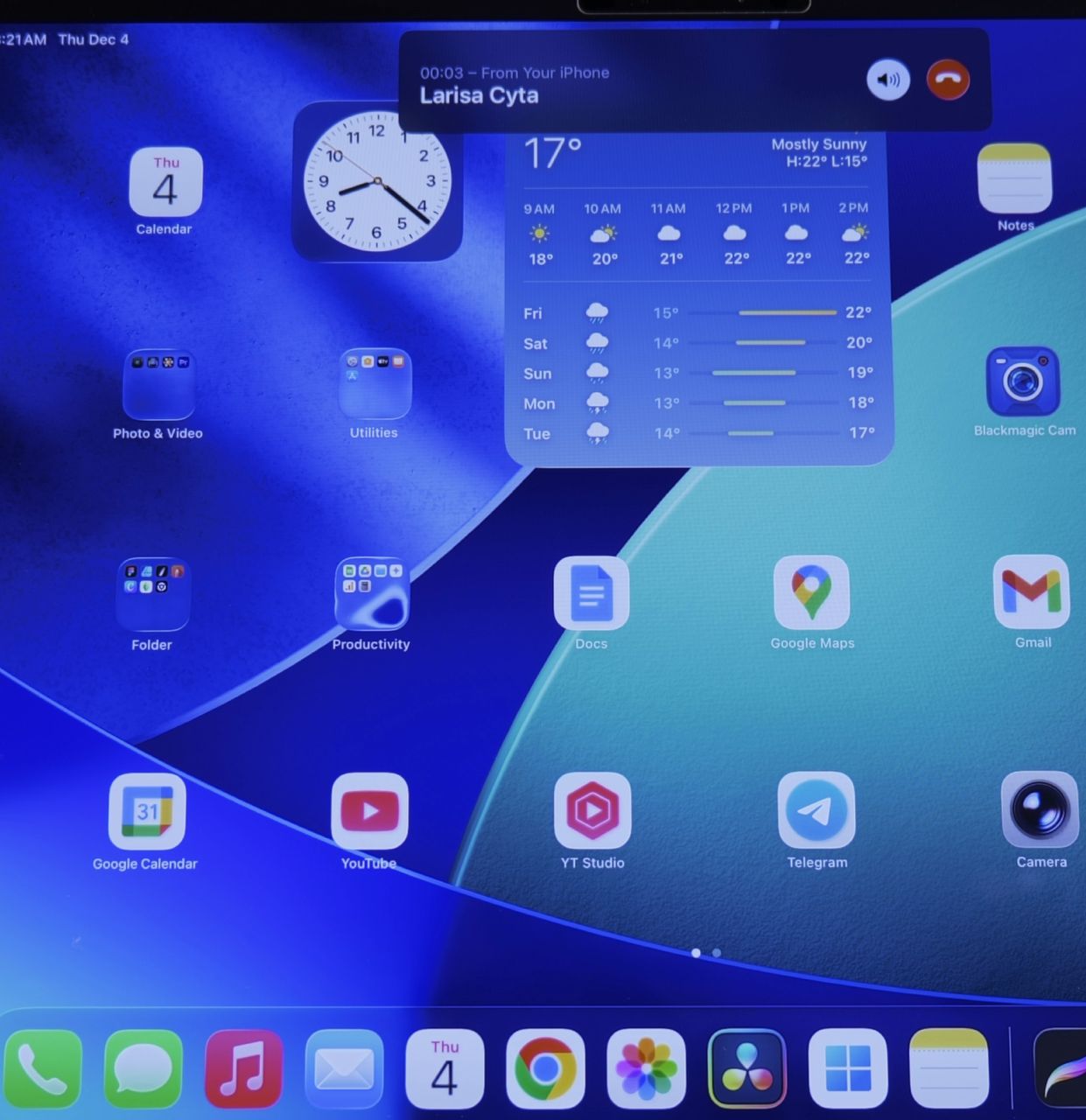
If your iPad does not have a cellular SIM card, you can still answer regular phone calls right from your tablet. I’ll show you how to connect your iPhone and iPad using your Apple ID so calls ring on both devices.

1. Open Settings on Your iPhone

Tap the gray **Settings** icon on your iPhone and scroll down to tap **Phone**.
2. Tap Calls on Other Devices
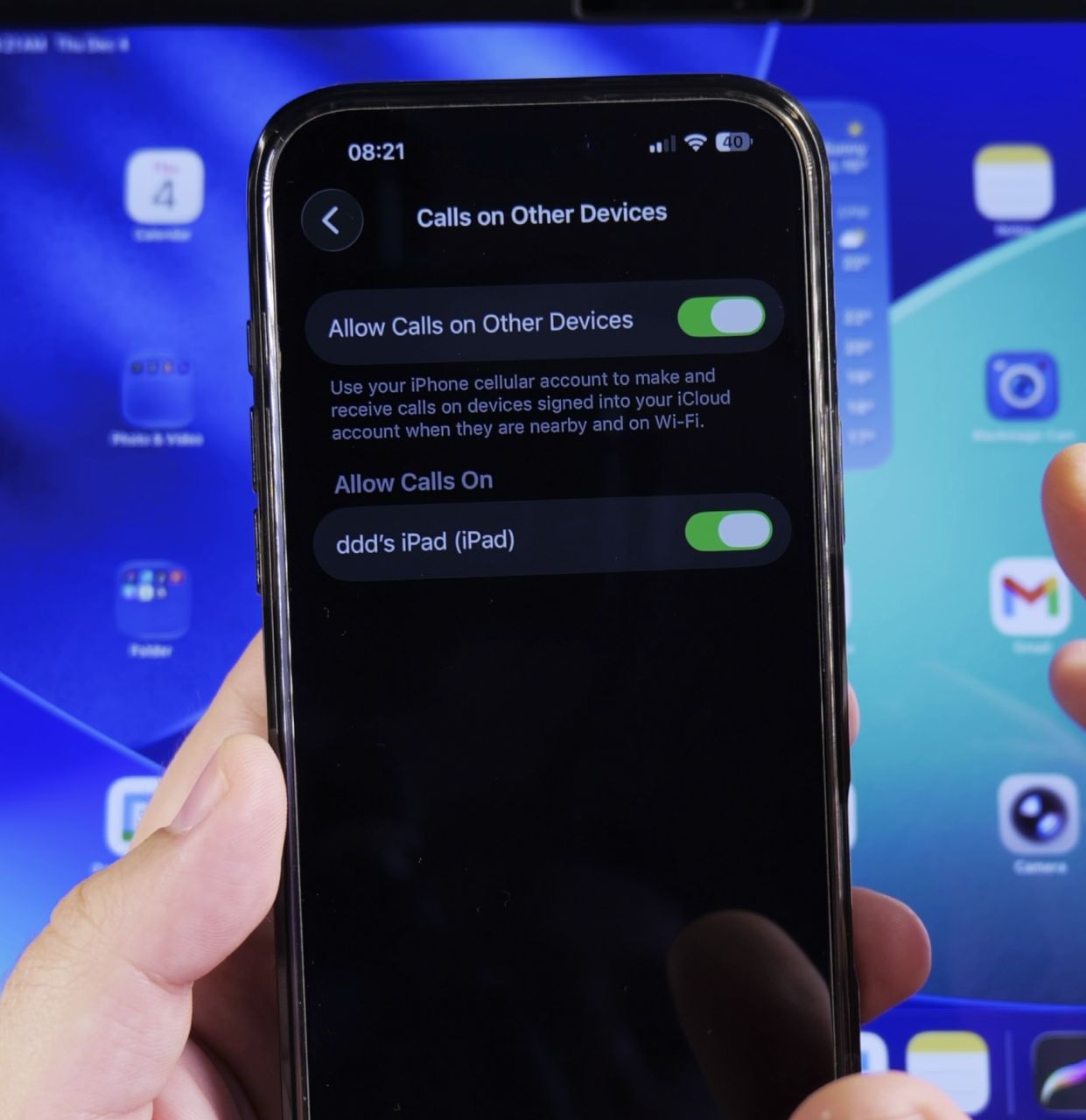
Select the row labeled **Calls on Other Devices**.
3. Turn On the Master Toggle
Tap the switch next to **Allow Calls on Other Devices** so it turns green, then ensure your iPad has a checkmark next to its name.
4. Enable Calls from iPhone on iPad
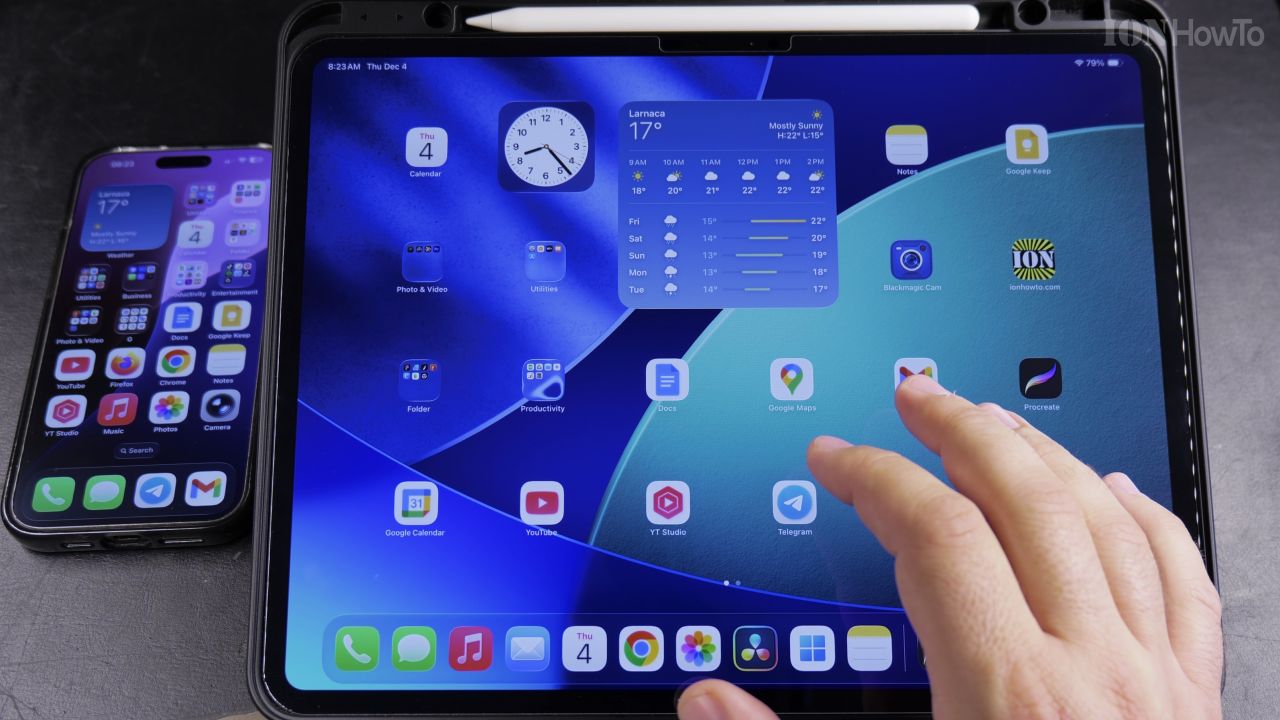
Pick up your iPad, open **Settings**, tap **FaceTime**, and make sure **Calls from iPhone** is switched **On**.
Helpful Tips
Both devices must be signed in to the exact same Apple Account (Apple ID) and connected to the same Wi-Fi network. If you ever want to silence calls on other screens, read our guide on Stopping Other Devices from Ringing on Calls or explore our Apple iPad hub.
Leave a Reply Cancel reply