


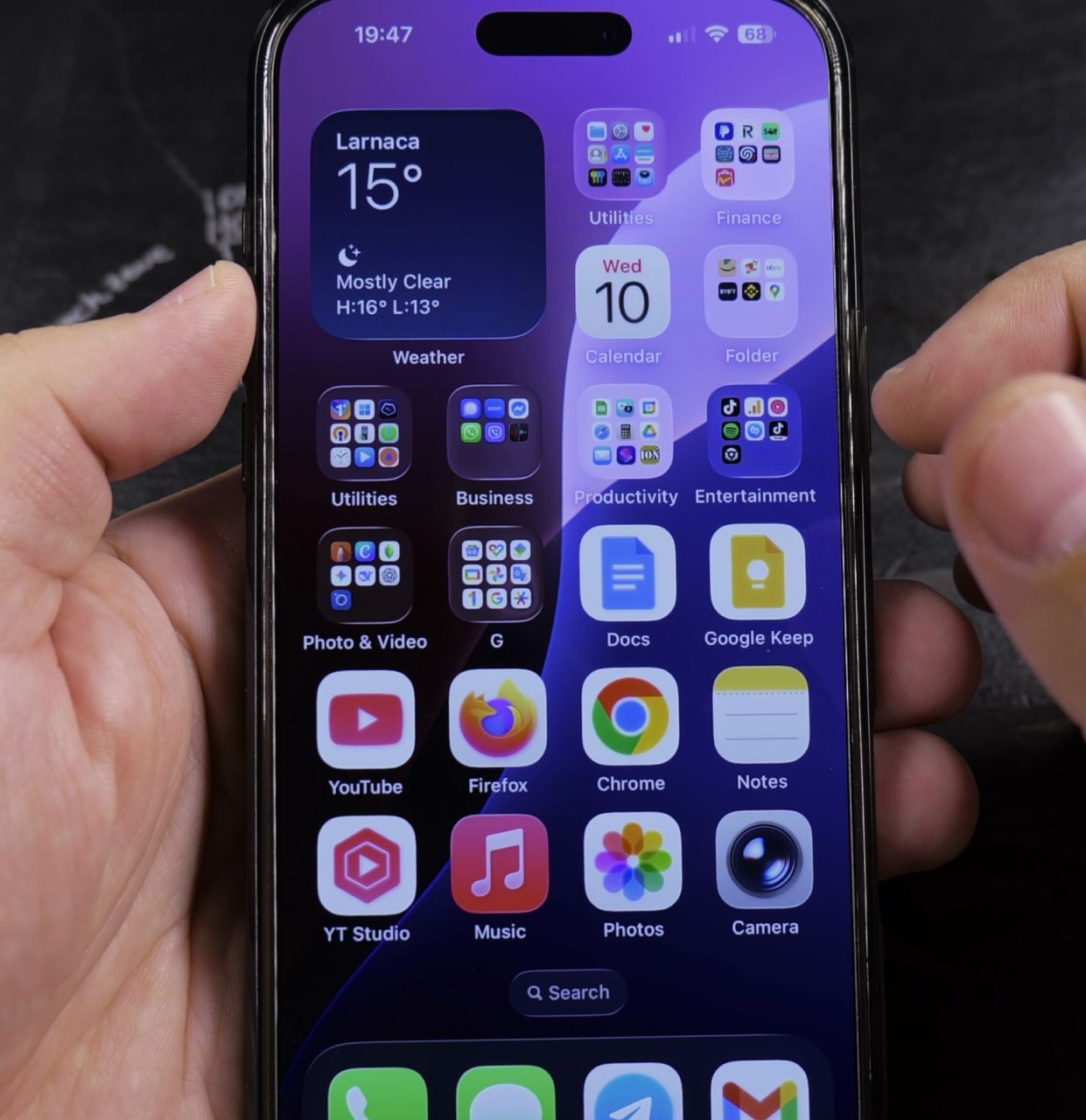
If an app requires tracking permissions to sync rewards or personalized content, the option might be grayed out in your settings. I’ll show you how to enable app tracking permissions on your iPhone in just a few taps.

1. Open Settings on Your iPhone
Tap the gray **Settings** gear icon located on your Home Screen or in the App Library.
2. Select Privacy and Security
Scroll down to the third group of options and tap the blue hand icon labeled **Privacy & Security**.
3. Tap Tracking
Near the top of the Privacy & Security menu, tap the option labeled **Tracking**.
4. Turn On Request to Track
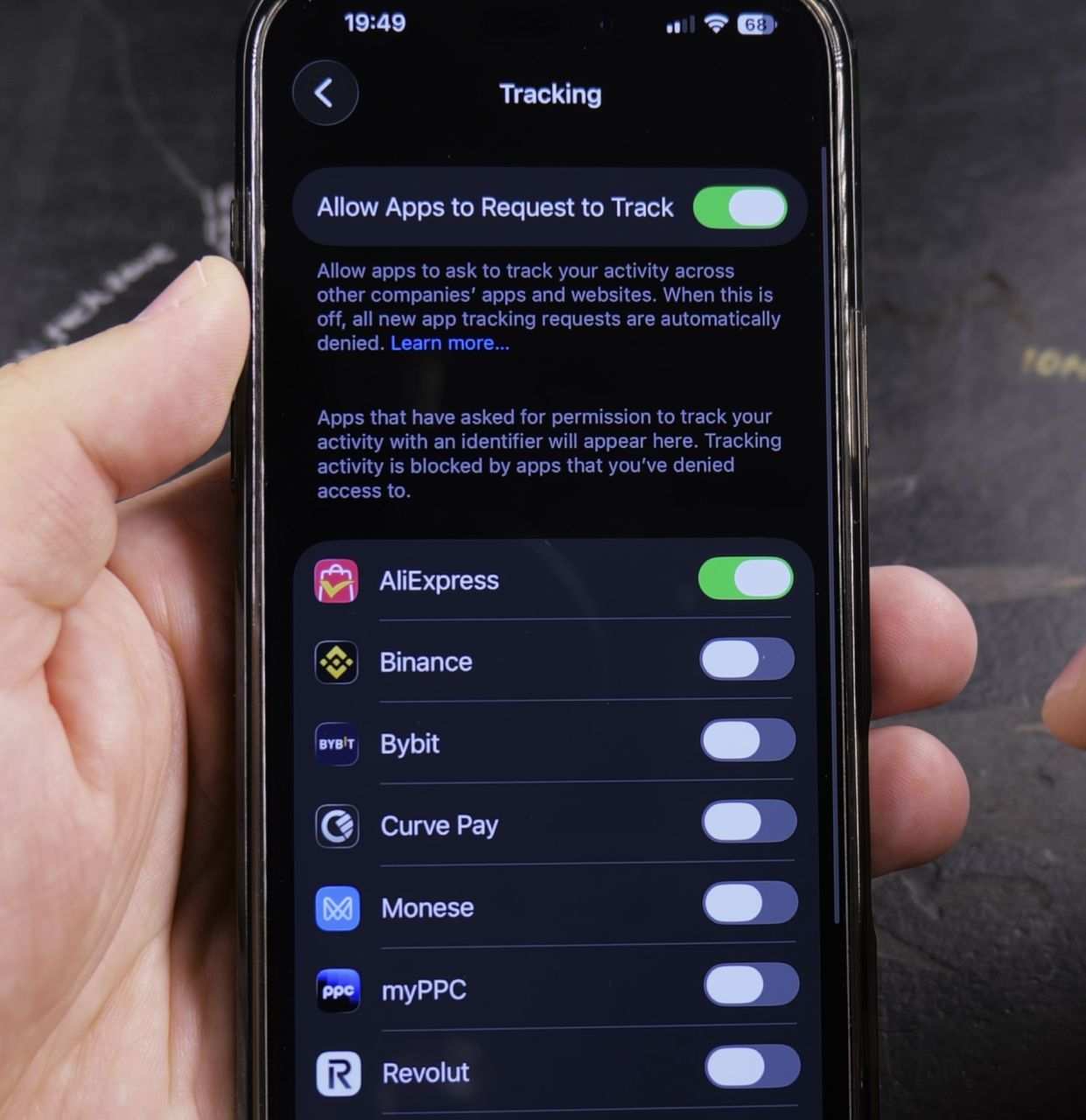
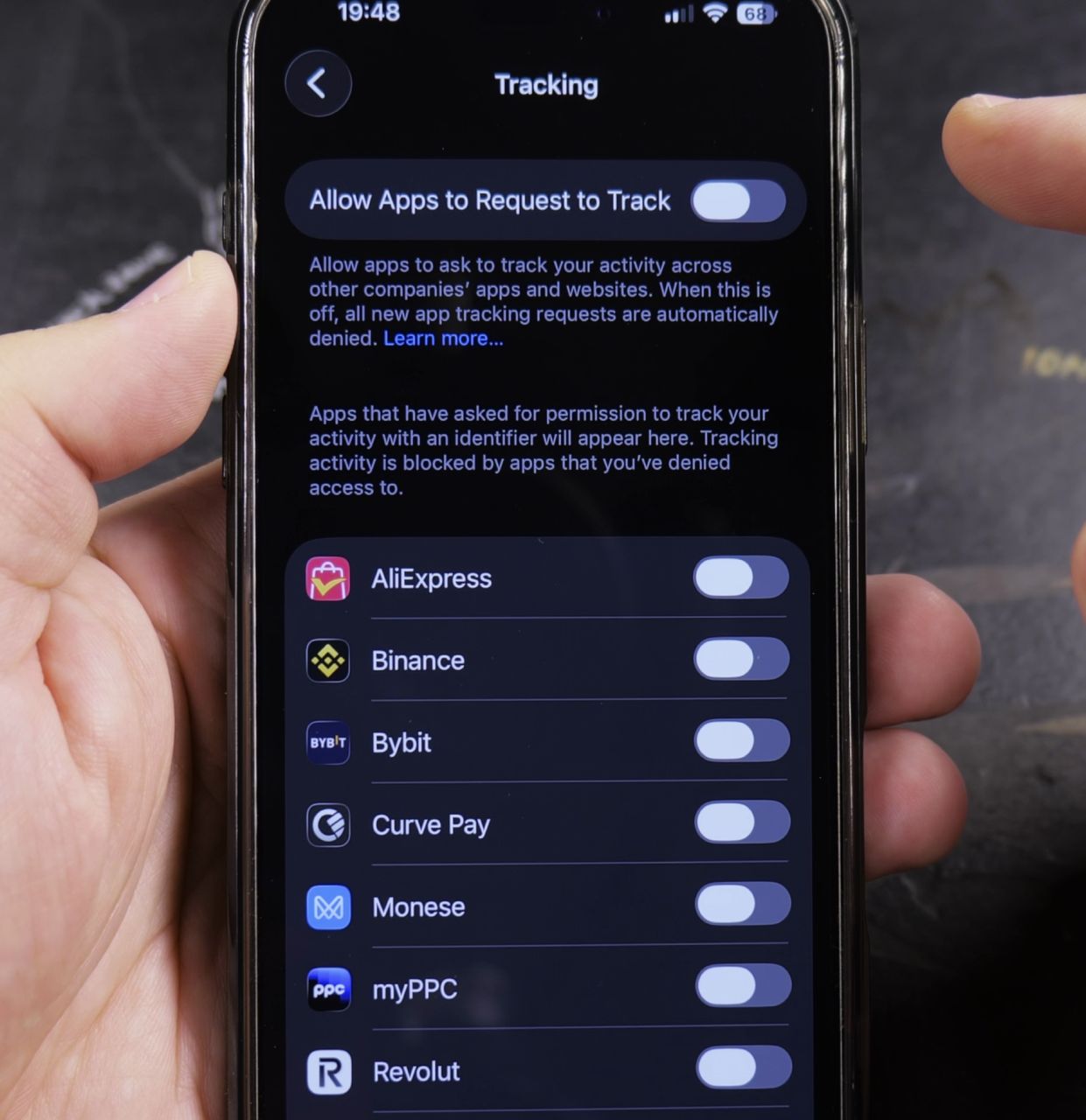
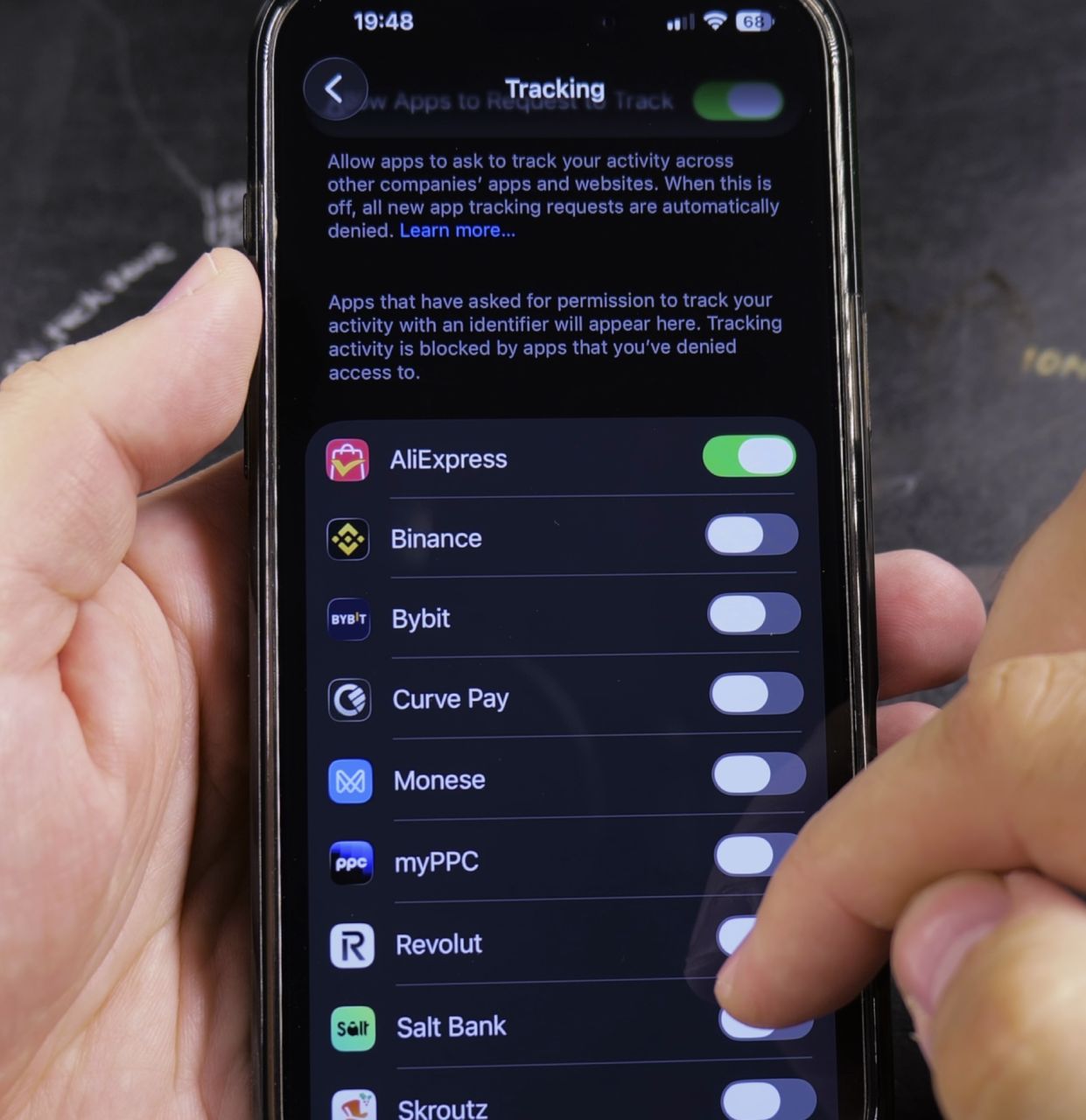
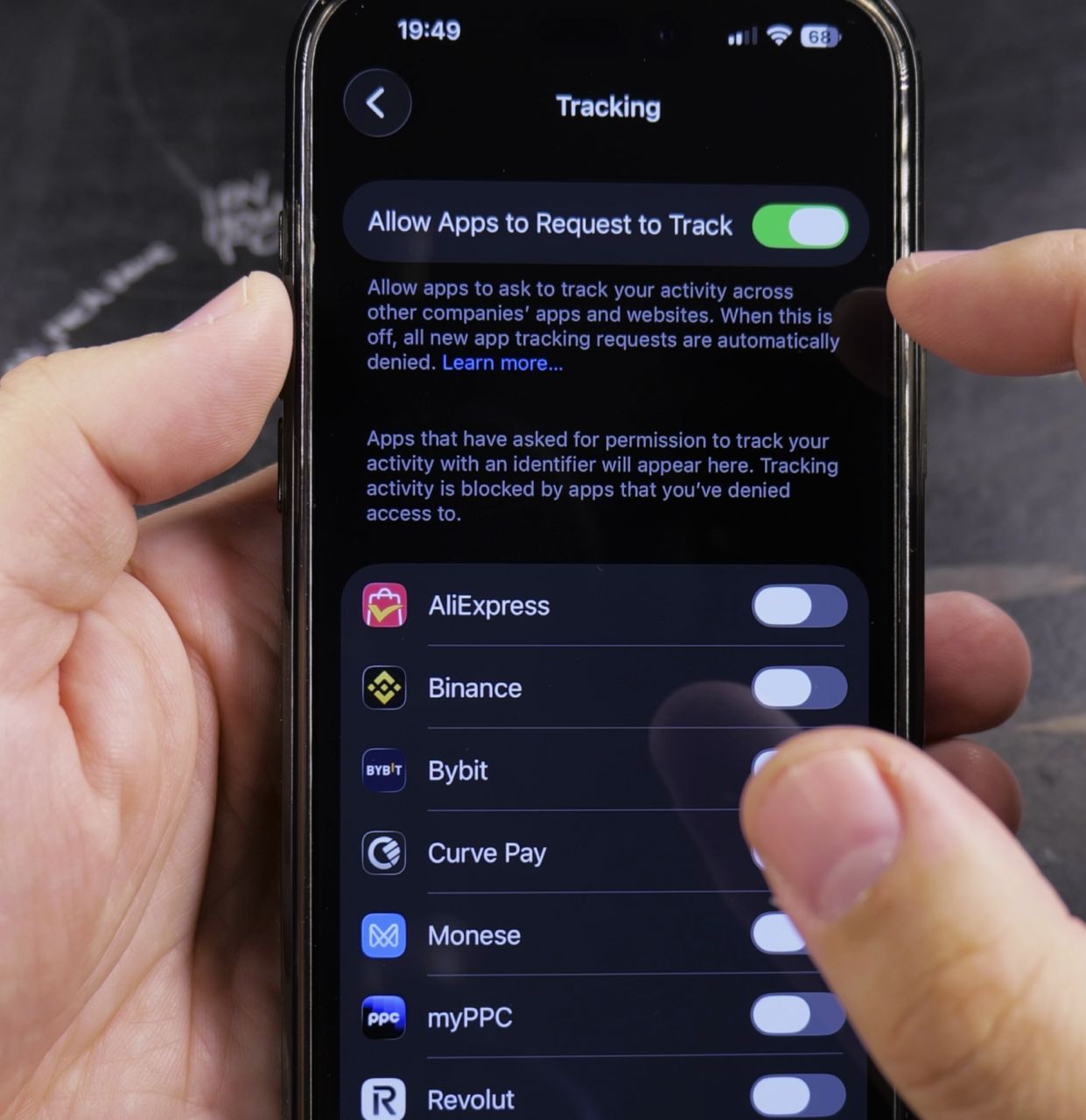
Tap the toggle switch next to **Allow Apps to Request to Track** so it turns bright green.
Helpful Tips
If the toggle is grayed out, check your Apple ID age settings or ensure that **Screen Time Content & Privacy Restrictions** are turned off. Learn more about managing permissions in our guide on Stopping Apps from Asking for Face ID or visit our iPhone Guides hub.
Leave a Reply Cancel reply