


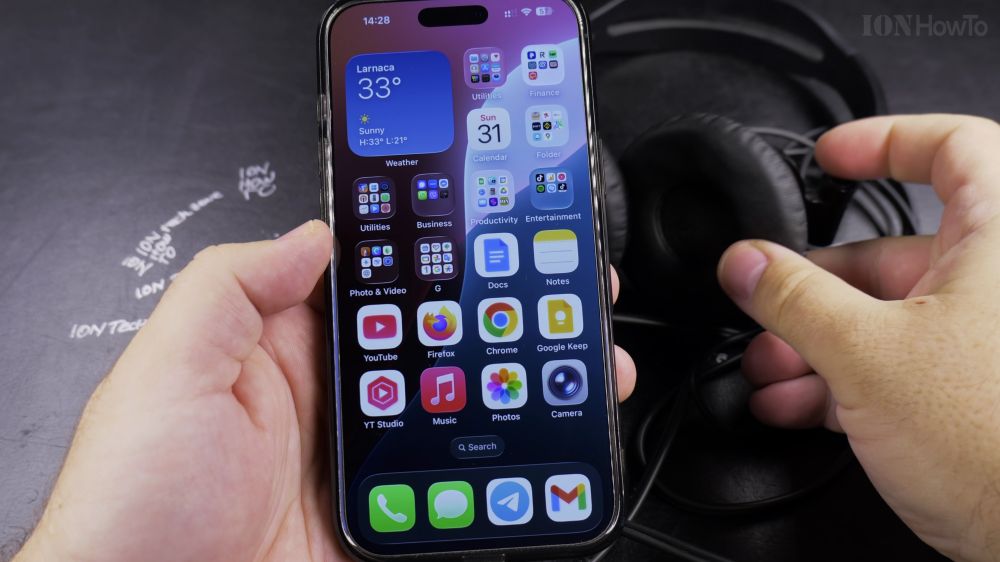
If you want to use your favorite wired headphones or an external microphone with a modern iPhone, you need a USB-C adapter. I’ll show you how to plug in 3.5mm audio cables and test sound recording in a few seconds.

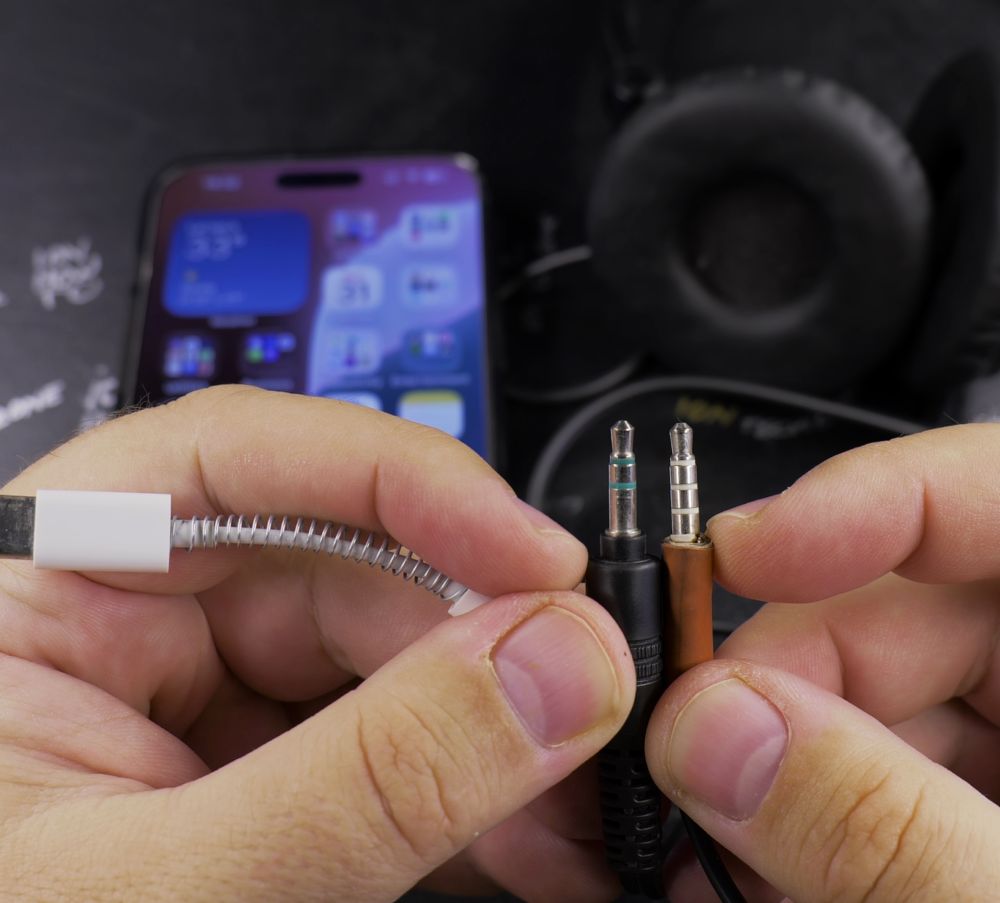
1. Inspect Your Audio Cables
Take your wired headphones and locate the 3.5mm audio jack. For headsets with microphones, ensure it has a 4-pole (TRRS) connector.

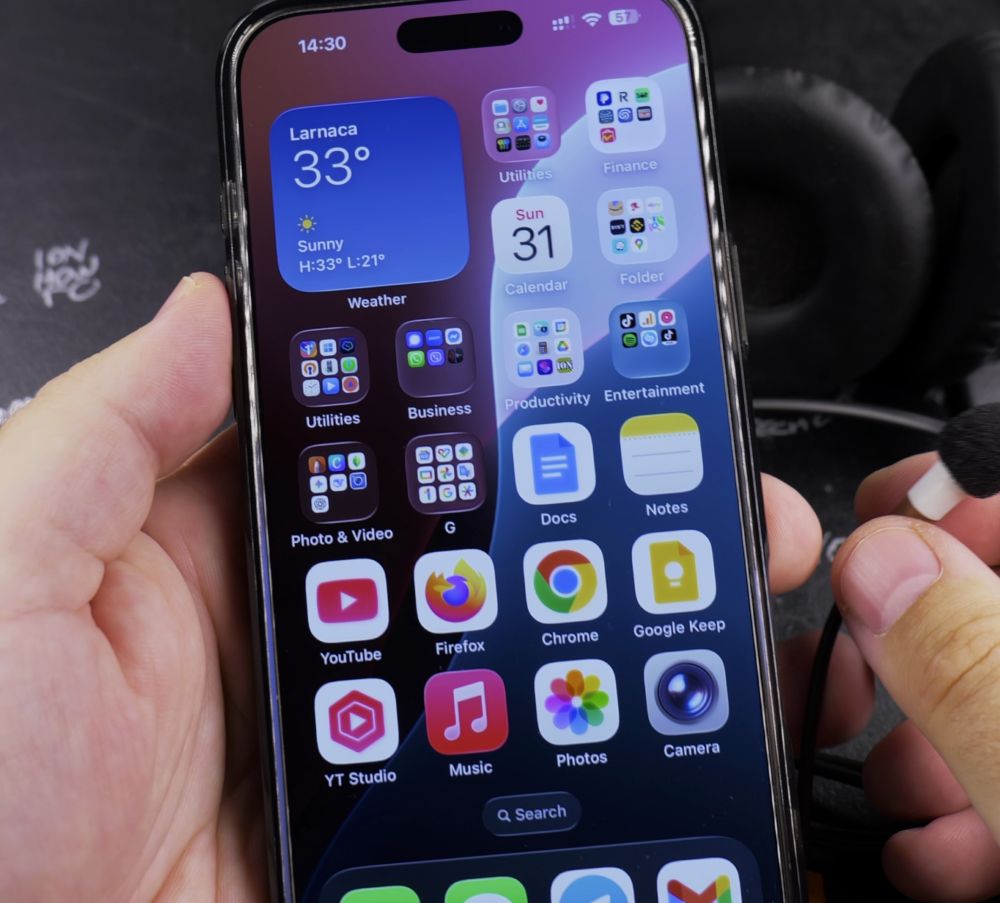
2. Connect Headphone Jack to Adapter
Plug the 3.5mm headphone pin firmly into the circular opening of the USB-C adapter until you feel a positive click.
3. Plug Adapter into Your iPhone
Insert the USB-C end directly into the charging port on the bottom of your iPhone 15, iPhone 16, or newer model.
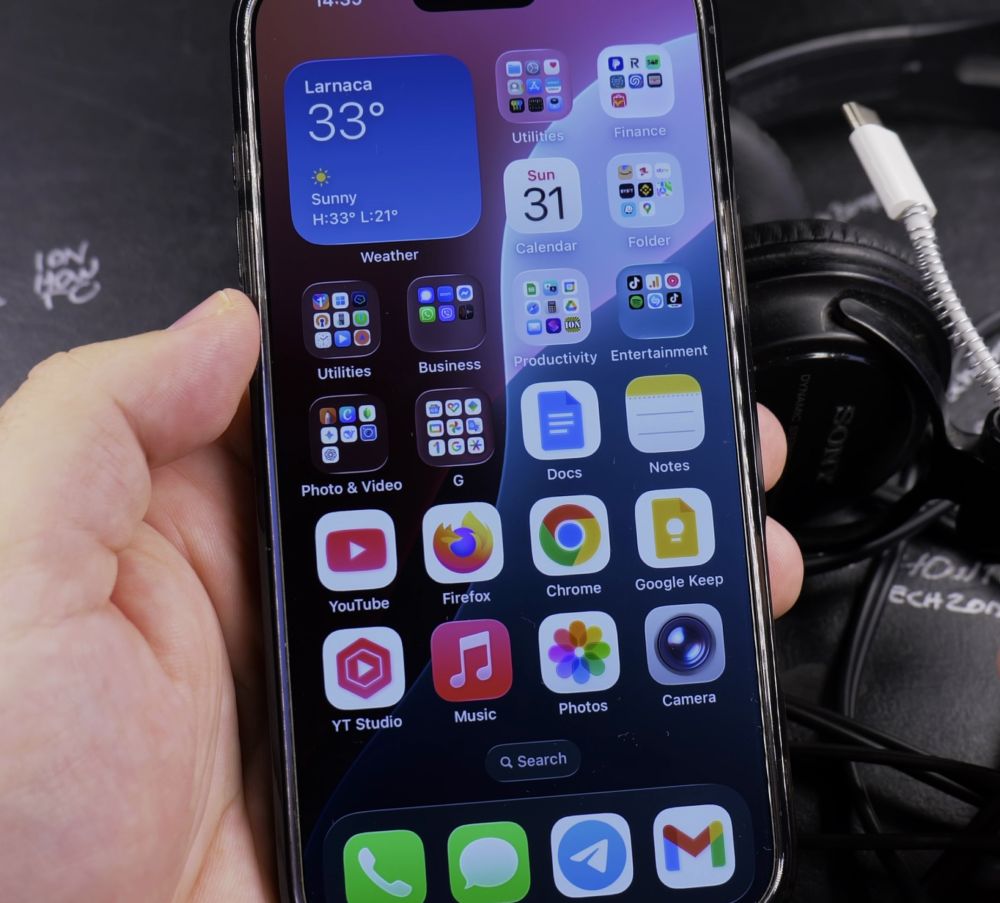
4. Test Sound Playback
Open the **Music** app or **YouTube** and start playing audio. Sound will route through your headphones immediately without any bluetooth setup.
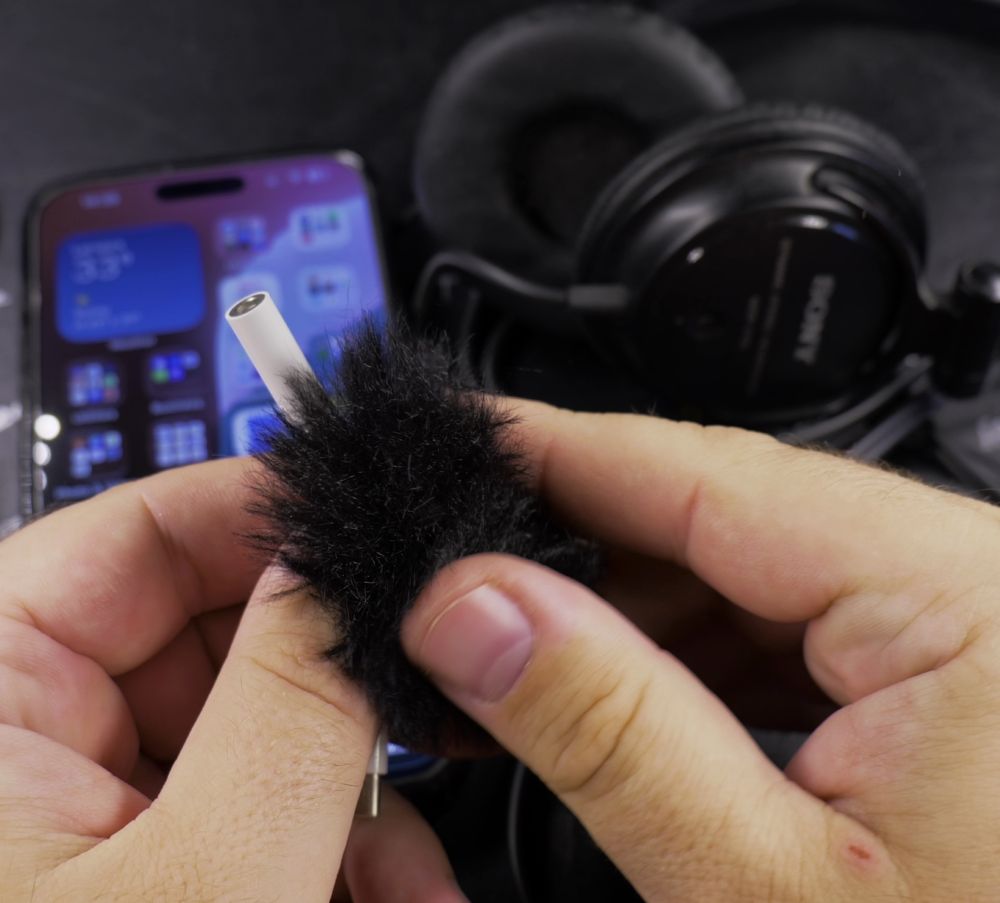
5. Test External Microphone
Open the **Voice Memos** app and tap the red **Record** button to verify your headset microphone captures clear voice audio.
Helpful Tips
No additional software or drivers are required. The adapter is plug-and-play and also works with portable audio amplifiers, car AUX inputs, and external lapel microphones. For more hardware guides, visit our iPhone Guides collection.
Leave a Reply Cancel reply