


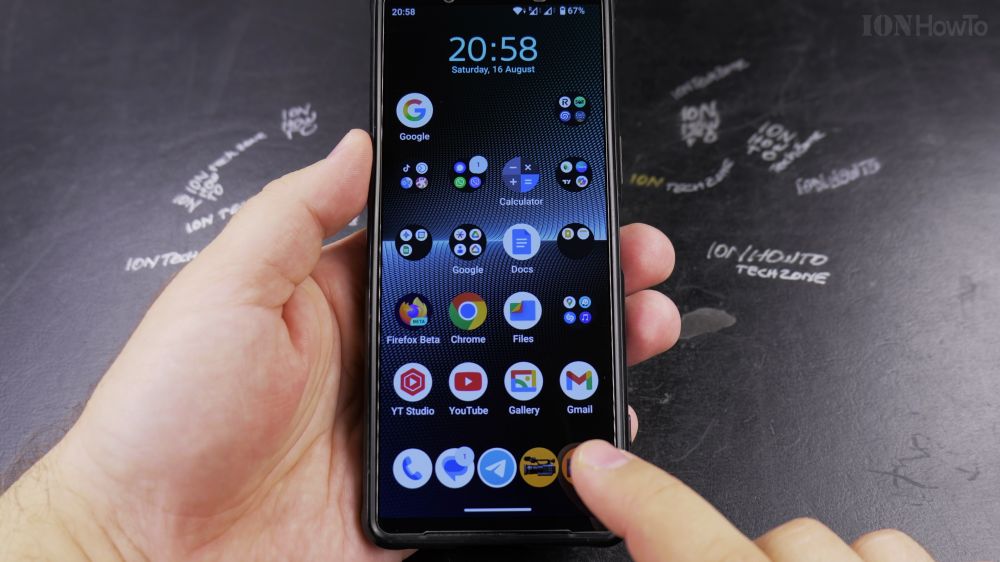
Saving phone numbers into your address book ensures you never lose touch with friends, family, or local services. I’ll show you how to create a new contact on Android in just a few taps.

1. Locate the Number
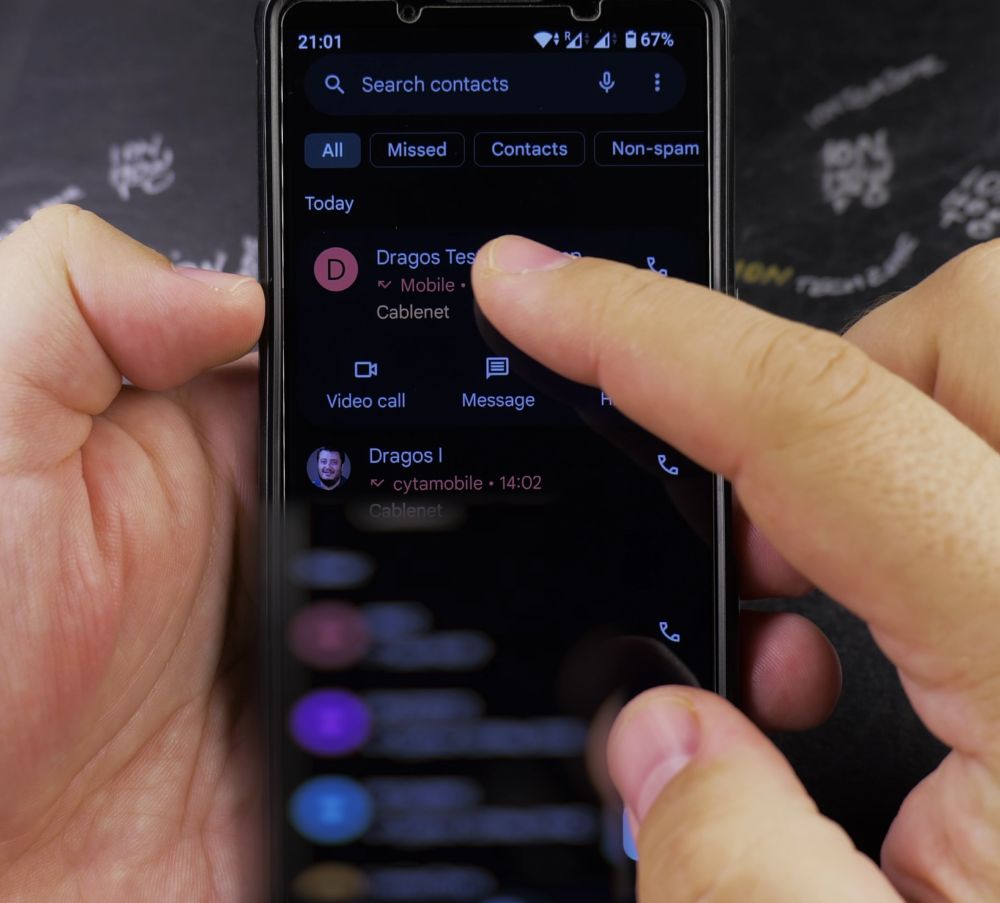
Open the **Phone** app and tap **Recents** (or type the digits directly on the **Keypad**).

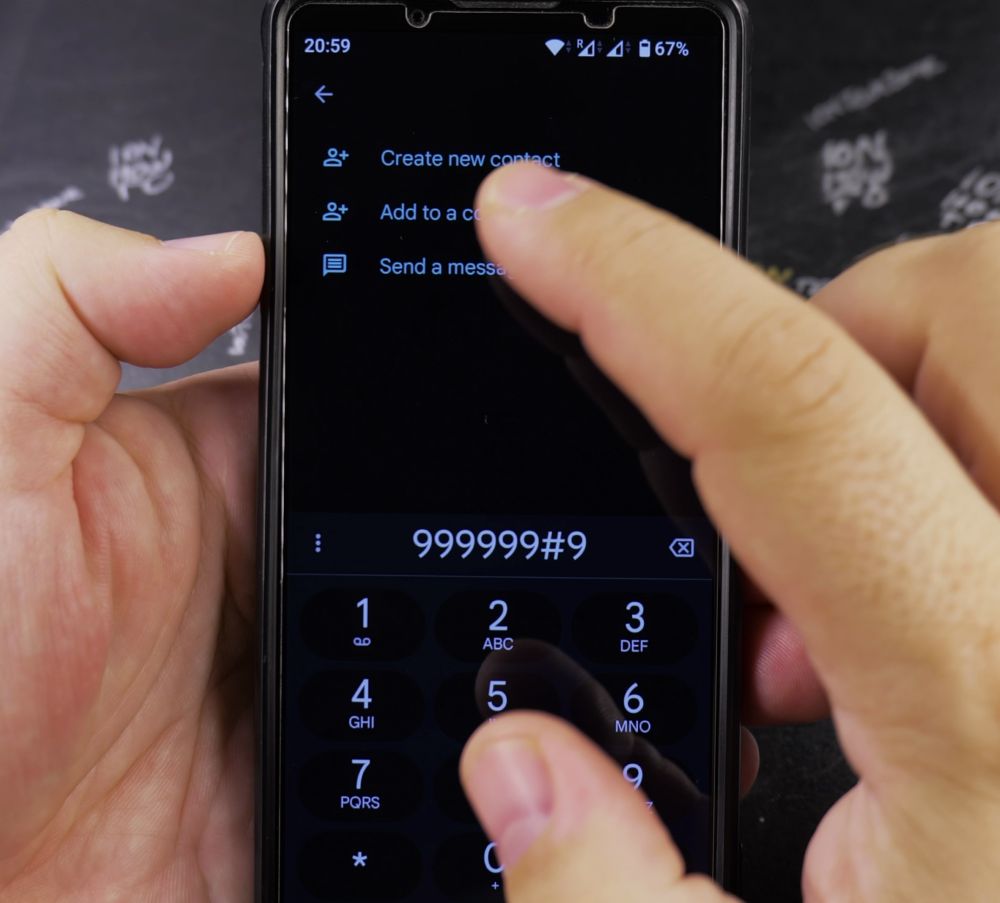
2. Tap Add Contact
Tap the unsaved phone number, then tap **Add contact** (or **Create new contact**).
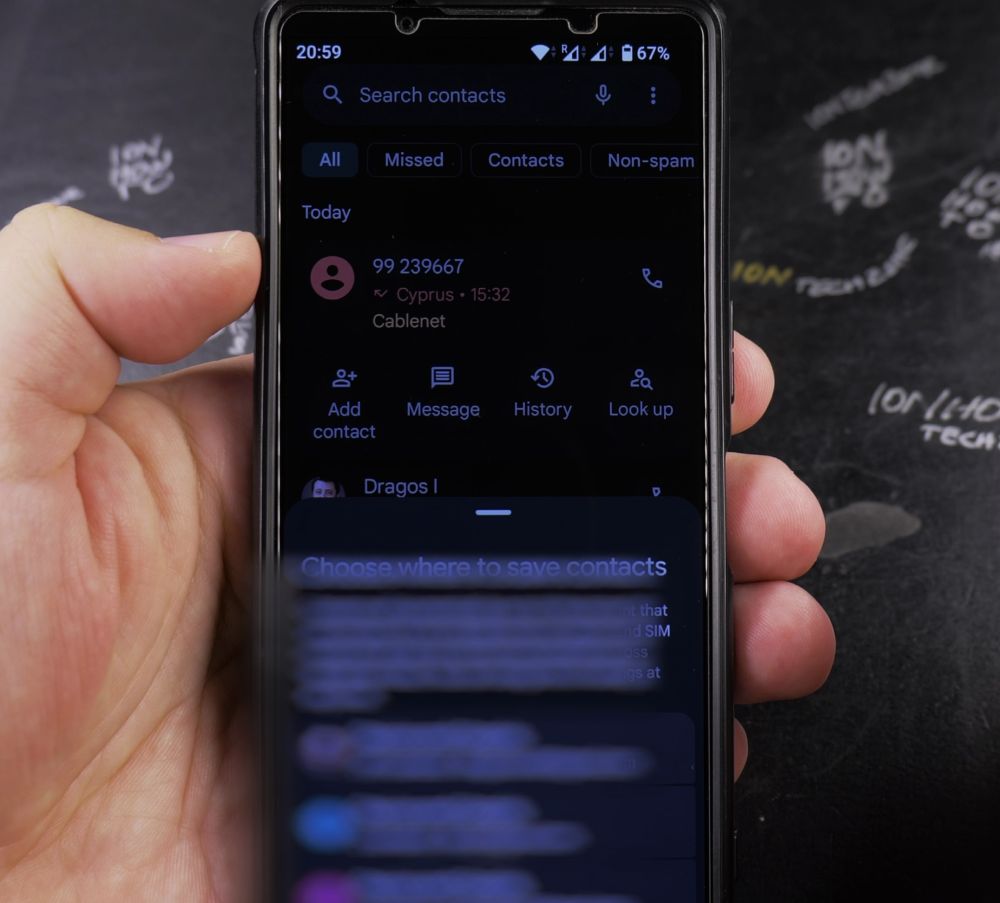
3. Select Storage Account
Choose your **Google Account** from the dropdown menu at the top so your contacts back up automatically to the cloud.
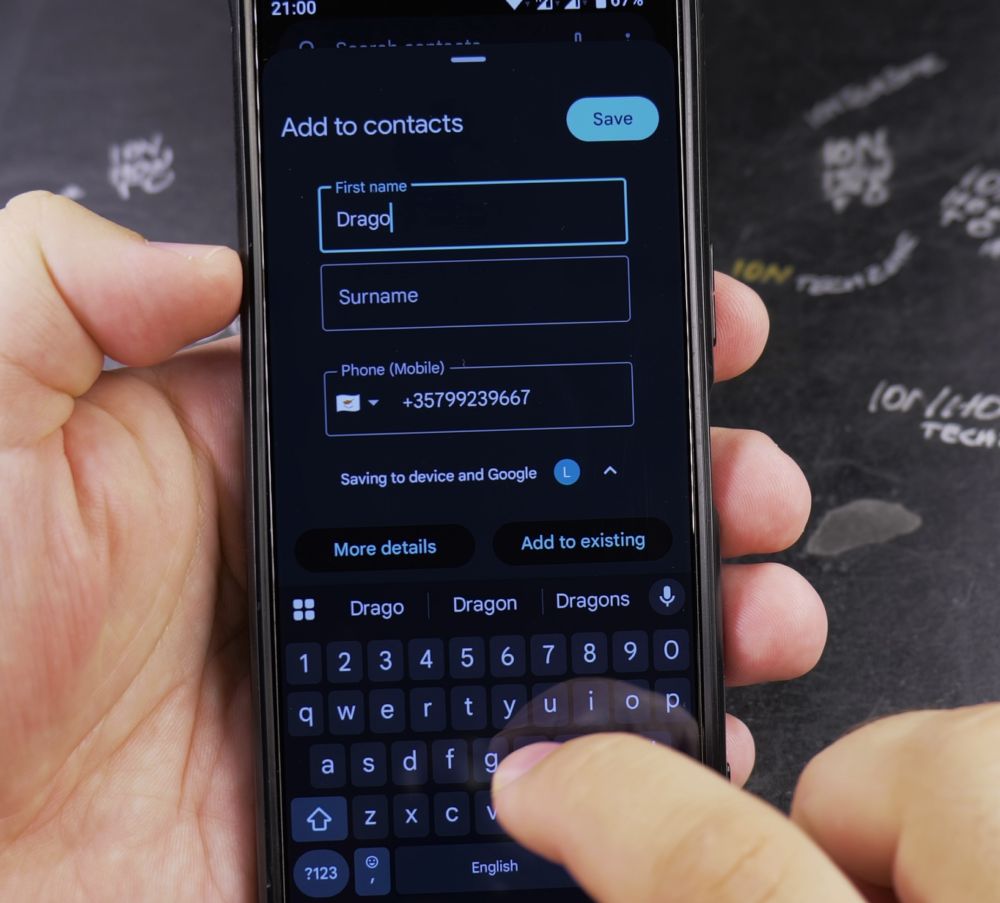
4. Type Name and Details
Enter the person’s **First name**, **Last name**, and any extra notes (like company or job title).
5. Save the Contact
Tap **Save** in the top-right corner. The caller’s name now displays immediately across your phone calls and text messages.
Helpful Tips
Always save new contacts to your Google account rather than ‘Device only’ so your address book transfers effortlessly whenever you upgrade to a new phone. For more Android tricks, visit our Android Guides hub.
Leave a Reply Cancel reply