


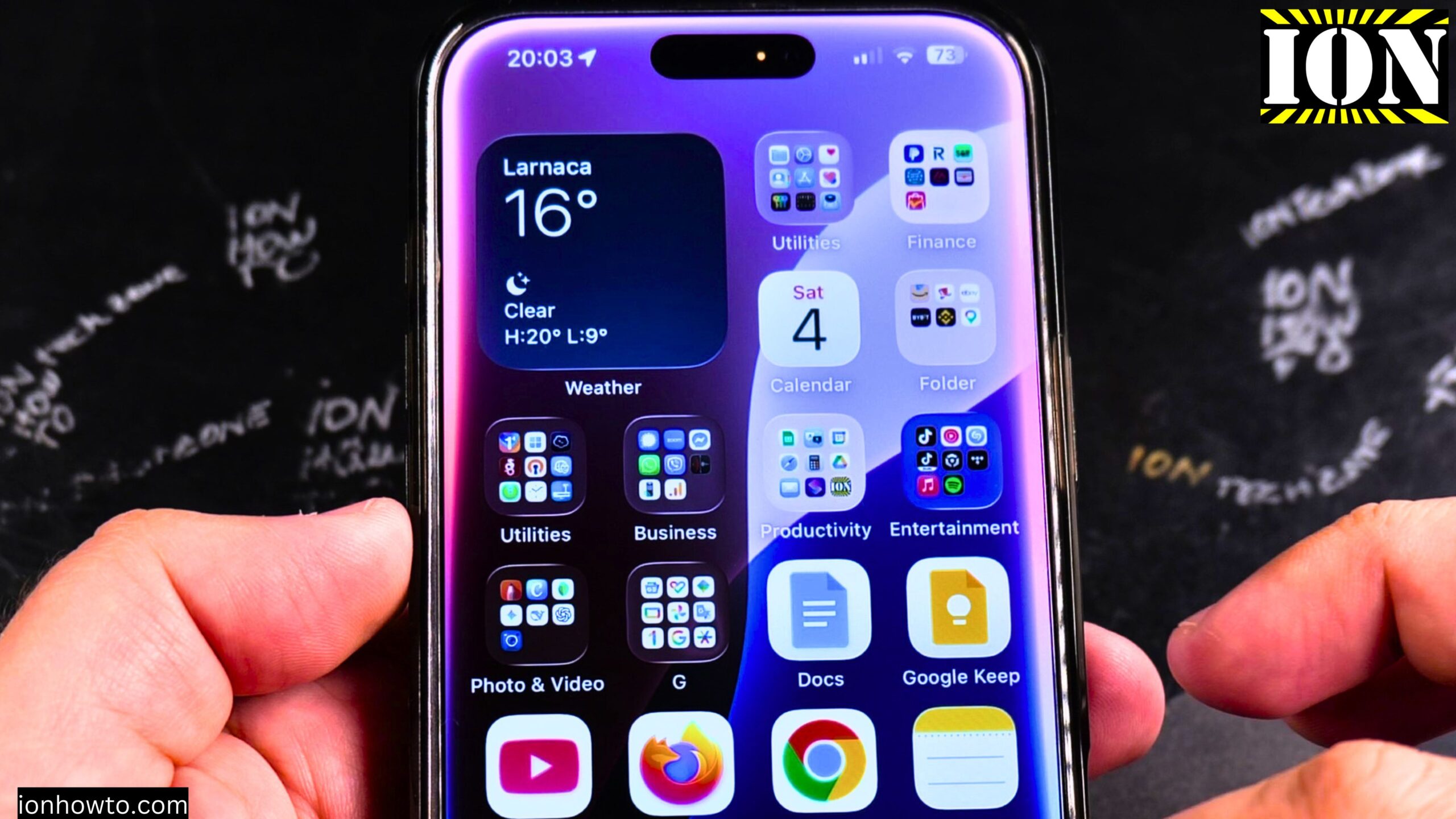
Learn how to permanently delete photos and videos from your iPhone by emptying the Recently Deleted album. I’ll show you the steps to clear this folder and free up storage space on your device.
You also have a Recently Deleted folder in the Files app. That can also be cleared if you still need space.
I am showing you on iOS 18.5 with an iPhone 16 Pro Max Titanium Black 256 GB version Global model A3296 – MYWV3ZD/A. The steps work on all iPhone models running iOS 8 or later.

What Is the Recently Deleted Album
When you delete a photo or video on your iPhone, it does not disappear right away. Instead, it moves to the Recently Deleted album. Your iPhone keeps deleted items here for 30 days. This gives you a chance to change your mind and recover them.
After 30 days, the items are automatically and permanently removed. You can also choose to delete them manually before the 30 days are up. This frees up storage space immediately.
How Much Space Is in Your Recently Deleted Album
Before you empty the folder, you can check how much storage it is using. Here is how:
- Open the Settings app
- Tap on “General”
- Tap on “iPhone Storage”
- Scroll down to see a breakdown of what is using space
- Look for “Recently Deleted” in the list
In some cases, the Recently Deleted album can hold several gigabytes of photos and videos. Clearing it can make a big difference if you are getting storage full notifications.
How to Empty Recently Deleted in the Photos App
Here is how to permanently delete photos and videos from the Recently Deleted album:
- Open the Photos app on your iPhone
- Scroll all the way down to the bottom of the screen
- After your last photos and albums, look for “Utilities”
- Tap on “Recently Deleted”
- Your iPhone will ask for Face ID, Touch ID, or your passcode for security
- Once inside, you have two options:
To delete everything at once:
- Tap “Select” in the top right corner
- Tap “Delete All” at the bottom left
- Confirm by tapping “Delete from this iPhone”
To delete only some items:
- Tap “Select” in the top right corner
- Tap each photo or video you want to delete
- Tap the three dots (circle with three dots) in the bottom right
- Tap “Delete”
- Confirm by tapping “Delete from this iPhone”
How to Recover Photos Instead of Deleting Them
If you changed your mind about a photo, you can recover it from Recently Deleted. Here is how:
- Go to Photos > Recently Deleted (same steps as above)
- Tap “Select”
- Tap the items you want to keep
- Tap “Recover” at the bottom right
- Confirm by tapping “Recover Photos”
The recovered items will go back to your main photo library where they were before.
How to Empty Recently Deleted in the Files App
Photos are not the only things that go to a trash folder. The Files app also has a Recently Deleted folder. This holds files you deleted from the Files app, like documents, PDFs, and downloads.
Here is how to clear it:
- Open the Files app on your iPhone
- Tap “Browse” at the bottom right
- Look for “Recently Deleted” in the list of locations
- You may need to tap “Browse” again to see all locations
- Once inside Recently Deleted, you can:
- Long press on any file and tap “Delete” to remove it permanently
- Tap “Select” in the top right, then tap “Delete All” to clear everything
Be careful with this action. The Files app will warn you: “This action cannot be undone. These items will be deleted immediately.” Make sure you really do not need the files before confirming.
How the 30-Day Recovery Period Works
Here is what you need to know about the 30-day period:
- Items stay in Recently Deleted for 30 days after you first delete them
- During those 30 days, you can recover them at any time
- After 30 days, they are automatically and permanently removed
- You do not have to do anything for the automatic cleanup to happen
- Manually deleting from Recently Deleted removes items immediately, skipping the 30-day wait
How iCloud Photos Affects Recently Deleted
If you use iCloud Photos, your Recently Deleted folder syncs across all your devices. Here is what that means:
- When you delete a photo on your iPhone, it also moves to Recently Deleted on your iPad and Mac
- When you empty Recently Deleted on one device, it empties on all devices
- The 30-day timer is shared across devices
This is helpful because you only have to manage the folder once. But it also means you cannot recover a photo from your iPad if you already deleted it from your iPhone.
Important Things to Be Careful About
Before you empty the Recently Deleted folder, consider these points:
- Photos and videos you delete from Recently Deleted are gone forever
- You cannot undo this action
- If the photos are part of shared albums, deleting them may affect what others see
- If you are preparing to sell or give away your phone, empty this folder to protect your privacy
Always double-check that you really want to delete everything before tapping “Delete All.”
How to Check Your Free Space After Emptying
After you empty the Recently Deleted folder, you can check how much space you freed up:
- Go to Settings > General > iPhone Storage
- Look at the colored bar at the top showing used and available space
- You should see more free space than before
If you still need more space, consider deleting unused apps, offloading large attachments in Messages, or checking the Files app for other large documents.
Final Thoughts
Learn how to empty Recently Deleted photos on your iPhone by going to Photos app, scrolling to the bottom, tapping Recently Deleted, and selecting Delete All.
Do not forget about the Files app. It has its own Recently Deleted folder that might be holding onto documents you thought were gone.
Emptying these folders is a quick way to free up storage space. Just be careful. Once you permanently delete something, you cannot get it back. Make sure you are not deleting anything important.
Thanks for watching. I hope this helps you clear space on your iPhone and understand how the deletion process works.
Leave a Reply Cancel reply