


Dolby Atmos Spatial Audio creates an immersive, multi-dimensional soundstage that makes instruments and vocals feel like they are surrounding you in 3D space. In this tutorial, I’ll show you how to enable Dolby Atmos in Apple Music on iPhone and iPad.

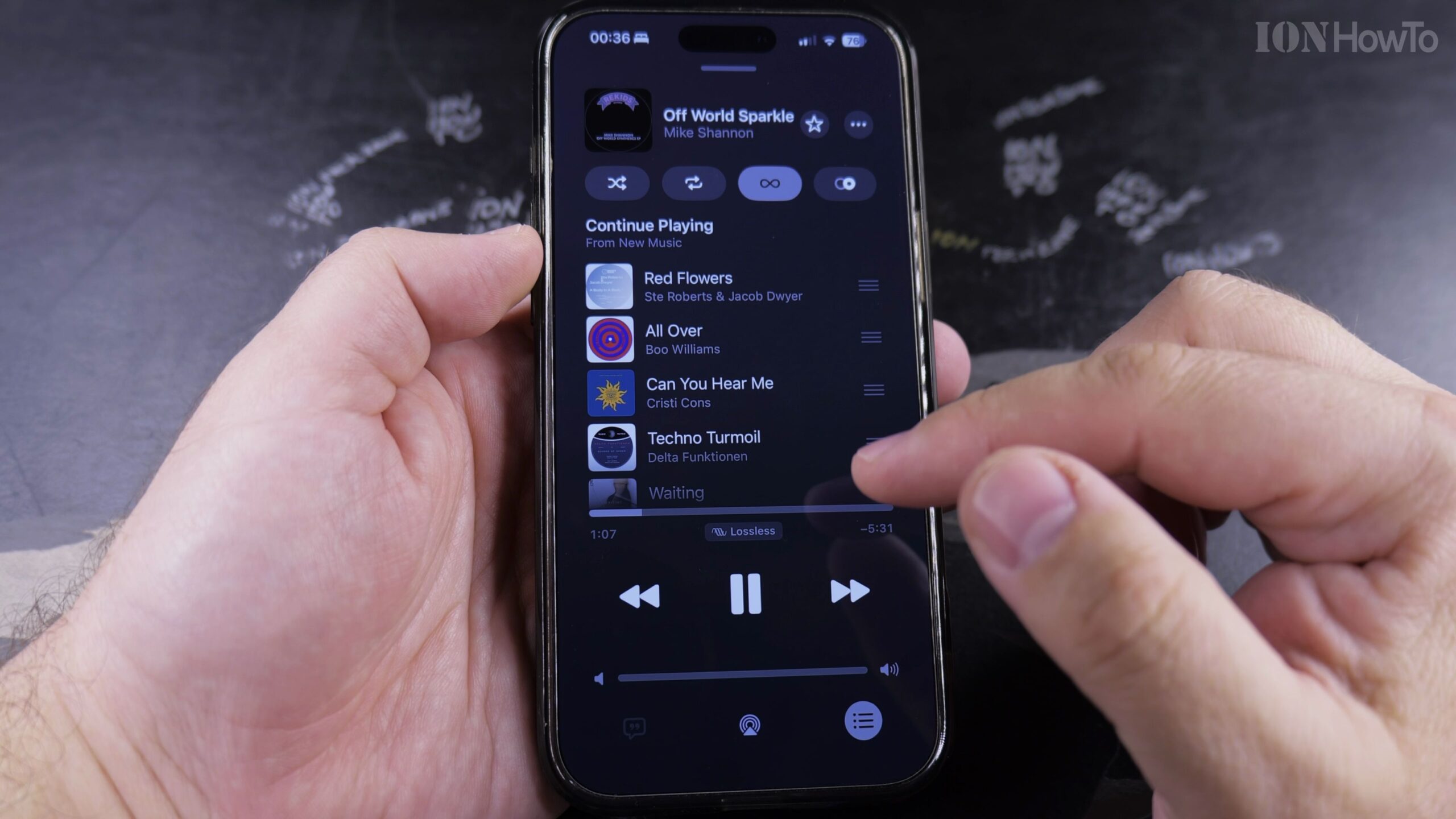
1. Open iPhone Settings and Scroll Down to Music
Open the Settings app on your iPhone or iPad and tap on the Music category.
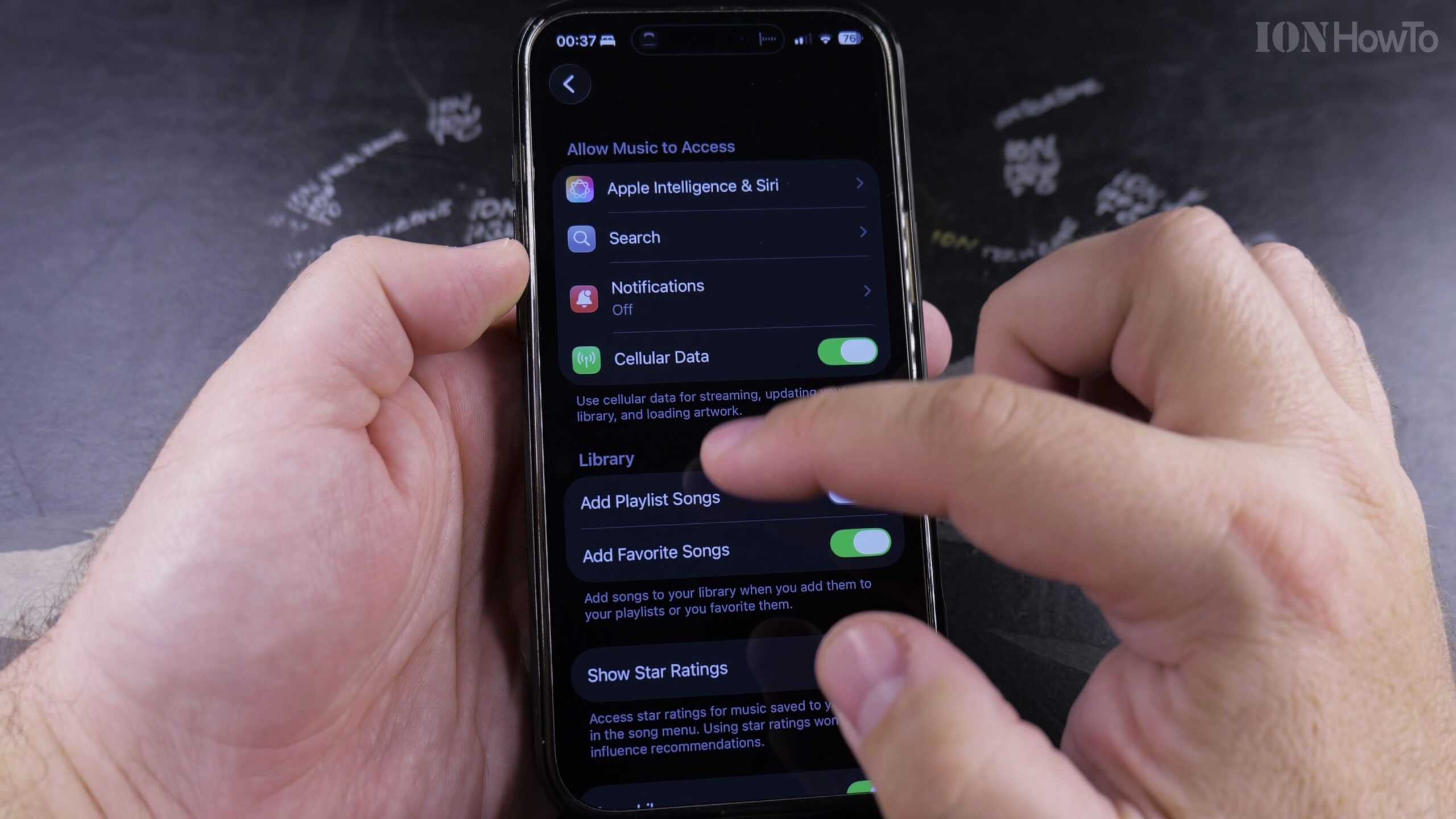
2. Locate the Audio Section and Tap Dolby Atmos
Under the Audio preferences header, find ‘Dolby Atmos’ (which defaults to Automatic). Tap it to view configuration choices.
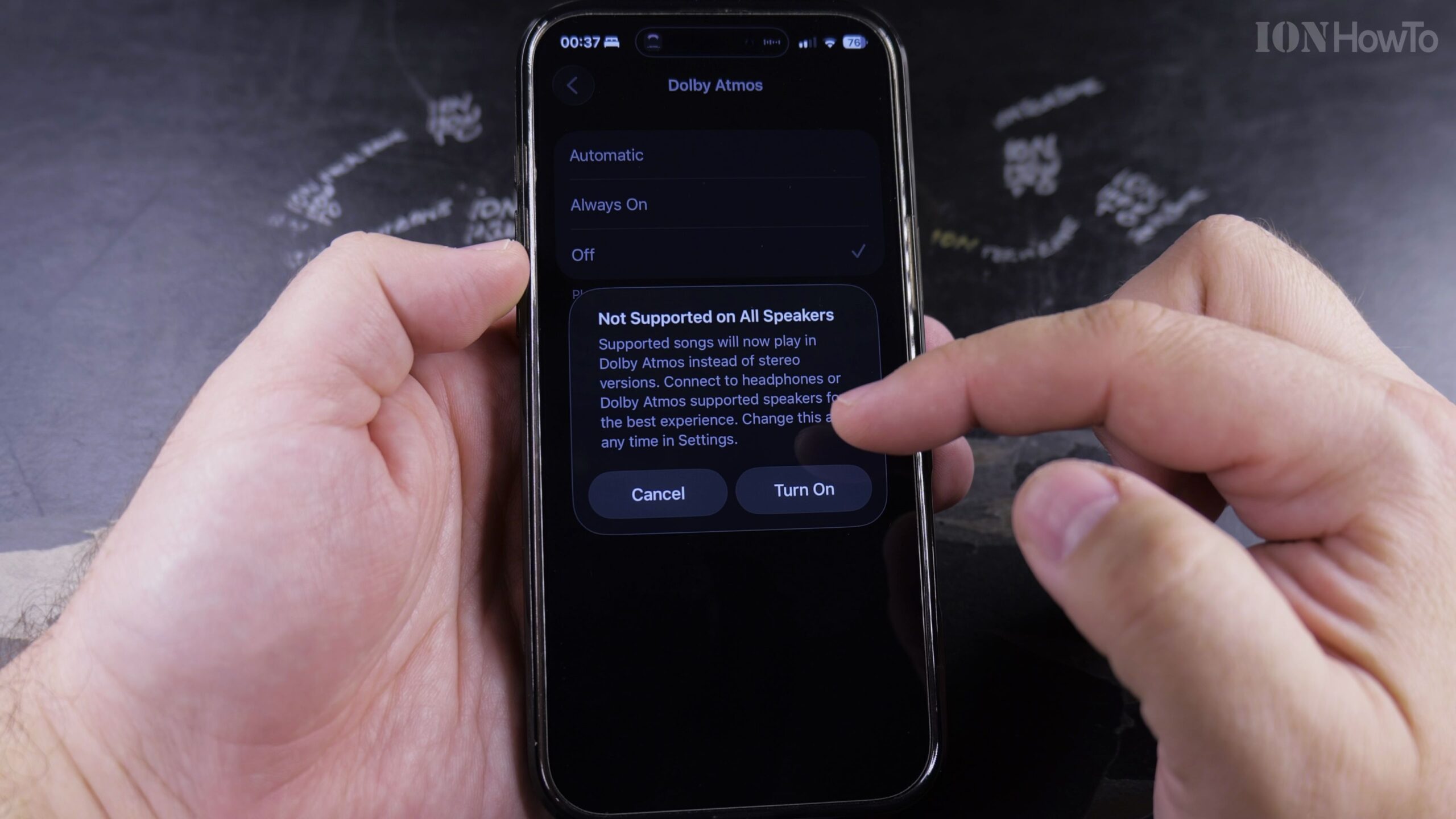
3. Select Automatic or Always On
Choose ‘Automatic’ if you listen with Apple AirPods or Beats headphones that support spatial audio, or ‘Always On’ if using third-party wired headphones or home theater receivers.
4. Turn On Download in Dolby Atmos for Offline Listening
Toggle on ‘Download in Dolby Atmos’ right below so that any newly downloaded offline tracks preserve spatial audio masters.
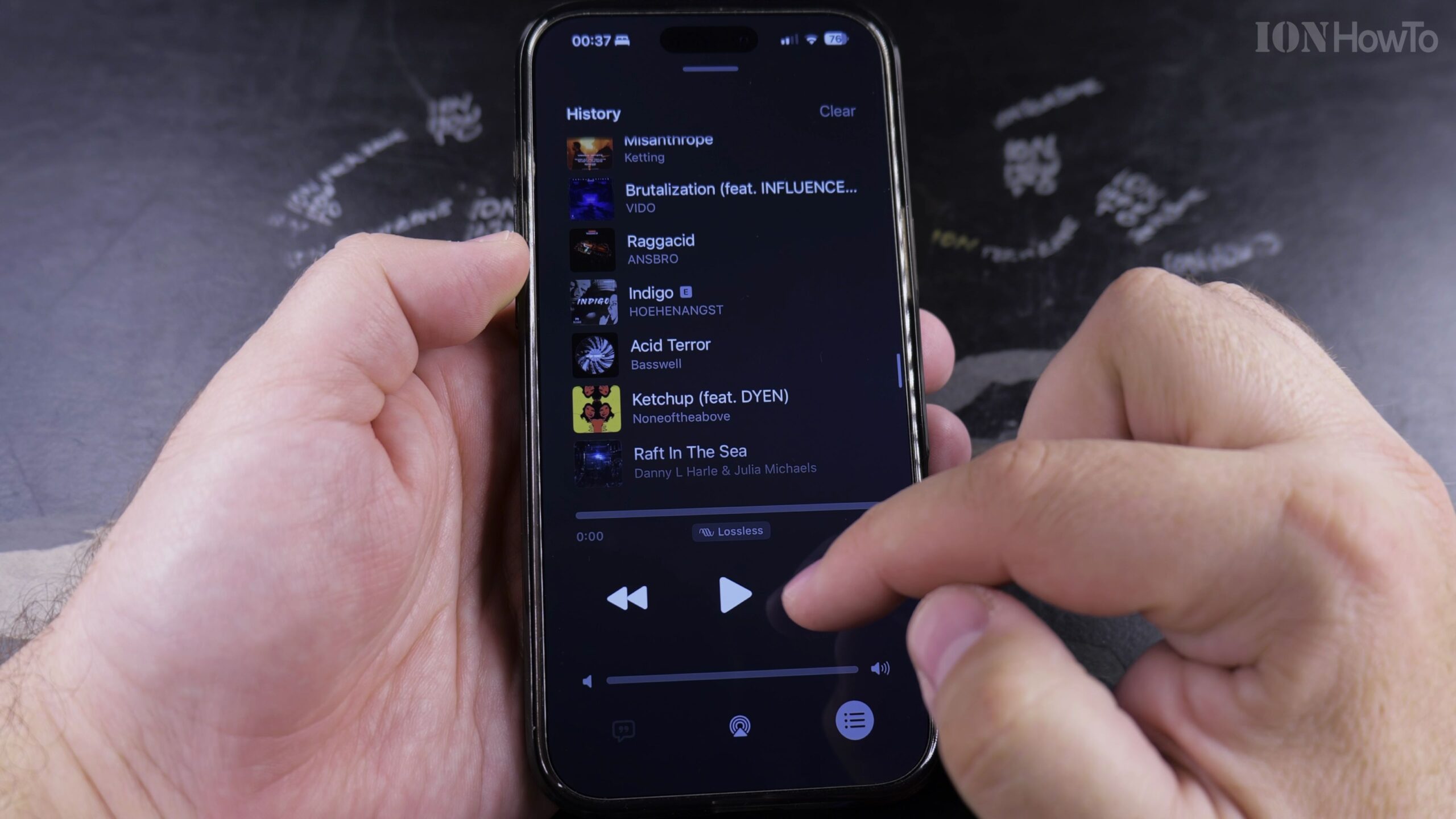
5. Play Any Spatial Audio Track in Apple Music and Confirm the Badge
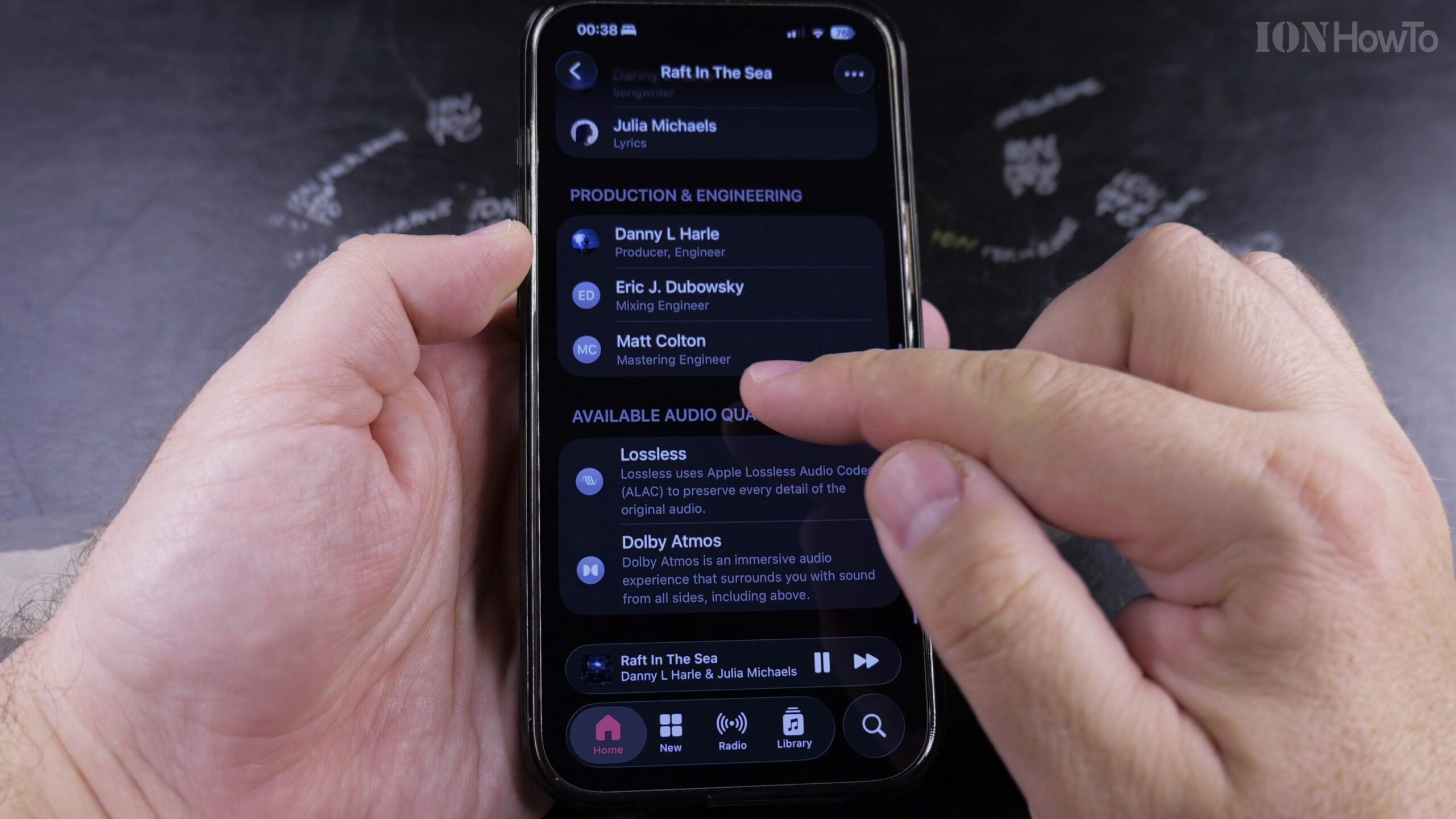
Open Apple Music and search for the ‘Made for Spatial Audio’ playlist. When playing a track, verify the Dolby Atmos badge on the Now Playing screen.
Helpful Tips and Related Guides
Dolby Atmos requires compatible headphones like AirPods Pro, AirPods Max, or standard headphones with Always On selected. For more high-fidelity audio guides, explore our Apple Music & Audio category, check our tutorial on Finding Playlists in Apple Music, or explore Apple Guides.
Leave a Reply Cancel reply