


if setting the perfect tempo progression for a workout playlist or sequencing songs for a party, arranging your track order is quick and easy. In this guide, I’ll show you how to manually reorder songs or sort playlists in Apple Music.

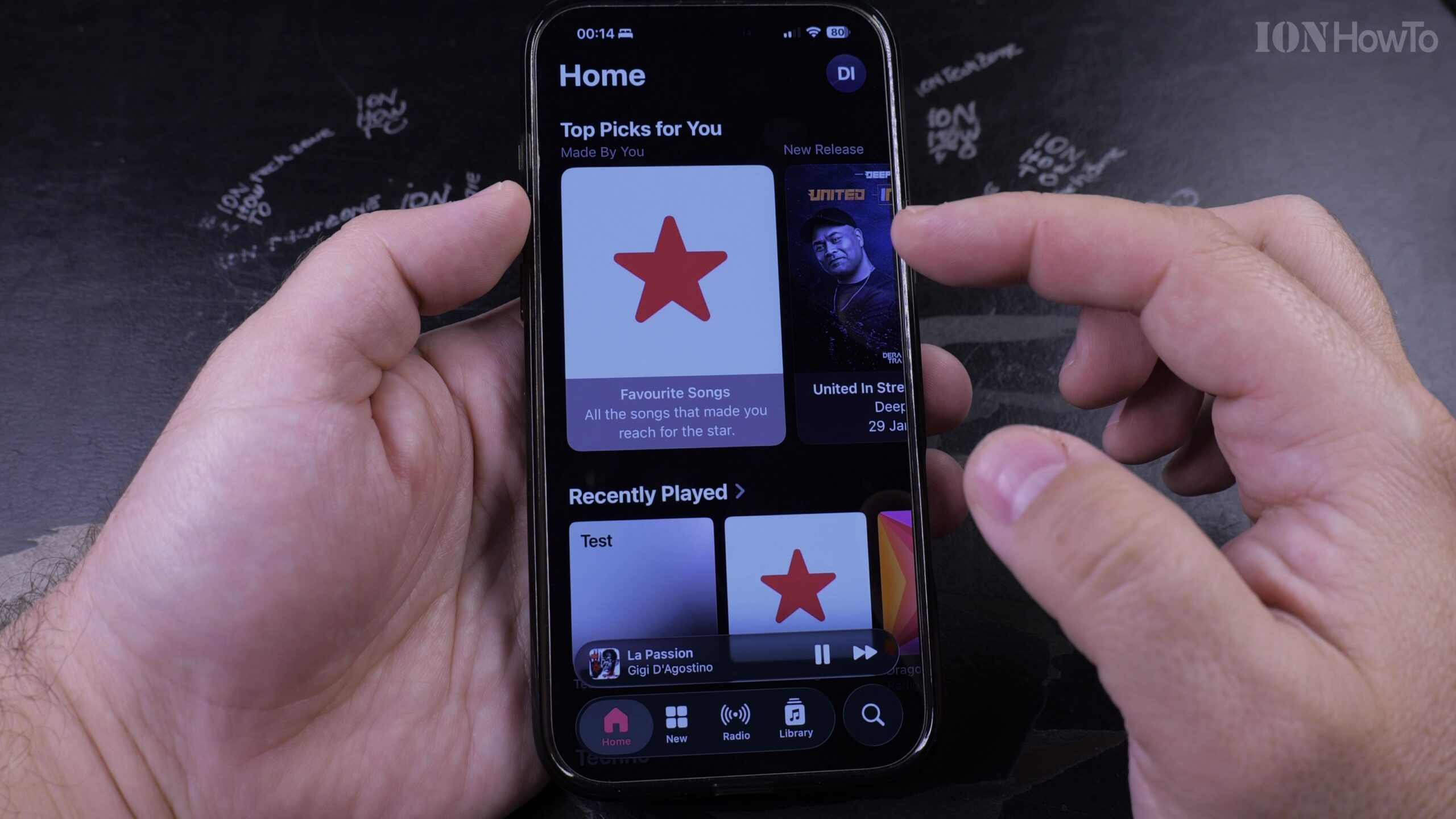
1. Open Apple Music and Open Your Created Playlist
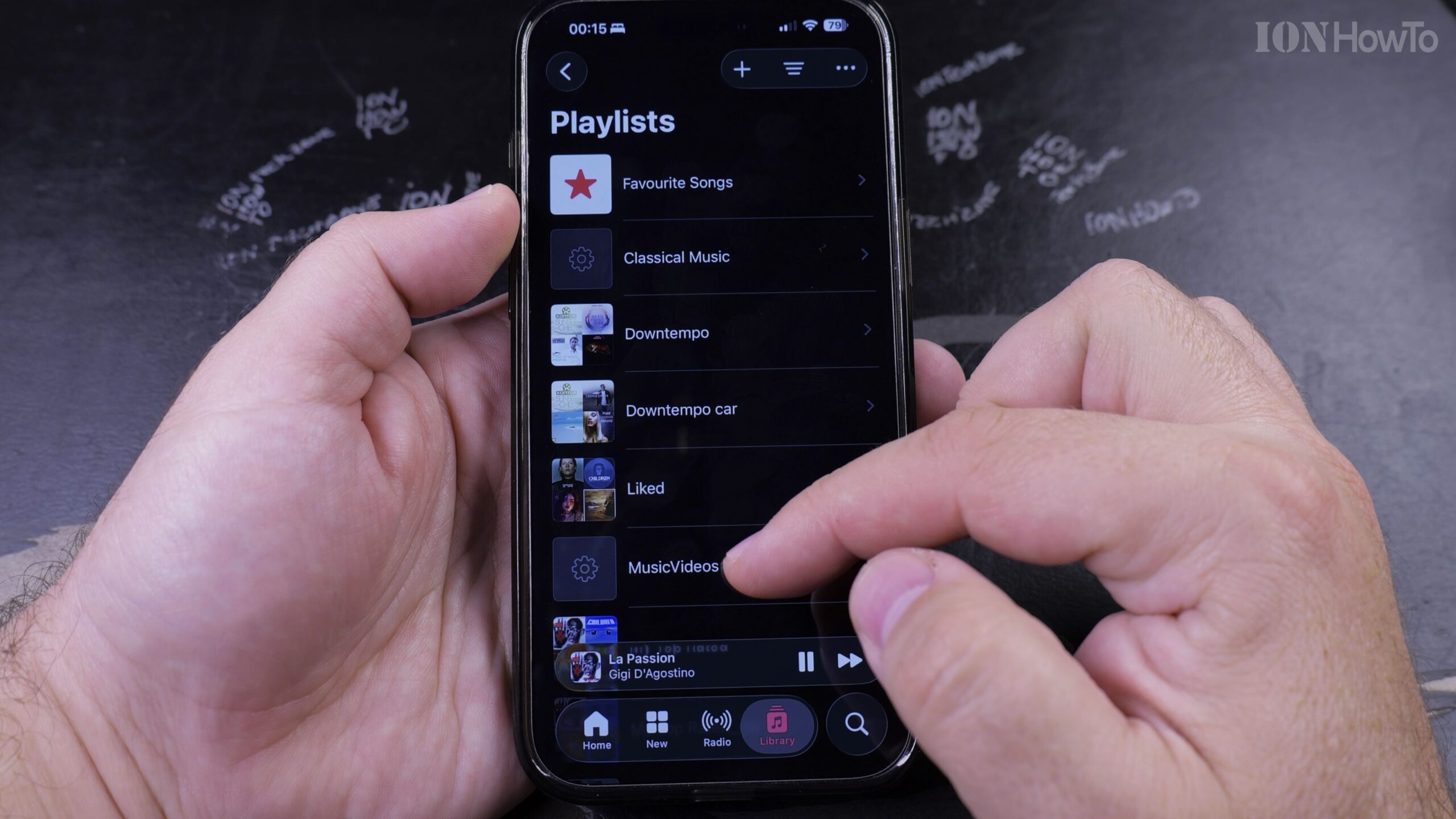
Launch Apple Music, tap the Library tab at the bottom, tap Playlists, and select the playlist you want to organize.
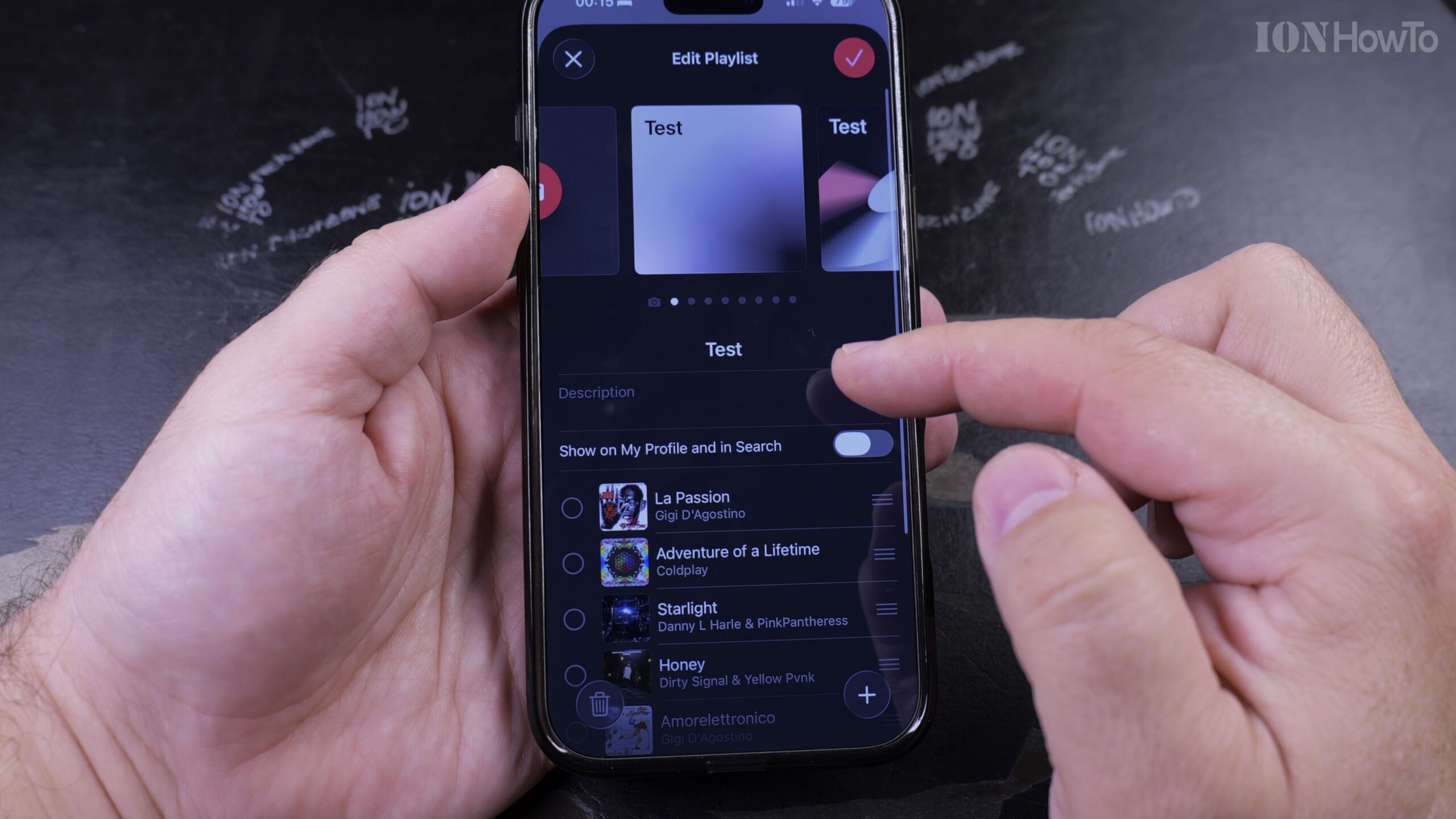
2. Tap the Three-Dot Menu and Choose Edit
In the top-right corner of the playlist header, tap the three-dot menu icon and select ‘Edit’.
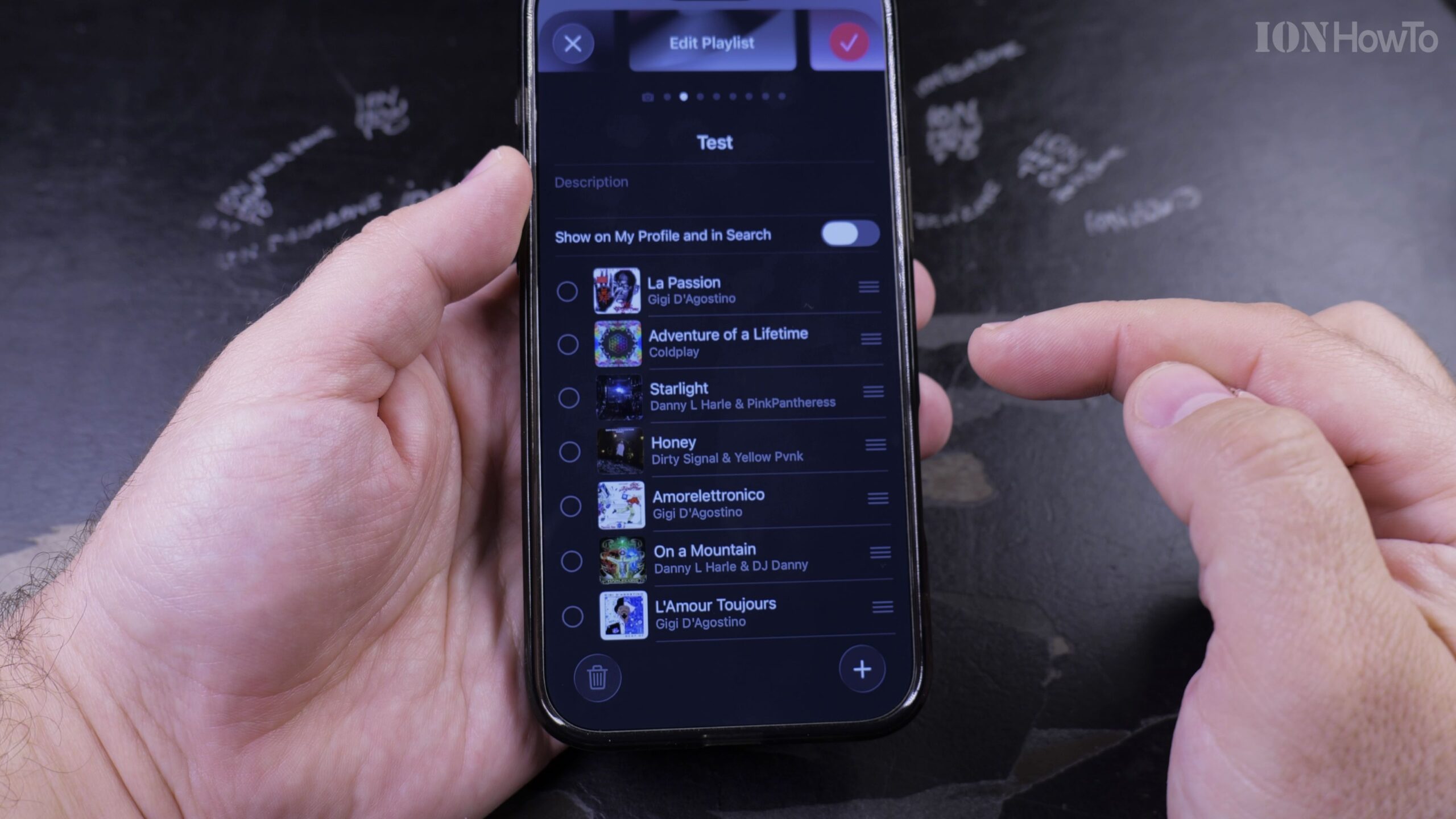
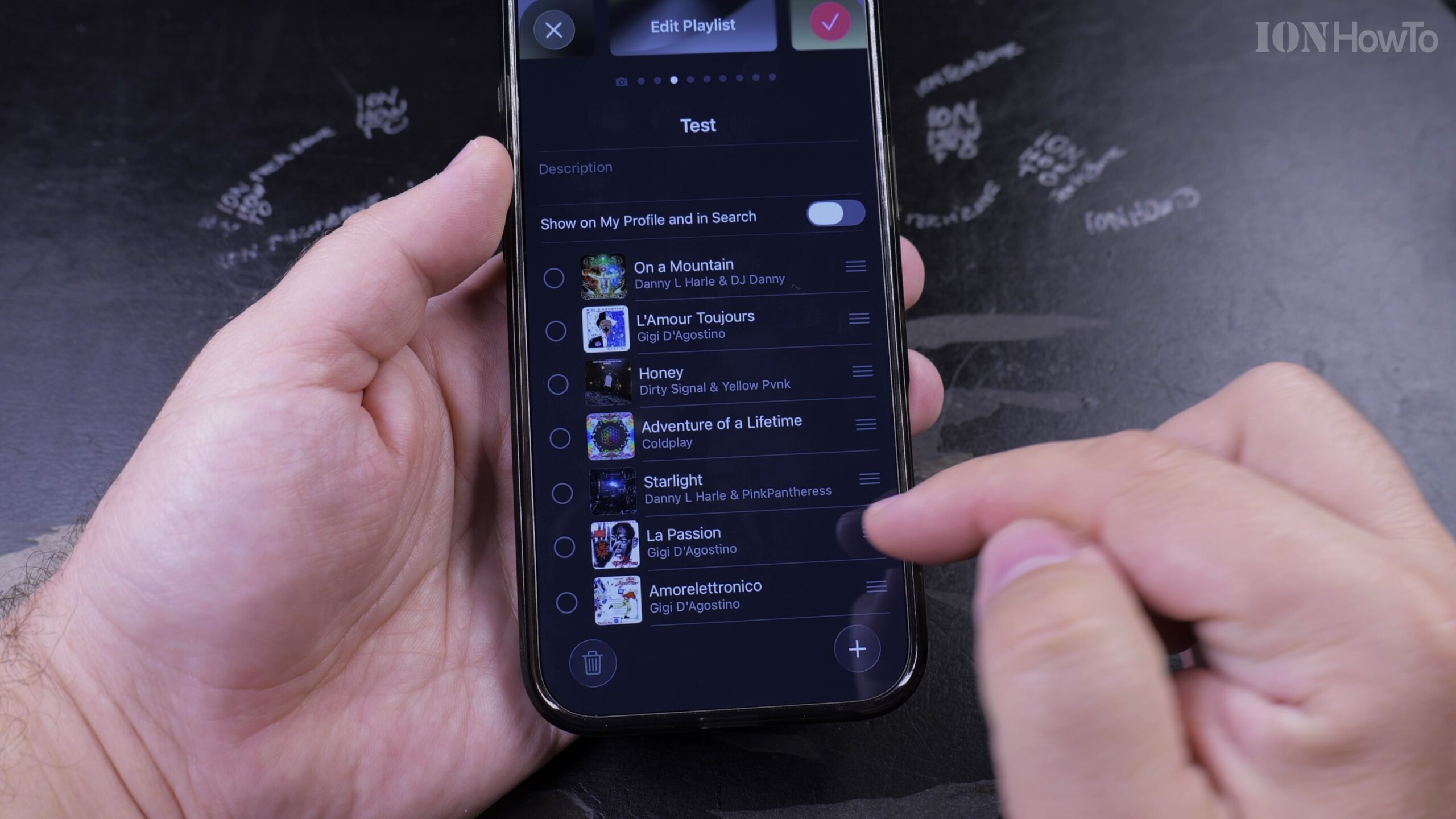
3. Locate the Three-Bar Drag Handle Next to Any Song
On the right side of each song row, you will see a three-bar horizontal drag handle.
4. Touch, Hold, and Drag Songs Up or Down to Reorder
Press and hold the drag handle next to the track you want to move, then slide your finger up or down into your preferred position in the tracklist.
5. Tap Done to Lock in Your New Track Order
Tap ‘Done’ in the top-right corner to save your changes. Your custom track sequencing will immediately sync across all your devices.
Helpful Tips and Related Guides
You can also tap the three dots in your playlist header and select ‘Sort By’ to automatically order tracks by Title, Artist, Album, or Release Date. Check out more tutorials in our Apple Music & Audio category, read our guide on Finding Playlists in Apple Music, or browse How-To guides.
Leave a Reply Cancel reply