


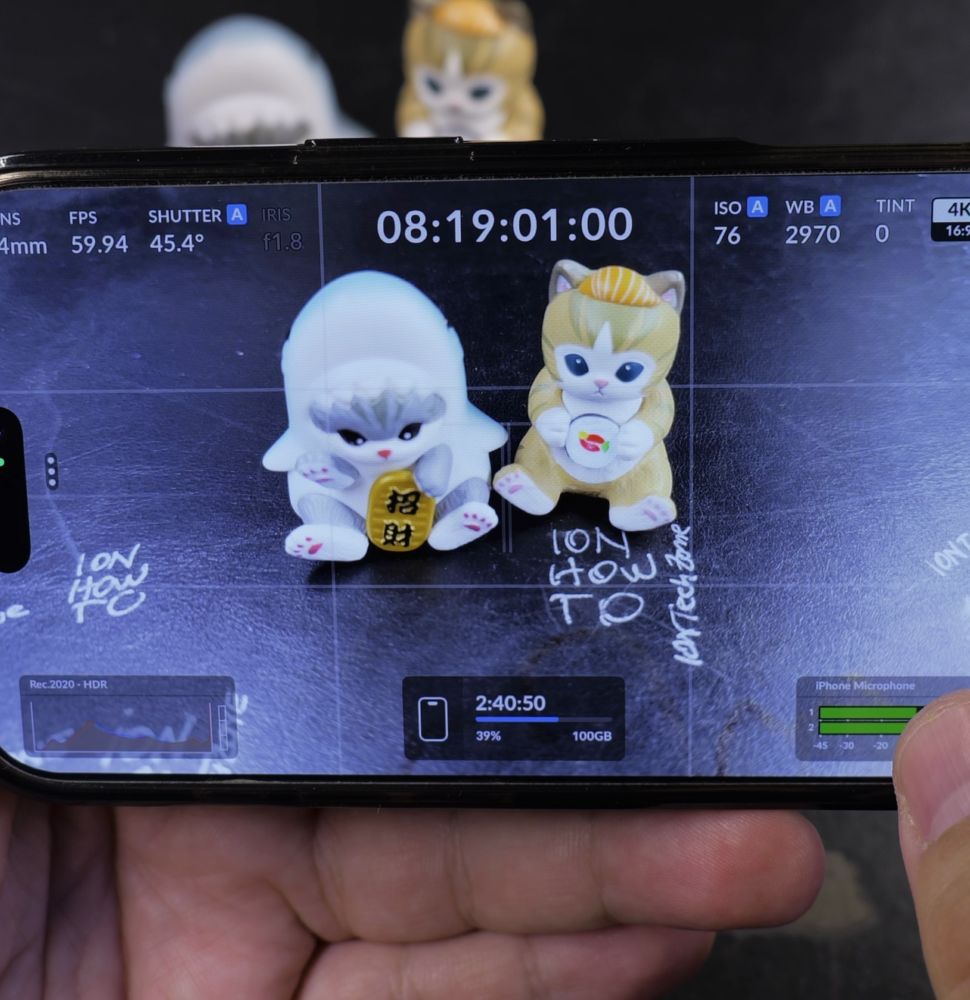
If you want professional, perfectly exposed video shots on your iPhone, false color eliminates all guesswork. I’ll show you how to turn on the false color exposure guide in the Blackmagic Camera app.

1. Open Blackmagic Camera App
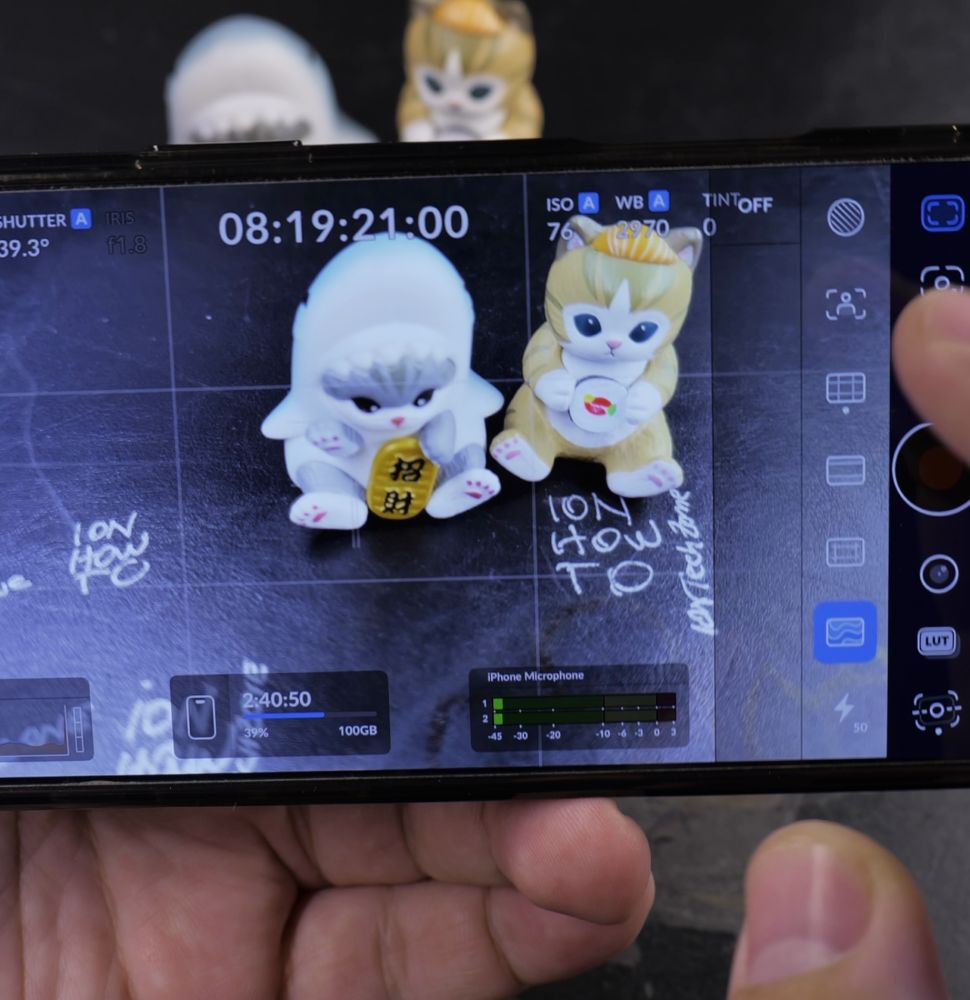
Tap the **Blackmagic Camera** app icon on your iPhone.
2. Open the Monitoring Controls
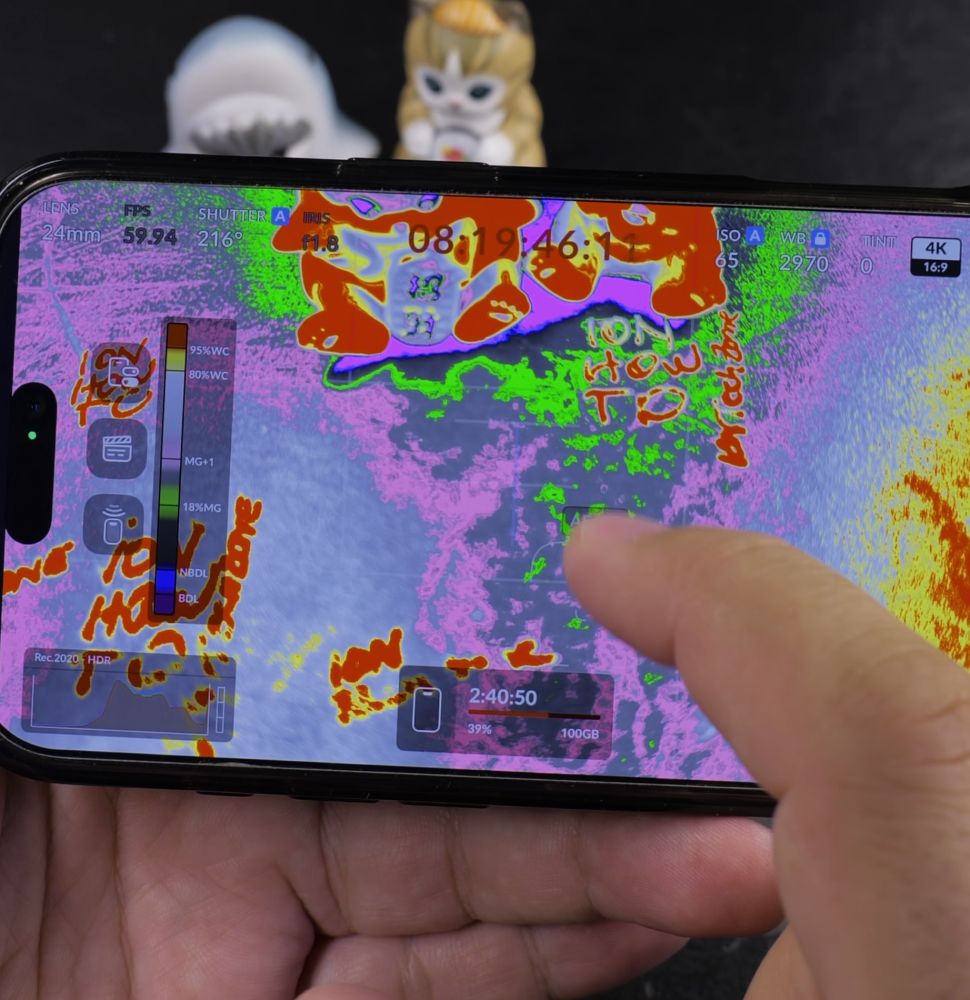
Tap the **Monitoring** icon (resembling a monitor screen) along the top or side toolbar.
3. Tap False Color
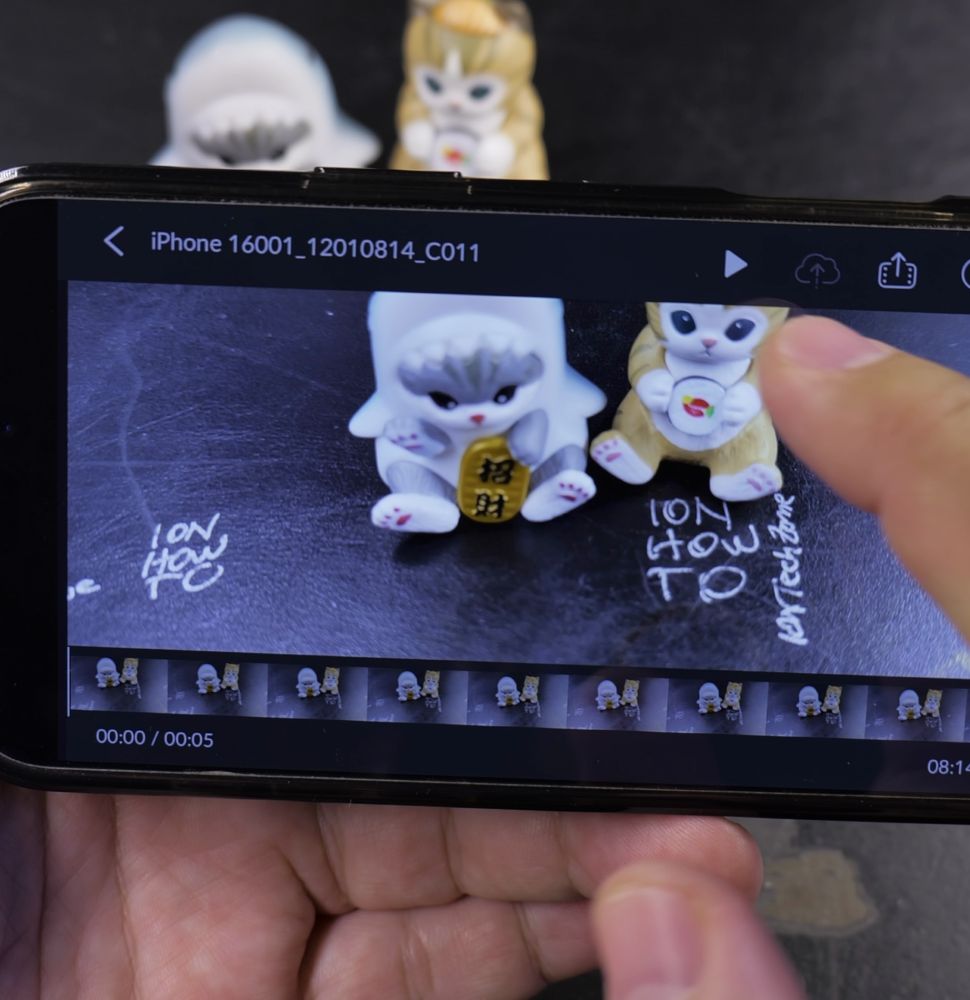
Look for the **False Color** button and tap it so it illuminates.
4. Check Skin Tones and Exposure
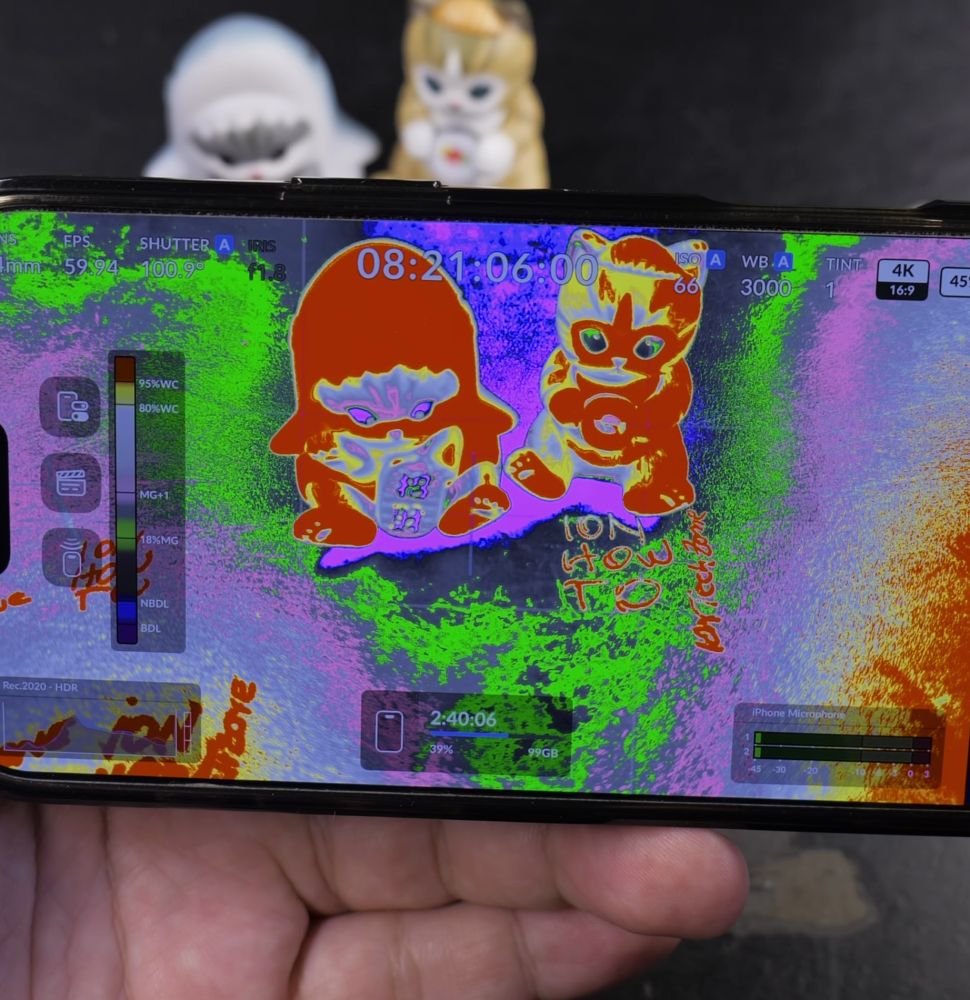
Point your camera at your subject. Green and pink tones show proper midtone skin exposure, while purple indicates underexposure and red shows clipping.
Helpful Tips
Green corresponds to roughly 40 IRE and pink indicates 60 IRE, ideal for standard portrait exposures. For more camera controls, check our guide on Showing Grid Lines in Blackmagic Camera or visit our Video & Camera hub.
Leave a Reply Cancel reply