


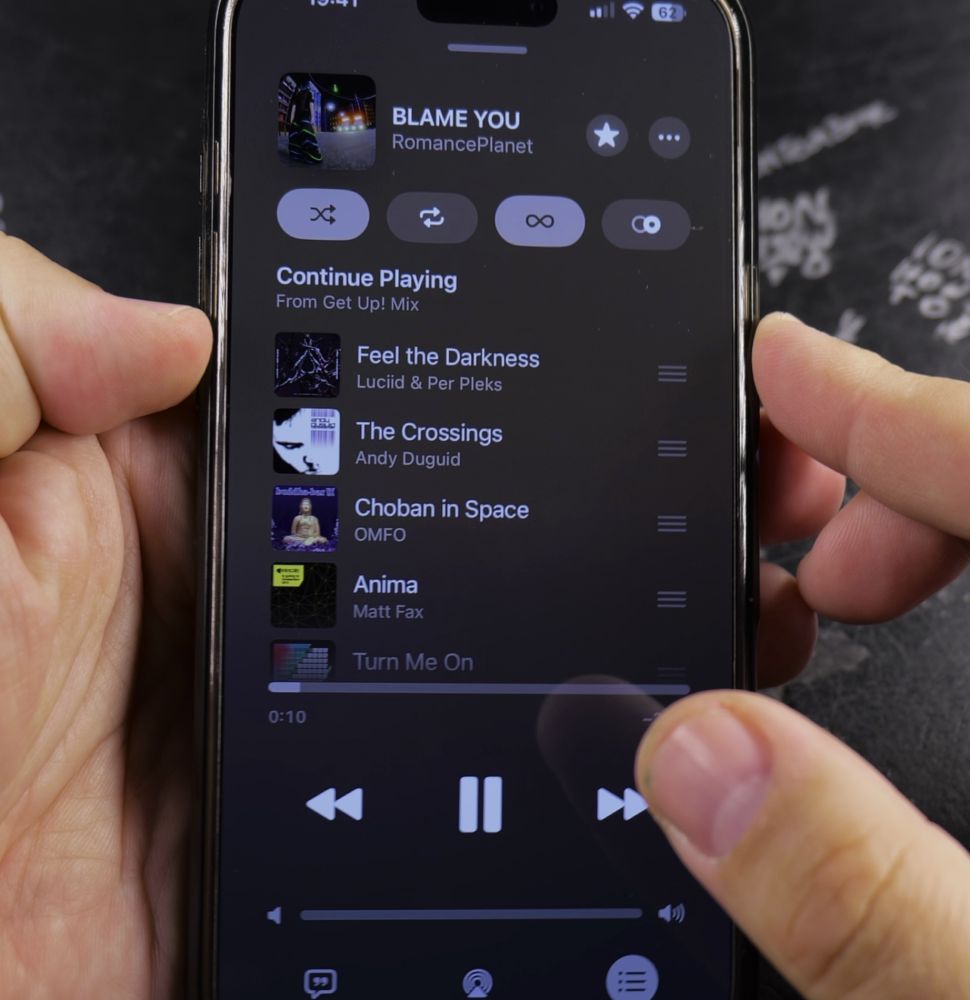
If a song comes on that you are not in the mood for, you can skip forward or restart favorite tracks with a quick tap. I’ll show you how to navigate songs in Apple Music from the player screen, Lock Screen, and Control Center.

1. Open Apple Music Player
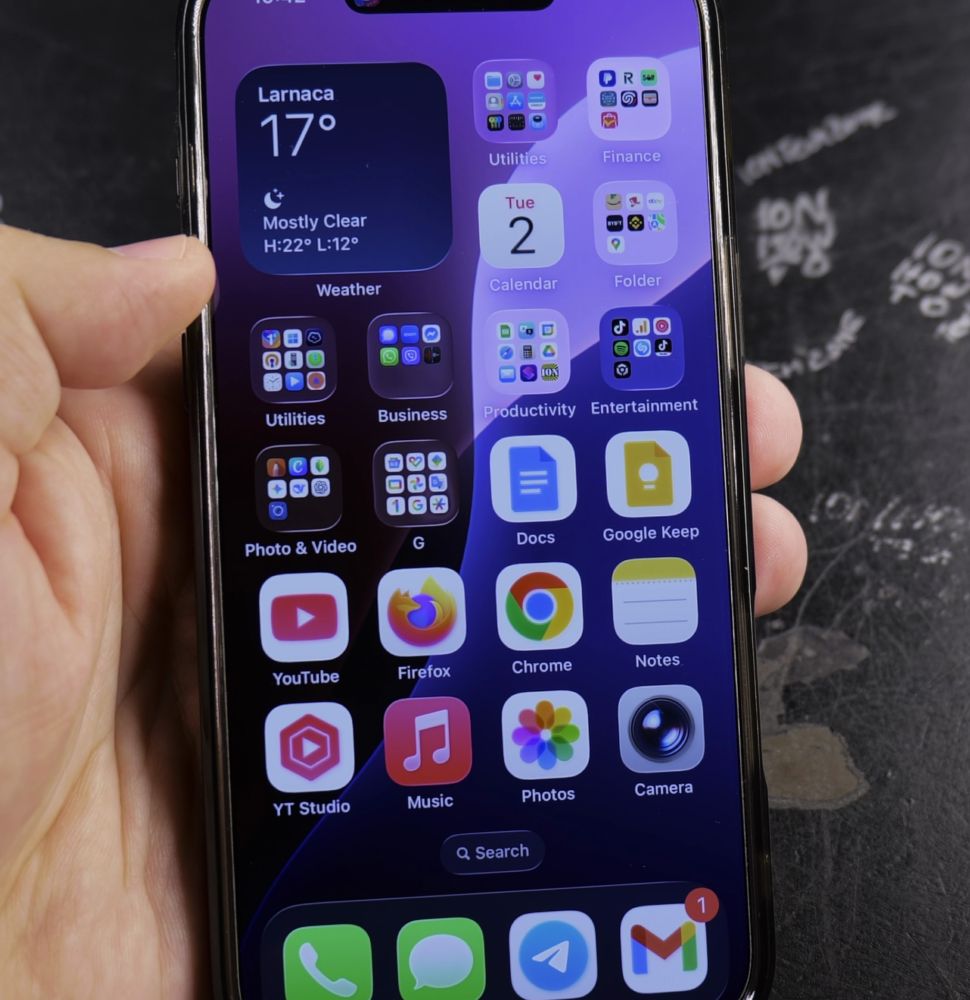
Tap the miniature player bar at the bottom of the Apple Music app to expand the full Now Playing view.
2. Skip to the Next Song
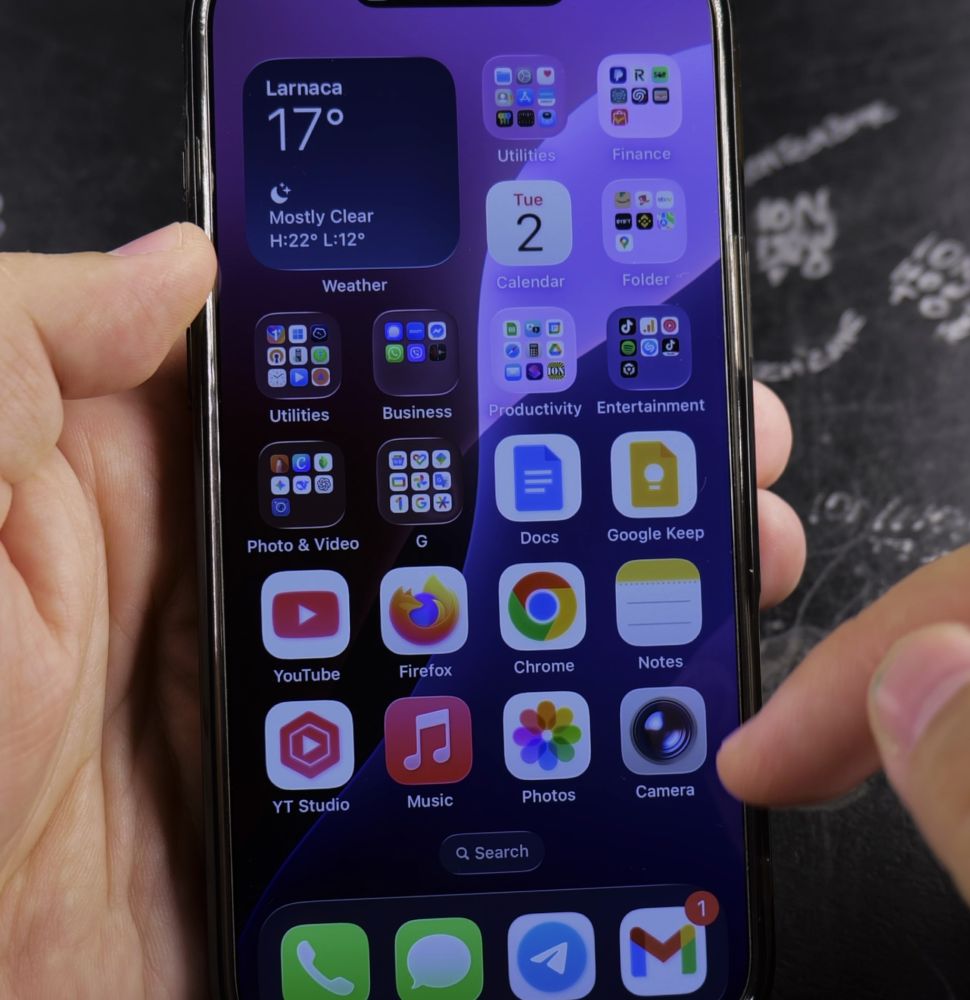
Tap the **Forward arrow** button to the right of the Play/Pause button once to jump to the next track.
3. Restart the Current Song

Tap the **Backward arrow** button to the left once to replay the current track from the beginning.
4. Go Back to the Previous Song
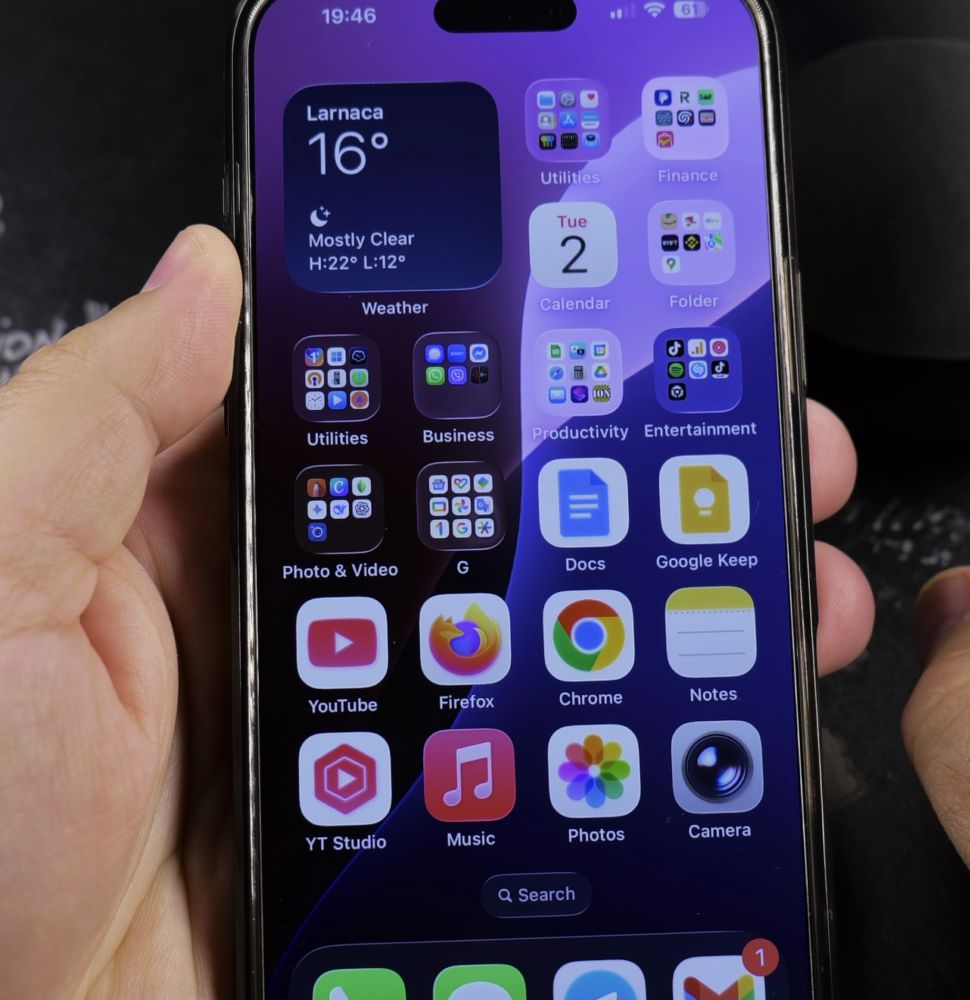
Double-tap the **Backward arrow** button quickly twice to jump back to the preceding track in your playlist.
Helpful Tips
You can also swipe left or right across the album art directly on the Now Playing screen to skip tracks without tapping buttons. For more playlist navigation tips, read our guide on Making Apple Music Recommend Songs You Like or visit our Apple Music hub.
Leave a Reply Cancel reply