


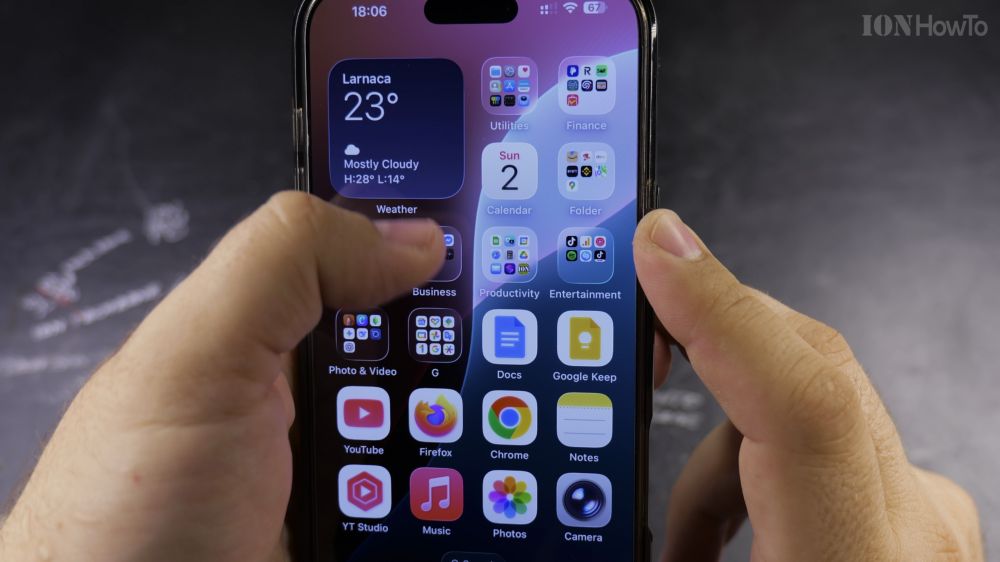
If your iPhone wallpaper feels completely flat and motionless when you tilt your device, the parallax effect is likely turned off. I’ll show you how to turn off Reduce Motion so your background floats naturally beneath your apps.

1. Open Settings on Your iPhone
Tap the gray **Settings** icon on your home screen to open system options.

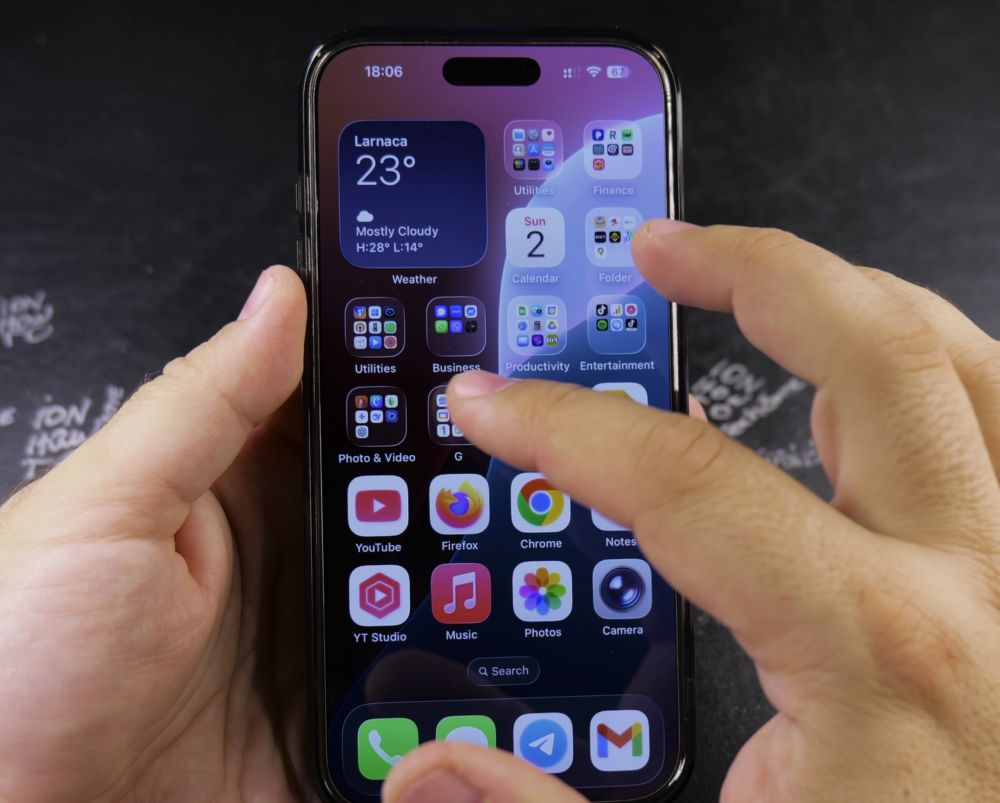
2. Tap Accessibility
Scroll down a short distance and tap **Accessibility**.
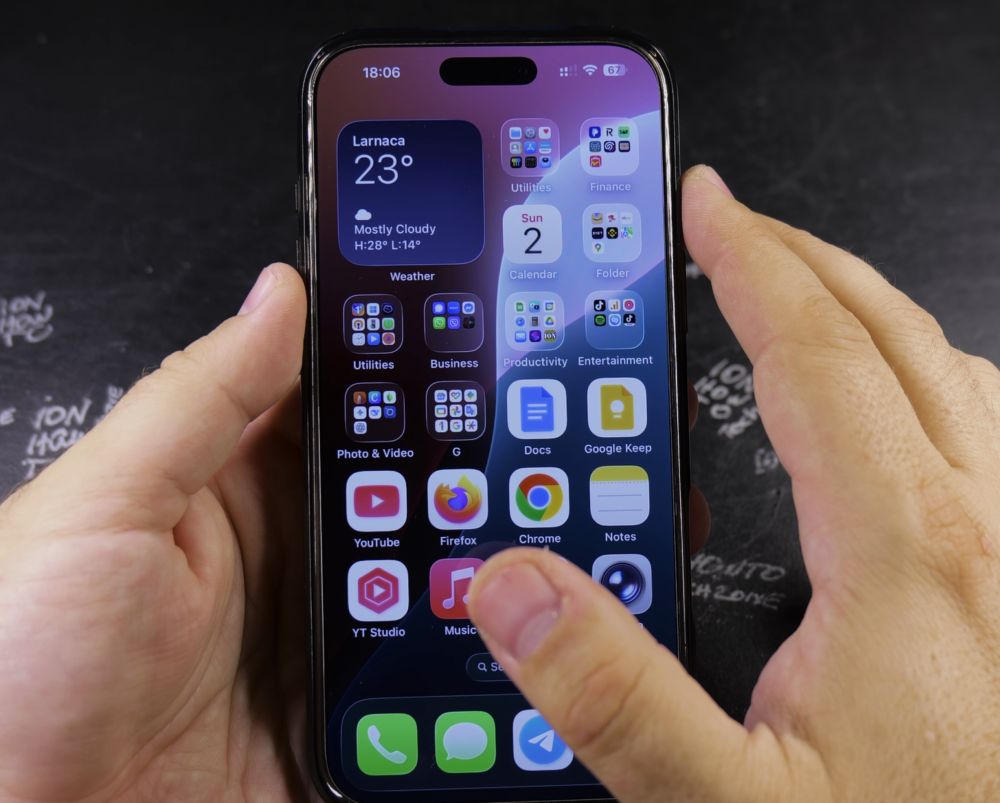
3. Select Motion
Near the top under the **Vision** header, tap **Motion**.
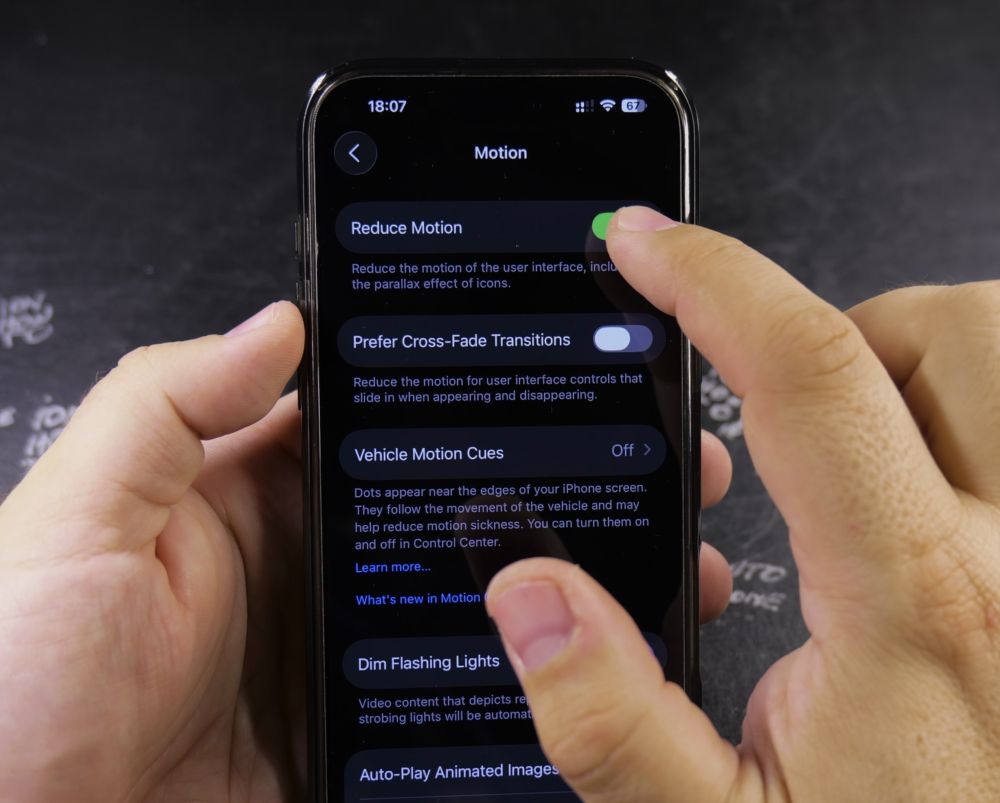
4. Turn Off Reduce Motion
Find the switch next to **Reduce Motion** at the very top. Tap the toggle so it switches **Off** (gray).
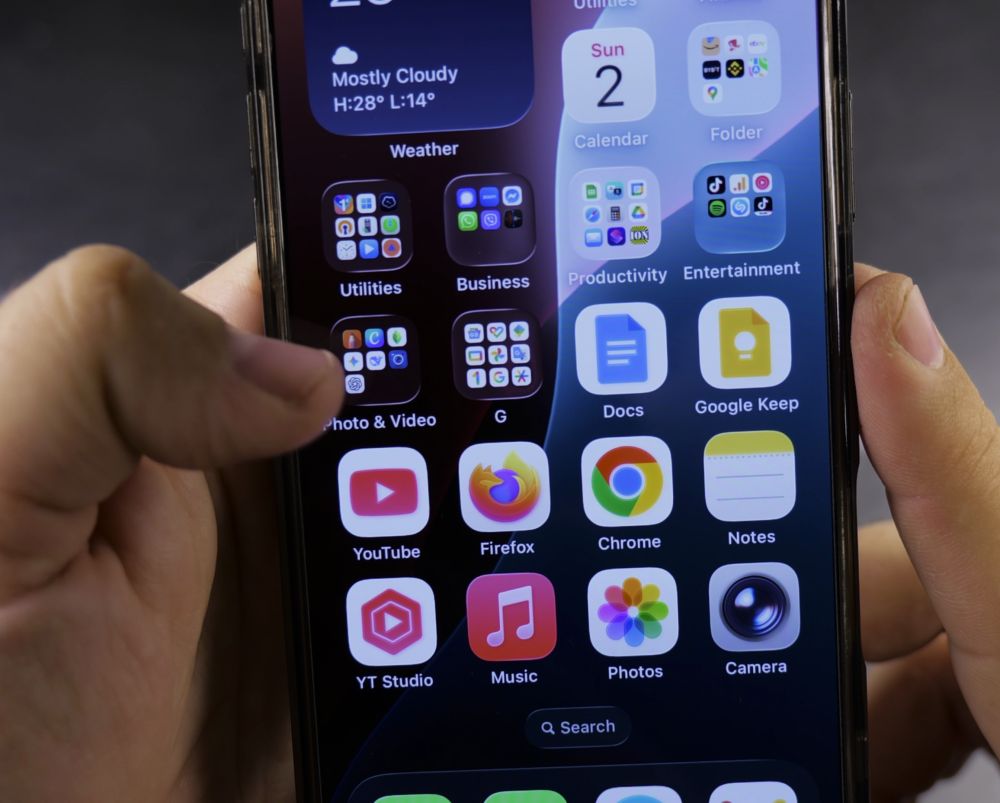
5. Tilt Your Phone to Enjoy Parallax
Return to your home screen and tilt your iPhone gently in your hands. You will notice your wallpaper shifting beneath your icons in a subtle 3D effect.
Helpful Tips
If you ever experience motion sickness or eye fatigue when unlocking your phone, you can return to this screen and toggle **Reduce Motion** back on. For more helpful display tweaks, visit our iPhone Guides section.
Leave a Reply Cancel reply