


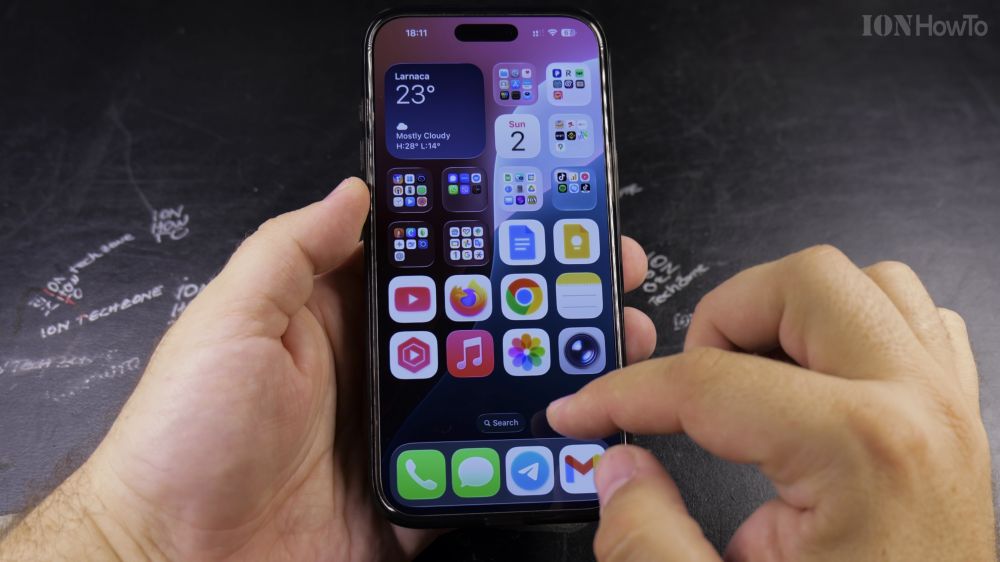
If the names beneath your iPhone app icons disappeared after updating, your icons were switched to the large view. I’ll show you how to open the customization menu and bring your app text labels right back.

1. Enter Home Screen Jiggle Mode
Press and hold your finger on any empty spot on your home screen until the icons start to wiggle.

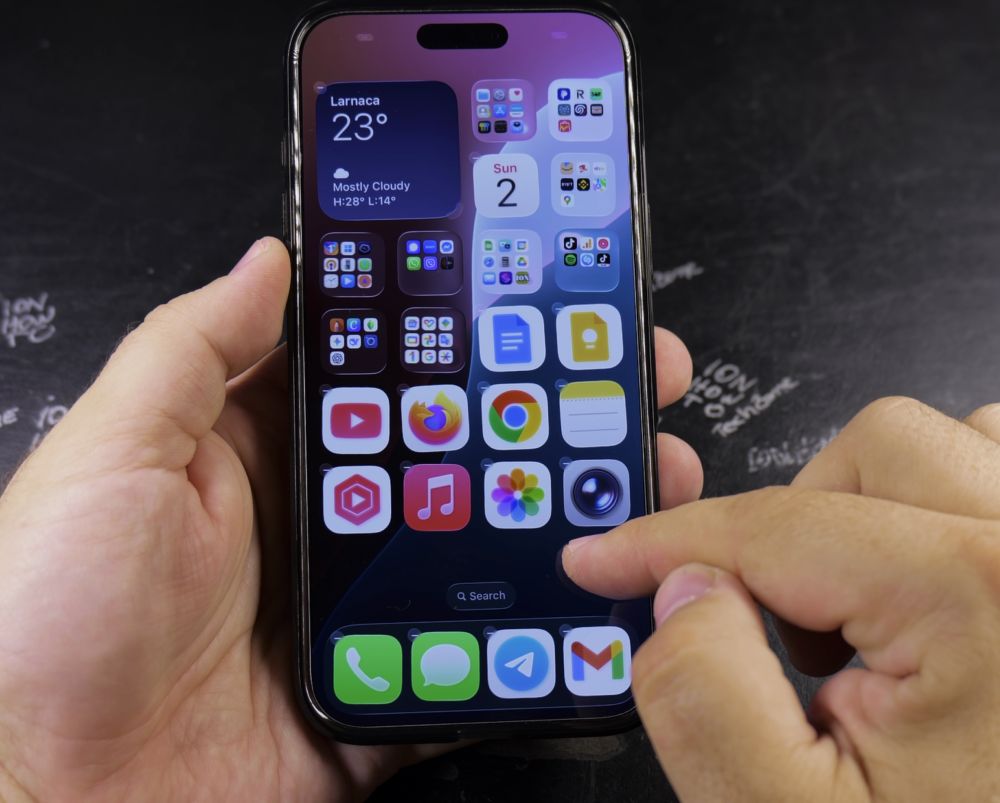
2. Tap Edit in the Top-Left Corner
In the upper-left corner of the display, tap the **Edit** button.
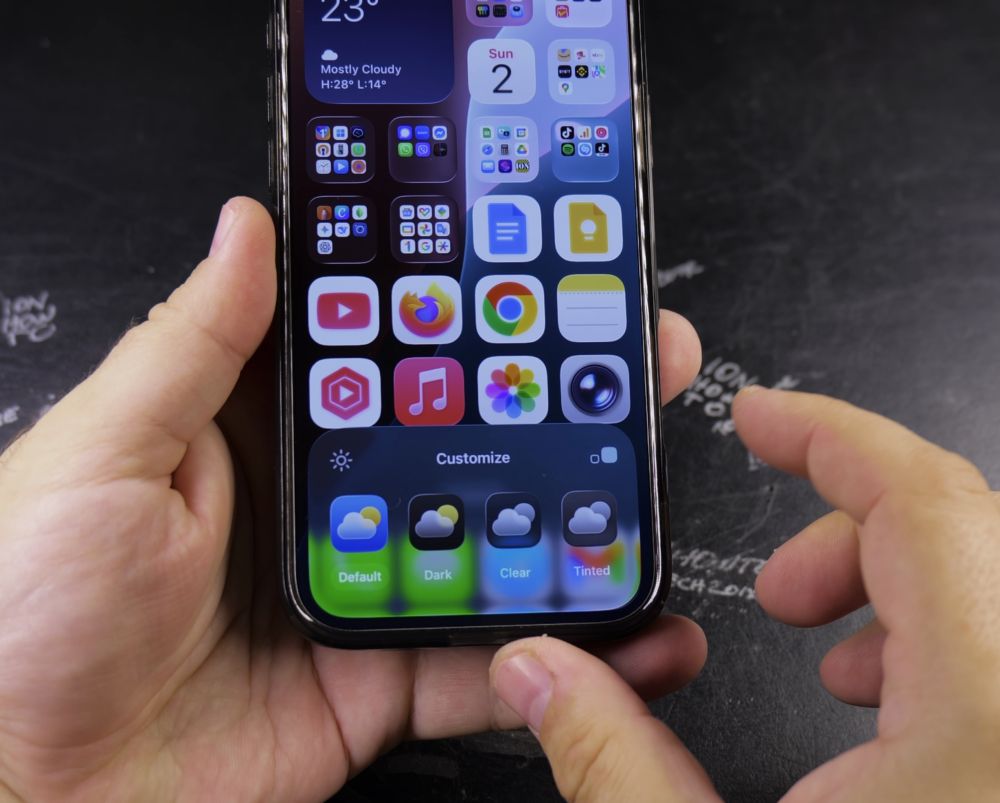
3. Select Customize from the Menu
A drop-down menu will appear. Tap **Customize** at the bottom of the list to open the styling sheet.
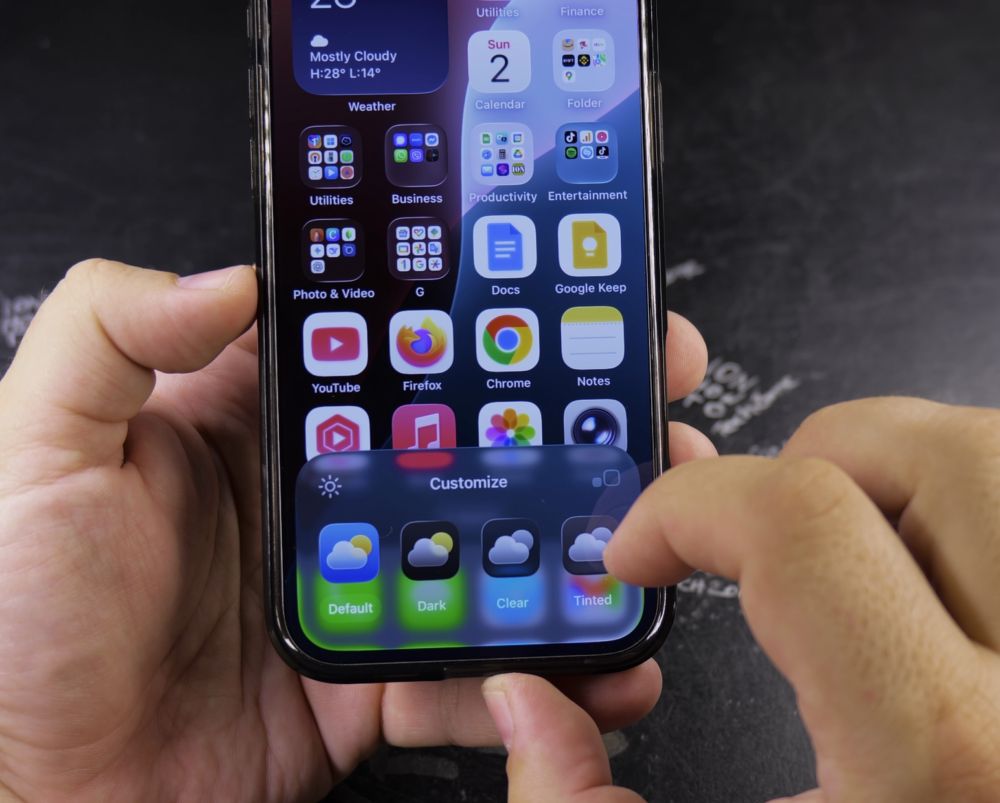
4. Select the Small Icon Button
In the bottom customization panel, tap the **Small** icon button (the smaller square on the far right). This immediately restores the text names beneath all icons.
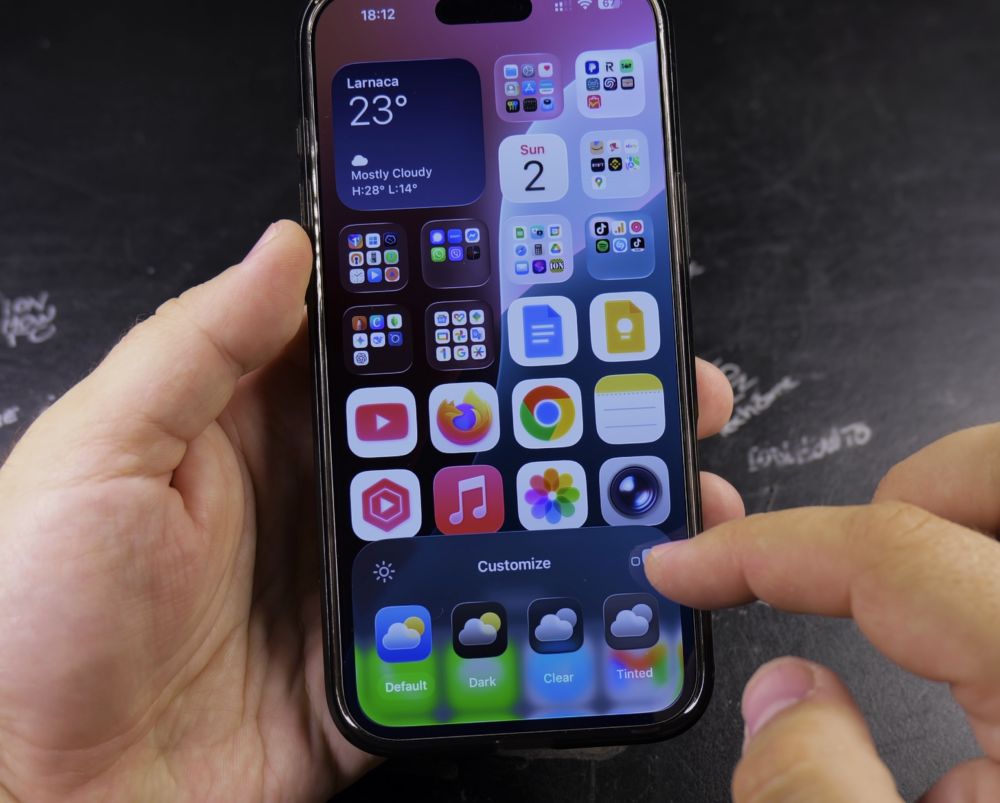
5. Tap Anywhere to Save
Tap an empty area on your wallpaper or swipe up from the bottom edge to close the menu and keep your labels visible.
Helpful Tips
Choosing the Large icon size hides text labels to create a minimalist look, while Small size keeps names clearly readable. For more customization guides, check our iPhone Guides collection.
Leave a Reply Cancel reply