


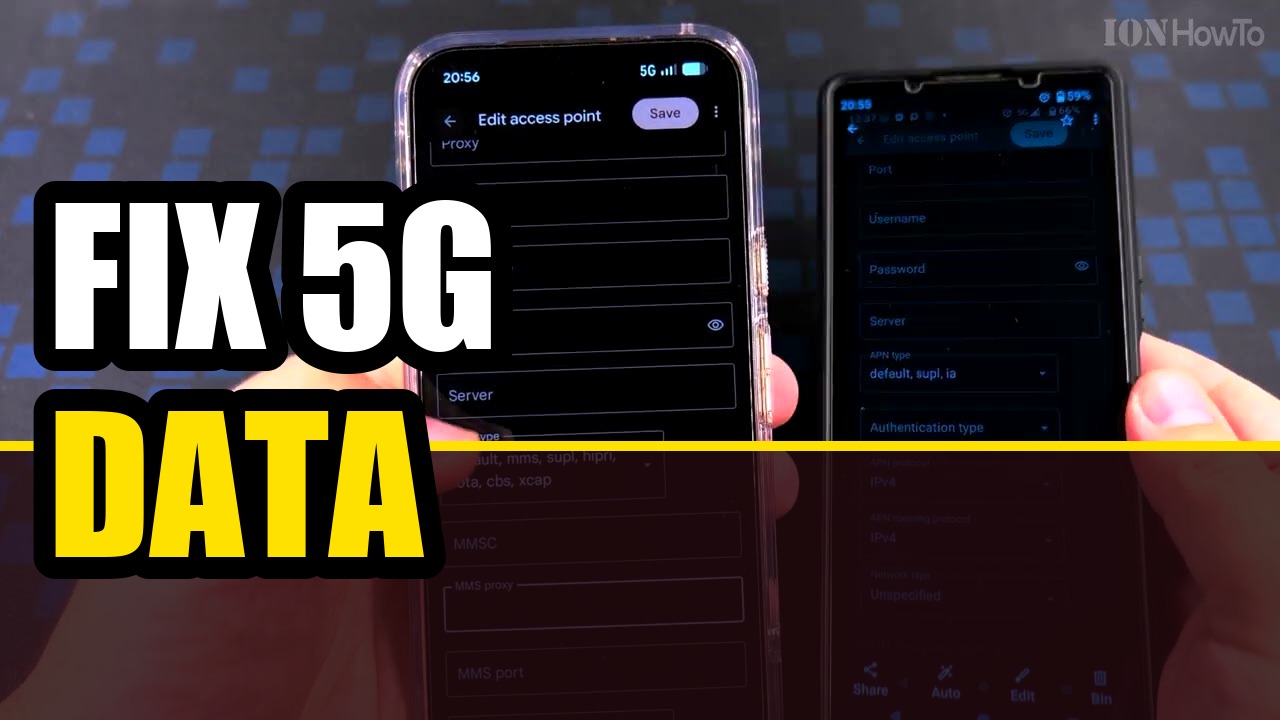
When 5G mobile data stops working on your Google Pixel, the cause is often a switched-off SIM data toggle, a wrong network mode, or a missing Access Point Name (APN). I will show you step by step how to check and fix each setting.

Quick Steps
- Open Settings and tap Network and internet
- Choose your active mobile SIM
- Set Preferred network type to 5G
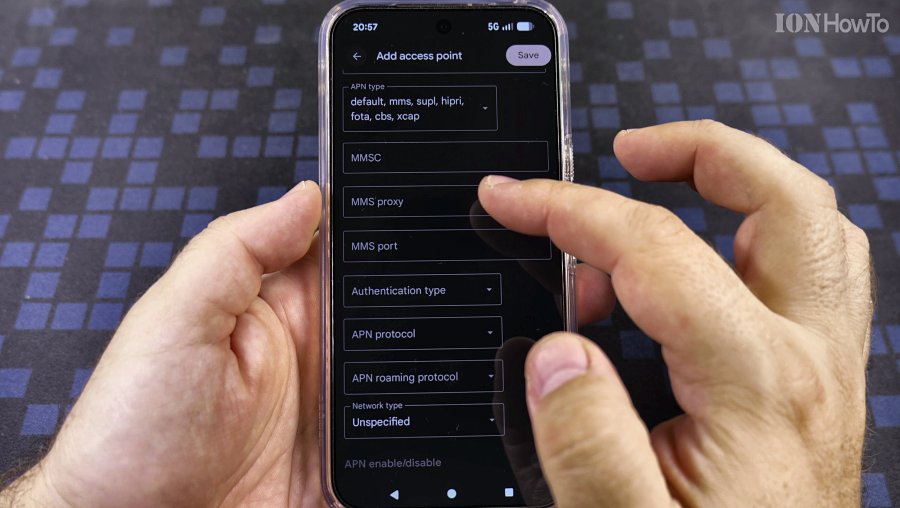
- Check or reset Access Point Names (APN)
Step 1: Open Settings and tap Network and internet
Open the Settings app on your Google Pixel and tap Network and internet.

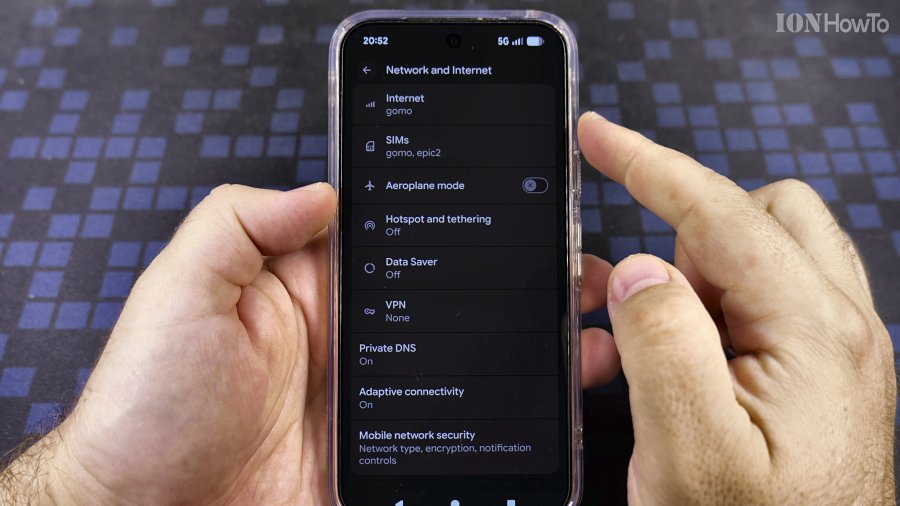
Step 2: Choose your active mobile SIM
Tap SIMs, select your carrier SIM, and make sure Use SIM and Mobile data are switched on.

Step 3: Set Preferred network type to 5G
Scroll to Preferred network type and confirm 5G (recommended) is selected.

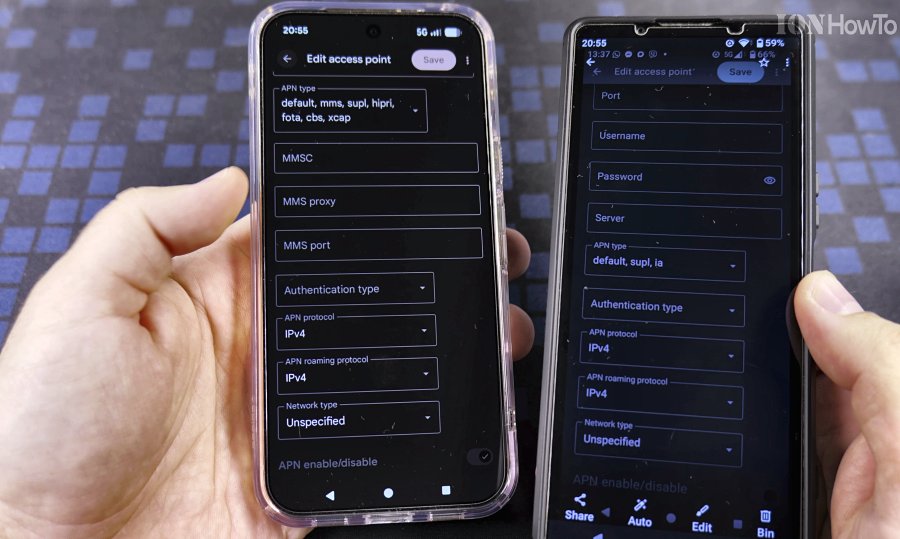
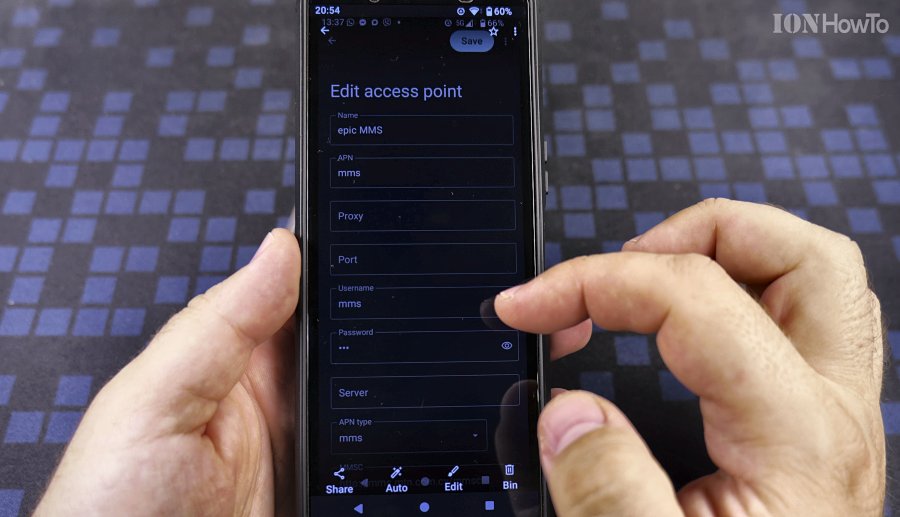
Step 4: Check or reset Access Point Names (APN)
Tap Access Point Names at the bottom of your SIM screen, confirm your carrier APN is selected, or tap the menu to Reset to default.

Helpful Tips
- Restart your Pixel if a setting change does not take effect right away.
- Keep Android 17 updated for the latest carrier and home screen fixes.
Related Guides
Browse more easy Google Pixel tutorials on IONHowTo.
Leave a Reply Cancel reply