


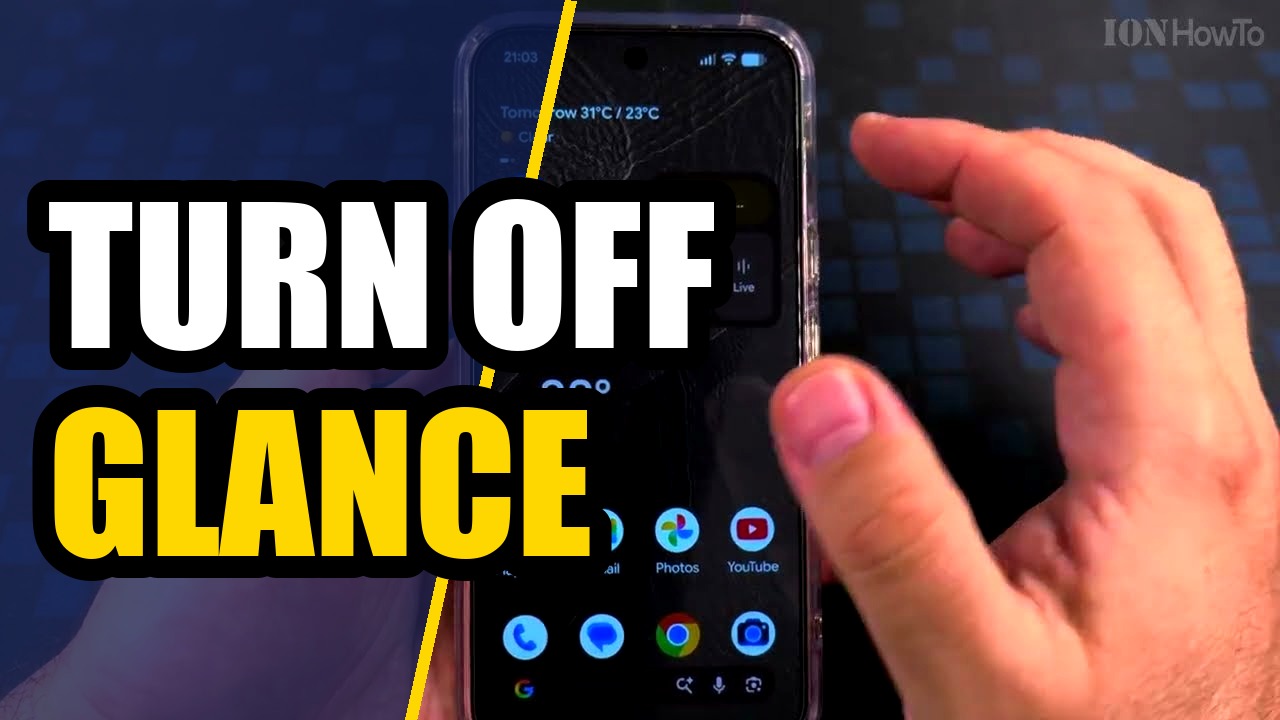
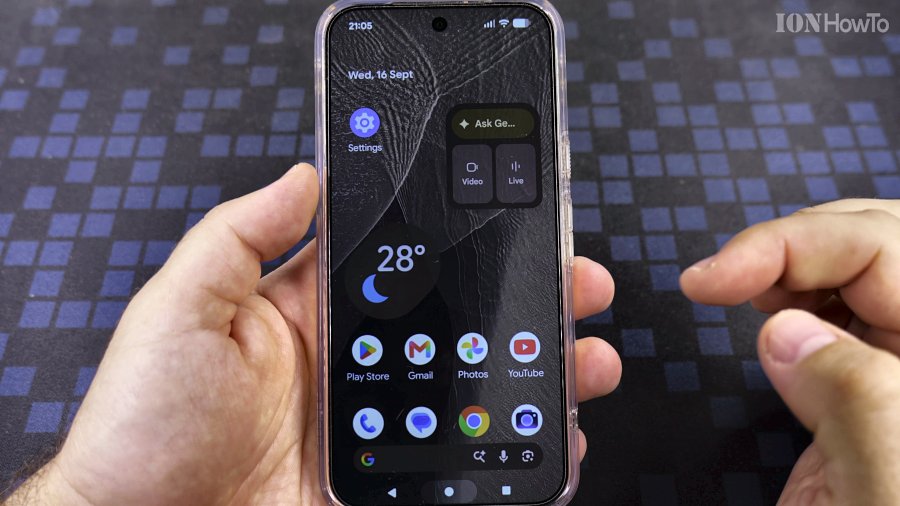
If you prefer a clean home screen without weather or reminder banners at the top, you can switch off At a Glance in Home settings. I will show you how to turn it off on your Google Pixel 11 Pro XL.

Quick Steps
- Touch and hold an empty spot on the home screen
- Tap Home settings
- Tap At a Glance
- Turn off Use At a Glance
Step 1: Touch and hold an empty spot on the home screen
Press and hold an open area of your Pixel home screen until the pop-up menu appears.

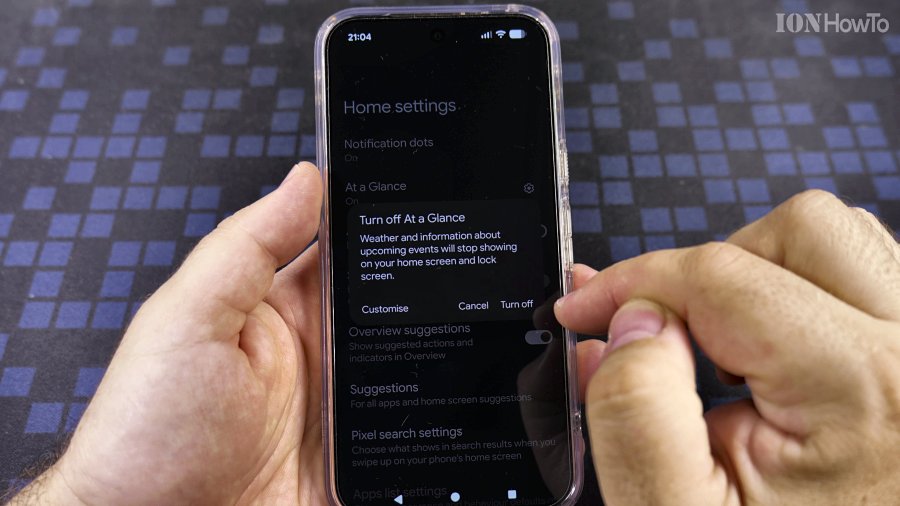
Step 2: Tap Home settings
Tap Home settings in the menu to access your Pixel home screen controls.

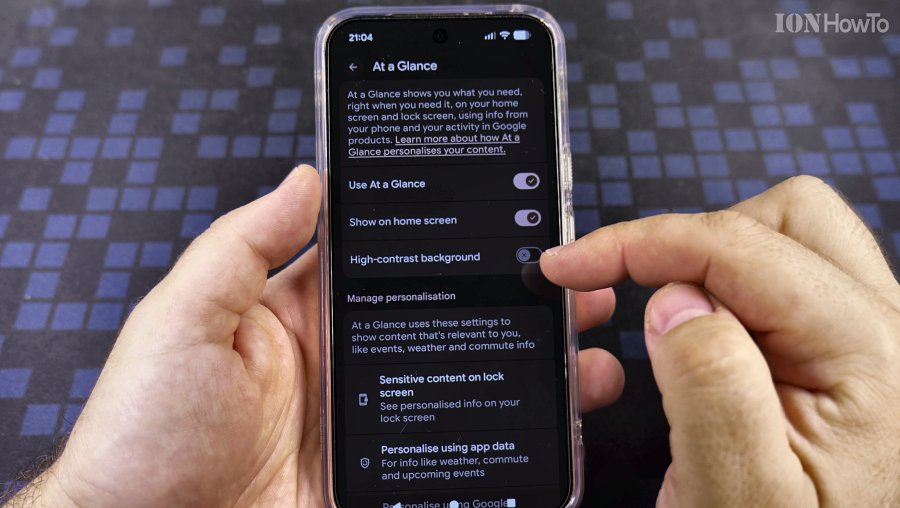
Step 3: Tap At a Glance
Tap At a Glance at the top of Home settings to open its switches.

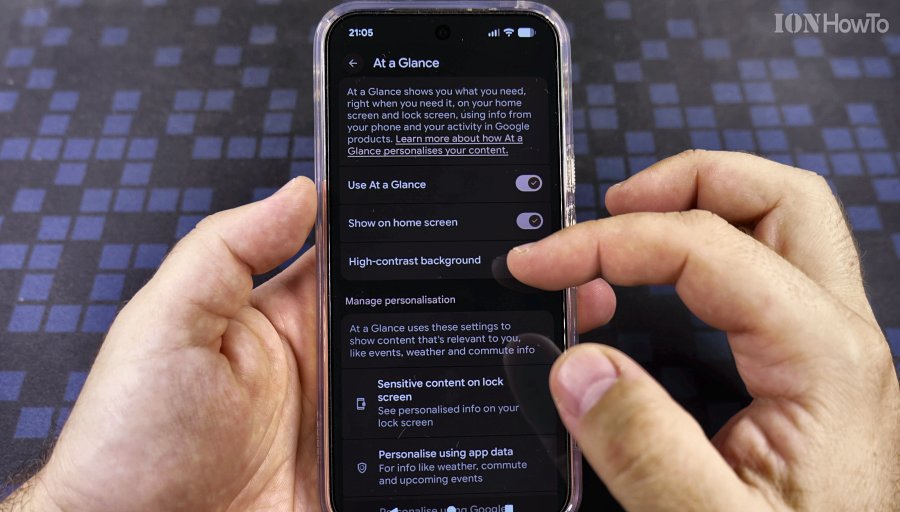
Step 4: Turn off Use At a Glance
Toggle Use At a Glance off to hide the extra alerts and keep your home screen simple.
Helpful Tips
- Restart your Pixel if a setting change does not take effect right away.
- Keep Android 17 updated for the latest carrier and home screen fixes.
Related Guides
Browse more easy Google Pixel tutorials on IONHowTo.
Leave a Reply Cancel reply