


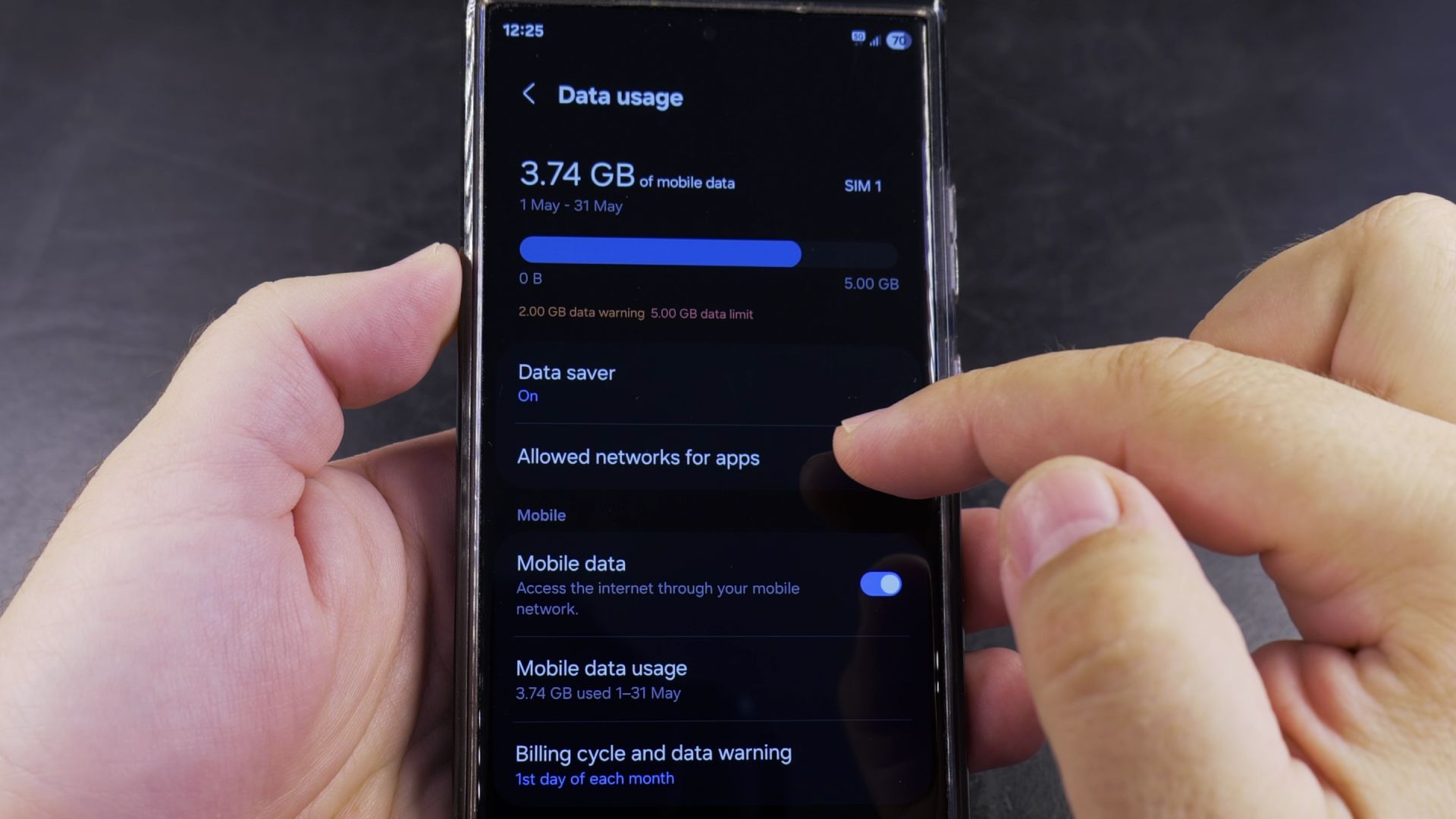
If websites load fine in your browser on 4G or 5G, but specific apps act like you have no internet connection, your Samsung phone is likely blocking those apps from using cellular data. I’ll show you how to turn off Data Saver and restore mobile data access for your apps in a few taps.

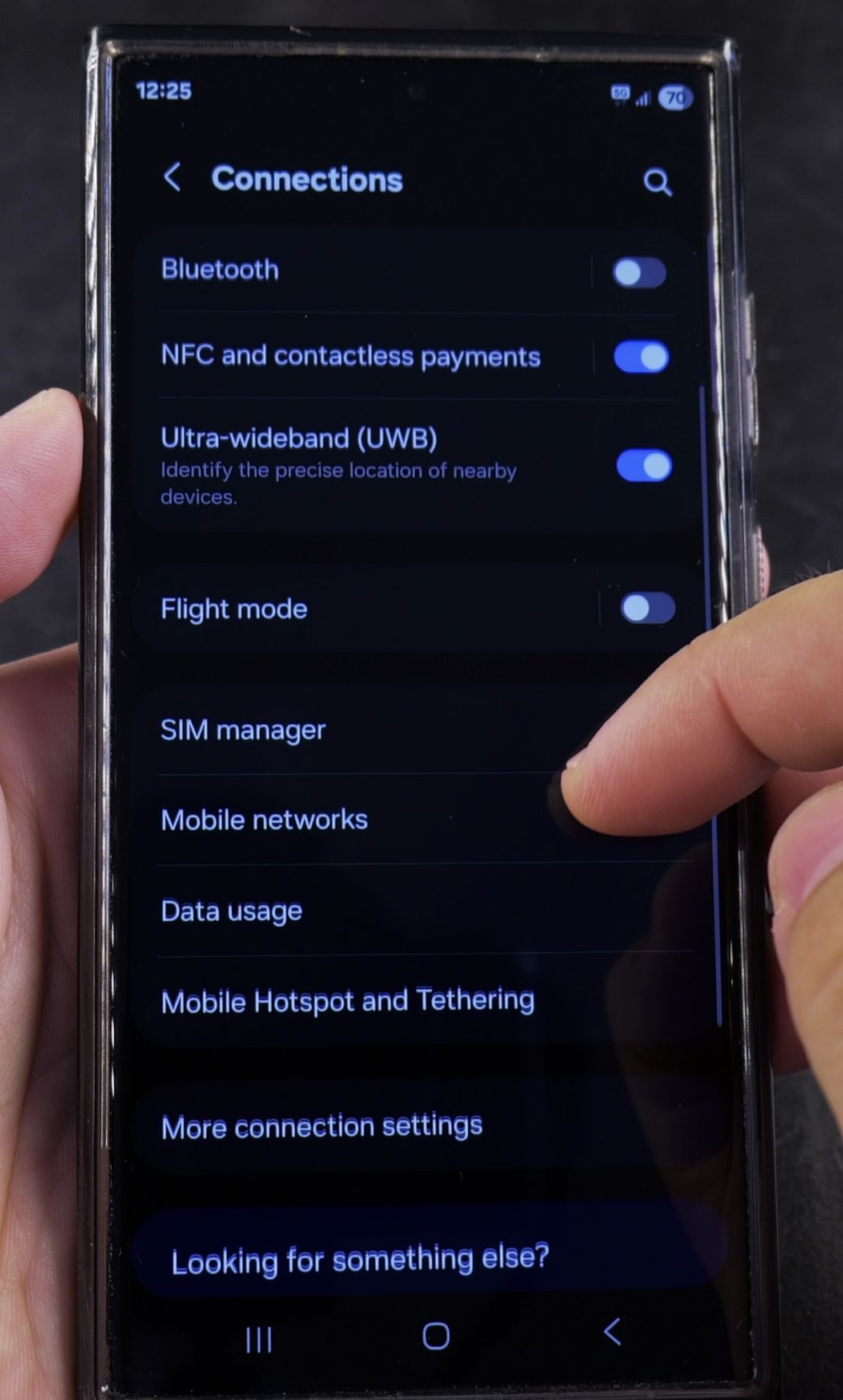
1. Open Connections and Tap Data Usage
Open the Settings app on your Samsung Galaxy phone and tap Connections at the top of the list. Scroll down the page and tap Data usage.

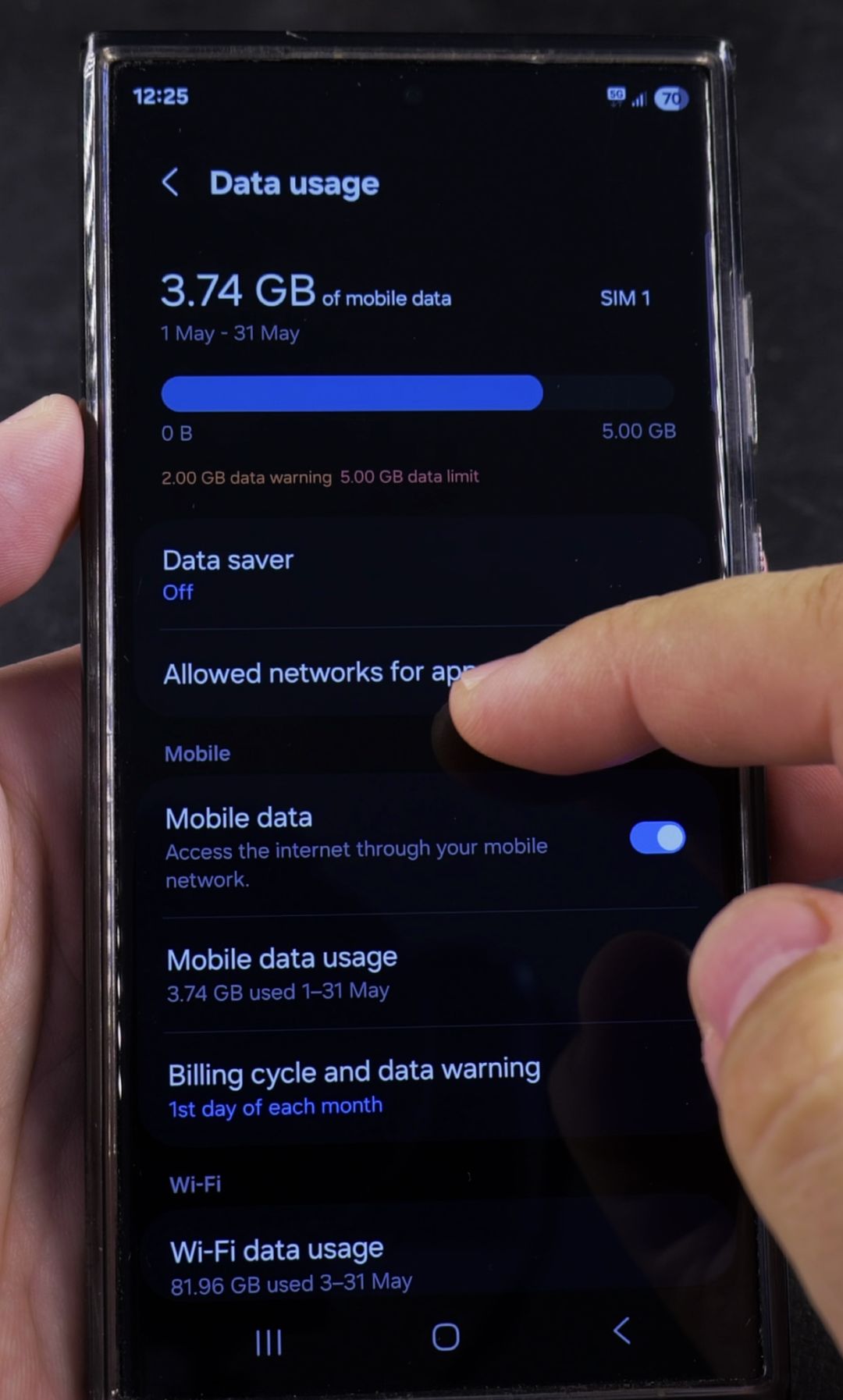
2. Turn Off Data Saver and Open Allowed Networks for Apps
Check the Data saver row near the middle of the screen and turn it Off so apps are not blocked from refreshing in the background. Right below that option, tap Allowed networks for apps.
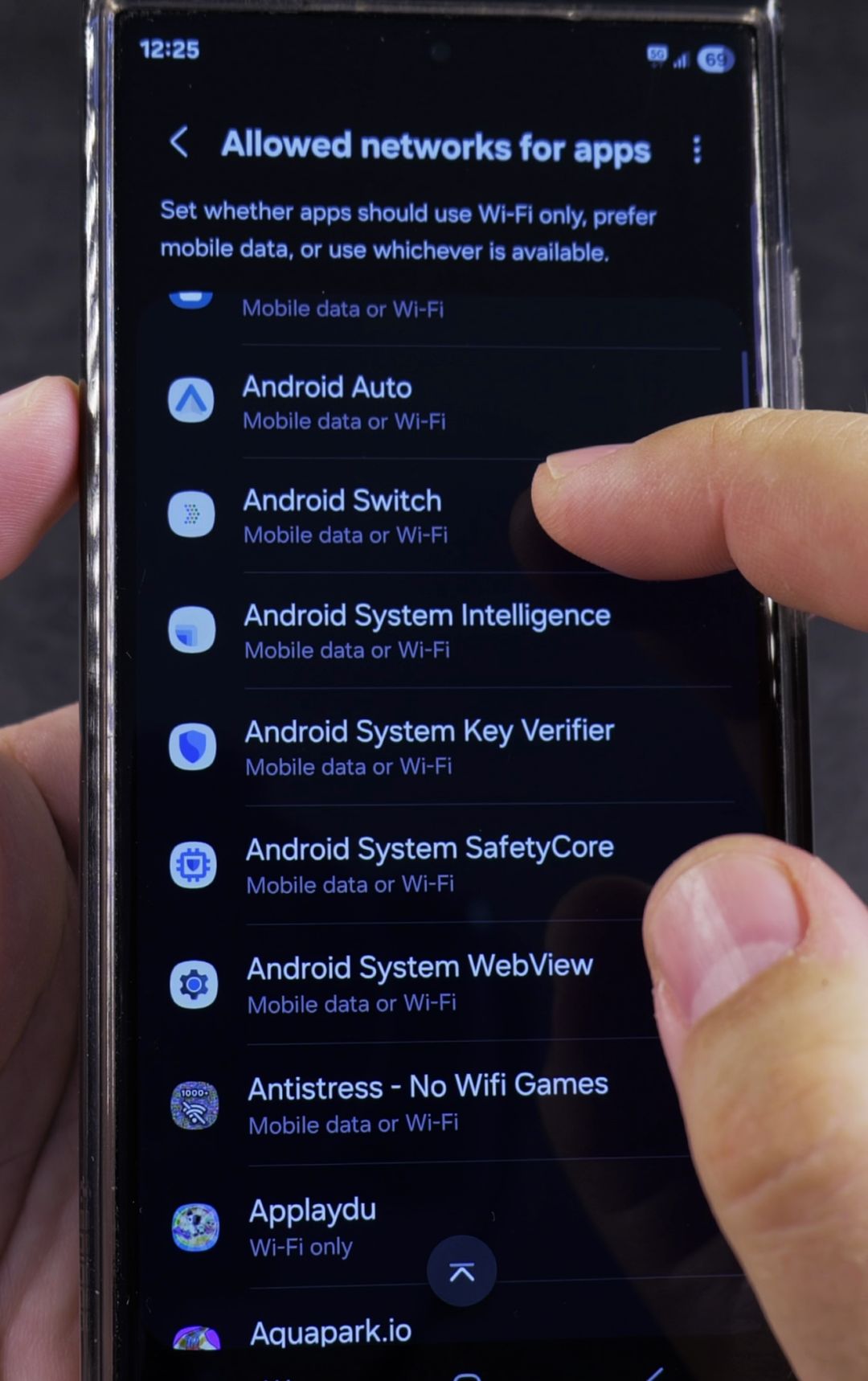
3. Set Restricted Apps Back to Mobile Data or Wi-Fi
Scroll through your alphabetical app list and look for any app labeled Wi-Fi only underneath its name. Tap that app and select Mobile data or Wi-Fi in the pop-up menu so it can connect over 4G and 5G whenever you are away from home.

Helpful Tips
- Shortcut from the Quick Panel: On One UI 7, swipe down from the top-right corner of your screen to open the Quick Settings panel, then press and hold the Mobile data icon to jump straight to the Data usage page.
- Reset all apps at once: If several apps are set to Wi-Fi only, tap the three vertical dots in the top-right corner of the Allowed networks for apps screen to reset all apps to the default setting.
Related Guides
- How to Switch Between Rear and Front Cameras on Samsung Phones
- How to Disable Motion Photo on Samsung Camera
- How to Enable Motion Photo on Samsung Camera
Leave a Reply Cancel reply