


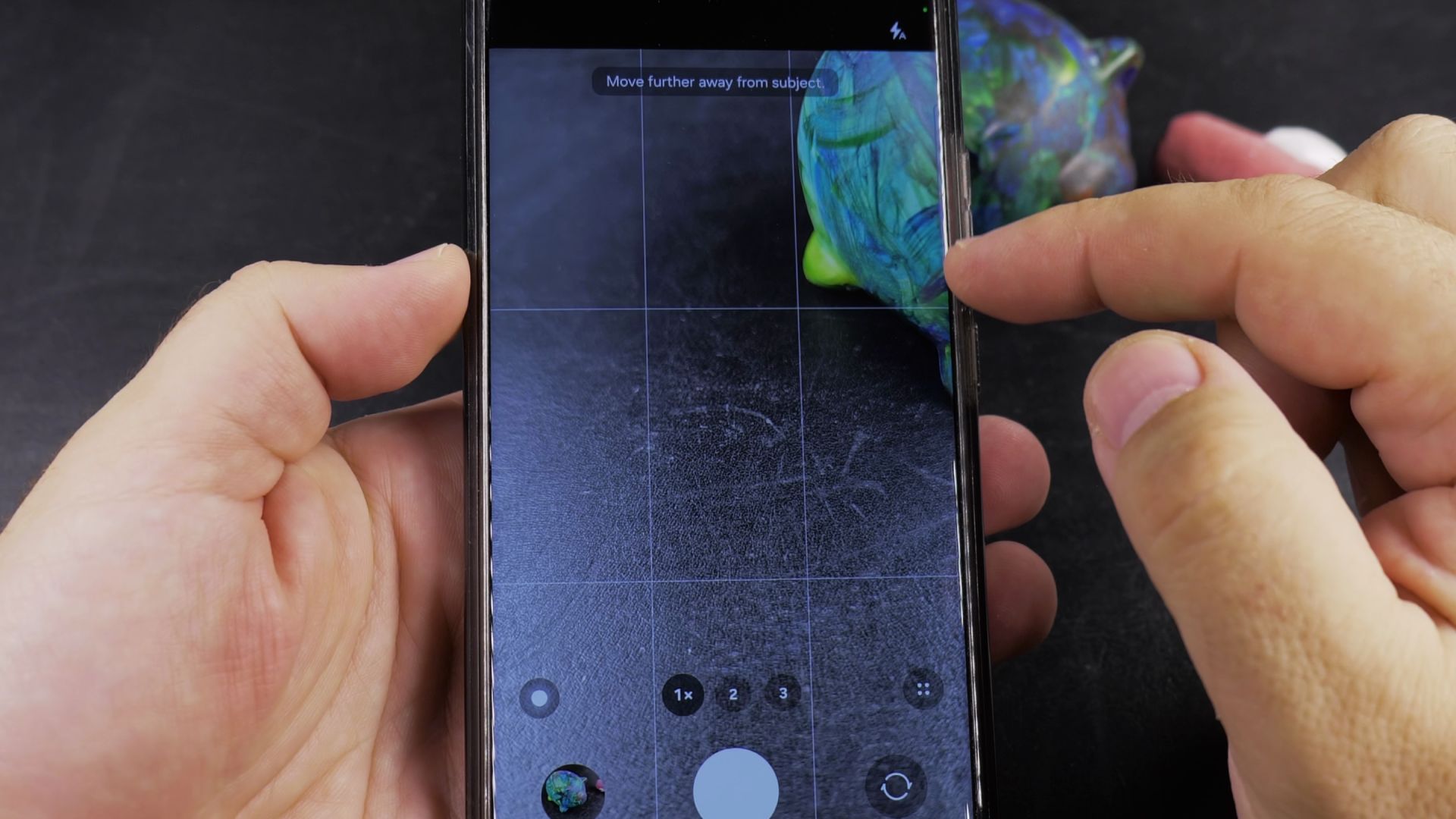
If your Samsung Galaxy camera is pointing the wrong way when you want to take a selfie or a regular photo, you can flip between the front and back lenses with one tap. I’ll show you how to switch between the rear and front cameras on your Samsung phone.

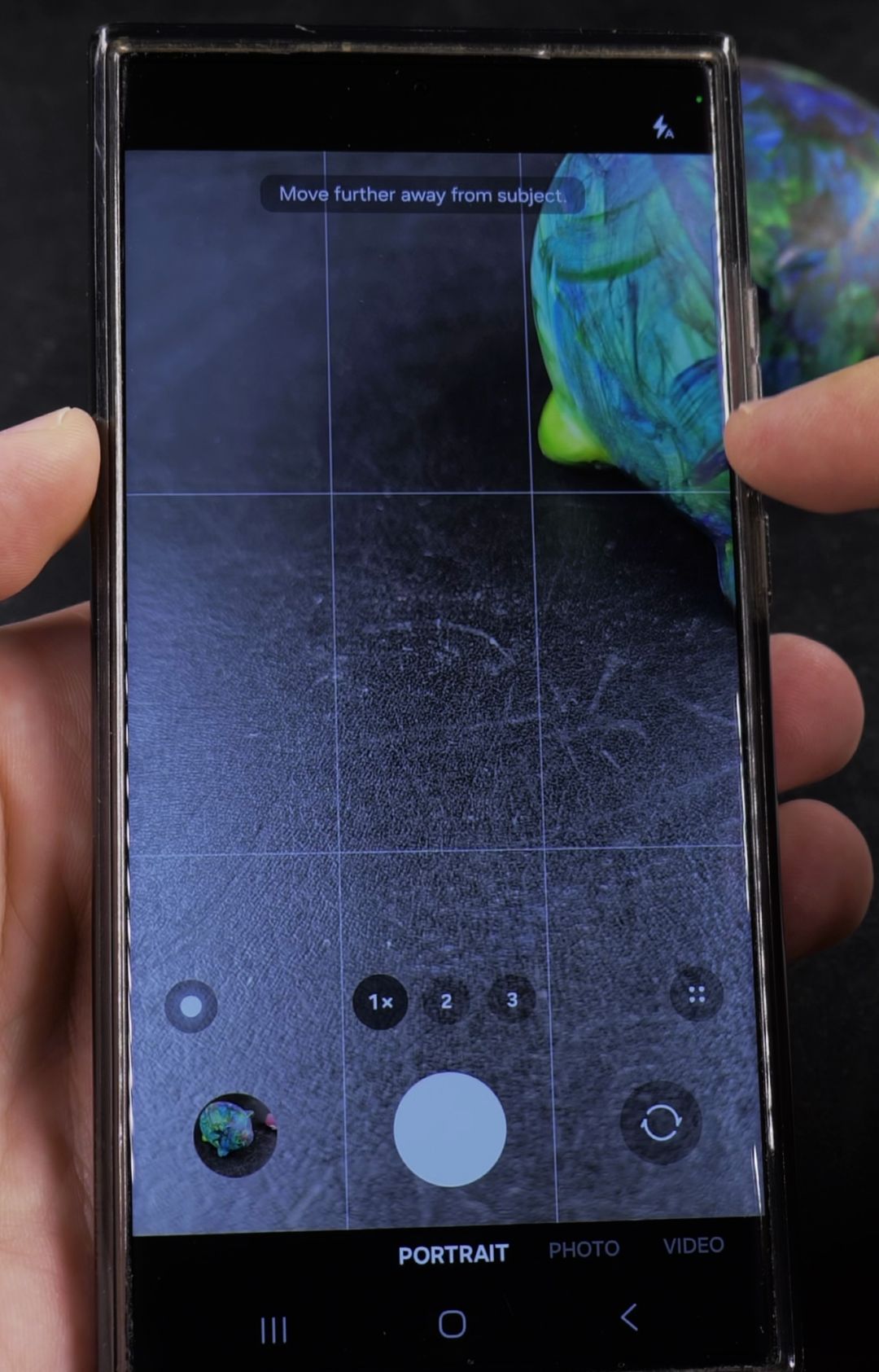
1. Tap the Circular Camera Switch Button
Open the Camera app on your Samsung Galaxy phone. In the bottom-right corner of the viewfinder, right next to the large white shutter button, tap the Switch camera button (the circle with two curved arrows inside).

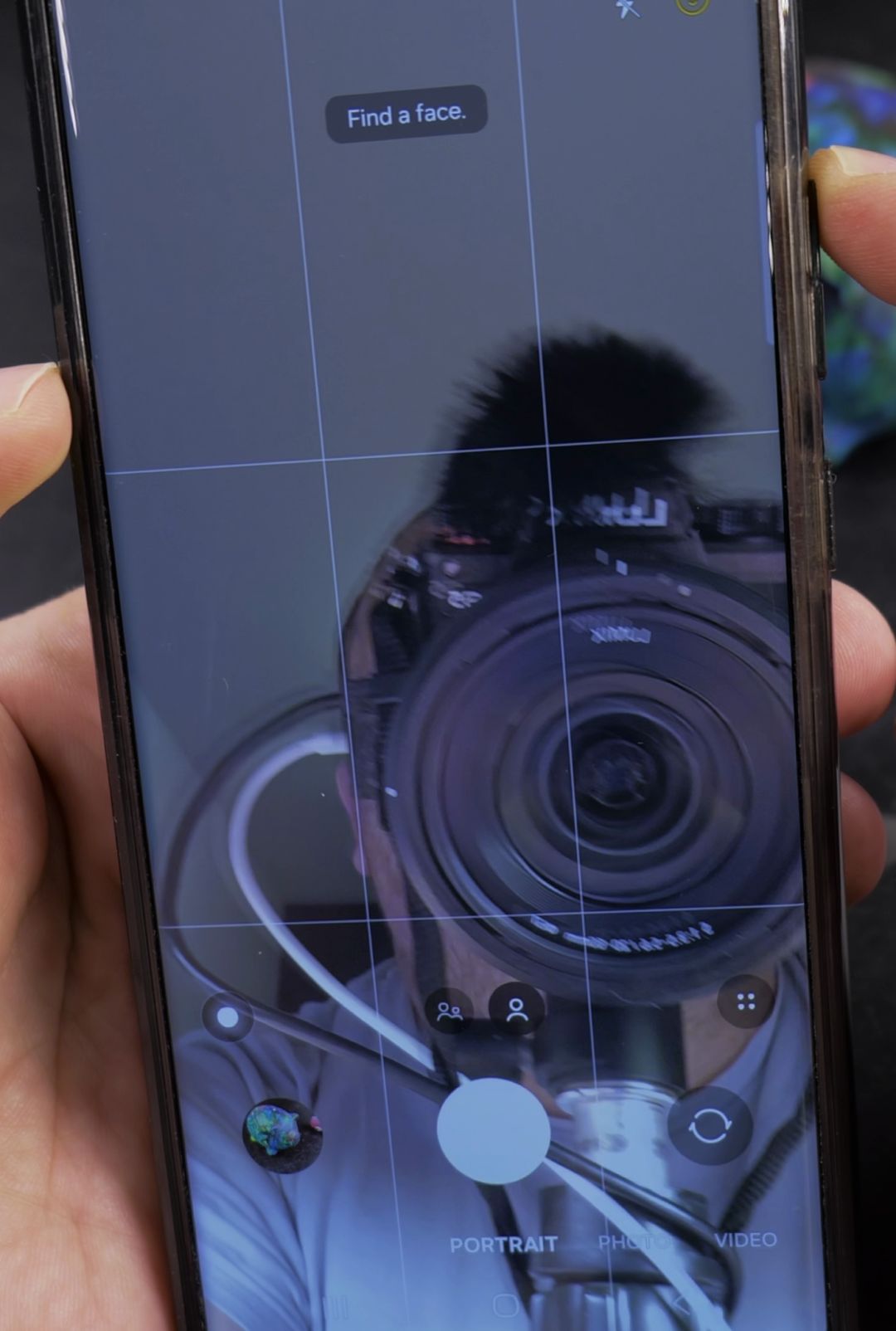
2. Frame Your Shot with the Front Selfie Camera
The screen immediately flips to the front-facing lens at the top edge of your phone so you can see yourself while framing the shot. Above the white shutter button, you can tap the single-person icon for a closer crop or the two-person icon for a wider group selfie.

3. Tap the Switch Button Again to Return to the Rear Camera
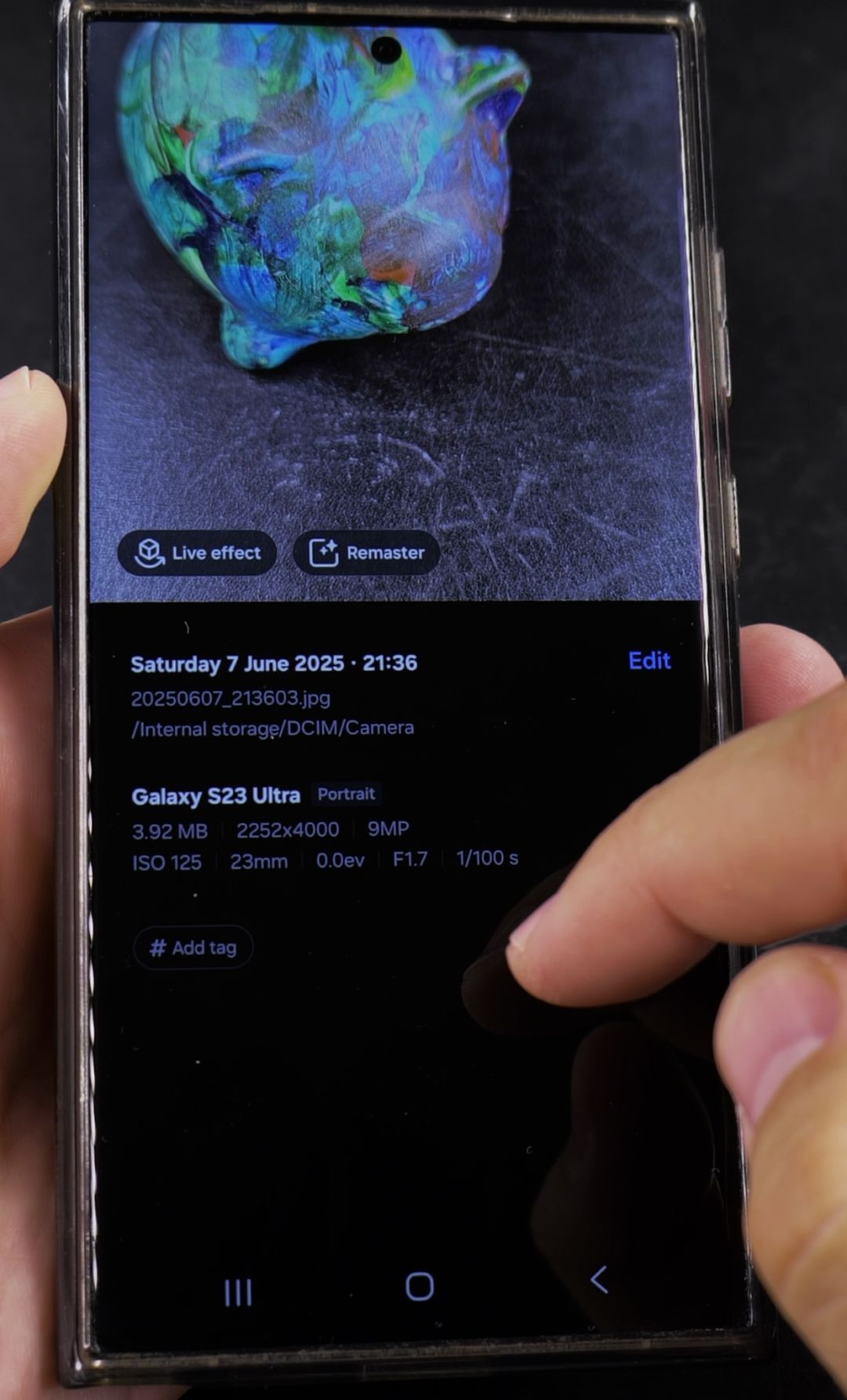
Tap the circular Switch camera icon in the bottom-right corner again whenever you want to return to the main rear cameras. The rear lenses use larger sensors that capture sharper detail and higher megapixel counts than the front selfie lens.

Helpful Tips
- Quick swipe gesture: On Samsung Galaxy phones running One UI, you can also swipe straight up or down anywhere on the camera preview screen to flip between the front and rear cameras.
- Use the rear lenses for maximum detail: When someone else is taking your picture, use the main 1x rear camera for the sharpest photo quality.
- Capture movement before the shot: You can also enable Motion Photo on your Samsung camera to record a short video clip every time you press the shutter.
Related Guides
- How to Switch Between Cameras and Zoom Levels on Android
- How to Disable Motion Photo on Samsung Camera
- How to Disable Camera Flash on Android
Leave a Reply Cancel reply