


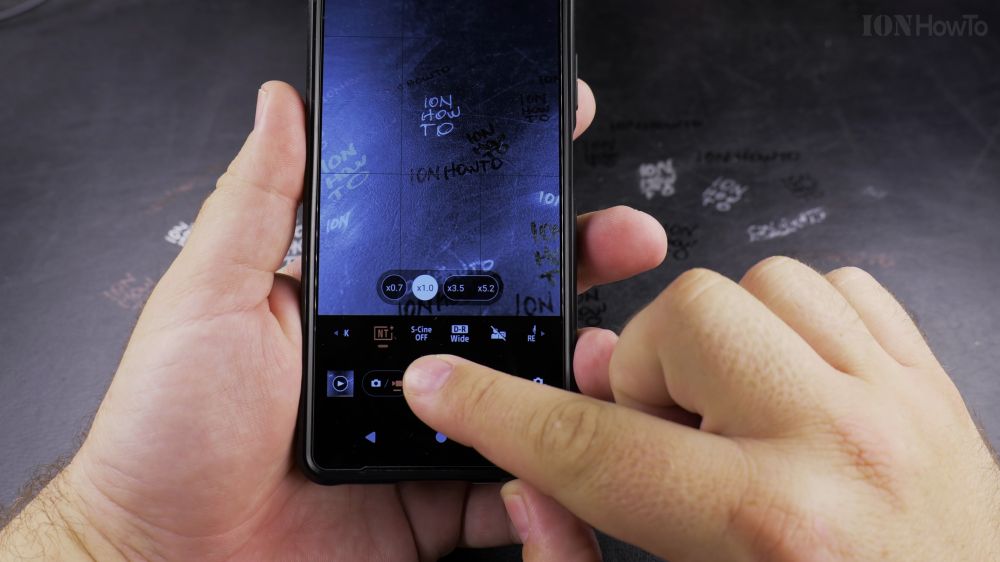
When your phone’s bright LED flash turns on automatically during video recording, it can blind people or create harsh reflections. I’ll show you how to turn off the video torch light in your Android camera in two taps.

1. Open Camera
Open the **Camera** app on your Android phone and select **Video** mode.

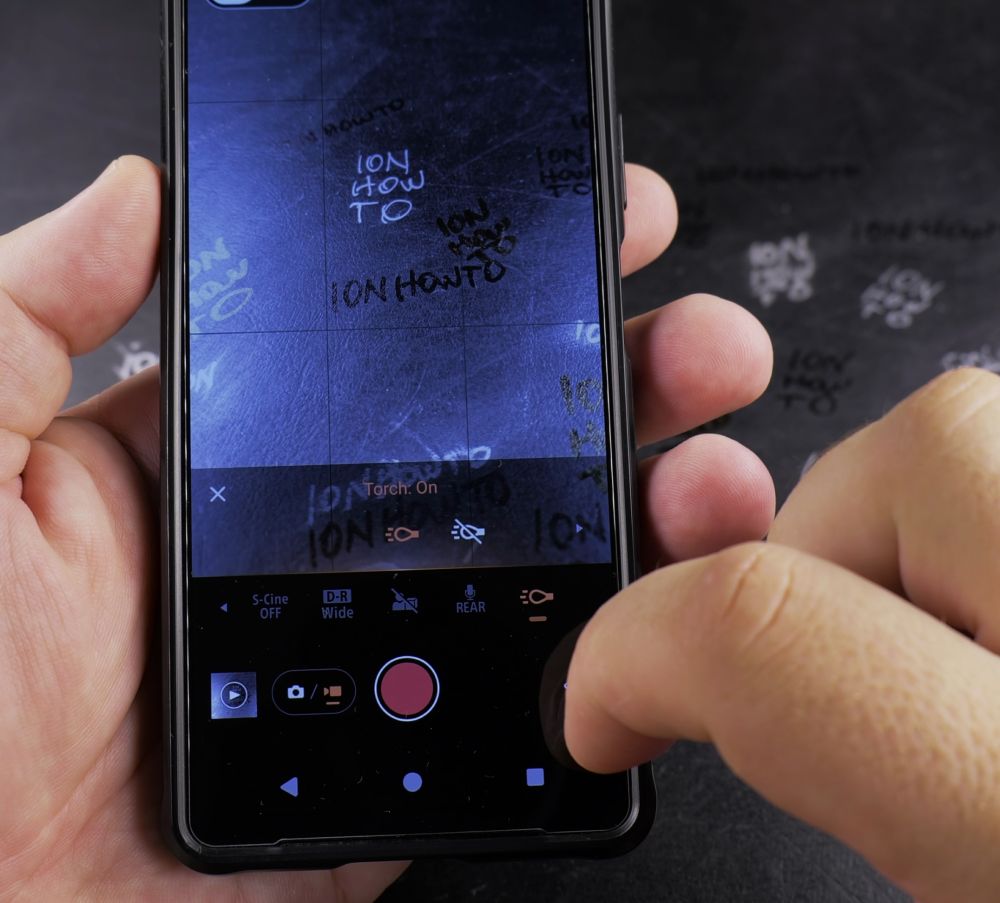
2. Locate the Flash Icon
Look at the top or side toolbar for the **lightning bolt (Flash)** icon.
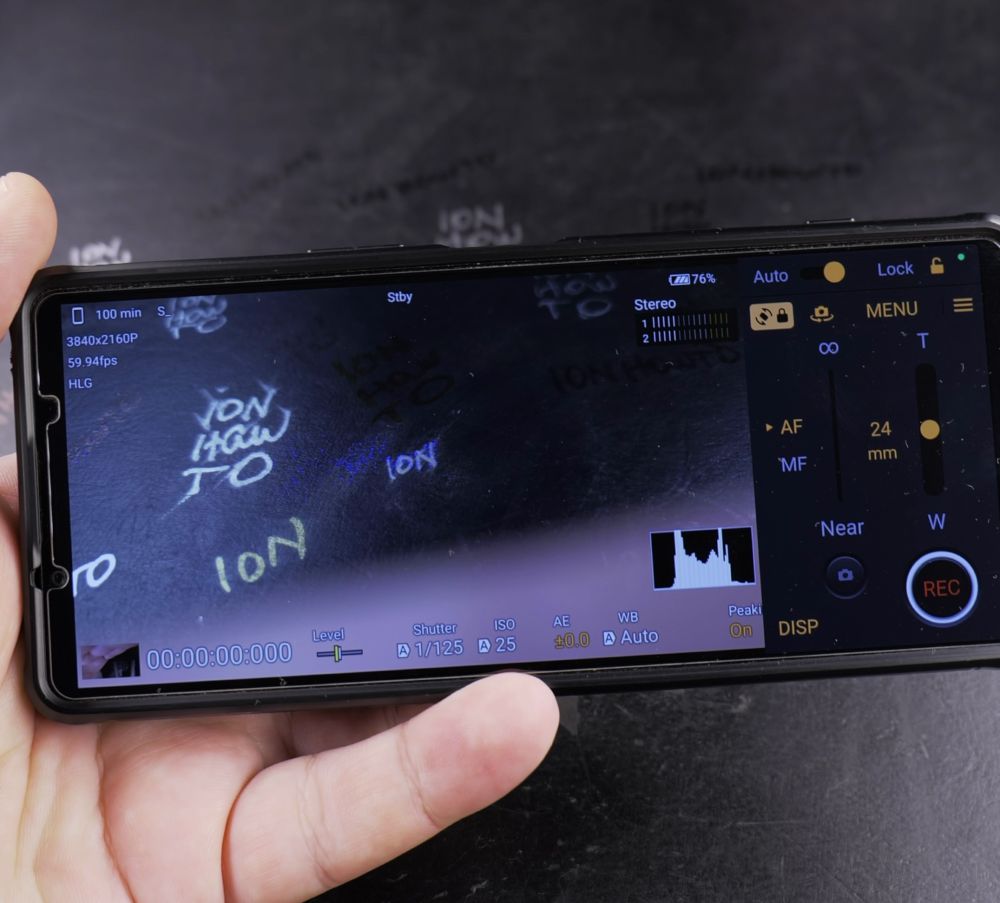
3. Tap the Flash Button
Tap the lightning bolt to reveal the flash modes (**On**, **Auto**, or **Off**).
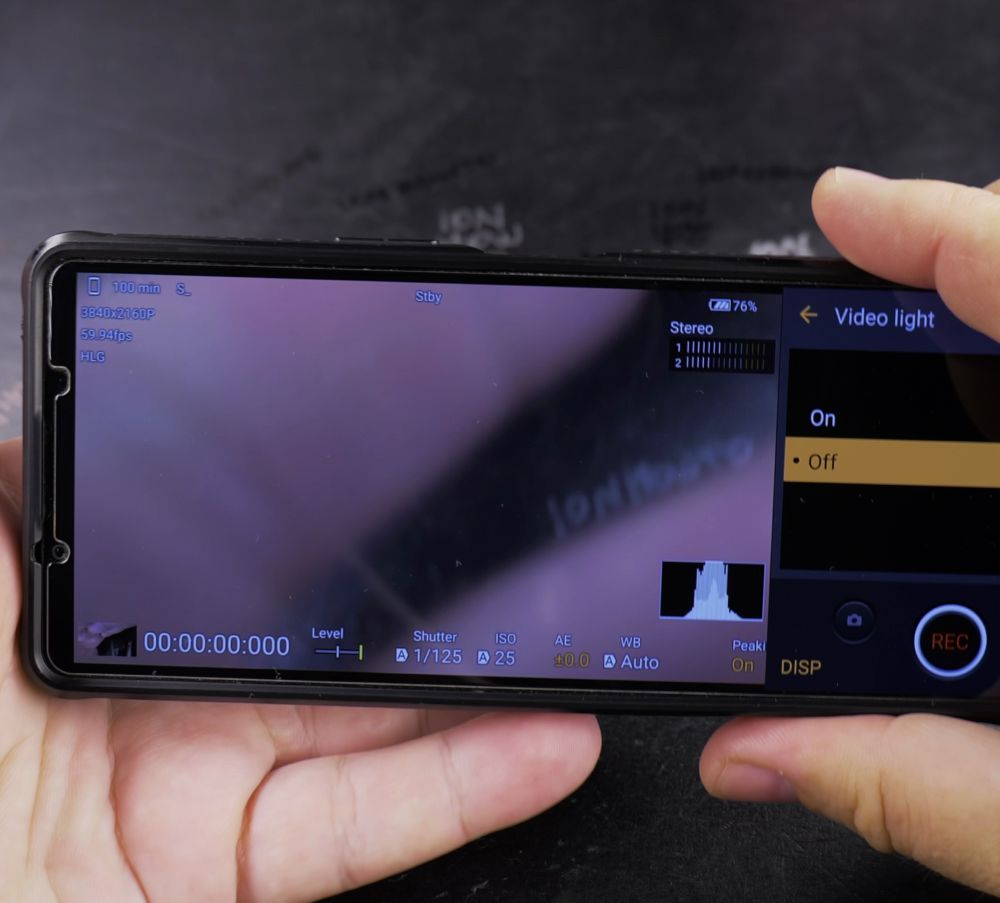
4. Select Flash Off
Tap the **lightning bolt with a line through it (Off)**.
5. Record Naturally
Tap the red record button. Your phone records using ambient natural lighting without turning on the blinding rear LED flashlight.
Helpful Tips
Setting flash to ‘Off’ rather than ‘Auto’ prevents your phone from unexpectedly firing up the flashlight when panning past shadows. For more Android tips, visit our Android Guides hub.
Leave a Reply Cancel reply