


If your iPad Home Screen is cluttered with too many pages of icons, you can hide entire screens without deleting any apps. I’ll show you how to use page edit dots to hide and restore iPad Home Screen pages in moments.

1. Enter Home Screen Edit Mode
Touch and hold your finger on any empty wallpaper space on your Home Screen until the app icons start jiggling.
2. Tap the Page Dots
Tap the small row of dots centered near the bottom of your screen, just above the dock.
3. Uncheck Pages to Hide Them
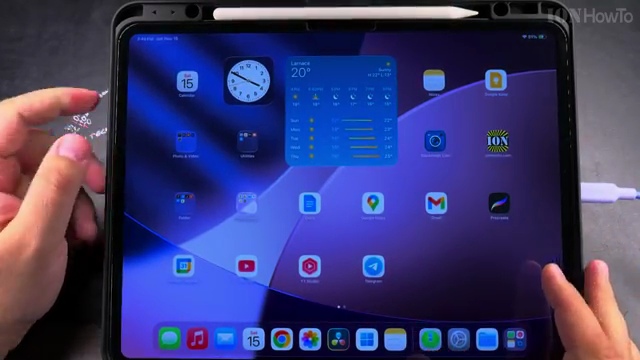
Tap the round checkmark underneath any page thumbnail you want to hide so the checkmark disappears.
4. Tap Done to Save Your Layout
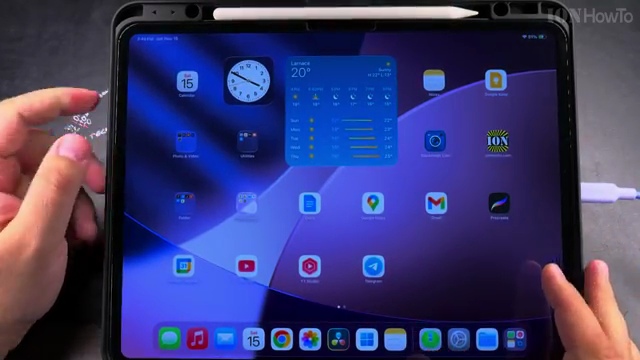
Tap **Done** in the top-right corner to exit page overview, then tap **Done** again to finish editing.
Helpful Tips
Hidden apps are never deleted; you can always find and launch them anytime by swiping to your **App Library** on the far right page. For more customization guides, see our guide on Hiding and Unhiding Apps on iPad or browse our Apple iPad hub.
Leave a Reply Cancel reply