


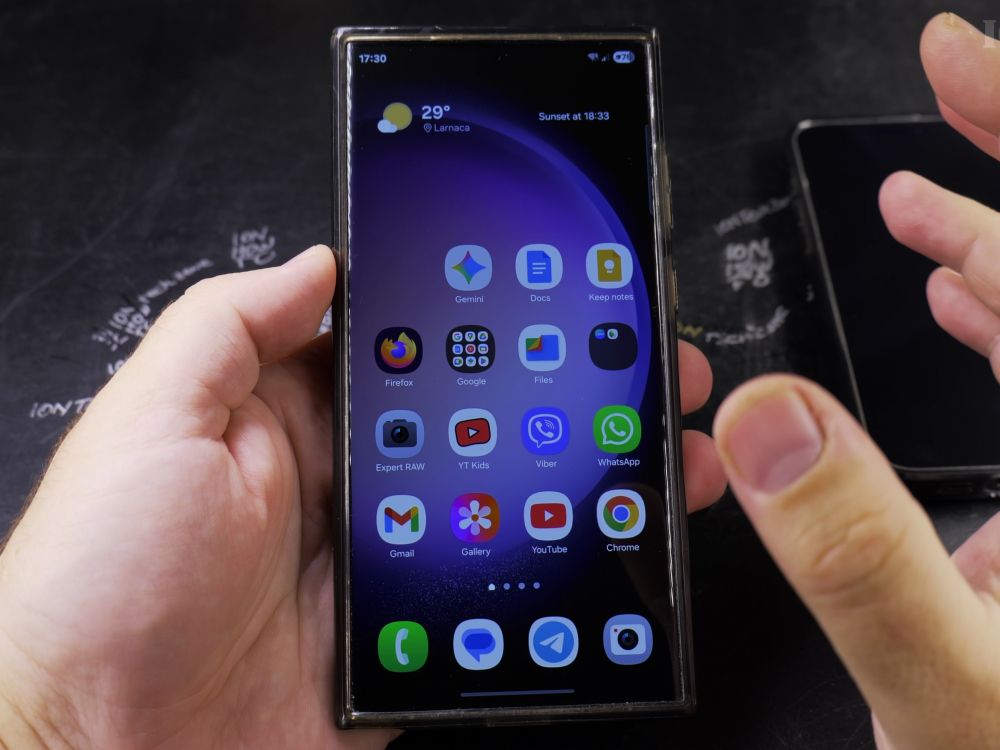
If you need to make an inquiry call without revealing your personal mobile number, you can block your caller ID automatically. I’ll show you how to set your outgoing caller ID to private in your Samsung phone settings.

1. Open the Phone App
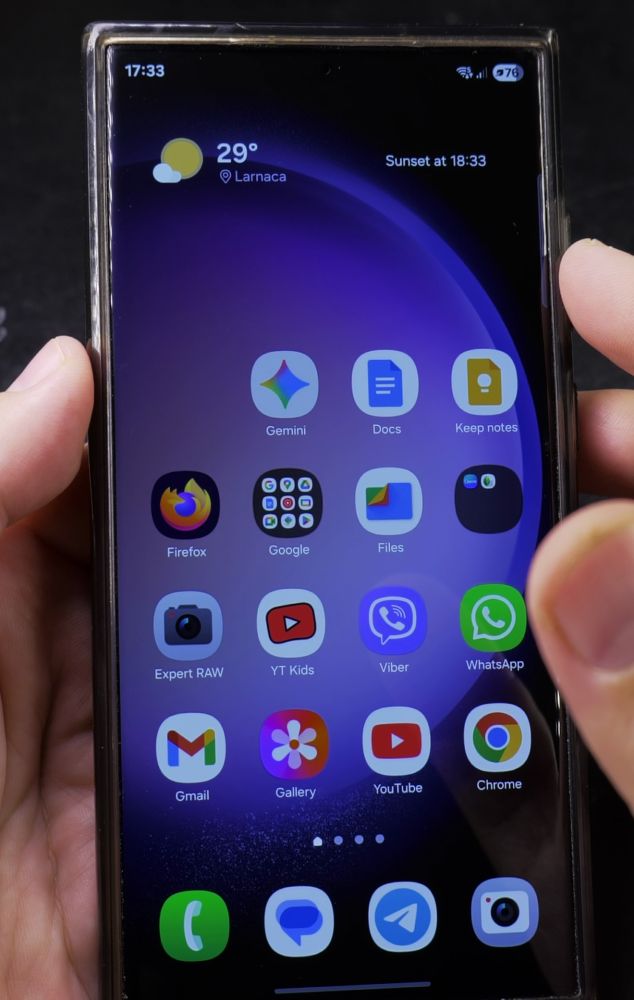
Tap the green **Phone** app icon on your Samsung home screen.

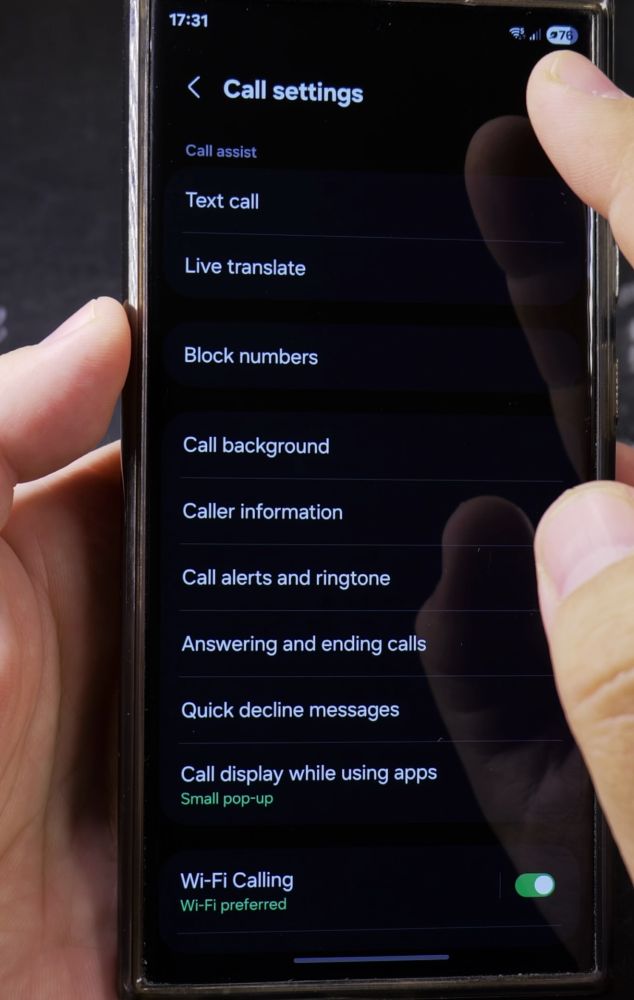
2. Open Settings
Tap the **three vertical dots** in the top-right corner, then tap **Settings** in the drop-down menu.
3. Tap Supplementary Services
Scroll down near the bottom of the list and tap **Supplementary services**.
4. Tap Show Your Caller ID
Allow your device a moment to query your cellular network, then tap **Show your caller ID**.
5. Choose Never
In the popup choices, tap **Never**. From this point forward, anyone you call will see Private Number or Unknown on their screen.
Helpful Tips
Emergency services (like 911 or 112) will always receive your phone number and location regardless of this setting. To learn how to unhide your number later, read our guide on how to show your number when calling on Samsung phones.
Leave a Reply Cancel reply