


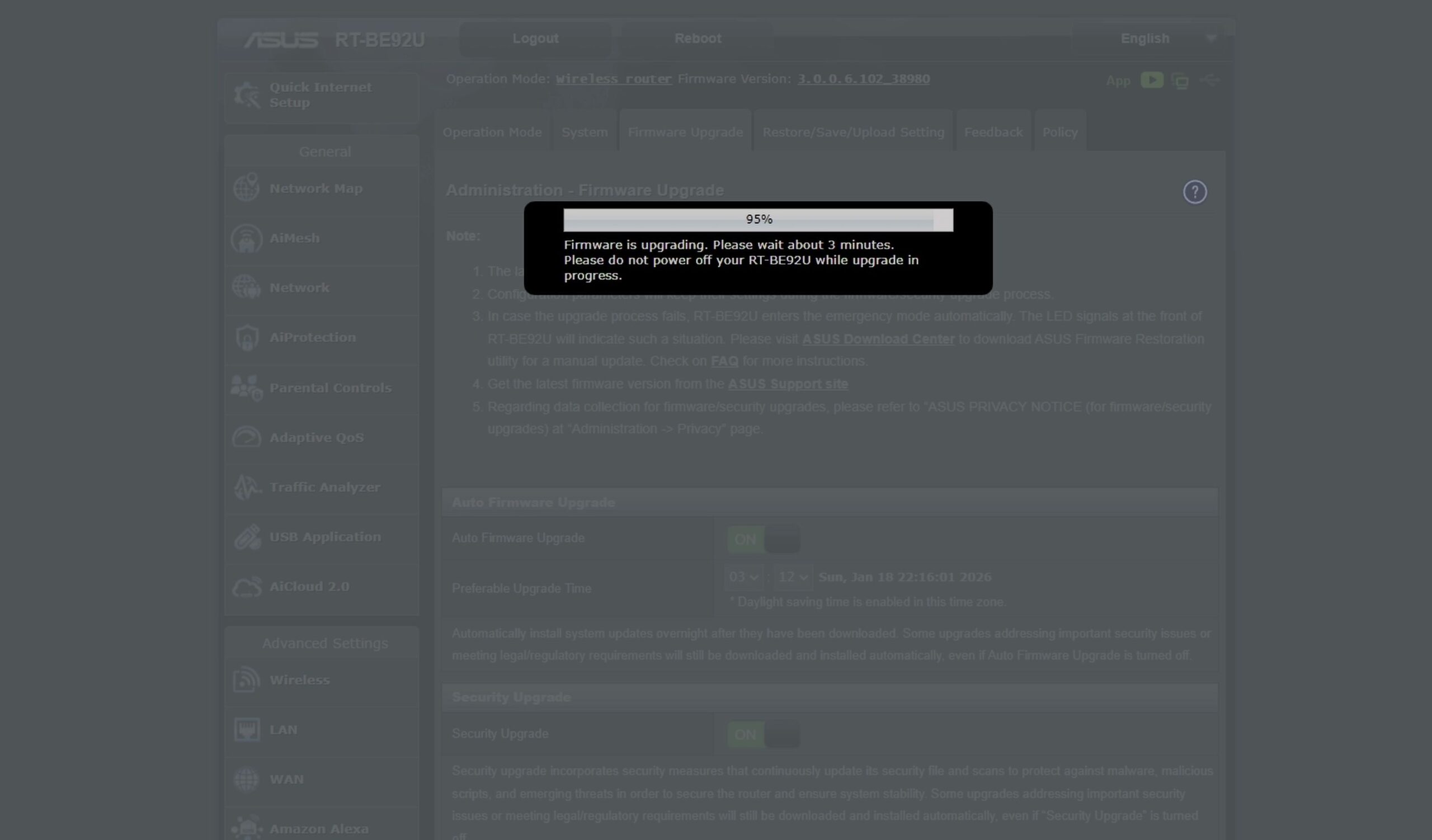
If you want to unlock advanced networking features without losing your current Wi-Fi configuration, upgrading to Asuswrt-Merlin is as simple as running a standard update. I’ll show you how to install Asus Merlin firmware on an ASUS RT-BE92U router in just a few clicks.

1. Download the RT-BE92U Merlin Firmware Build
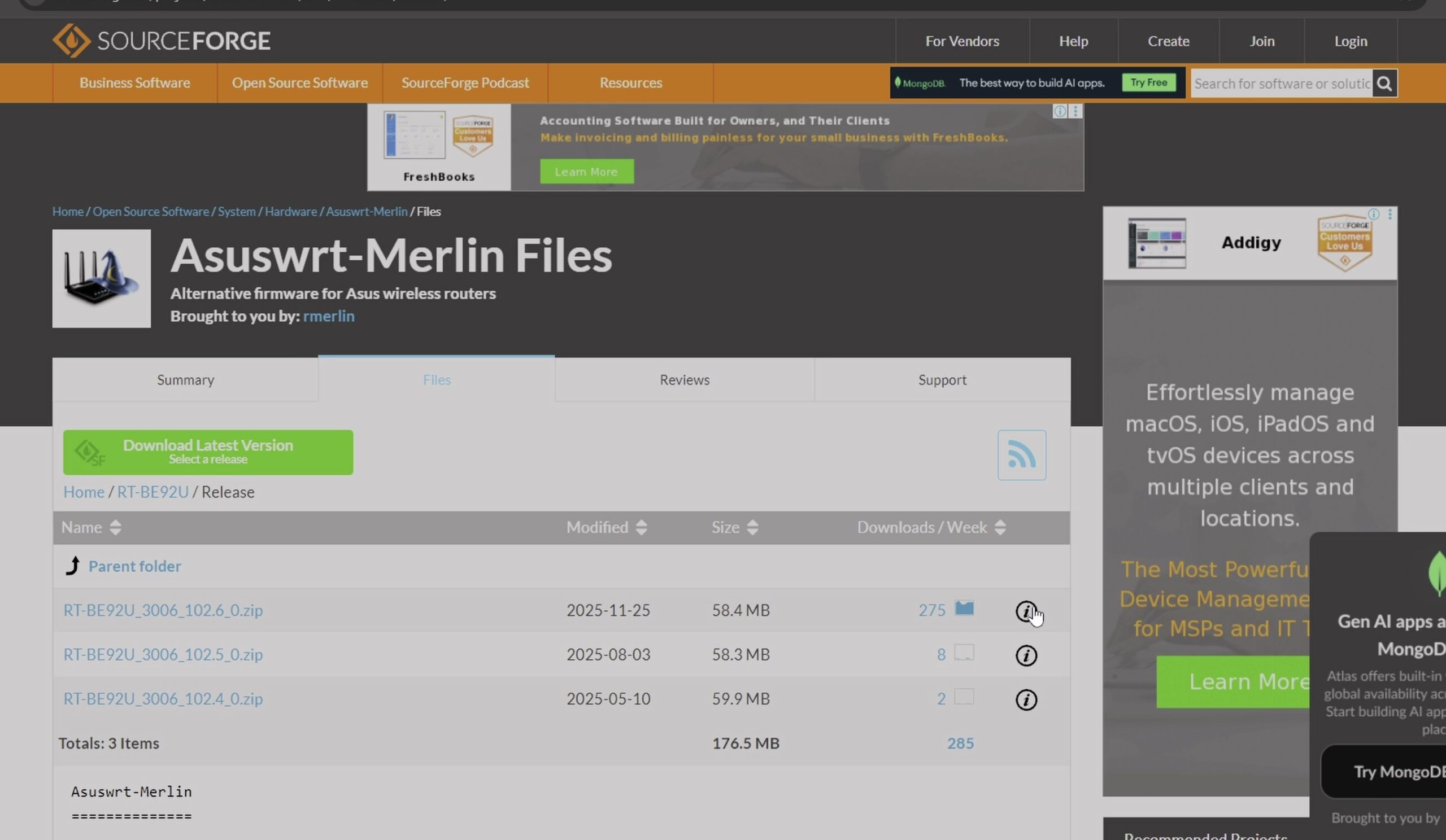
Open your web browser and visit the official Asuswrt-Merlin download repository on SourceForge.
Scroll down the list of router folders and click RT-BE92U.
Click on the latest release folder and download the firmware .zip archive to your computer.

2. Extract the Zip Archive on Your Computer
Locate the downloaded zip file in your Downloads folder.
Right-click the zip file and choose Extract All.
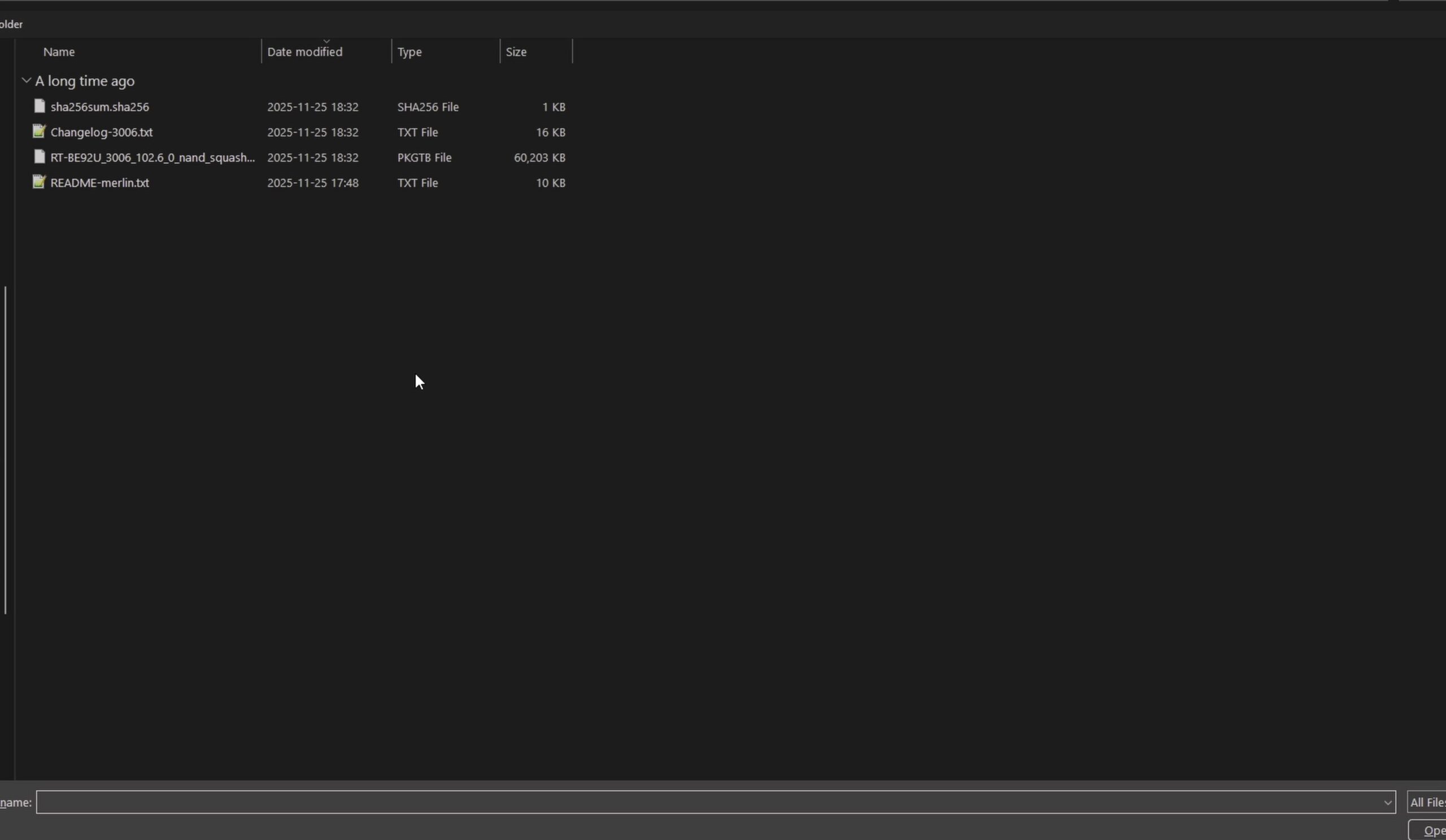
Inside the extracted folder, you will find the actual firmware file ending with the .w or .trx extension.
3. Open Administration and Select Firmware Upgrade
Log in to your router settings page in your browser by entering 192.168.50.1.
Look at the left menu under Advanced Settings. Click Administration.
At the top of the administration page, click the Firmware Upgrade tab.
4. Upload the File and Wait for Automatic Reboot
Under Manual Firmware Update, click the Upload button.
Select your extracted firmware file and click Open.
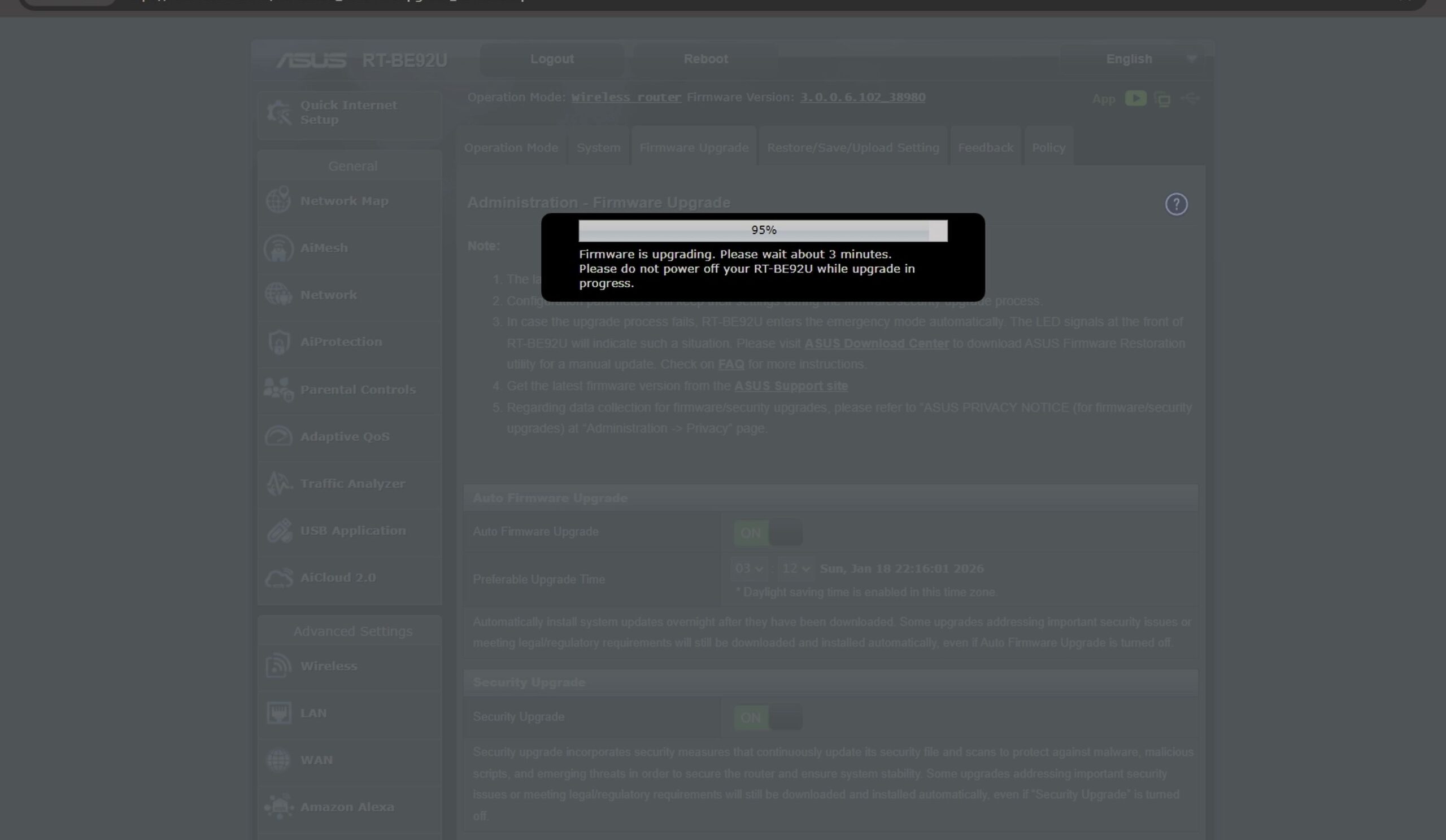
A progress bar will count from 1% to 100% while the router flashes the system. Do not unplug the router during this process.
When the installation completes, the router reboots automatically. Log in to enjoy Asuswrt-Merlin with all your original Wi-Fi passwords intact.
Helpful Tips
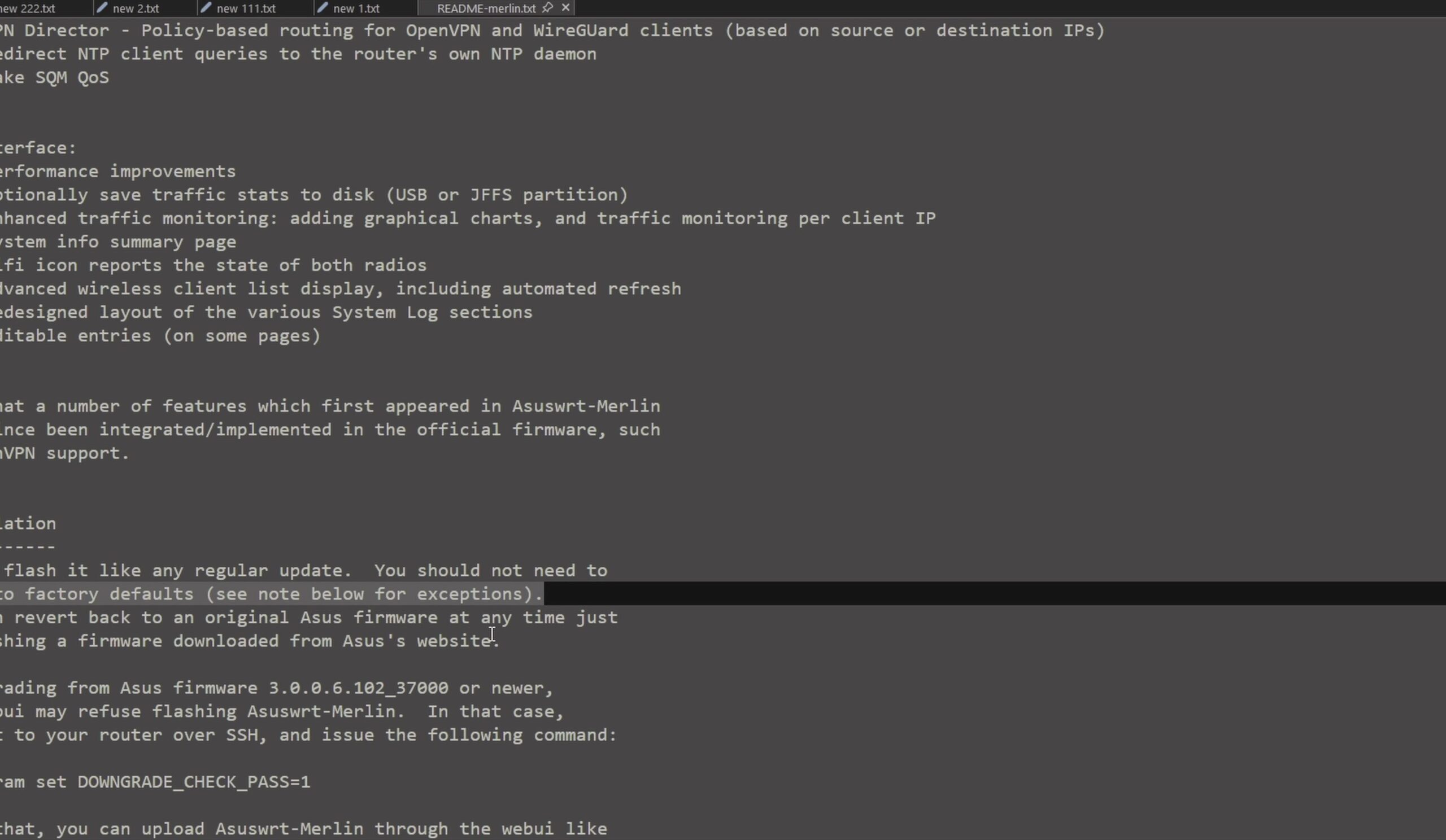
You can revert back to official ASUS factory firmware at any time by downloading the official file from ASUS support and flashing it through the same upload menu.
To see what features are available after upgrading, check our tour on Asus Merlin firmware on RT-BE92U router review. You can also explore our collections on Wi-Fi Routers and Networking & 10GB Fiber.
Leave a Reply Cancel reply