


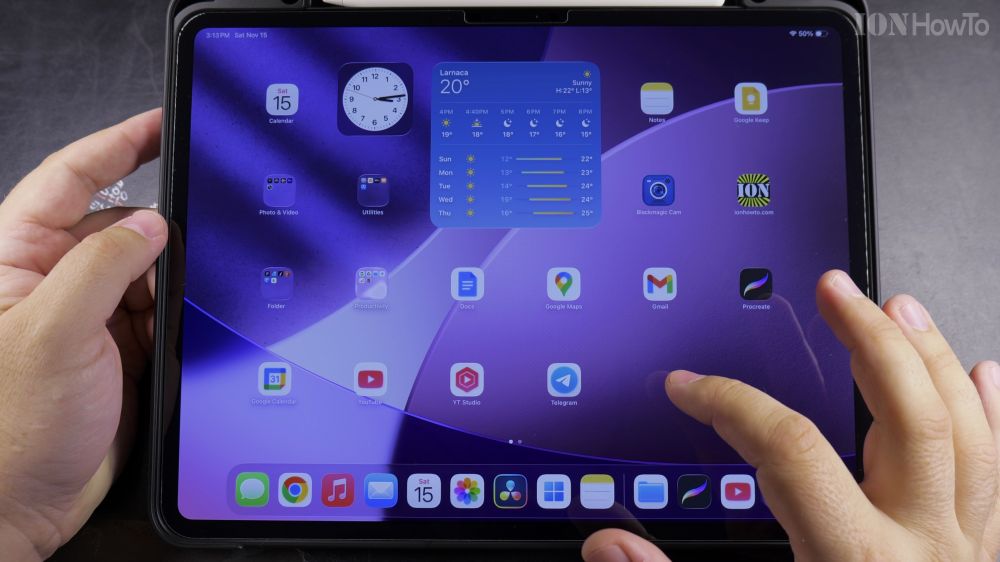
If you switched back to Safari or need to free up storage space, uninstalling Google Chrome takes just a few seconds. I’ll show you how to completely delete the Chrome browser and its cached files from your iPad.

1. Locate the Chrome Icon
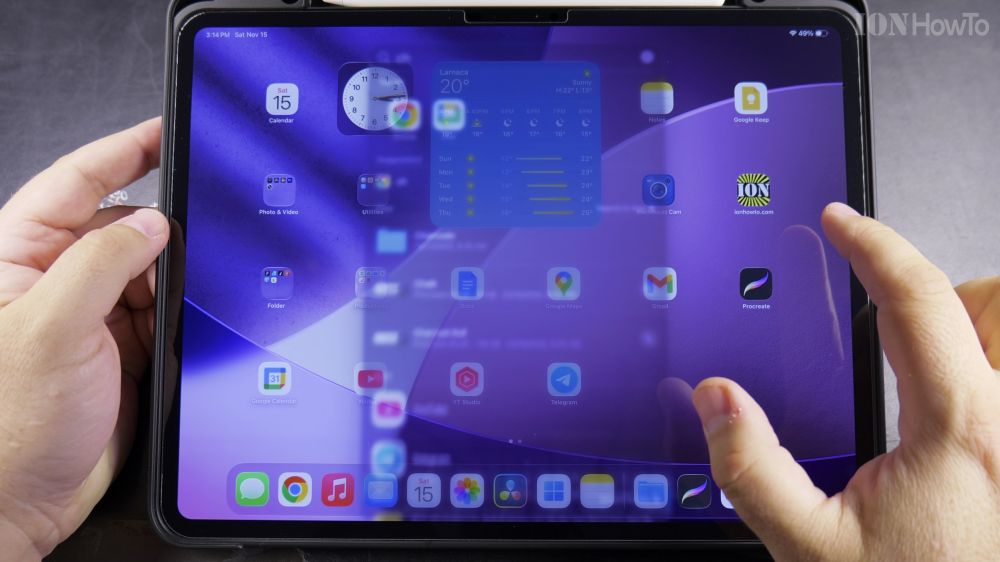
Find the Google Chrome icon on your Home Screen, Dock, or in the App Library.
2. Press and Hold Chrome
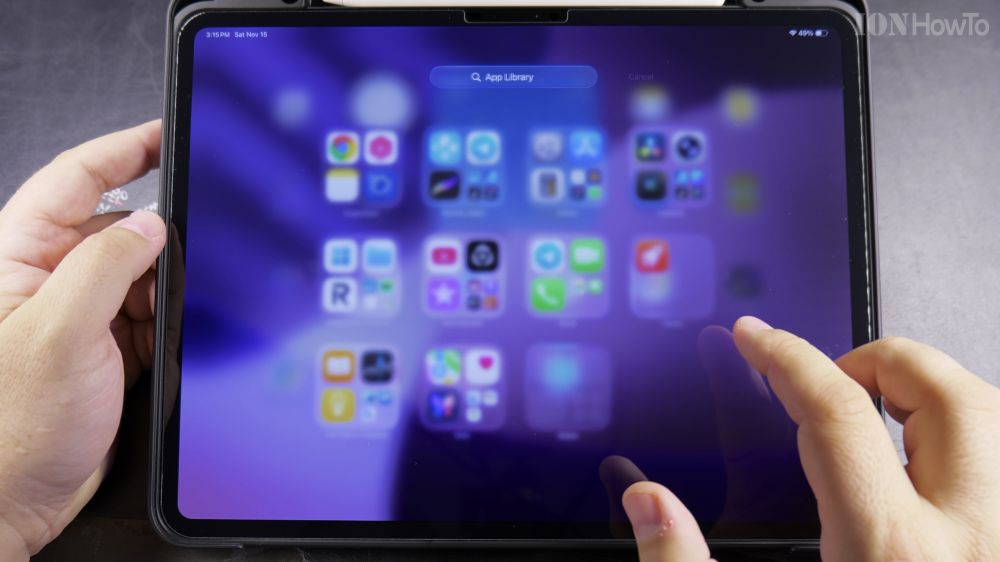
Press and hold your finger on the **Chrome** icon until the pop-up menu appears.
3. Tap Remove App
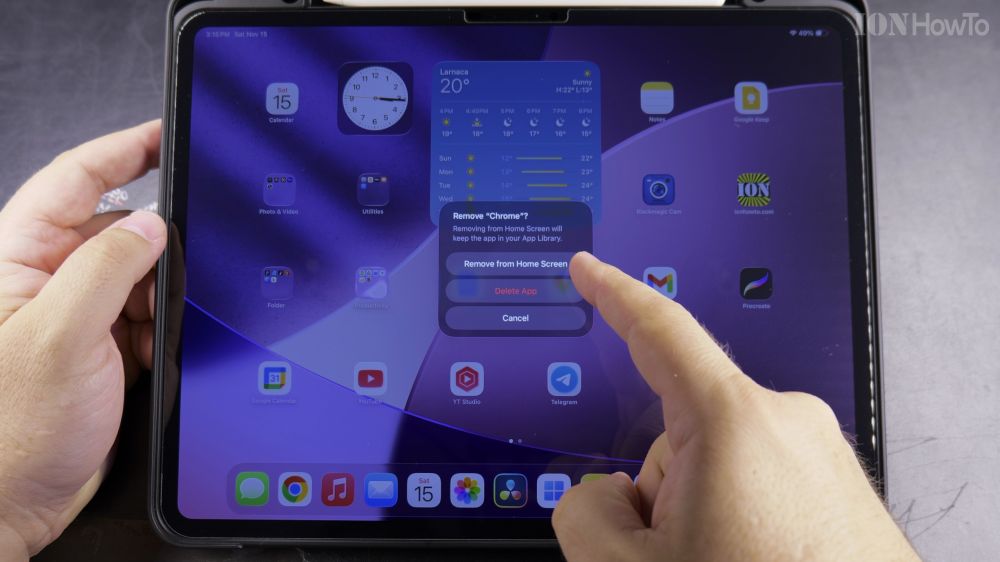
Tap the red option labeled **Remove App**.
4. Confirm App Deletion
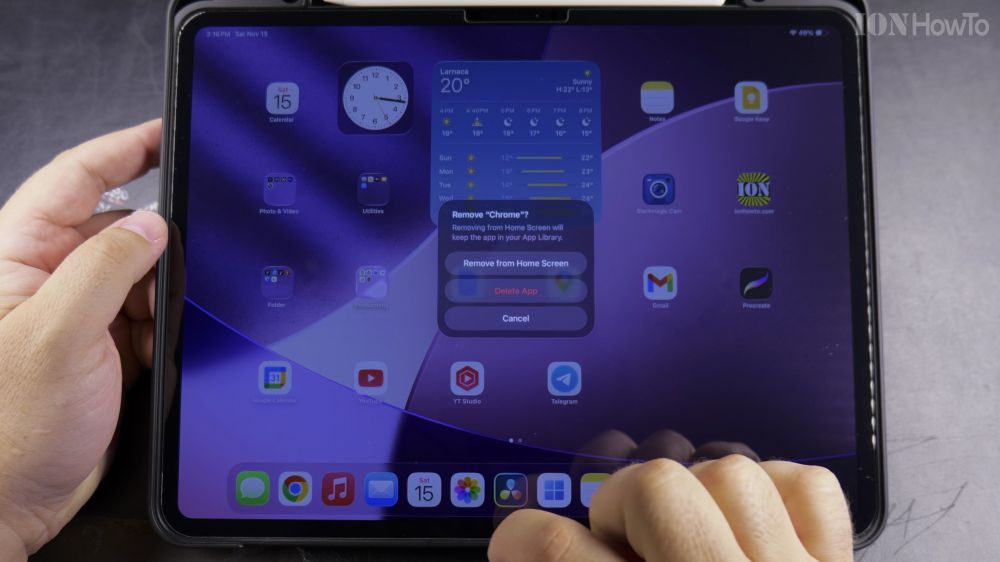
Tap **Delete App**, then tap **Delete** to permanently uninstall Chrome and wipe its offline cache.
Helpful Tips
Deleting Chrome automatically restores Safari as your default web browser for email and messaging links. For more tablet storage cleanup advice, explore our Apple iPad hub.
Leave a Reply Cancel reply