


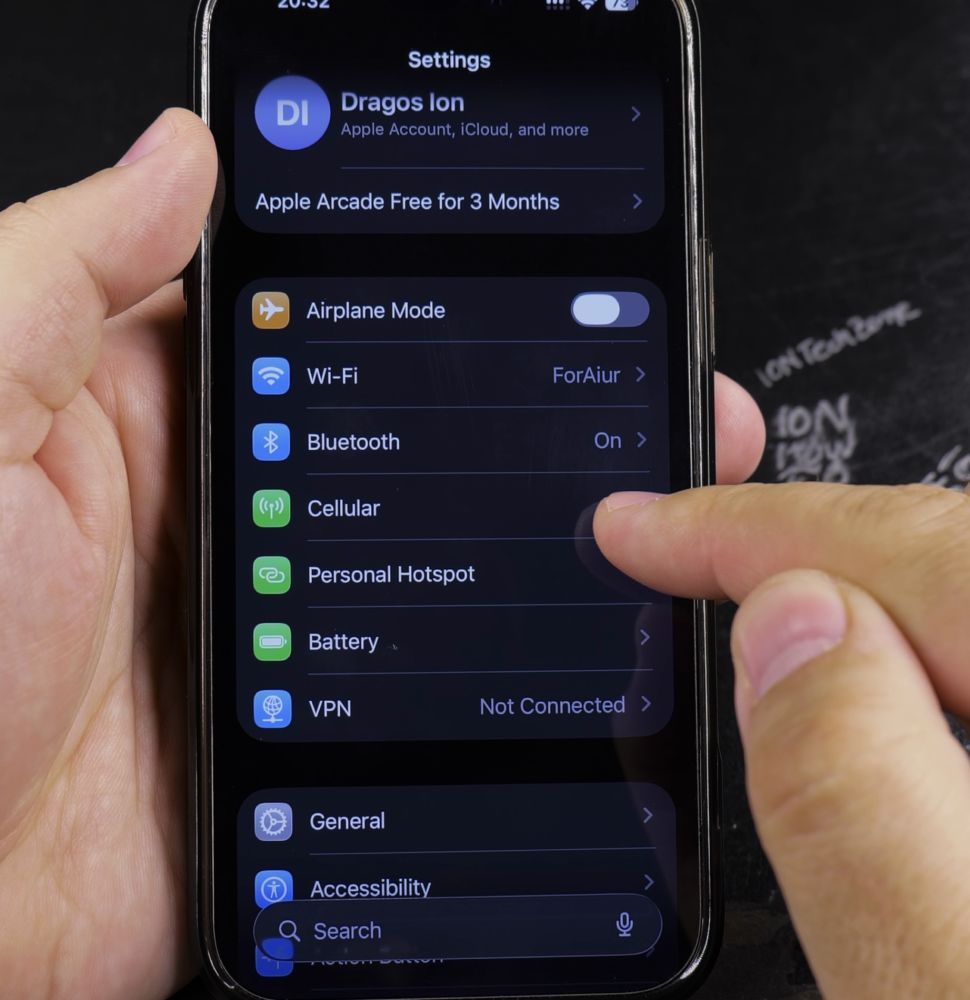
If you have an expired travel eSIM or switched carriers, deleting old eSIM profiles keeps your Cellular menu tidy. I’ll show you how to delete an unused eSIM from your iPhone in just a few taps.

1. Open Settings on Your iPhone
Tap the gray **Settings** icon on your Home Screen.
2. Tap Cellular
Select **Cellular** (or **Mobile Service**) near the top of the main settings list.
3. Select the eSIM to Remove
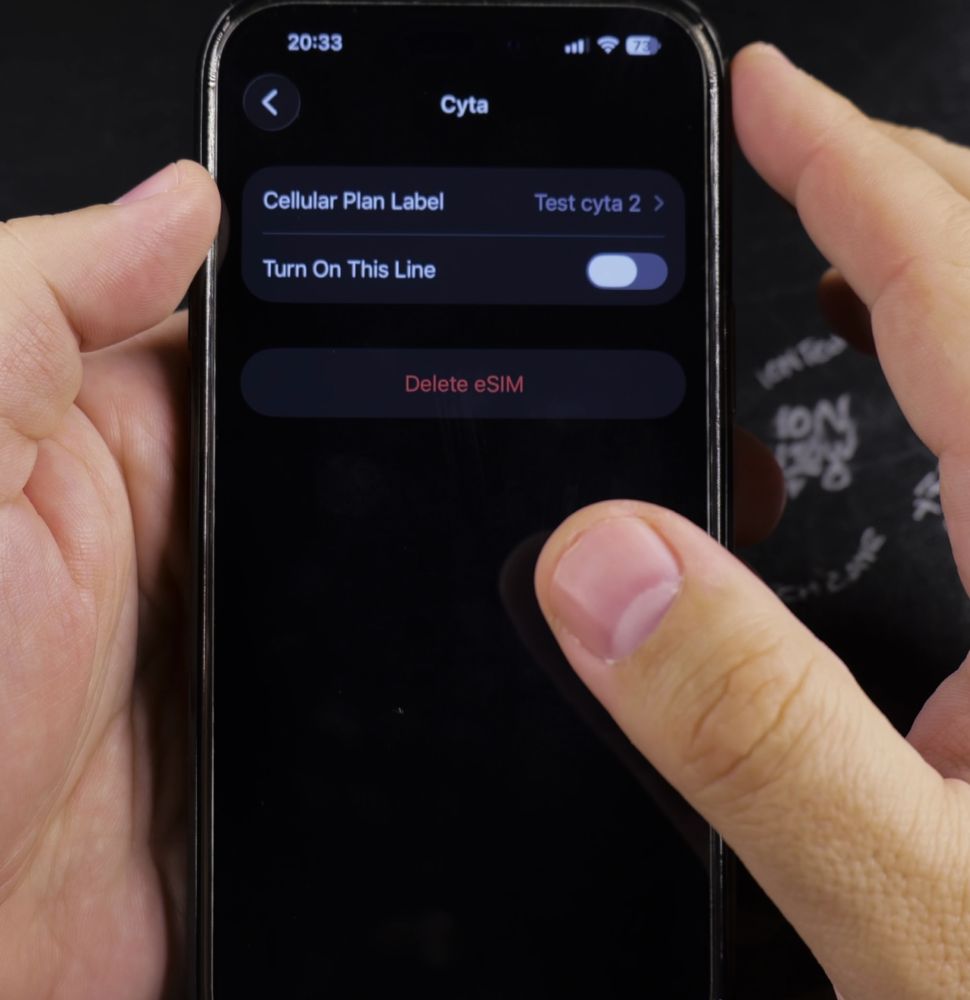
Under the *SIMs* header, tap the specific eSIM profile you want to delete.
4. Tap Delete eSIM and Confirm
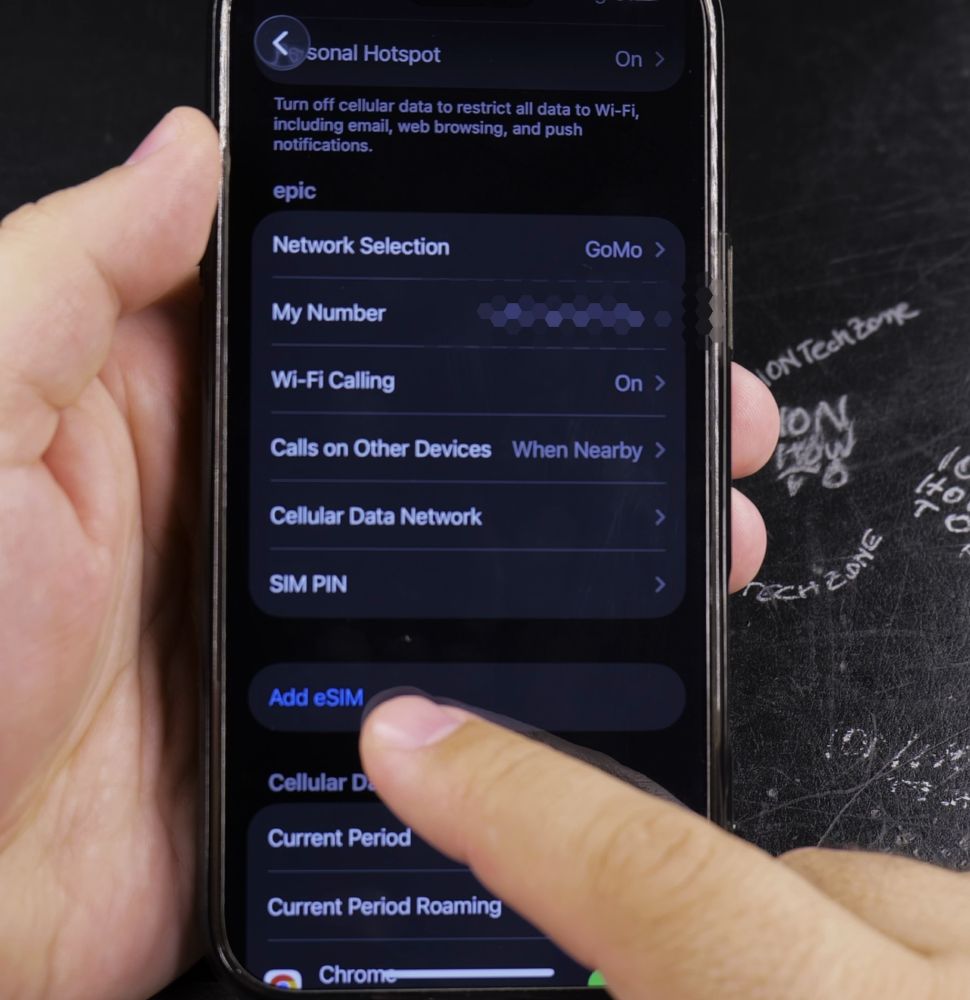
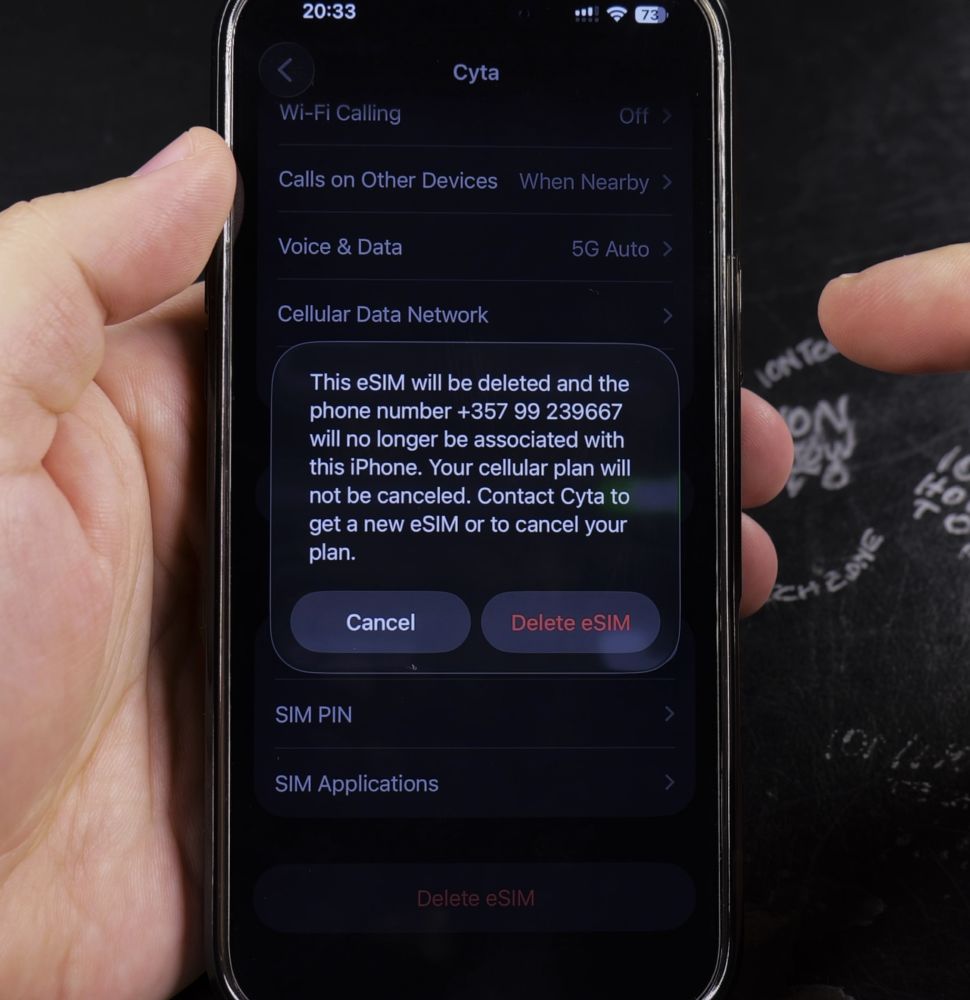
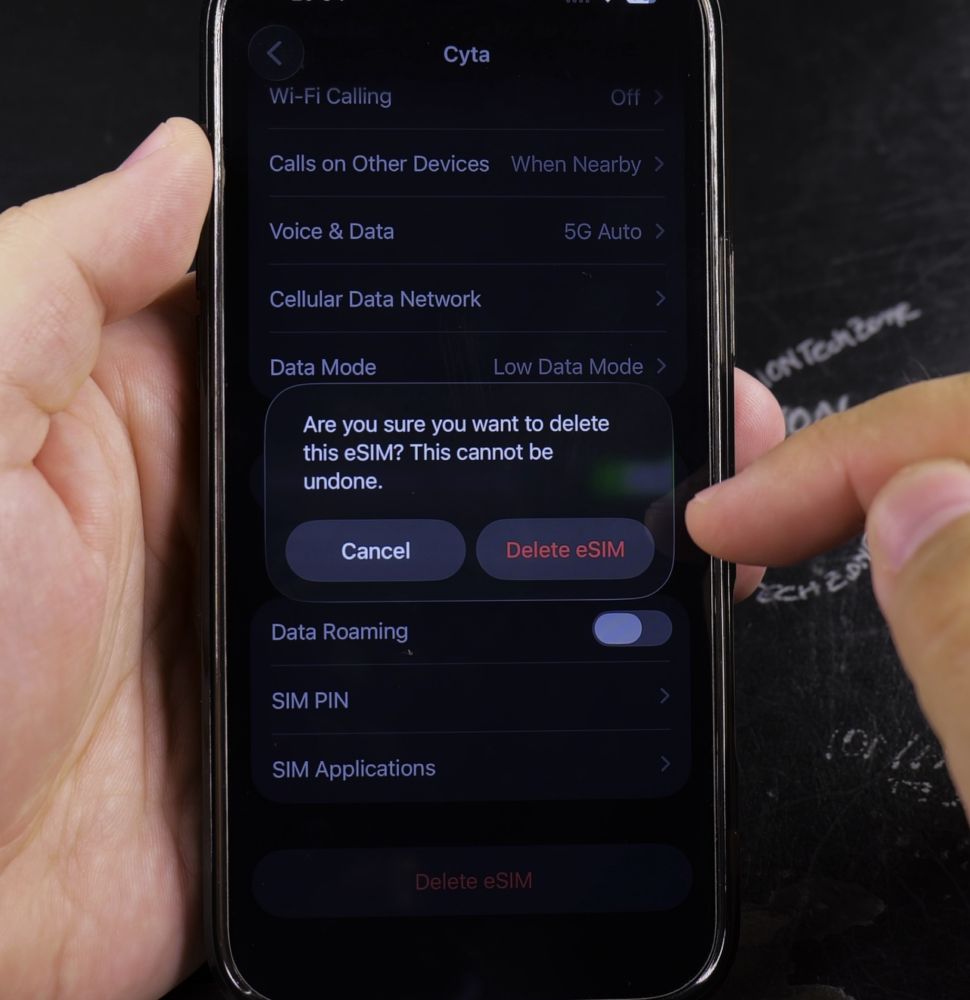
Scroll down to the bottom of the screen, tap **Delete eSIM**, then tap **Delete eSIM** again to confirm.
Helpful Tips
Deleting an eSIM deletes the profile from your phone but does not automatically cancel your cellular subscription with your provider. For more mobile setup guides, read our guide on Removing Phone Number from iMessage or visit our iPhone Guides hub.
Leave a Reply Cancel reply