


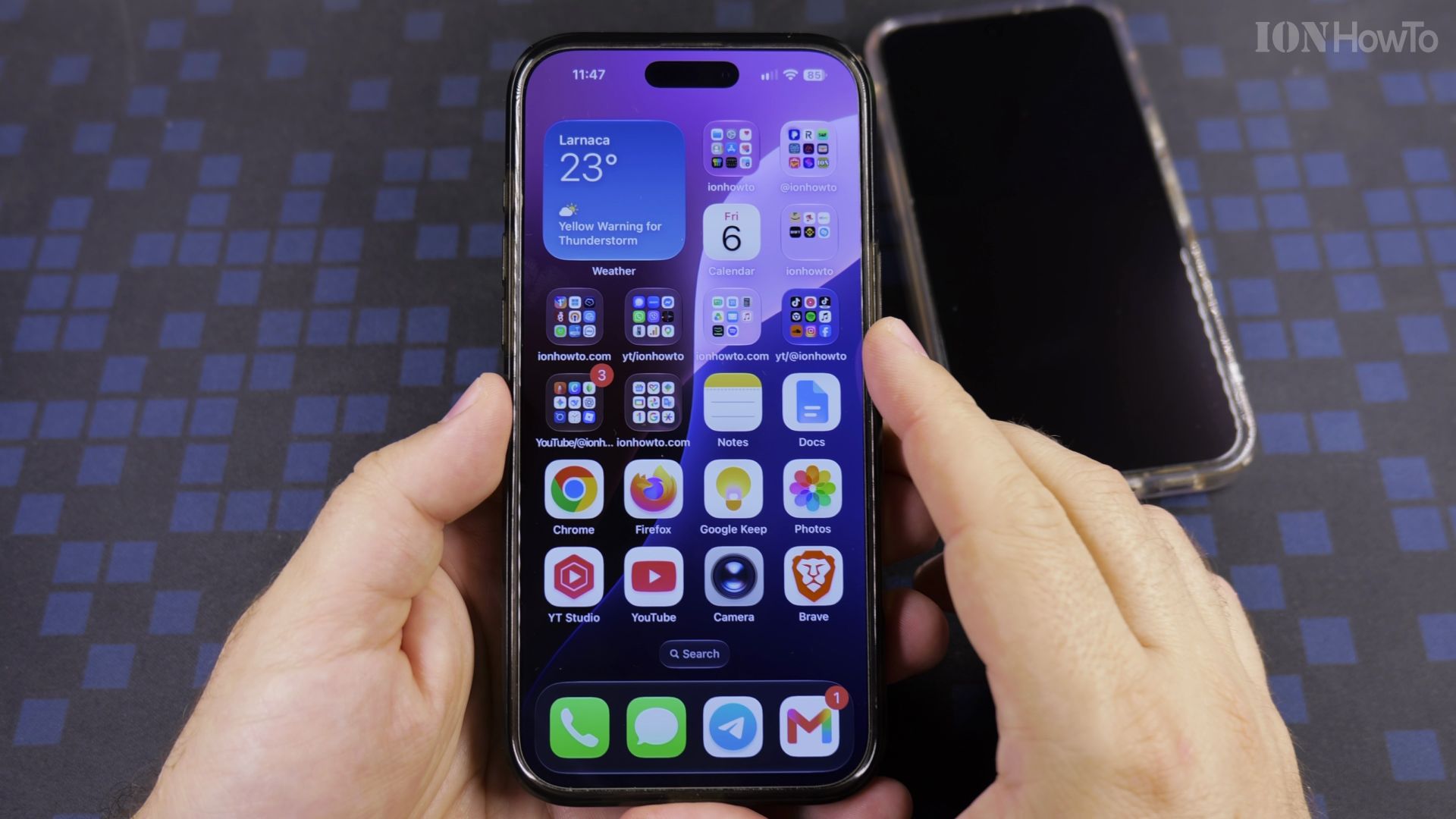
A friend with an iPhone is at your door and needs your Wi-Fi. No typing the password: your Android phone can show a code and their iPhone scans it.

What you will do
- Open your Wi-Fi network on the Pixel
- Tap Share and confirm it is you
- Scan the code with the iPhone camera
- Join the network
Recommended Amazon Gear and Accessories
Disclosure: This article contains Amazon affiliate links. As an Amazon Associate, we earn from qualifying purchases at no extra cost to you.
- iPhone Accessories
- iPhone Charger
- iPhone USB-C Cable
- iPhone MagSafe Accessories
- iPhone Case
- iPhone Screen Protector
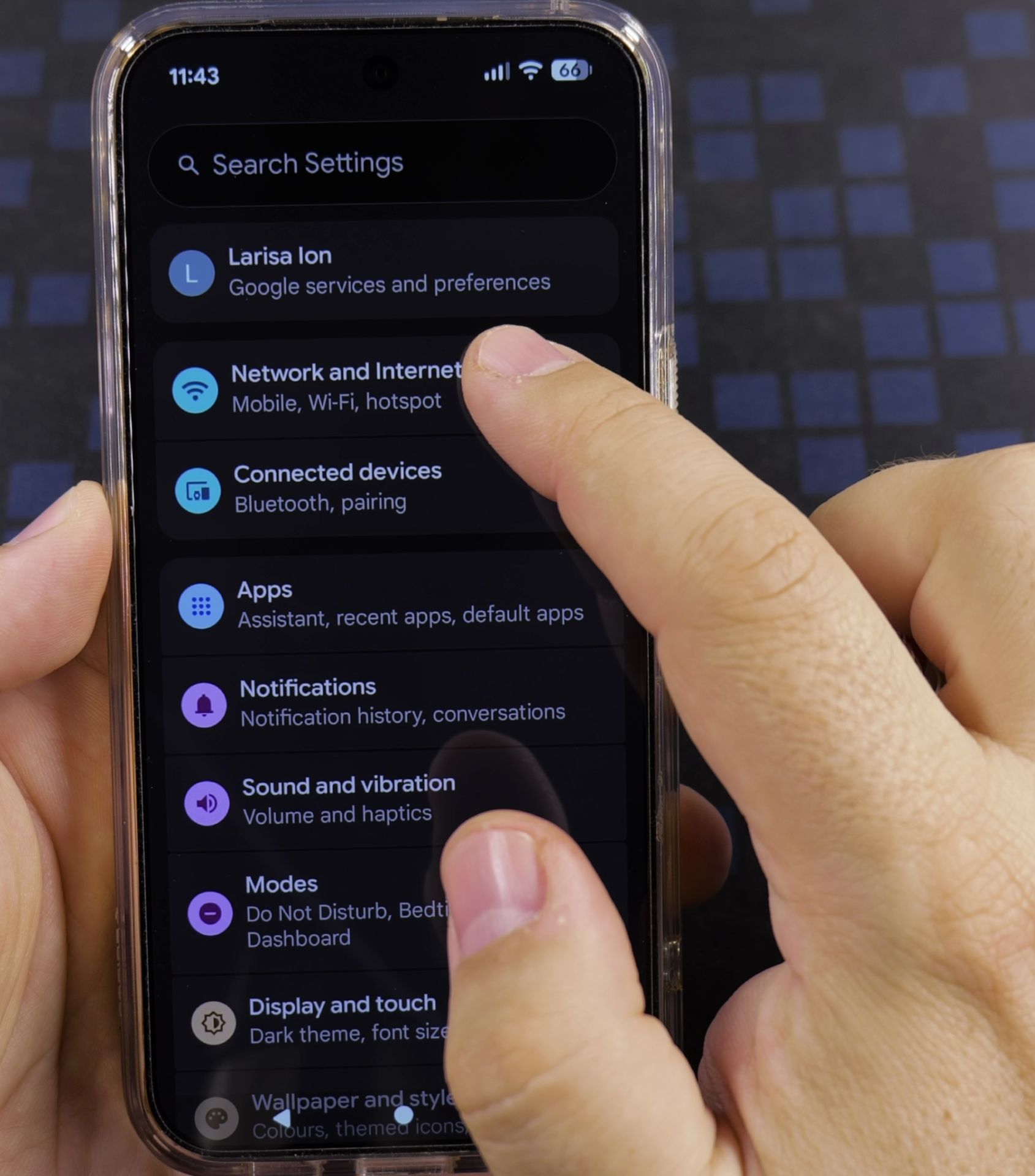
1. Open your Wi-Fi network on the Pixel
On your Pixel open **Settings**, tap **Network and Internet**, then **Internet**, and tap the gear beside your Wi-Fi name.

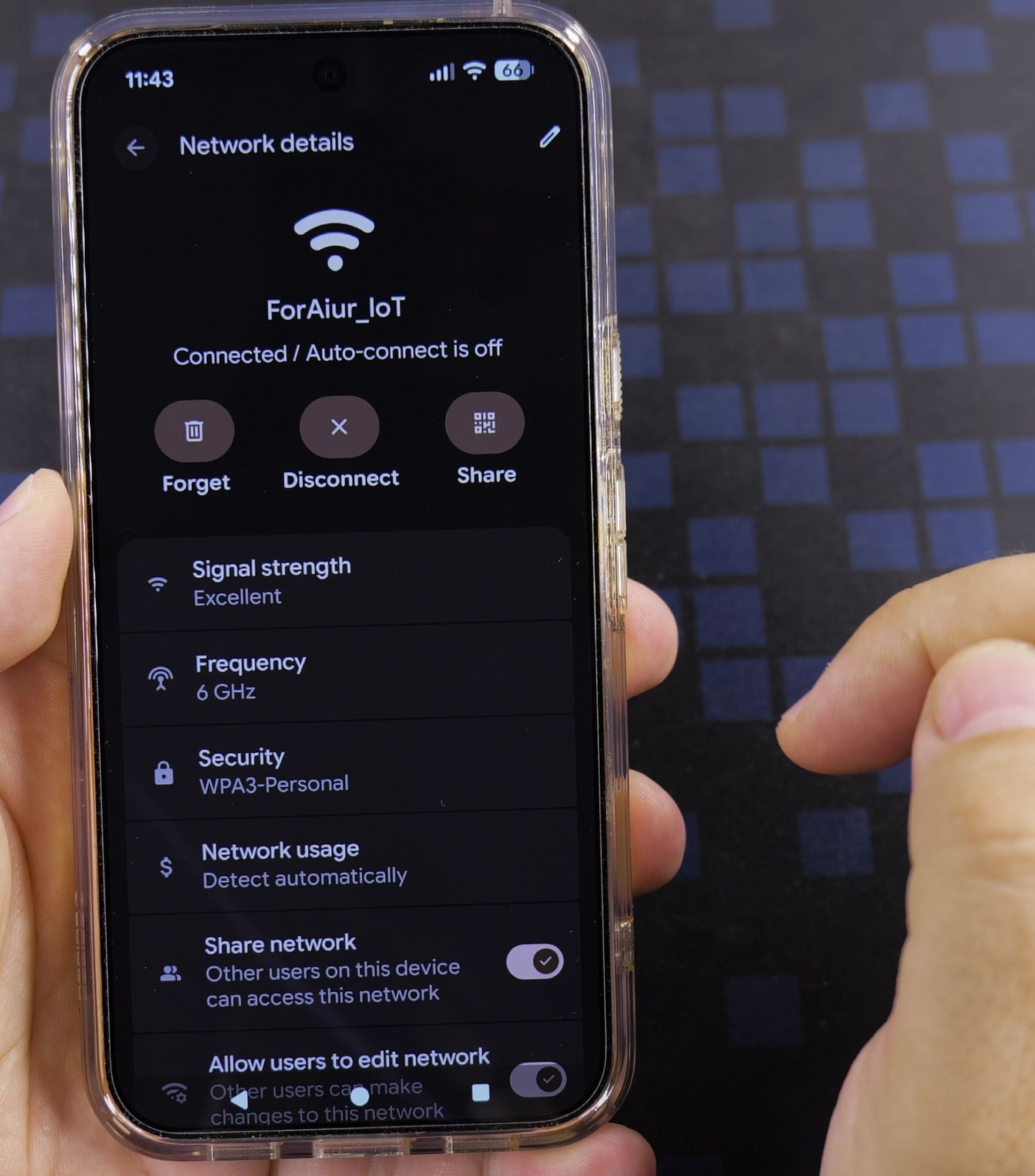
2. Tap Share and confirm it is you
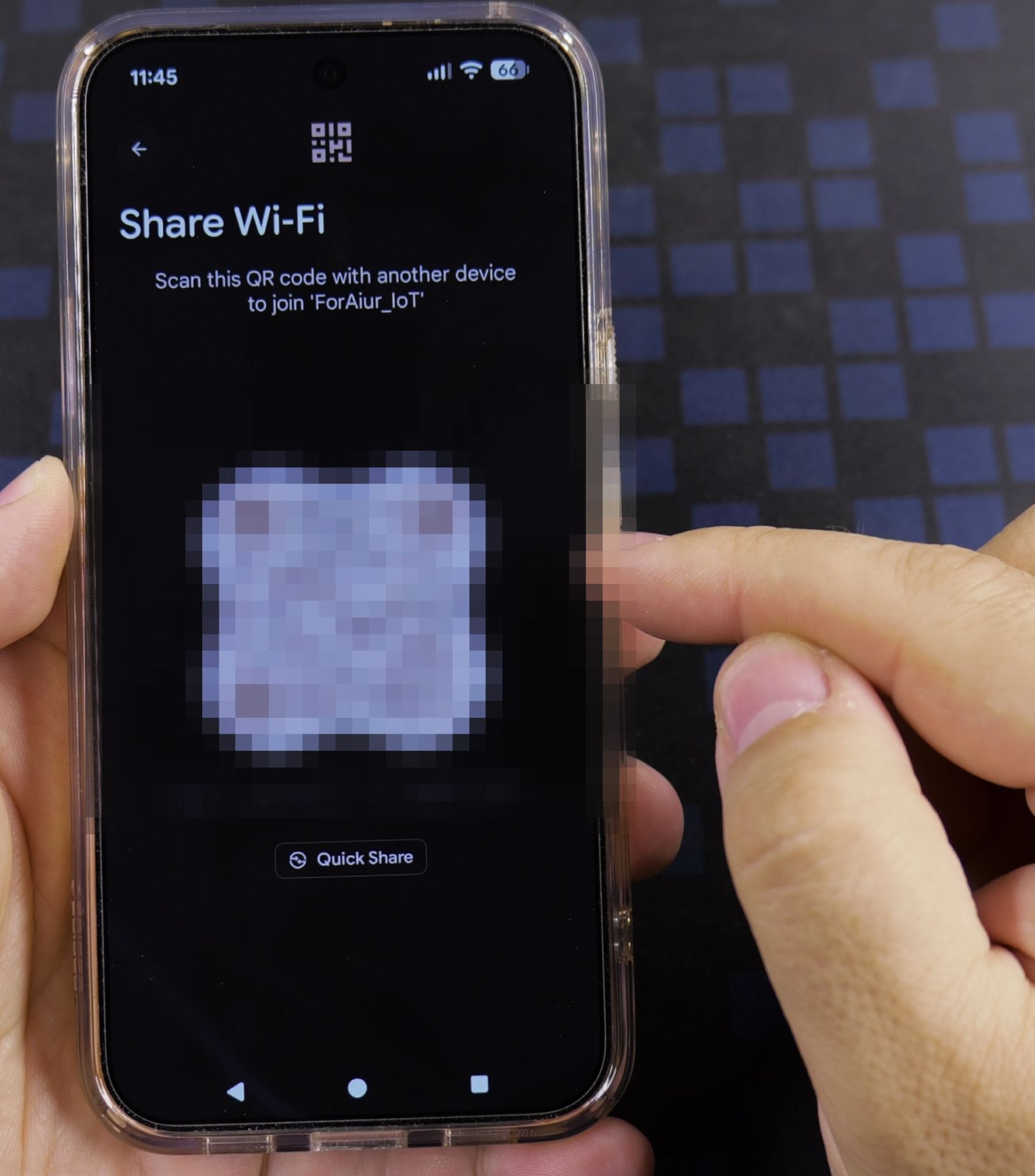
Tap **Share**. Confirm with your fingerprint or face. A QR code appears on the screen.
3. Scan the code with the iPhone camera
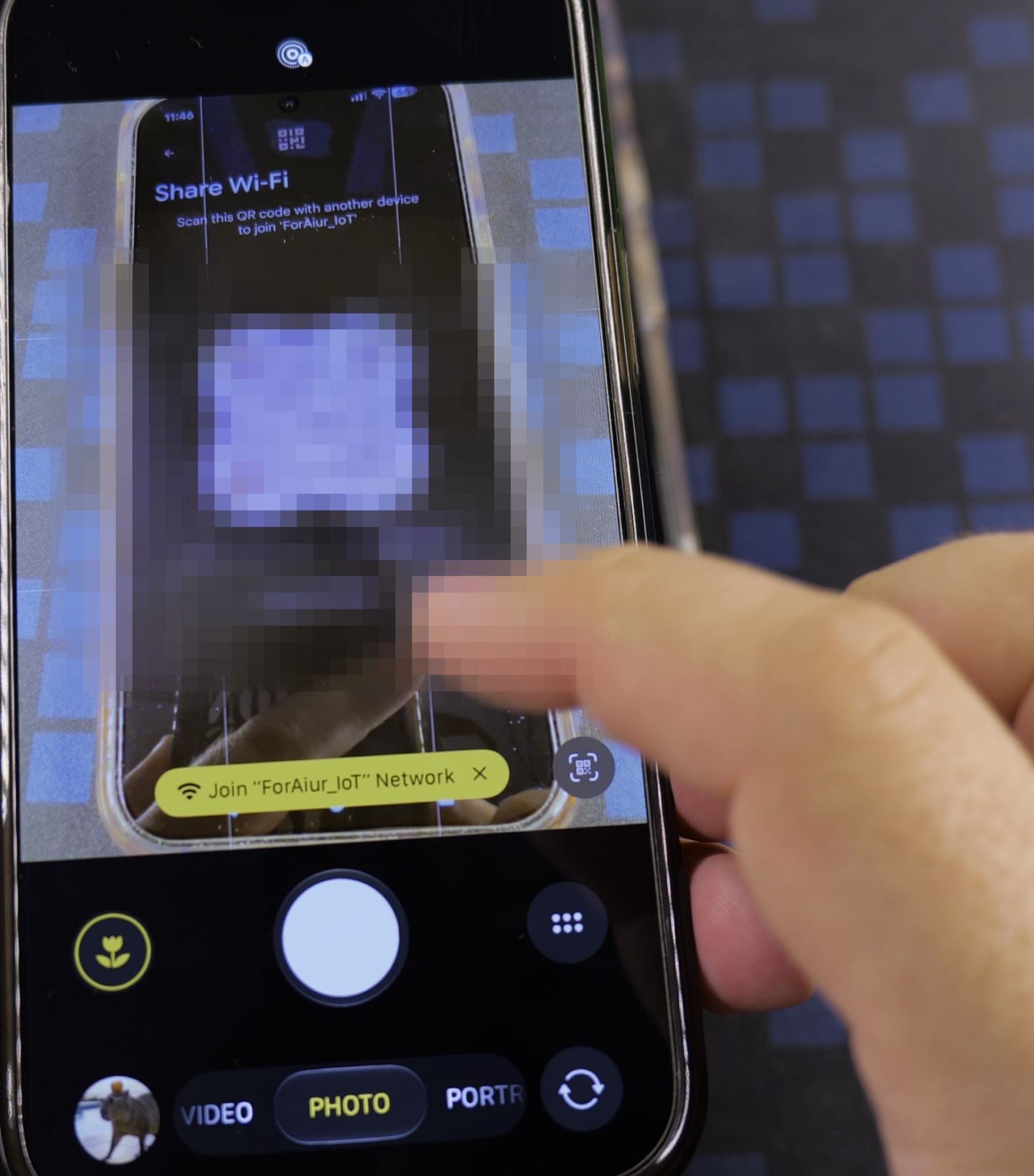
On the iPhone open the **Camera** app in **Photo** mode and point it at the code. Keep both phones steady.
4. Join the network
A banner appears. Tap it, then tap **Join** on the prompt to connect.

Helpful Tips
- The code and password are hidden in this video on purpose. Only share yours with people you trust.
- If the camera does not react, brighten the Pixel screen and move closer.
Related Guides
- How to Share Wi-Fi Passwords with QR Codes on iPhone – Tired of spelling out your complicated Wi-Fi password every time someone visits?
- Change Android Wi-Fi Hotspot Password – How to Change Your Android Wi-Fi Hotspot Password.
- Change Wi-Fi Settings from Static IP to DHCP on Android – How to Change Wi-Fi Settings from Static IP to DHCP on Android Devices.
- Android & Mobile Guides – Browse more tutorials and practical guides in this section.
Leave a Reply Cancel reply