


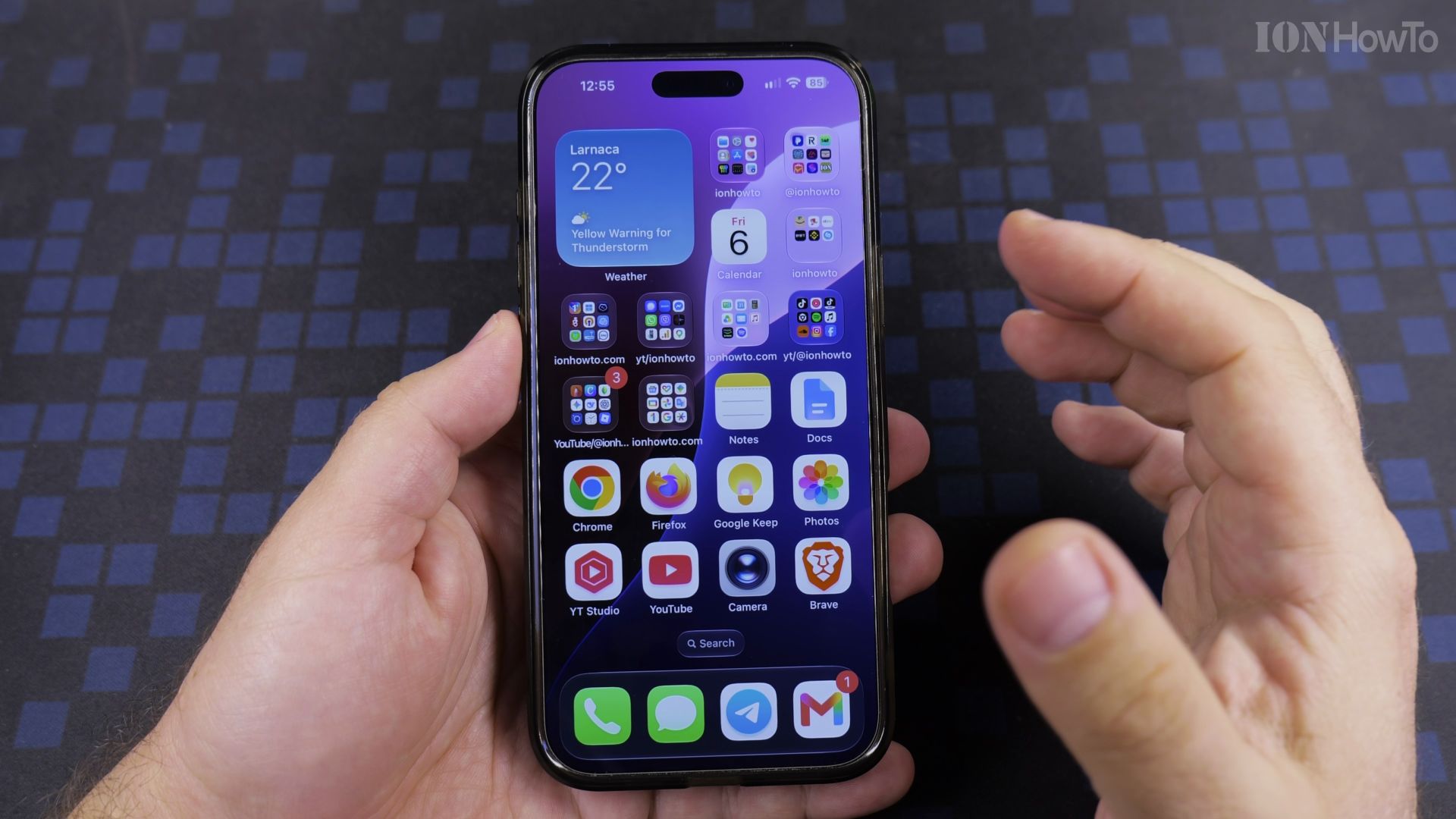
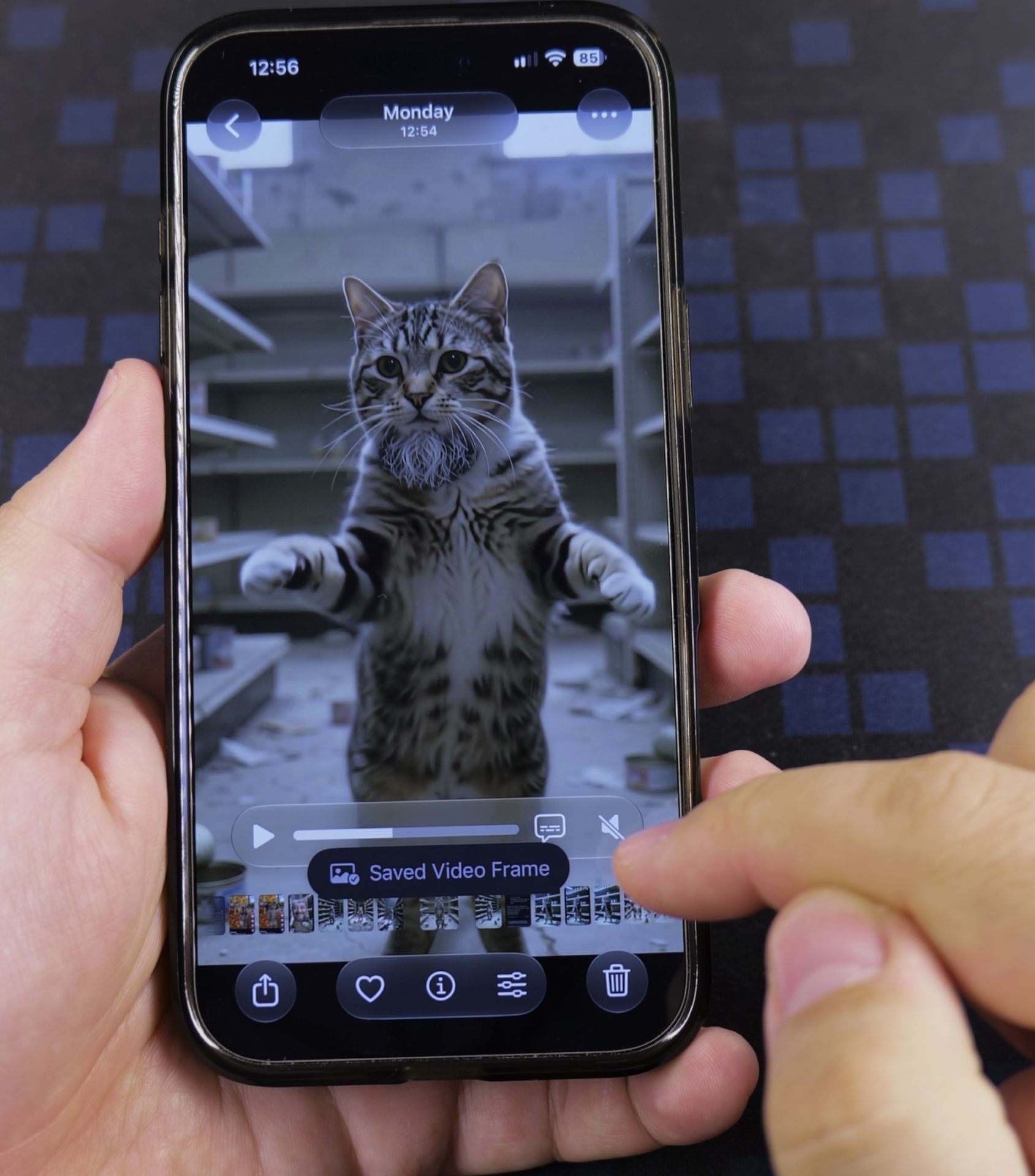
Found the perfect moment inside a video? A screenshot of it will look soft. Your iPhone can save that exact frame as a sharp photo instead.

Your roadmap
- Why a screenshot is not the same
- Open the video and pause on your moment
- Tap the three dots
- Choose Save Video Frame as Photo
Recommended Amazon Gear and Accessories
Disclosure: This article contains Amazon affiliate links. As an Amazon Associate, we earn from qualifying purchases at no extra cost to you.
- iPhone Accessories
- iPhone Charger
- iPhone USB-C Cable
- iPhone MagSafe Accessories
- iPhone Case
- iPhone Screen Protector
1. Why a screenshot is not the same
A screenshot grabs the screen at screen size. Saving the frame keeps the picture quality of the video itself.

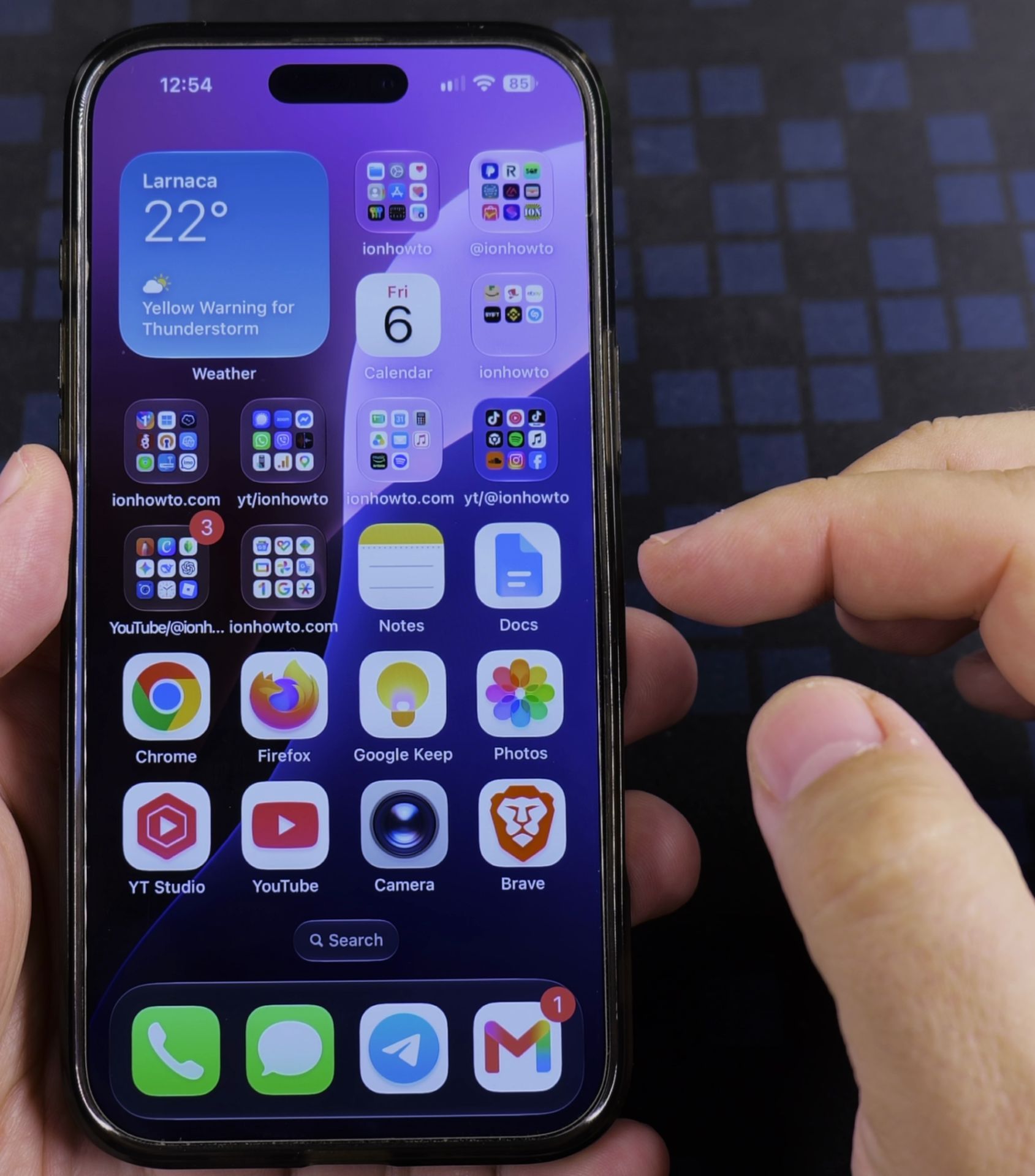
2. Open the video and pause on your moment
Open the video in **Photos**, tap the screen to pause, and drag the slider until you reach the frame you want.
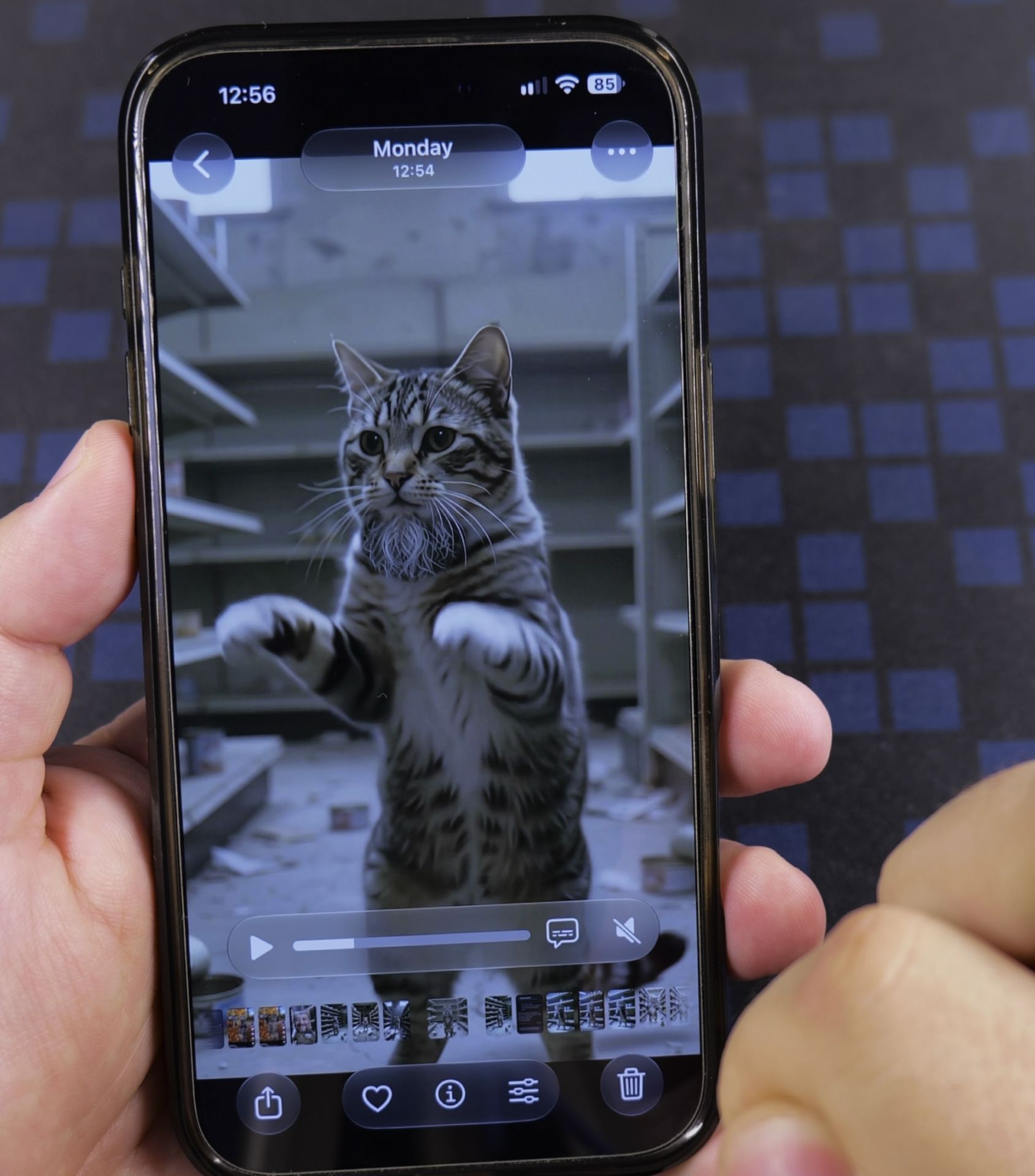
3. Tap the three dots
Tap the **three dots** at the top right of the screen to open the menu.
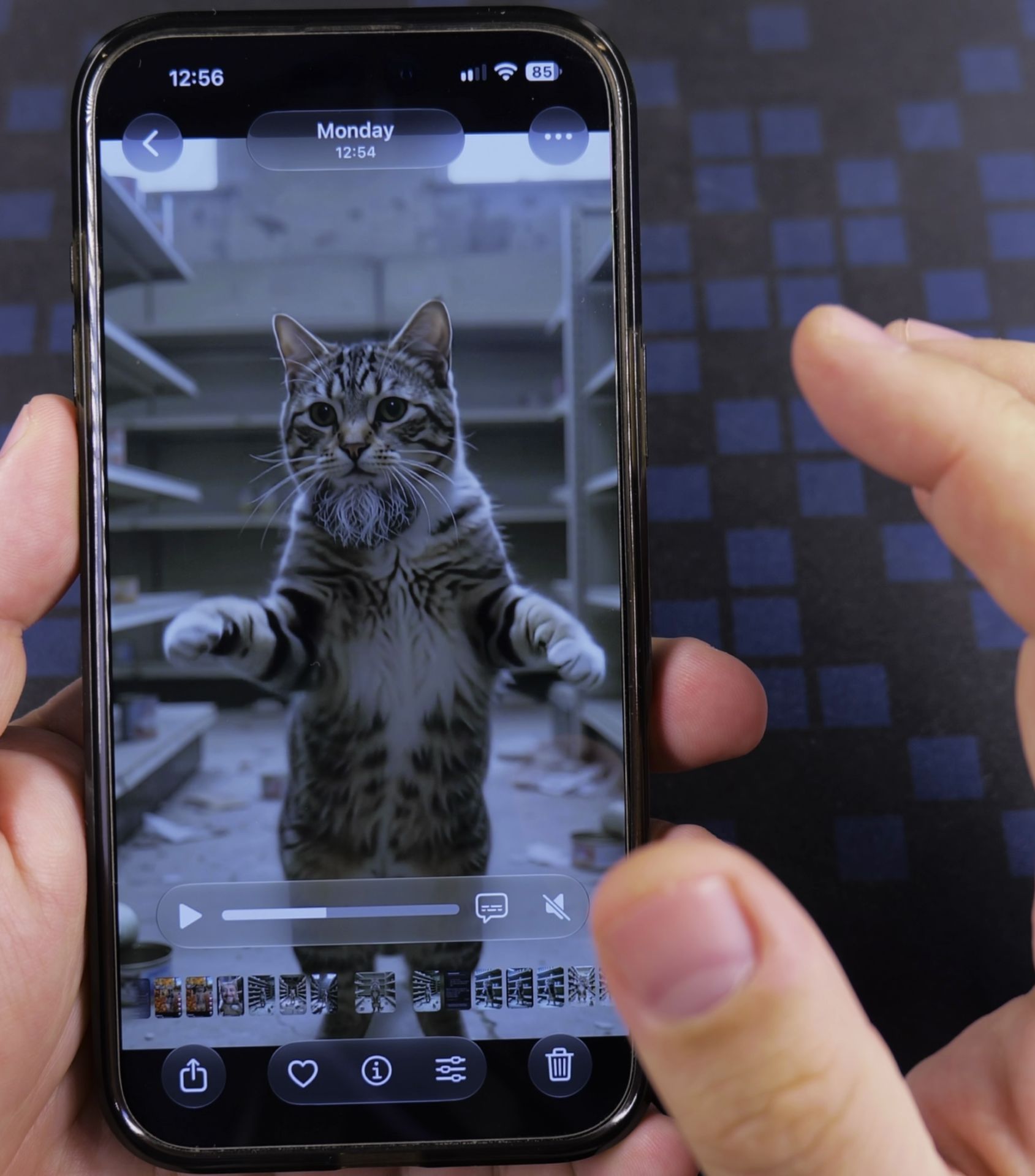
4. Choose Save Video Frame as Photo
Tap **Save Video Frame as Photo**. The frame is now in your library as a normal picture.
Helpful Tips
- Pause first, then nudge the slider with your finger for an exact frame.
- Look in your Recents album to find the new photo.
Related Guides
- Save Photos From Videos on iPhone – How to Save Photos From Videos on iPhone.
- iPhone How to Show App Labels Customize Home Screen – If the names beneath your iPhone app icons disappeared after updating, your icons were switched to the large view.
- How to Add an App Icon Back to the Home Screen on iPhone – If an application icon disappeared from your iPhone Home Screen even though the app is still installed on your device, it is…
- iPhone How-To Guides – Browse more tutorials and practical guides in this section.
Leave a Reply Cancel reply