


Amazon links
As an Amazon Associate I earn from qualifying purchases:
- iPhone Accessories
- iPhone Charger
- iPhone Cases
- iPhone Screen protector
- iPhone Magsafe
- iPhone Wallet
- iPhone Usb c cable
If you’re selling, returning, or giving away your iPhone, you’ll want to wipe all your personal data first. A proper factory reset ensures your info stays safe and the next owner can set it up like a brand-new phone.
This guide is based on iOS 18.3.2 (iPhone 16 Pro Max Titanium Black 256GB, Model A3296 – MYWV3ZD/A), but the steps are similar for most iPhones.
How to Sign Out and Factory Reset Your iPhone – Erase All Data Before Selling.

Quick Steps and Scenarios Overview
| What You Need to Do | Quick Jump |
|---|---|
| Back Up Your iPhone | Jump to Step 1 |
| Sign Out of iCloud & Turn Off Find My iPhone | Jump to Step 2 |
| Erase All Content & Settings | Jump to Step 3 |
| Remove SIM Card (If Applicable) | Jump to Step 4 |
| Final Check Before Selling | Jump to Step 1 |
1. Back Up Your iPhone
Before resetting, save your data so you don’t lose anything important.

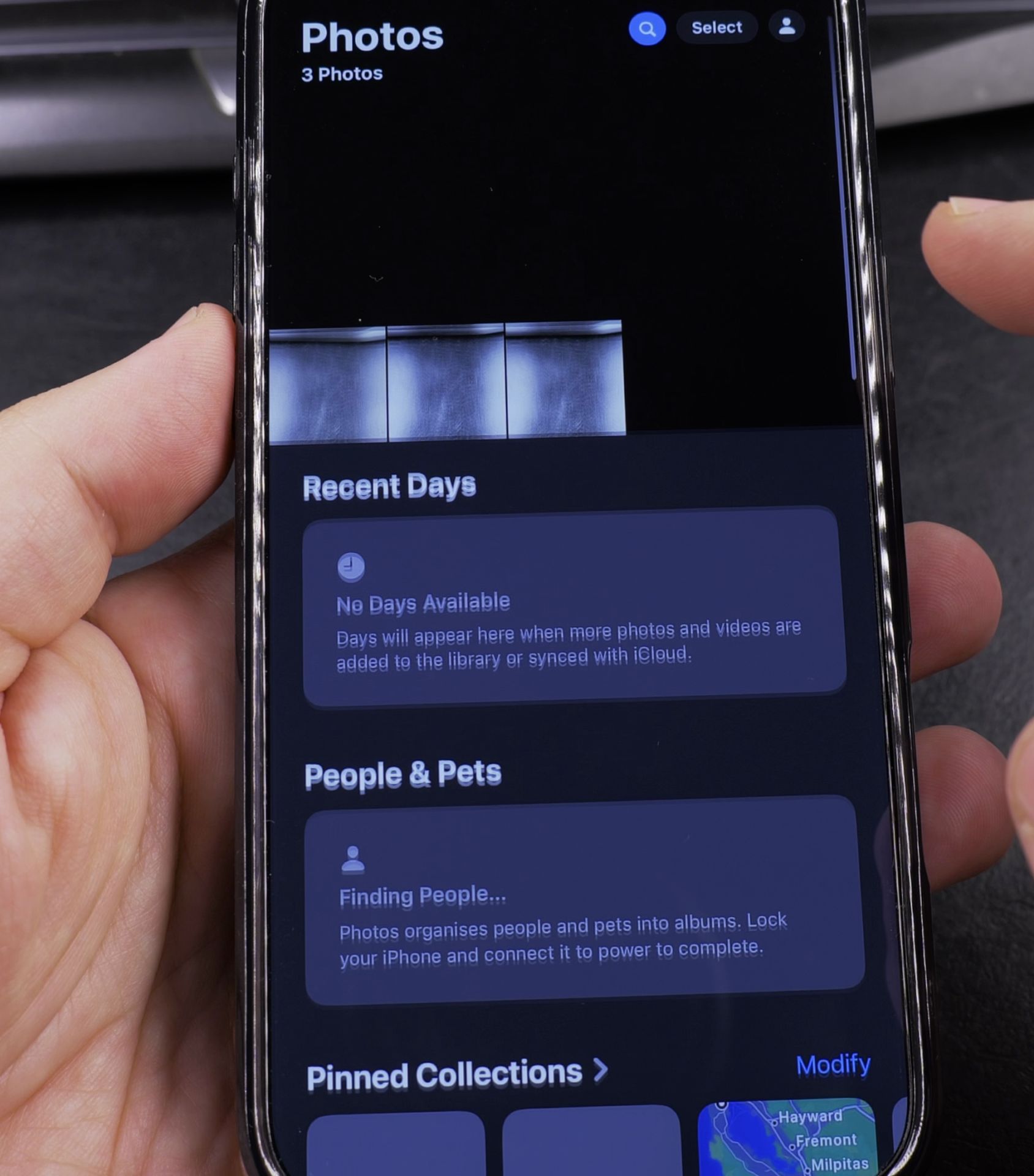
- iCloud Backup:
- Go to Settings > [Your Name] > iCloud > iCloud Backup.
- Tap Back Up Now and wait for it to finish.
- Computer Backup (recommended):
- Connect your iPhone to a Mac or PC.
- On a Mac (macOS 10.15 or later), use Finder. On a PC or older Mac, use iTunes.
- Select Back Up Now and wait for completion.
2. Sign Out of iCloud & Turn Off Find My iPhone
This removes the iCloud lock so the new owner can activate the phone.
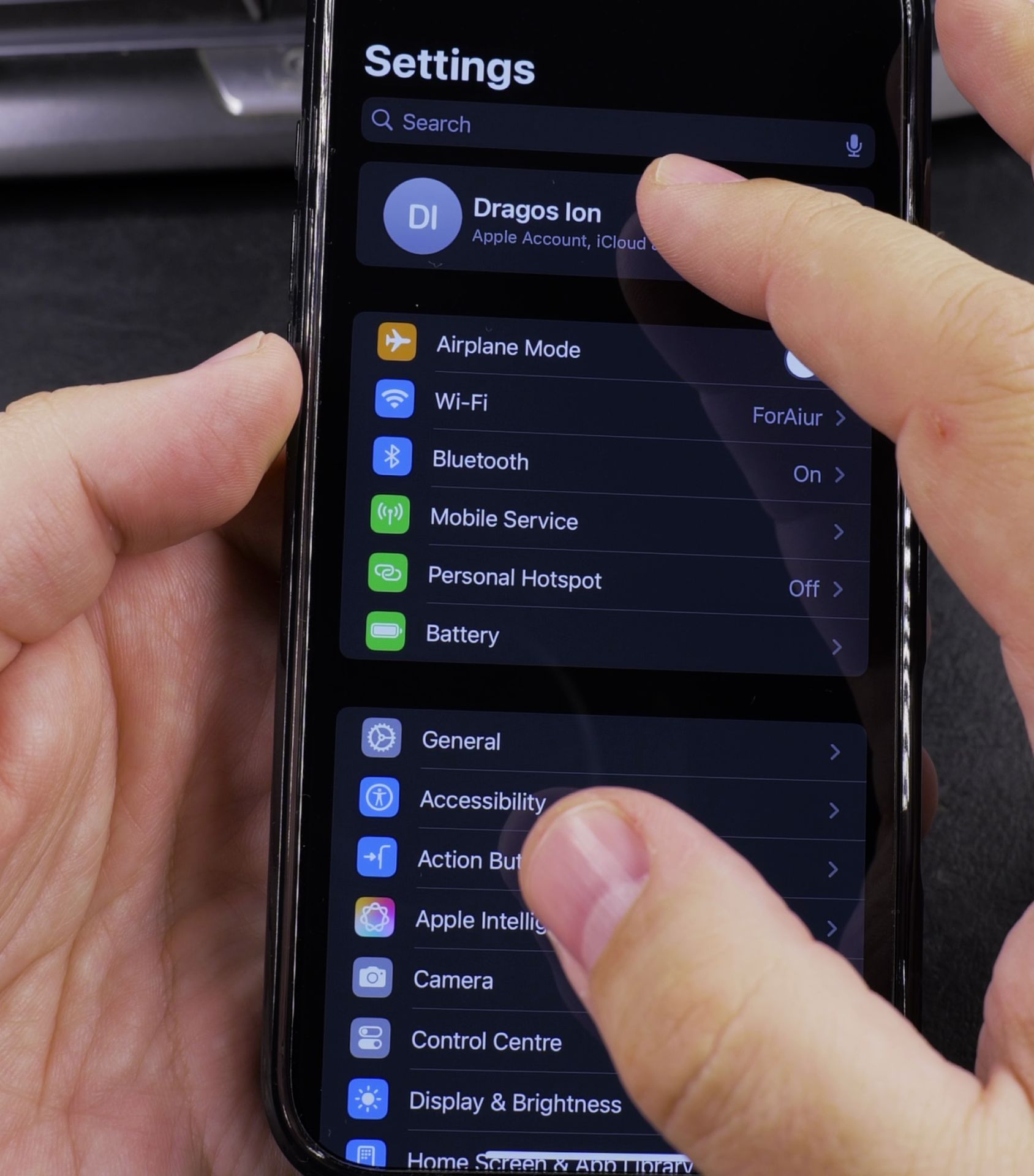
- Open Settings > tap your Apple ID (top of the screen).
- Scroll down and tap Sign Out.
- Enter your Apple ID password and tap Turn Off (for Find My iPhone).
- Confirm by tapping Sign Out again.
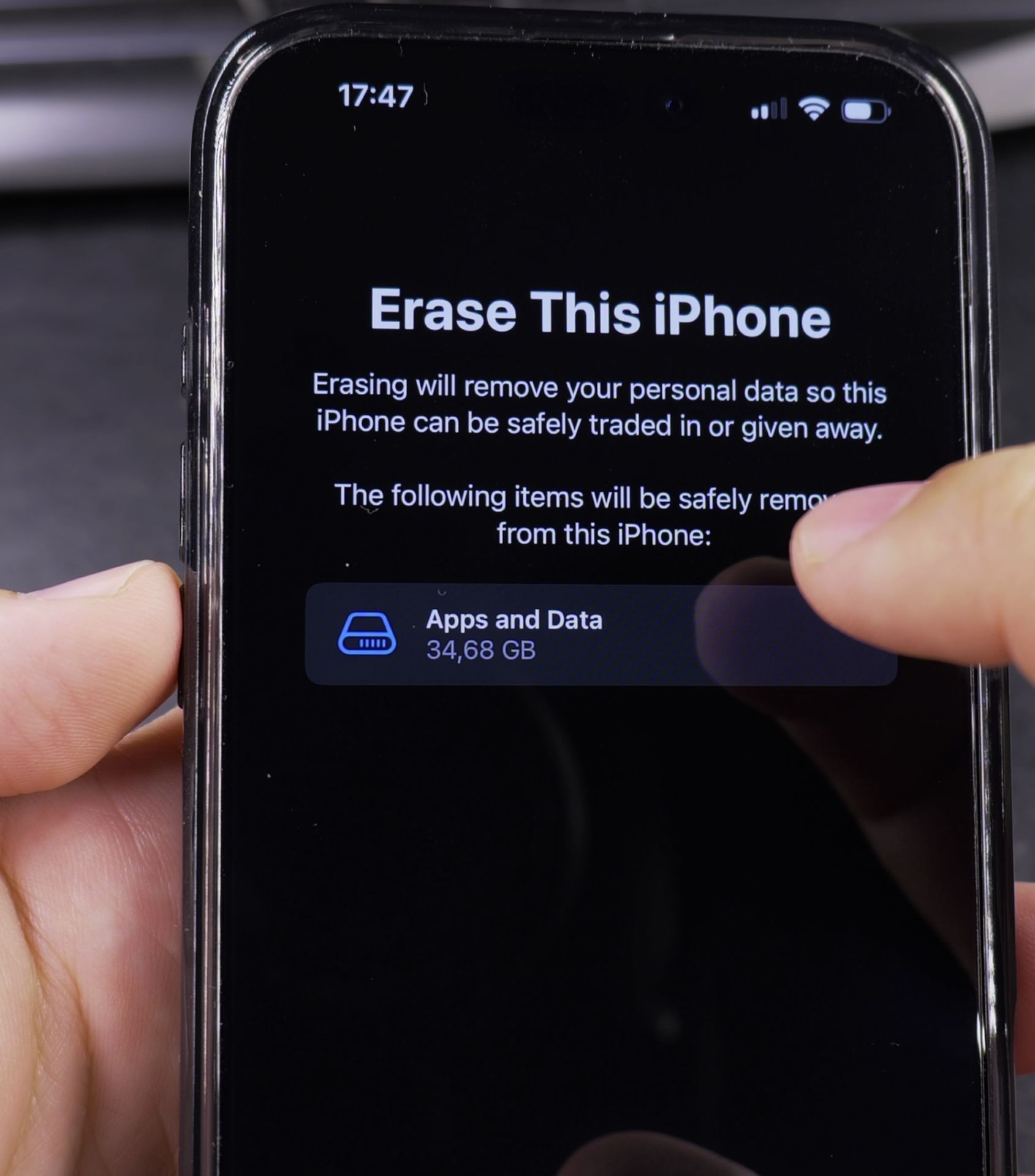
3. Erase All Content & Settings
This performs a full factory reset.

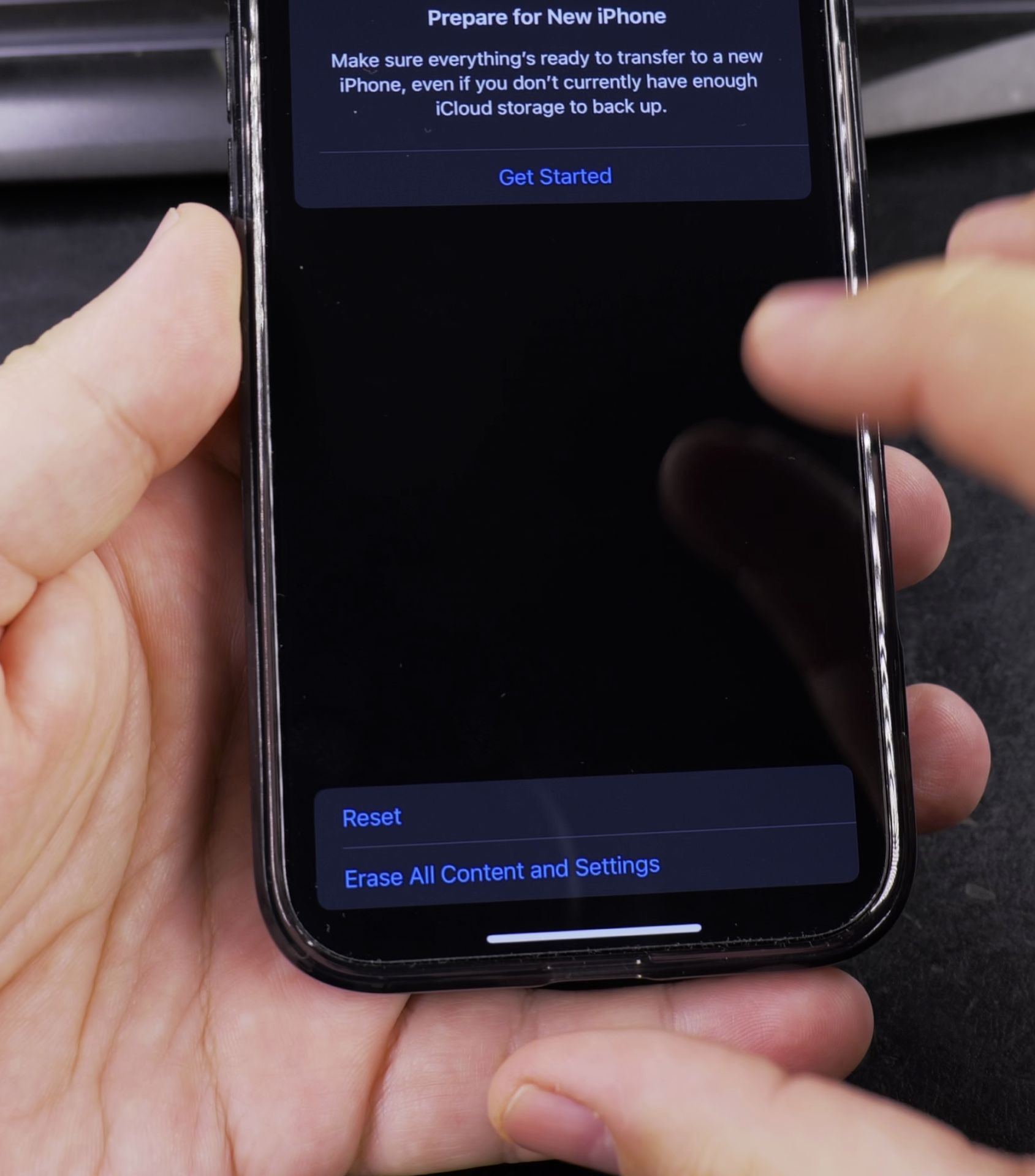
- Go to Settings > General > Transfer or Reset iPhone.
- Tap Erase All Content and Settings.
- If prompted, enter your passcode and Apple ID password.
- Confirm by tapping Erase Now.
- Wait for the process to complete, now your iPhone will restart as if it’s brand new.
4. Remove SIM Card (If Applicable)
If your iPhone has a physical SIM:
- Eject the SIM tray (use a paperclip or SIM tool) and remove the card.
For eSIM users:
- Go to Settings > Cellular > Remove Cellular Plan before resetting.
Final Check Before Selling
After resetting:
- The iPhone should show the “Hello” setup screen.
- Try turning it on to confirm no activation lock appears.
- If the new owner gets an iCloud lock, you may need to remove it via Apple.
That’s it! Your iPhone is now clean, secure, and ready for its next owner.
Helpful Tips
Take your time and check the screen carefully after each tap so you can confirm the setting changed as expected. If an option appears in a slightly different spot on your device, watch the embedded video above for a closer look.
Related Guides
- Reset All Settings on iPhone Without Losing Data – How to Reset All Settings on iPhone Without Losing Your Data.
- How to Transfer Data from iPhone to Google Pixel 11 Pro XL Step-by-Step – Moving from an iPhone to a new Android smartphone is much simpler when you use the built-in Transfer to Android feature…
- iPhone How-To Guides – Browse more tutorials and practical guides in this section.
Leave a Reply Cancel reply