


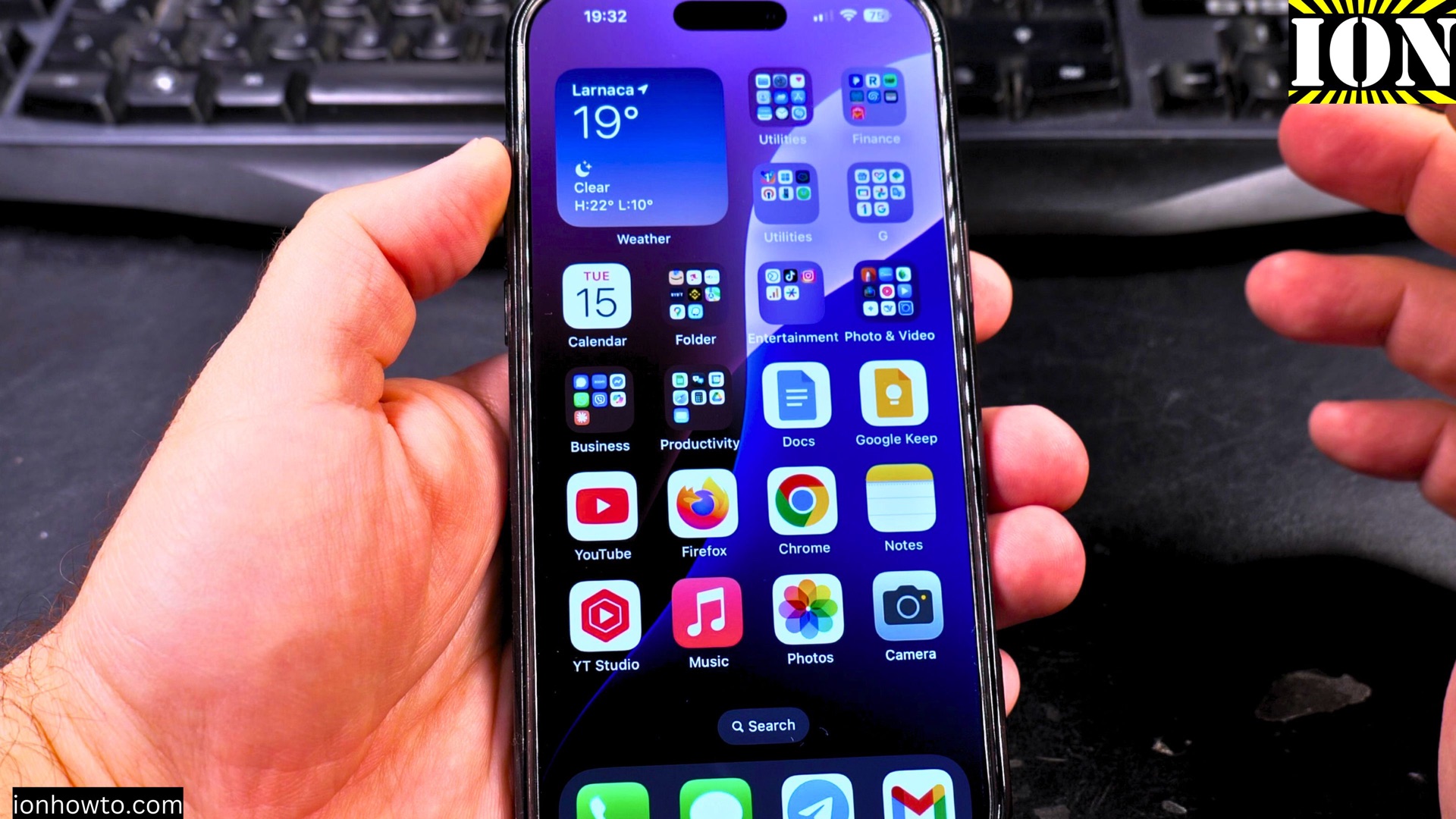
If your iPhone’s power button is broken or unresponsive, you can still shut down your iPhone. If you’re using the latest iPhone 16 Pro Max (iOS 18.3.2) or an older model, here are a few easy ways to turn off your iPhone without touching the power button.
Amazon links
As an Amazon Associate I earn from qualifying purchases:
- iPhone Accessories
- iPhone Charger
- iPhone Cases
- iPhone Screen protector
- iPhone Magsafe
- iPhone Wallet
- iPhone Usb c cable
How to Turn Off iPhone Without the Power Button.

Quick Steps and Scenarios Overview
| What You Need to Do | Quick Jump |
|---|---|
| Method 1: Shut Down Using Settings | Jump to Step 1 |
| Method 2: Use Control Center (iOS 18 & Later) | Jump to Step 2 |
| Method 3: Use AssistiveTouch (For Broken Buttons) | Jump to Step 3 |
| Method 4: Force Restart (If Frozen & Unresponsive) | Jump to Step 4 |
Method 1: Shut Down Using Settings
The easiest way to power off your iPhone without buttons is through Settings.

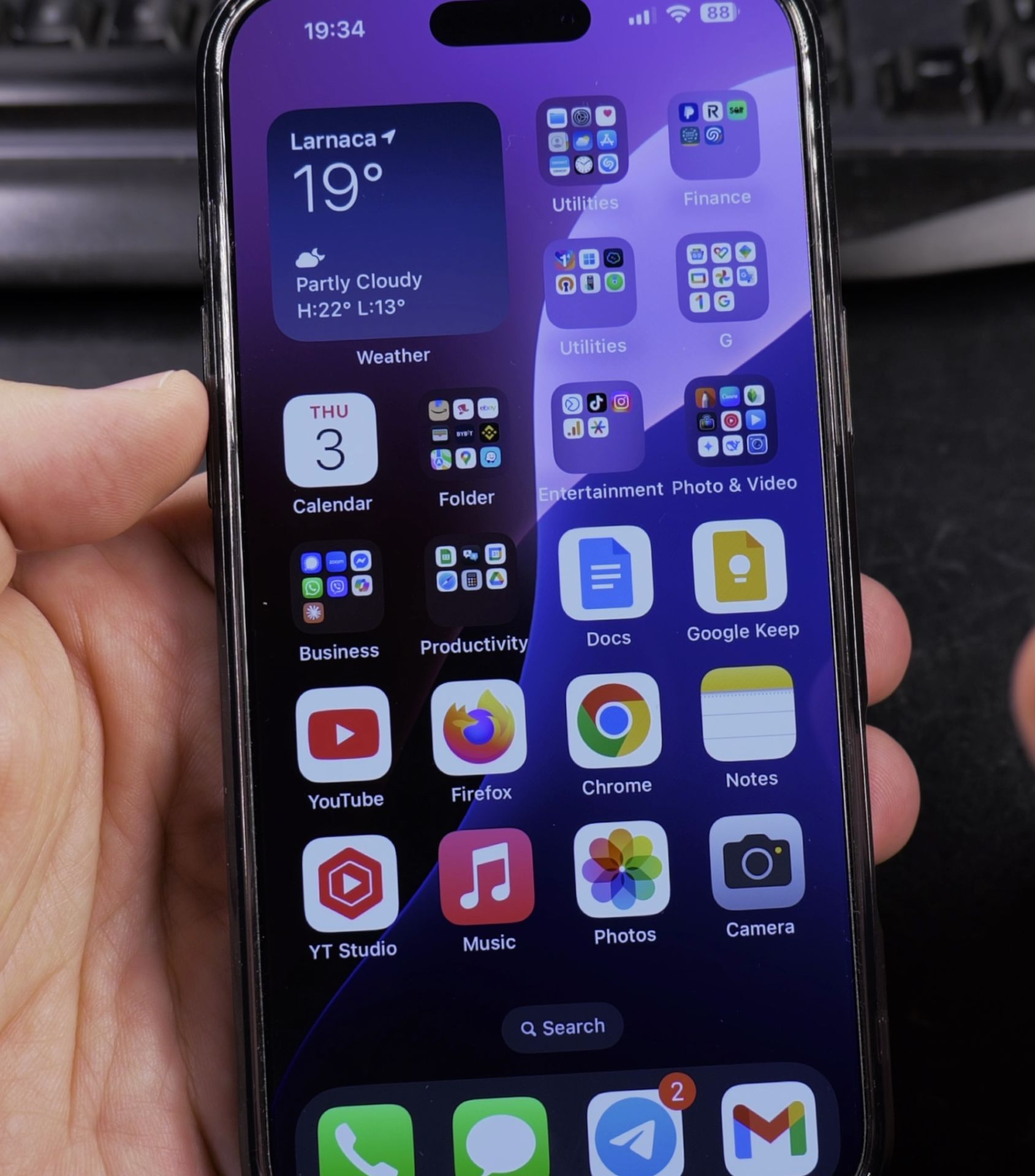
- Open Settings > General.
- Scroll down and tap Shut Down.
- Slide the power-off slider that appears to turn off your iPhone.
This method works on all iPhones running iOS 11 or later.
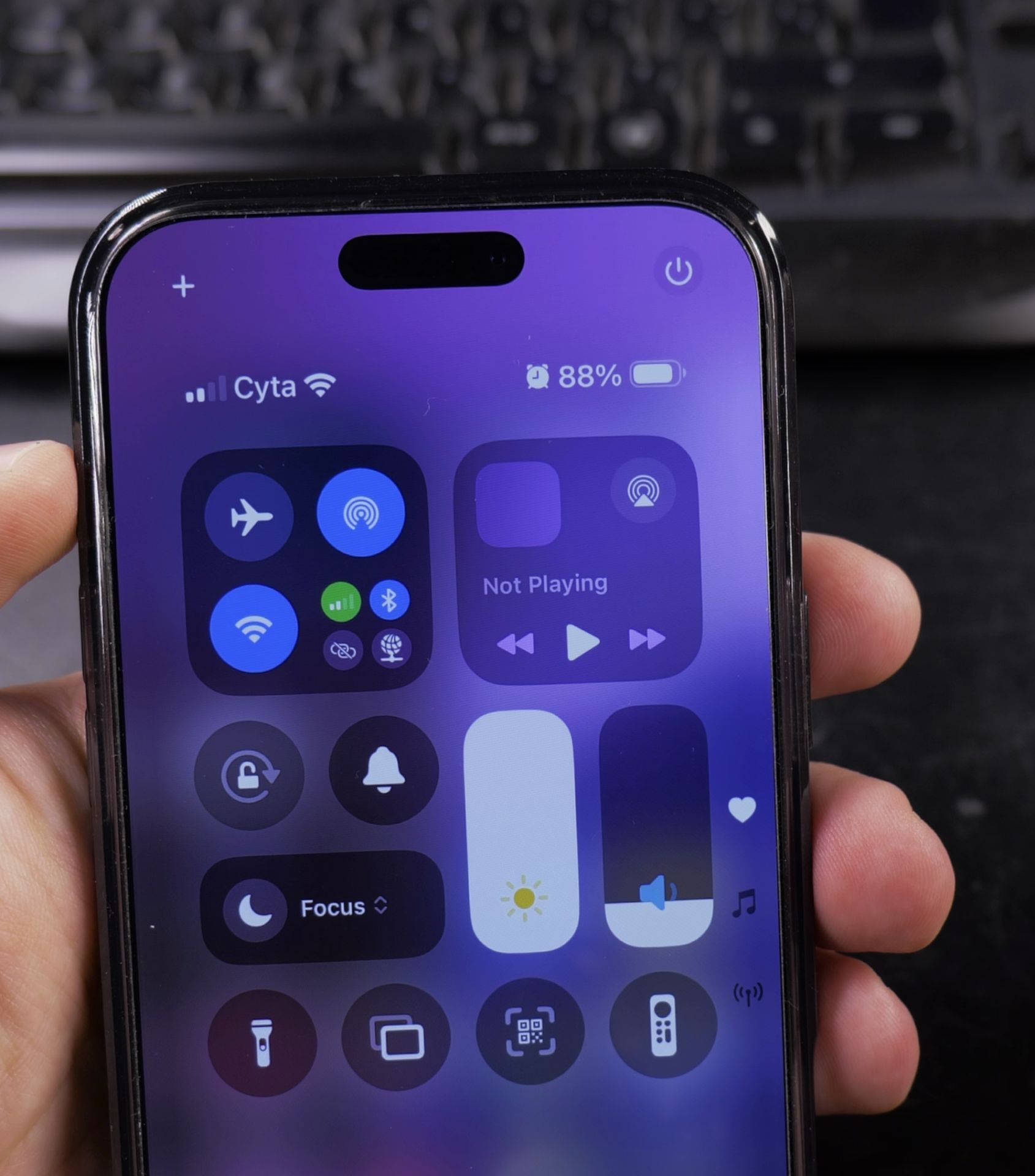
Method 2: Use Control Center (iOS 18 & Later)
Since iOS 18, Apple added a virtual power button in the Control Center for quick shutdowns.
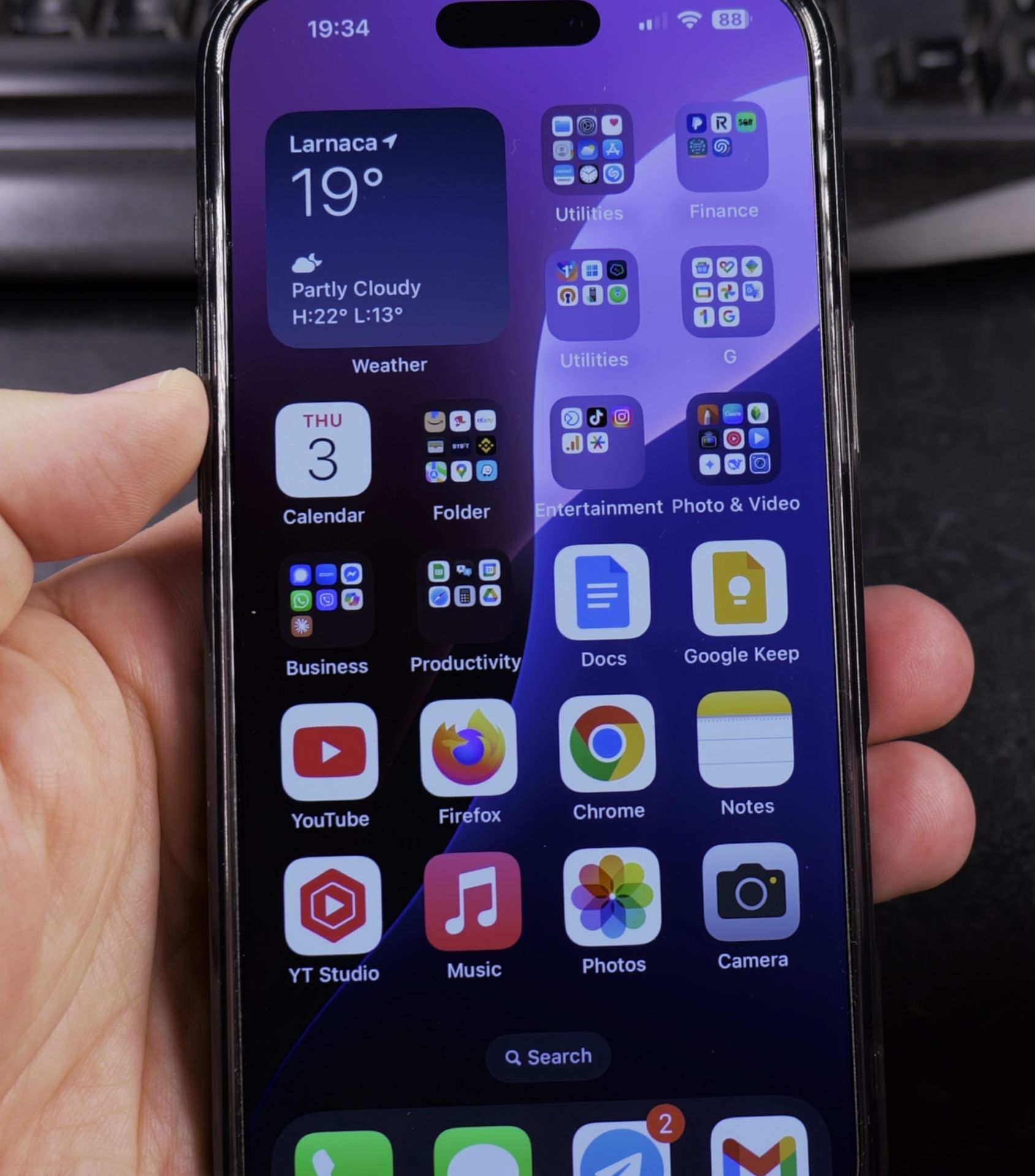
- Swipe down from the top-right corner (or up from the bottom on older iPhones) to open Control Center.
- Tap the new Power Button icon (looks like a circle with a line).
- Slide the power-off slider to shut down your iPhone.
Method 3: Use AssistiveTouch (For Broken Buttons)
If your power button is not working, AssistiveTouch creates a virtual shutdown option.
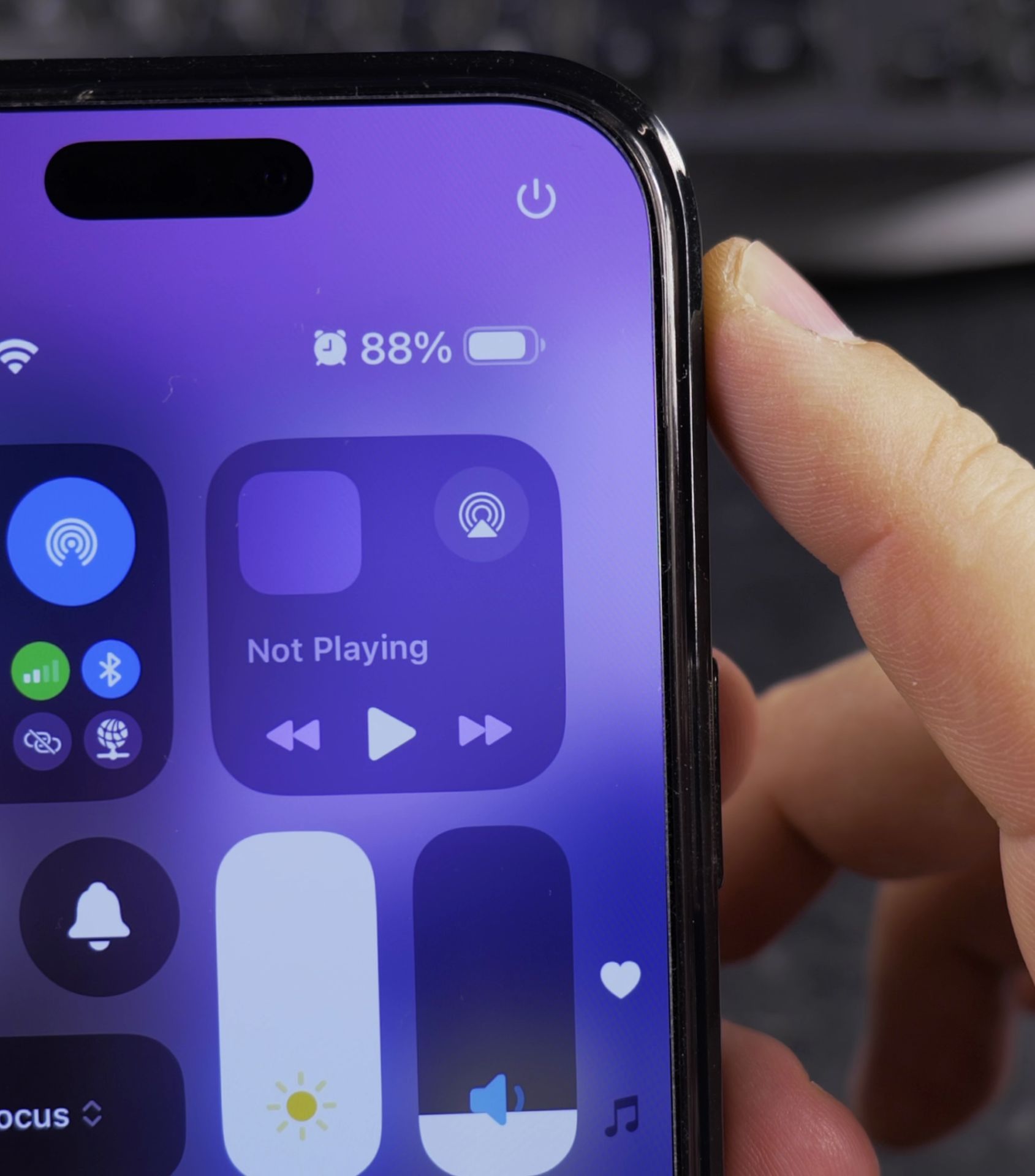
- Go to Settings > Accessibility > Touch > AssistiveTouch and turn it ON.
- Tap Customize Top Level Menu > Add New Button > choose Lock Screen.
- Now, tap the floating AssistiveTouch button > Lock Screen > hold the virtual power button until the shutdown slider appears.
- Slide to power off.
This trick is especially useful for iPhones with Face ID (no Home button).
Method 4: Force Restart (If Frozen & Unresponsive)
If your iPhone is frozen and won’t respond to touch, a force restart might help.
- iPhone 8 & Later (Including iPhone 16):
Quickly press Volume Up > Volume Down > then hold the Side Button until the Apple logo appears. - iPhone 7 & 7 Plus:
Hold Volume Down + Side Button until the Apple logo shows. - iPhone 6s & Earlier (With Home Button):
Hold Home + Side (or Top) Button until the screen goes black and the Apple logo appears.
Note: A force restart doesn’t erase data, it just reboots a stuck iPhone.
What If Nothing Works?
If your iPhone won’t turn off or respond at all:
- Let the battery drain completely, then recharge it.
- Visit an Apple Store or authorized repair center if the issue persists.
Conclusion
No power button? If you use Settings, Control Center, AssistiveTouch, or a force restart, you can still shut down your iPhone.
Need help with DFU mode or other iPhone tricks? Let me know in the comments and I might cover it in the next guide!
Helpful Tips
Take your time and check the screen carefully after each tap so you can confirm the setting changed as expected. If an option appears in a slightly different spot on your device, watch the embedded video above for a closer look.
Related Guides
- How to Add Flashlight Button to iPhone Lock Screen – If your iPhone lock screen is missing the flashlight button in the bottom corner, you can put it back in seconds.
- Enable iPhone Adaptive Power – iPhone Adaptive Power, How to Enable and Use It.
- How to Power Off iPhone 16 Pro Max – Turning off your iPhone isn’t as simple as it used to be.
- iPhone How-To Guides – Browse more tutorials and practical guides in this section.
Leave a Reply Cancel reply