


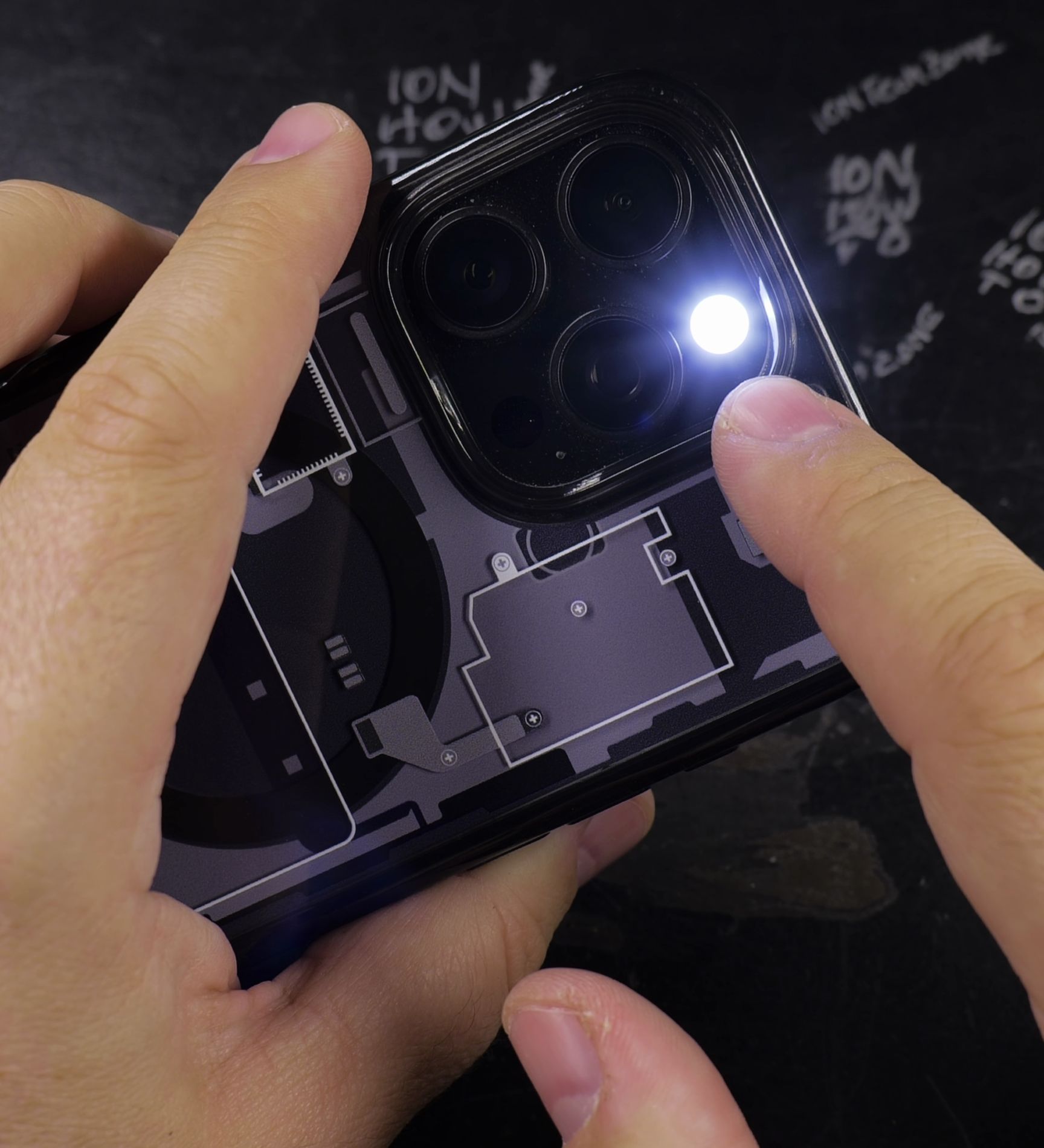
If the flashlight button is missing from your iPhone Control Center swipe menu, you can add it back in moments. I’ll show you how to open the controls editor and place the flashlight icon right where you want it.

1. Open Your Control Center
Swipe down smoothly from the battery icon in the top-right corner of your screen to open Control Center.
2. Enter Control Center Edit Mode
Press and hold your finger on any empty dark space on the screen until the icons wiggle and the **Add a Control** button appears at the bottom.
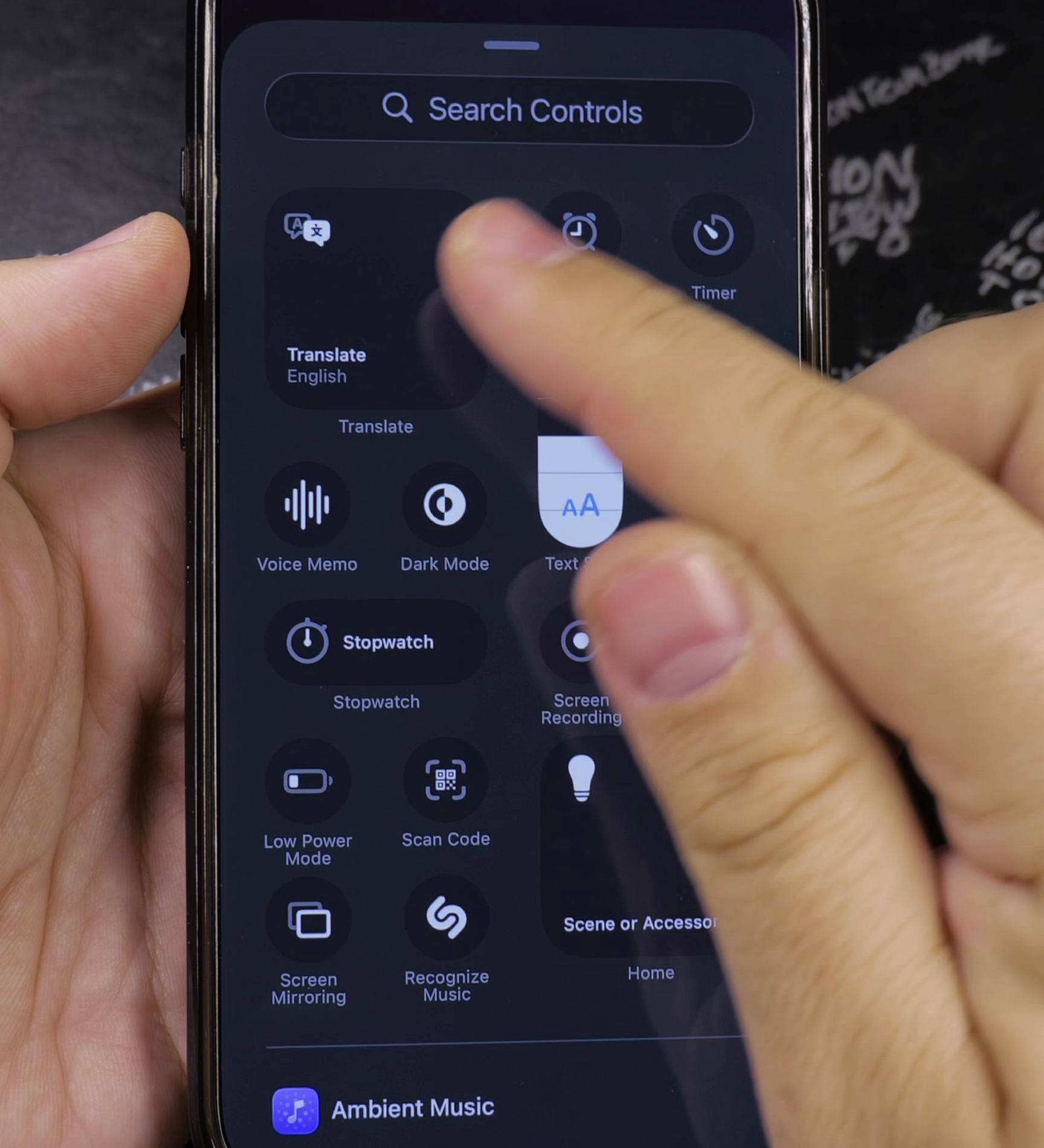
3. Tap Add a Control
Tap the oval **Add a Control** button at the bottom of the screen to open the controls gallery.
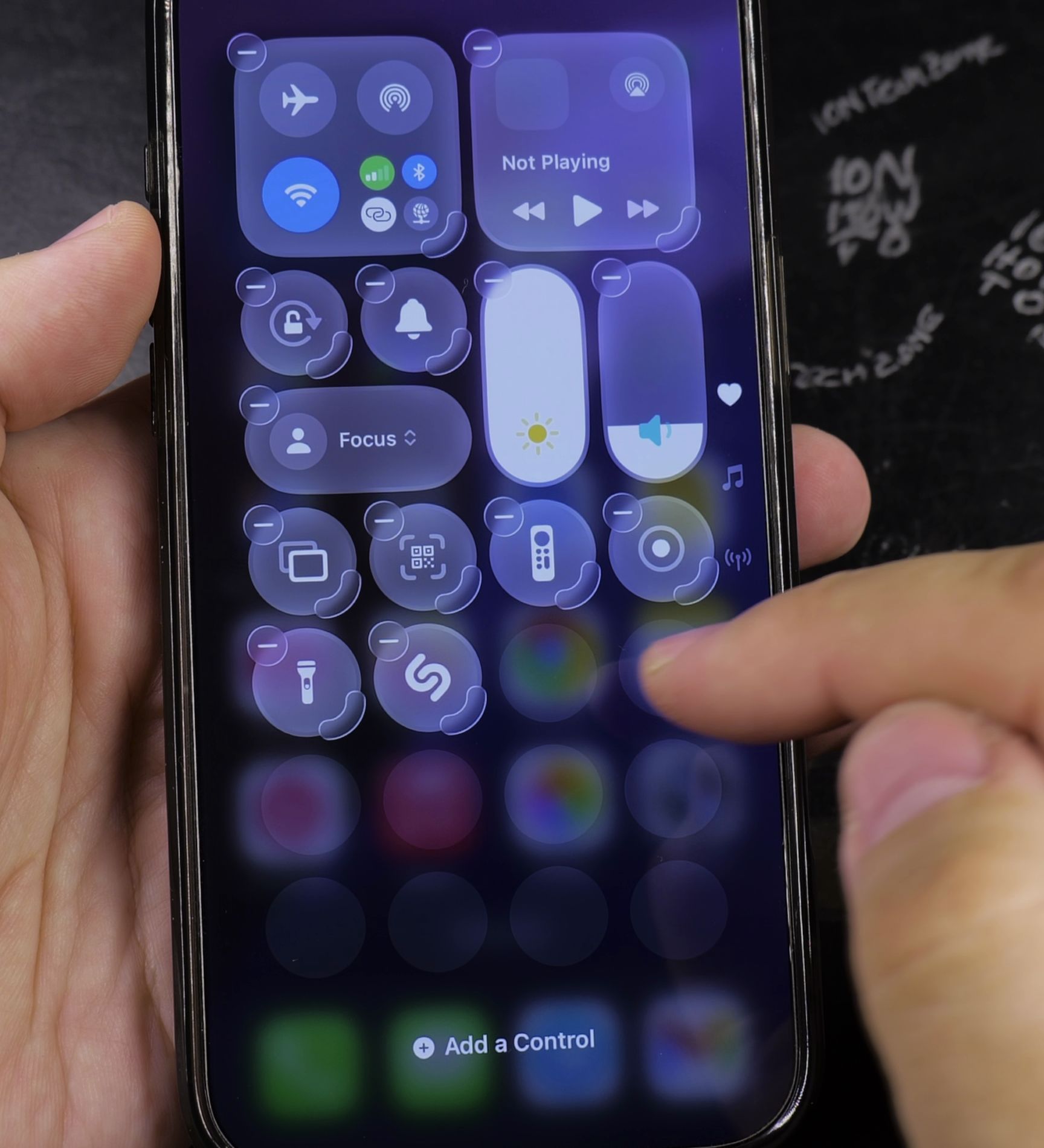
4. Select Flashlight and Exit Edit Mode
Scroll down to the Capture section and tap **Flashlight**. Tap anywhere in the empty background to save your new layout.
Helpful Tips
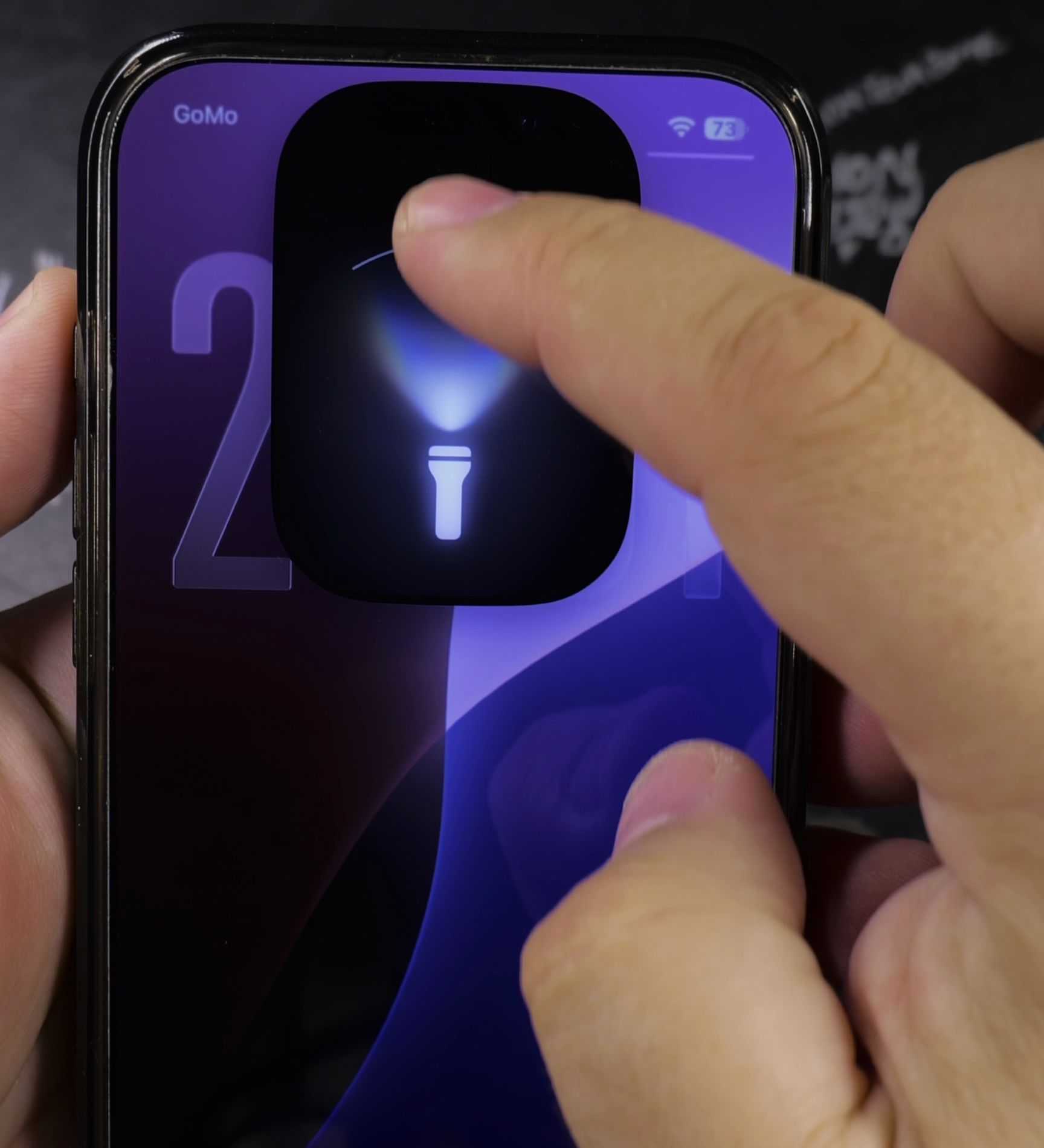
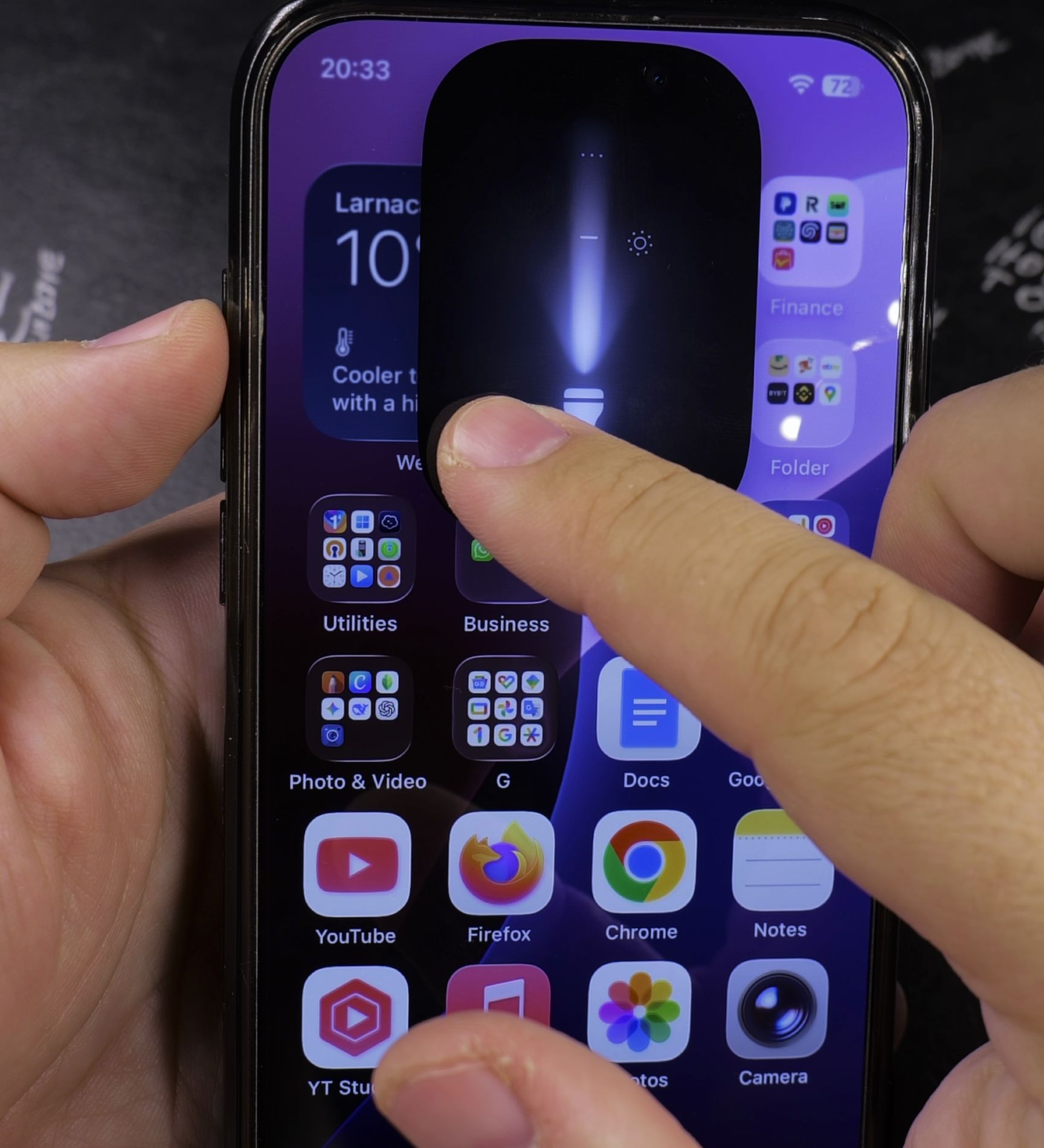
Once added, you can touch and hold the Flashlight button to adjust brightness levels across four intensity steps. For more helpful iPhone tips, check out our guide on Adding Flashlight to Lock Screen or visit our iPhone Guides hub.
Leave a Reply Cancel reply